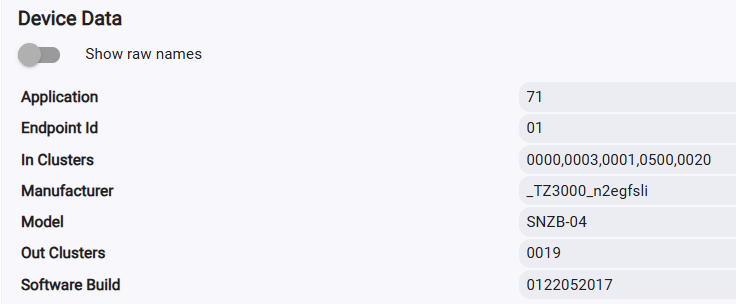
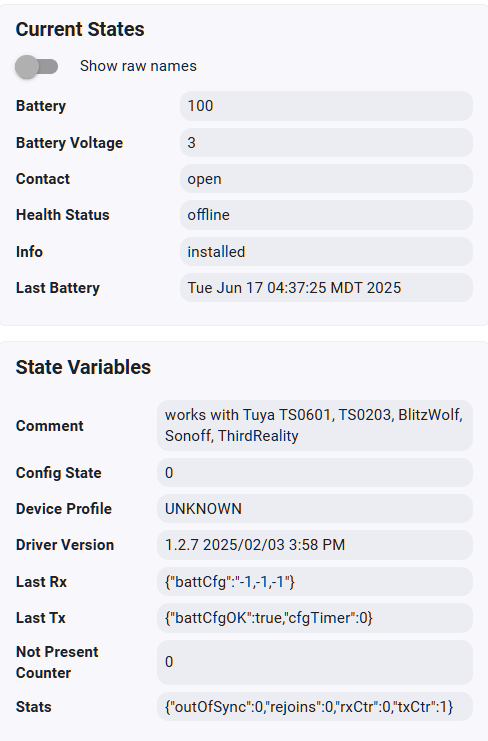
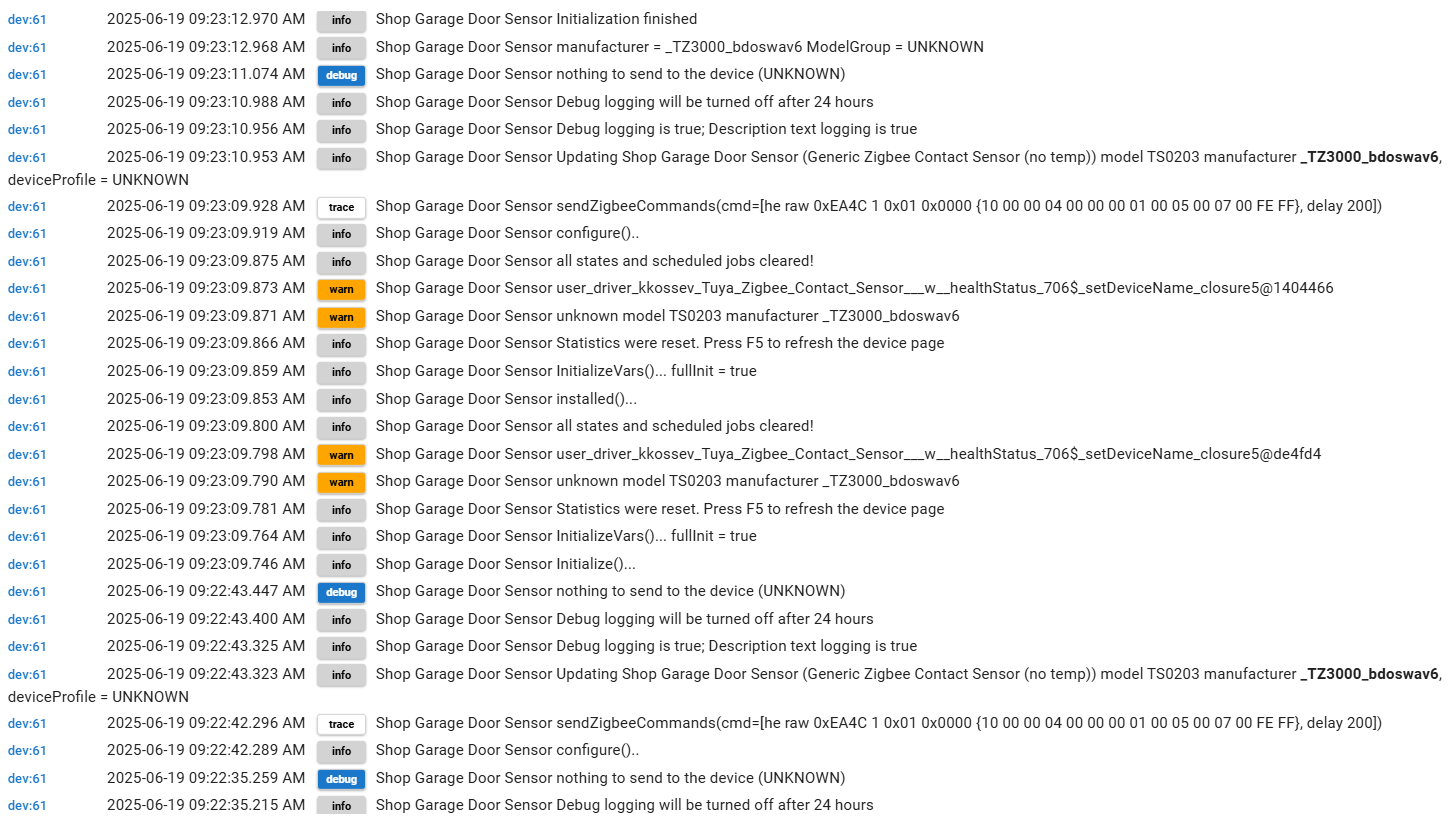
I bought a Maxcio Zigbee Door Window Sensor for use with Hubitat. It's identified in HE as Manufacturer _TZ3000_bdoswav6 and Model TS0203. I could not get it to work with the default driver so I installed this one (Tuya Zigbee Contact Sensor++ w/ healthStatus v1.2.7). After repairing, all seemed to be well. I moved it to its final position where it stopped responding and despite multiple successful repairings from that position, it still would not report any status info.
So I moved it back next to HE 2.4.1.177 where it still will not report. I've repaired it many times. I tried a second identical device. It also pairs successfully but stays offline and won't report status.
Any thoughts on what I'm doing wrong or might try? Thanks in advance.
No, I hadn't tried that. It might have helped but my bigger problem was that I wasn't going through the removal process. I was just re-pairing with HE recognizing the existing device. After formally removing the device and doing the 10 sec battery removal then pairing, it seems to be working. Thanks for the suggestion John_Land.
With ZigBee devices it should not be necessary to remove them from your hub during troubleshooting.
One of the nice things about ZigBee devices is the ability to factory reset them, then re-pair with a hub and retain all the existing assignments and rules for the device.
But if it worked for you, hard to argue with the results.
That's what I thought. For some reason, they just would not stay online and report until I did the removal. The first time I paired one of these, it worked after switching to the custom driver. But that only worked one time. There may have been some other voodoo going on that I didn't understand. I'm just glad they're working now.
I've been saying for years that there's no such thing as a Zigbee exclude. However, Hubitat does offer to do a Zigbee exclude and remove, and there wasn't much said to clear up the discrepency in this thread:
My "Modified Double Luck Voodoo" process for pairing problematic devices to Hubitat, based on the work of @kkossev. Please follow ALL of these steps precisely, not skipping and not adding anything else.
Bring the problematic Zigbee 3.0 device very close to your Hubitat hub but do NOT power it up (don't plug it in, and remove any batteries).
Go to Settings->Zigbee Details and click the "Rebuild Network" button and wait for the process to finish (the "Rebuild Network" button will become enabled again).
Click the same "Rebuild Network" button again and wait for the process to finish.
Go to Devices -> Add Device -> Zigbee but do not click on anything more yet.
Now power up the Zigbee device (plug in and/or insert batteries) and wait at least 3 seconds (some devices take longer, but those devices usually indicate when they are ready to pair).
Immediately click the "Pair while trying to avoid Zigbee 3.0 repeaters" link in the Hubitat dialog and confirm.
If the Zigbee device is not already in pairing mode due to powering it up, then start Zigbee pairing on the device by pressing the reset/pairing button (external or internal) or pushing the device's pairing button/switch combination (e.g., for some scene switches) for 3-21 seconds (varies by device, read the product literature for the device) until the device acknowledges that it is in pairing mode (usually by flashing an LED).
The device should pair, indicated by the dialog popping up where you name the device.
If this process does NOT work, repeat the process BUT press and release the device's reset/pairing button at 2 second intervals while the pairing process is attempting to pair.
Special note for Tuya-based devices: In many cases, they seem to pair the first time, but not all features are available. Accordingly, a "best practice" is to:
Pair the first time (using the regular process or the Modified Double Luck Voodoo Process above).
If the driver selected during the pairing process (see the "Devices Info" tab for the device) is not the one you want for the device, then select the preferred driver and click "Save", then on the Commands tab click “Configure“ (if available).
When changing drivers, it's generally a good idea to:
** change to the plain "Device" driver type;
** then use all the various "Delete all…" command options it offers to give the device a clean slate; and
** then switch to the driver you really want to use for the device.
After your preferred drive is selected and saved, pair a second time – without removing the device from Hubitat – by just using the regular Hubitat pairing process.
This second pairing process often causes additional Current States to appear on the Commands tab.
EDITS: changed reset time from "3-14 seconds" to "3-21 seconds" as I remembered some older devices; finally gave kkossev attribution!
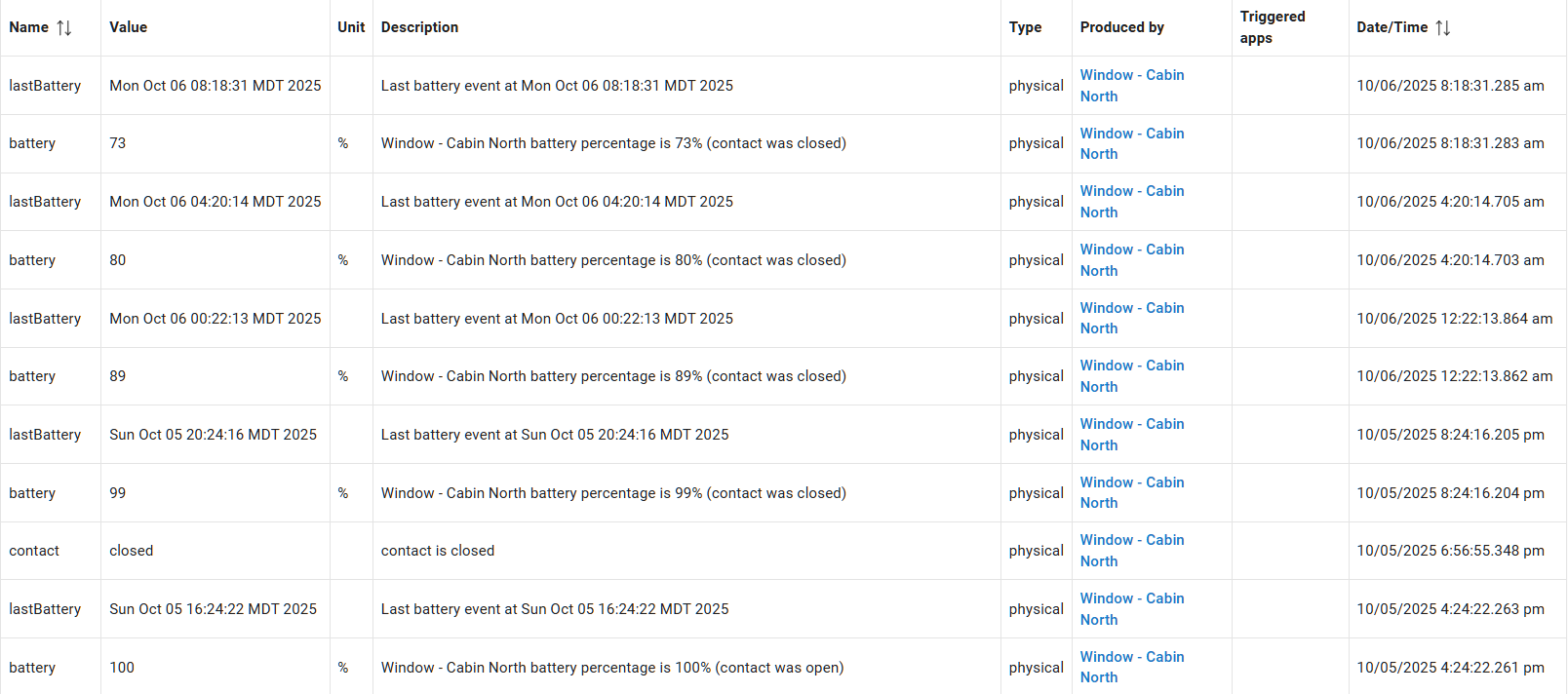
I'm having trouble with Zigbee door/window contact sensors battery life or battery reporting. I bought some Maxcio brand sensors that Hubitat identitied as Manufacturer: _TZ3000_bdoswav6 and Model: TS0203. I installed/configured the Tuya Zigbee Contact Sensor++ w/ healthStatus driver. Overnight, the Battery percentage on these drops from 100 to in the 70s. It continues to drop and goes to 1 within a few weeks. I've tried a different brand of battery with the same result. They're within a few feet of the hub or a repeater. There's very little open/close activity. I've read multiple posts across the internet without finding a solution.
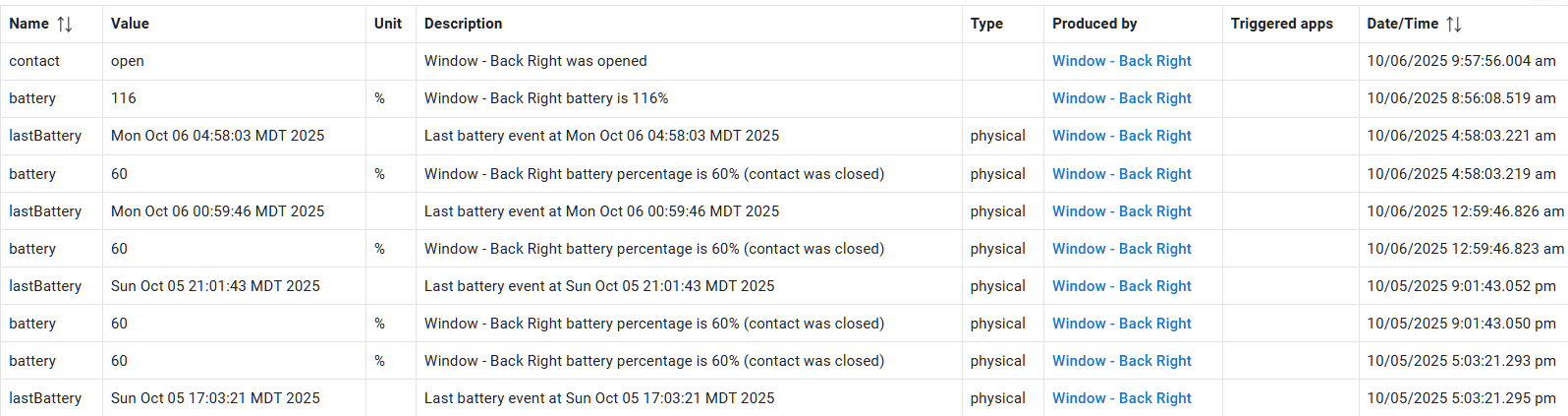
Today, I tried the Generic Zigbee Contact Sensor (no temp) driver and the Battery went from 60% to 116% after configuration. This makes no sense to me but suggests the issue might be reporting instead of actual battery life.
A ZM-CG205 (identified as eWeLink SNZB-04) that I installed yesterday isn't exhibiting the same behavior.
Does someone here understand the problem? I'll stick with the generic driver and see what happens over time.
Edit: I had forgotten the reason I used this Tuya driver originally. The generic driver fails to detect open/closed status. That's another problem for which there does not seem to be a consensus answer.
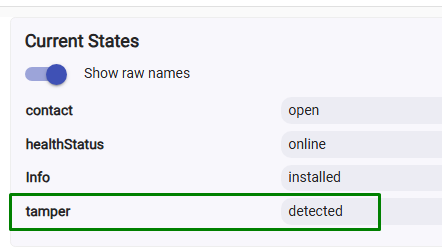
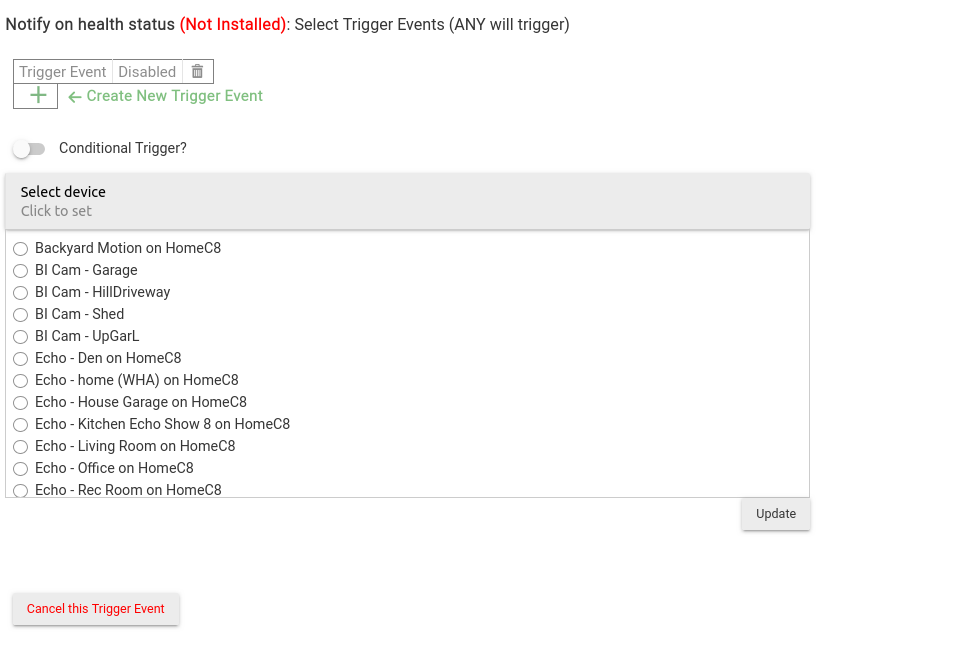
I just started using this driver and am happy with it. I've been trying to setup a notification rule for if devices go offline but can't come up with a clean way since healthStatus is a custom attribute you can't multiselect devices in rule machine. Ever consider changing healthStatus to presence so built in notification apps will work with it? Cheers!
For the past few years, I’ve actually been working to do the exact opposite — replacing the misused Presence capability with the community-supported HealthCheck capability and healthStatus attribute...
I’m not entirely sure what you mean by that — could you clarify or give an example of the situation you’re referring to?
And you can do it in Rule Machine with a Custom Attribute for the trigger, but you can only select one device at a time. So you'd need to add a bunch of triggers, or a bunch of rules, one for each device you want to monitor.
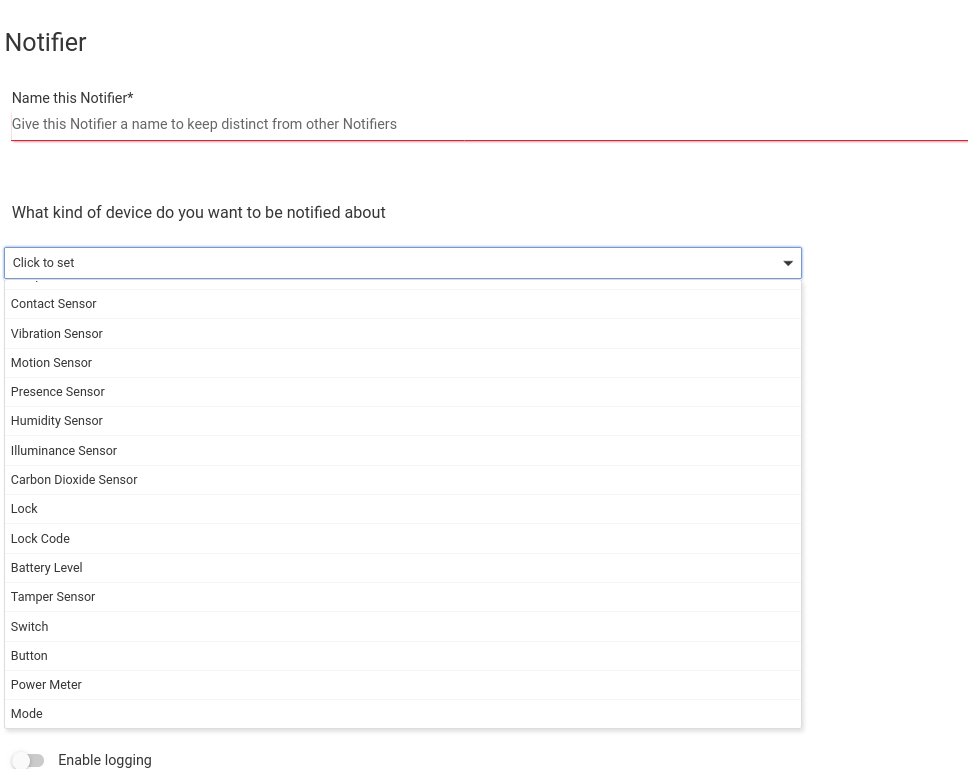
I tried using chatGPT to write a notification app for when devices go offline and I did get it working but you can't simply filter a dropdown list on devices that have a capability.healthStatus. My little app works, but you have to be careful to only select devices with the healthStatus attribute.
preferences {
    section("1. Presence Drop-off Monitoring (Attribute: 'presence')") {
        input "devicesToMonitorPresence", "capability.presenceSensor",
            title: "Select devices that report 'presence'",
            multiple: true,
            required: false

        input "targetValuePresence", "text",
            title: "Target 'presence' value (e.g., 'not present', 'away')",
            defaultValue: "not present",
            required: false
        paragraph "Devices selected here will be monitored for the 'presence' attribute."
    }

section("2. Health Status Drop-off Monitoring (Attribute: 'healthStatus')") {
    input "devicesToMonitorHealth", "capability.actuator, capability.sensor, capability.motionSensor",
        title: "Select devices that report 'healthStatus' (Actuator or Sensor)",
        multiple: true,
        required: false

    input "targetValueHealth", "text",
        title: "Target 'healthStatus' value (e.g., 'offline', 'dead')",
        defaultValue: "offline",
        required: false

    paragraph "Devices selected here will be monitored for the 'healthStatus' attribute."
}
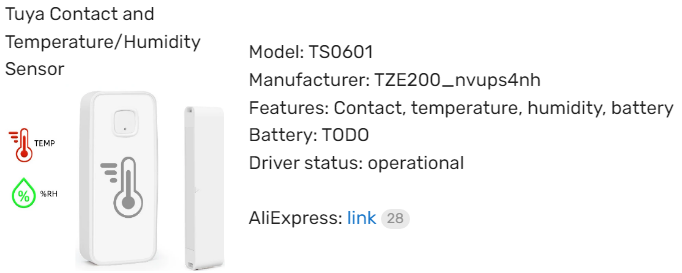
Hi all, does anyone know if this is still available? The link is unfortunately not working anymore. I am interested in a contact + temperature combined sensor.
WELL The TUYA MASTER has SAVED THE DAY again!!!!!
Thank you SO much for all your help with this and my shades in the past!!!!
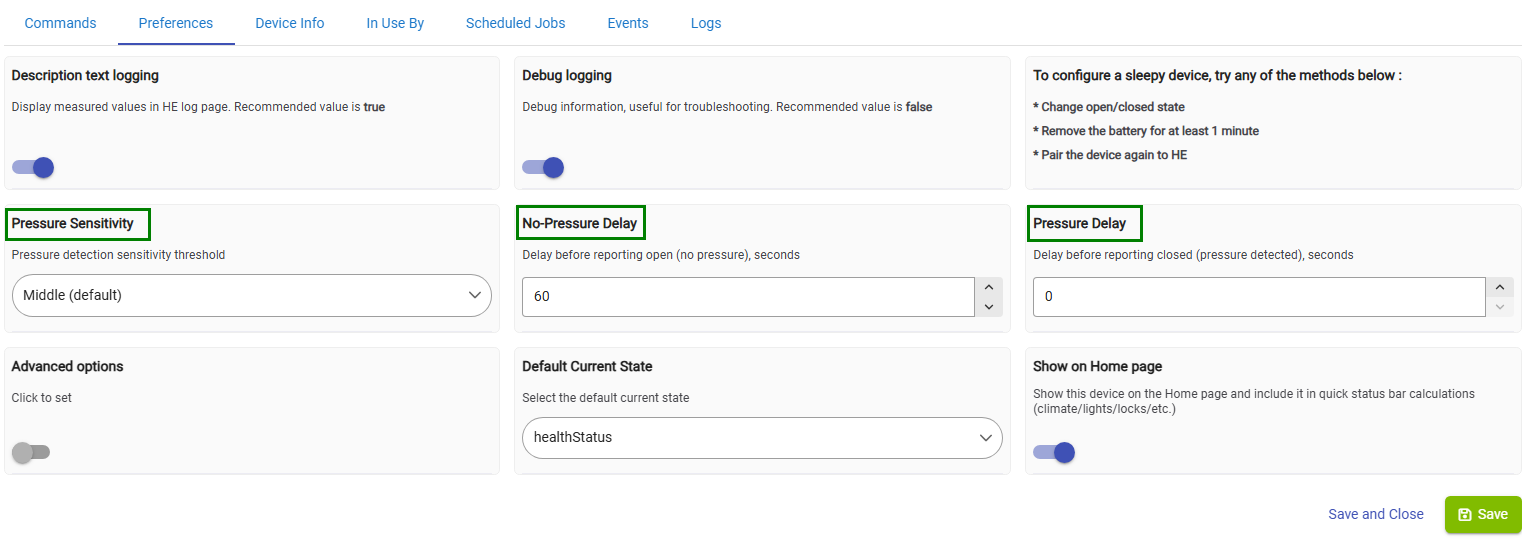
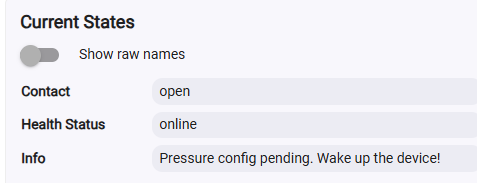
I don't know if it is me or not, but in the device page, the message to Wake the device will not go away...
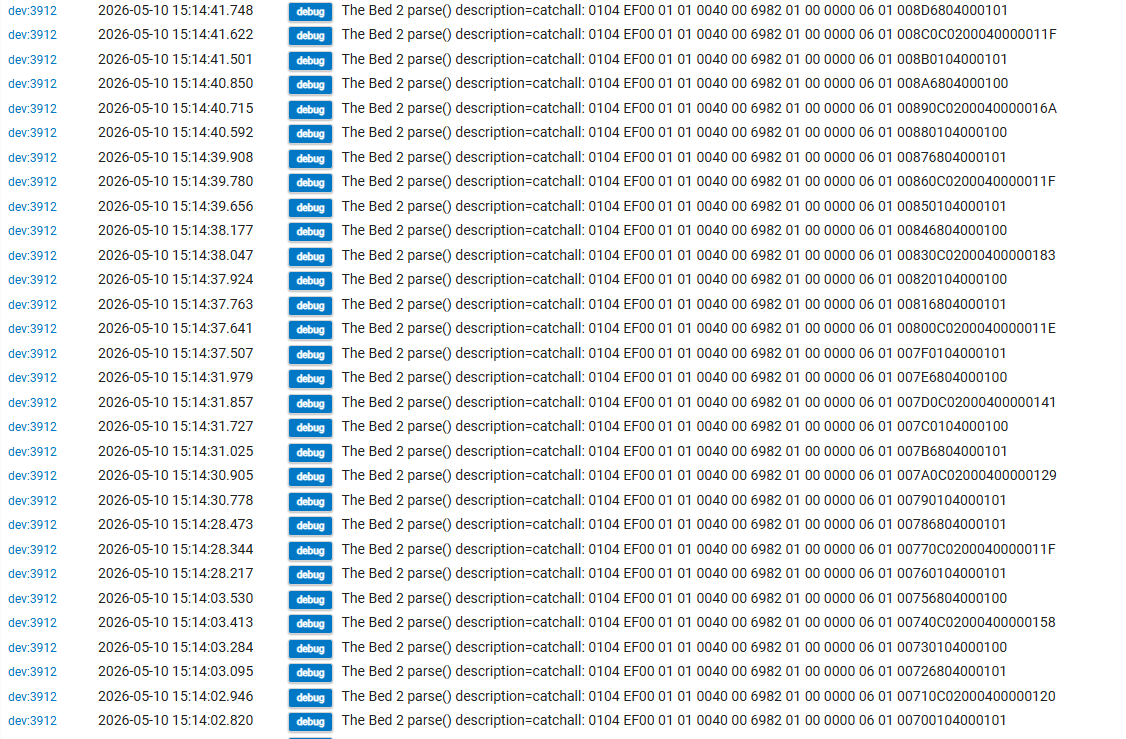
and the contact status doesn't change, but in the log I see the strip working:
Here is a partial shot of the debug log when I press and release the strip:
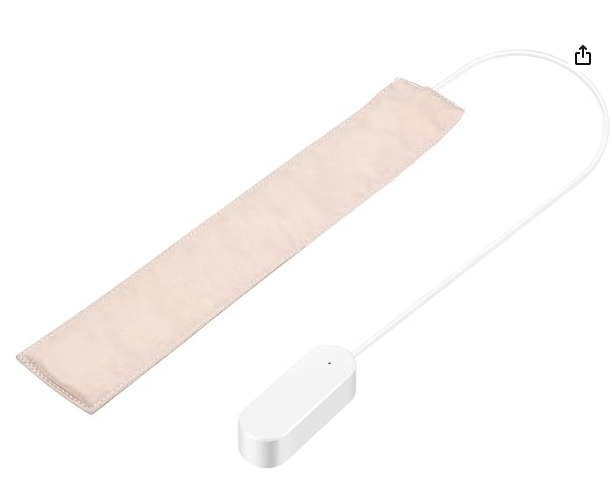
How does the strip determine open/close status, or do I use the pressure value in a rule and perform a comparison to determine my own open/close or present/not present?
Thank you so much again for this!
The TRUE Tuya Master!!!!

 With ZigBee devices it should not be necessary to remove them from your hub during troubleshooting.
 Lounge - Hubitat