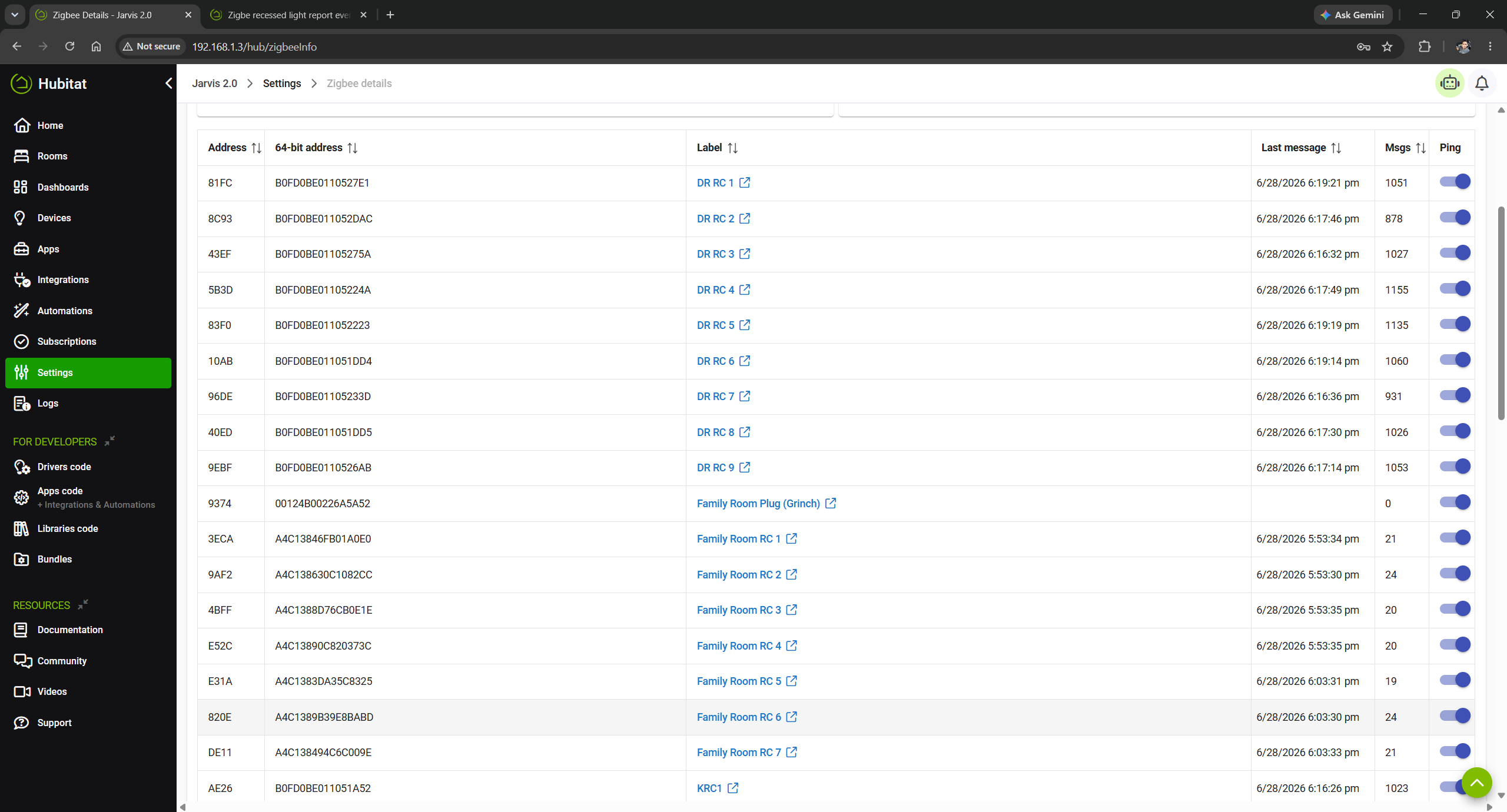
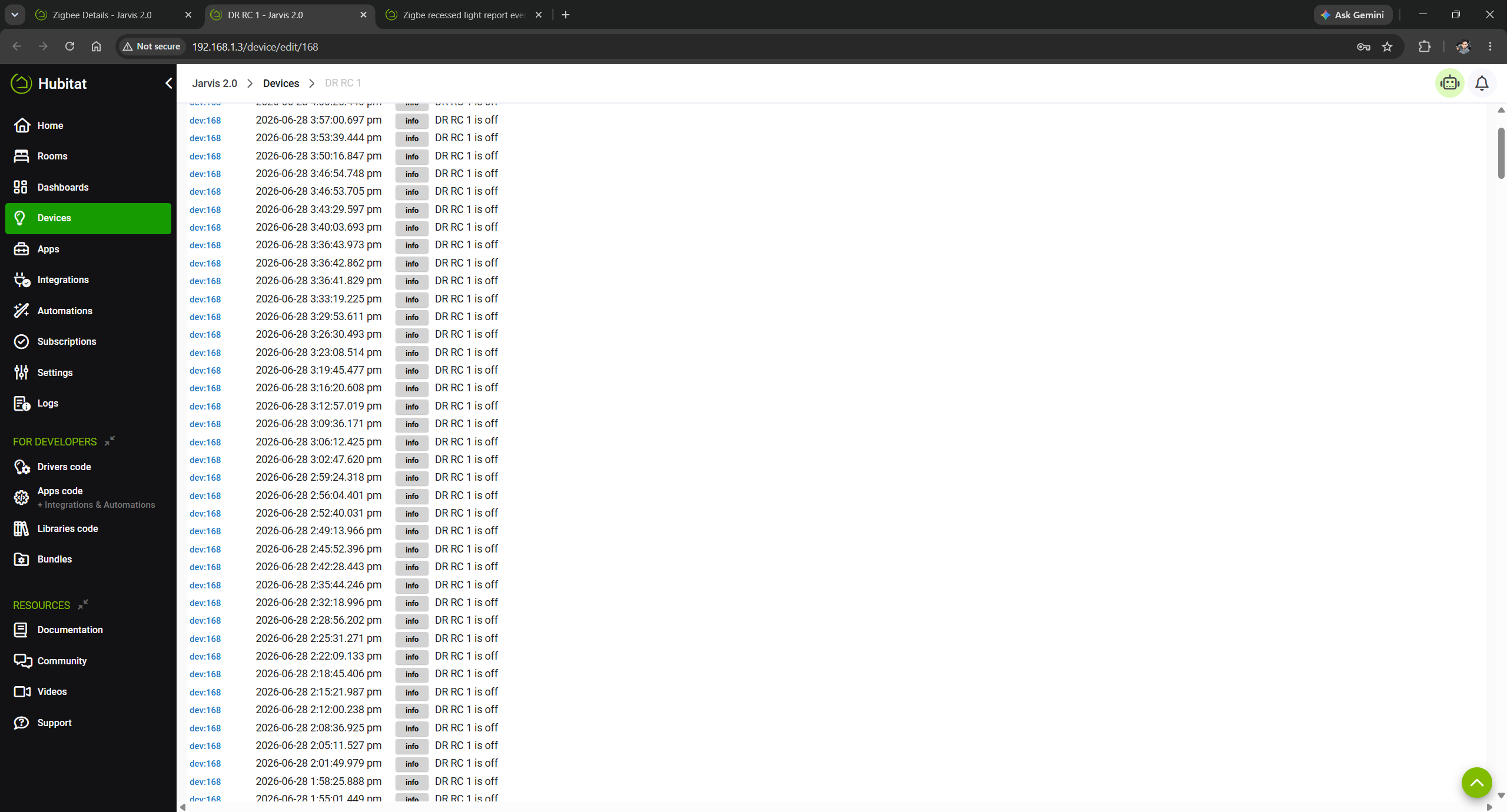
Ive got several recessed zigbee light who report theirs state every 3 mins even if they have been off, when checking the activity log i notice 900 or so message from this bulbs. does this slow down my hub? they run under the advenced rgbw zigbe driver. i have other of a different brand that do not do this running on the same driver. I've got several Zigbee recessed lights that report their state every 3 minutes, even when they've been off for hours. Looking at the activity logs, I noticed they're generating around 900 events each day just reporting "off."
My main question is: does this kind of constant reporting slow down the Hubitat hub or impact overall performance?
These lights are using the Advanced Zigbee RGBW Bulb driver. I also have other Zigbee recessed lights from a different manufacturer using the exact same driver, and those do not report every 3 minutes.
Has anyone run into this before? Is this likely a firmware issue with the bulbs themselves, a Zigbee reporting configuration problem, or something else? Any suggestions on how to stop the constant state reports would be appreciated.
A few messages every 3 minutes isn’t noisy enough to be a problem with the hub or mesh, I don’t think, but I can see where they’d be annoying.
What is the manufacturer and model of the bulbs? Just because the driver isn’t exposing some preference for pacing those messages doesn’t mean there isn’t a way to change it. I think you are right to be looking to the bulbs themselves for a remedy, although maybe a different driver would ignore them (which doesn’t reduce any impact they may have on hub or mesh).
Well, say i have about 41 of them so far with plans to add more in the house, they work perfectly fine and I have not noticed a delay in hub, however earlier looking at my logs i noticed this happening and compared them to others i have on the same driver but different brand that do not do this.
These are the lights Xsky Smart Recessed Lighting 6 inch 12 Pack Dimmer Switch and Matter Bridge Include, Zigbee 3.0 Matter Light, RGBCW Color Changing, Dimmable Downlight, Alexa/Google/Siri/Home Assistant Compatible - Amazon.com
they are paired directly into Hubitat, again everything seems to be working great so no complaints on the devices so far other than that.
41+ is several indeed.
Have you contacted the manufacturer for their recommendation? There may be some parameter you can set using a temporary device driver that will quiet them some.
Just curious .. what does the Preferences tab on the Device page look like?
Maybe method 2 below?
______________________________________________
To modify the self-reporting message rate of your Xsky Zigbee lights on Hubitat Elevation, you cannot use a universal raw menu. Instead, Hubitat relies on Device Drivers to push these configurations. [1, 2]
You have three paths to change the reporting rate depending on whether your current driver exposes the settings, if you need to swap to an advanced utility driver, or if you want to alter the code yourself.
Method 1: Check Your Current Driver Preferences (Easiest)
Some native Hubitat generic drivers expose reporting intervals directly in the user interface. [1]
-
Log into your Hubitat Web UI.
-
Click on Devices in the left sidebar and select your Xsky Light.
-
Scroll down to the Preferences section.
-
Look for options labeled Reporting Interval, Minimum time between reports, or Power/Level Reporting Frequency.
-
Adjust the values (usually defined in seconds or minutes).
-
Click Save Preferences.
-
Click Configure at the top of the page to force Hubitat to send the new check-in parameters to the light. [1, 2, 3, 4, 5, 7, 8, 9]
Method 2: Use the "Zigbee Reporting Configuration" Utility Driver
If your active driver does not show these adjustments, you can temporarily switch the device to a community-built configuration driver to alter the hardware registry. [1]
-
Go to your Xsky Light's Device Detail page in Hubitat. [1]
-
Find the Type dropdown box (this is where your driver is selected). [1]
-
Change the driver to a custom utility driver like "Zigbee Reporting Configuration" (a widely used community tool by developer kkossev) or "Advanced Zigbee Toolbox". Click Save Device. [1, 3, 4, 5]
-
The page will refresh with direct cluster input variables. Find the fields for:
-
Cluster ID: 0x0006 (for On/Off state) or 0x0008 (for Dimming Level).
-
Attribute ID: 0x0000.
-
Min / Max Time: Enter your desired reporting bounds in seconds. [1, 2, 3, 5]
-
Click Send Configuration To Device. []
-
Once modified, change the Type dropdown back to your original operational lighting driver (e.g., Generic Zigbee Dimmer) and click Save Device. The light will remember the intervals you just burned into its flash storage. [1, 2, 3, 4]
1 Like
Some manufacturers (mostly Chinese) have chosen to send automatically the on/off status too frequently, as a keep-alive / heartbeat mechanism. Sending 900 messages per day over the air is harmless, even if you have 200 such devices. It can not affect or congest a healthy Zigbee network.
Seeing the 'device is off' log messages is annoying and adds extra load on the HE hub. So your practical approach could be to simply turn off the Info logging for these devices.
@mike.maxwell may evaluate the possibility of suppressing the on/off Info logs in the HE stock drivers when there is no state change.
2 Likes