I am on Quantum Fiber
probably need to change your dns server and retest enter 1.1.1.1, 8.8.8.8
or
The DNS servers for Quantum Fiber are 205.171.3.65 (primary) and 205.171.2.65 (secondary). You can confirm these numbers by checking your network settings or contacting Quantum Fiber.
How to access Quantum Fiber modem settings
- Connect to yo
1 Like
@kahn-hubitat the DNS issue was resolved a while ago by setting the hub back to DHCP.
The only remaining issue is that the mobile app is not detecting the the hub as "Local" even when on the same LAN. This will be a problem if you want to use Z-wave SmartStart or the upcoming Matter onboarding. I believe they both require the hub to be detected as local.
Or maybe use the old app which i still use. Dont think it has the differentiation between local and remote?
I discovered that when I resolved against my ISP's dns server every query resolved to their proxy. So I aim my resolver at 1.0.0.1, 1.1.1.1, 8.4.4.8, 8.8.8.8... Something you trust and accepts query's from the public. That way I was no longer redirected into their proxy. Why they wanted to intercept all my traffic, I didn't care I only prevented it.
Sorry. Noob here.
Change DNS in the quantum modem, the unifi CGU or on the HE?
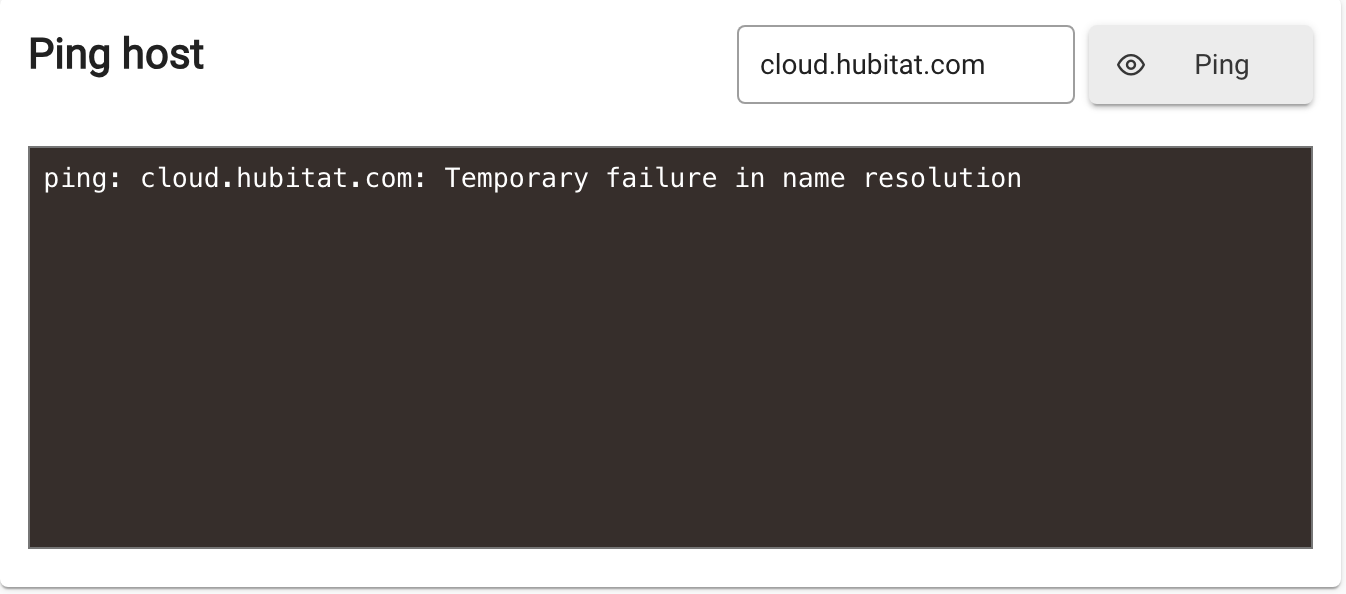
Very early in this thread you couldn't ping my.hubitat.com because you had a static IP on the hub, and you were using 75.75.75.75 as your DNS server.
That problem was resolved when you switched to DHCP.
Perhaps repeat the ping test to verify this.
I prefer to let dhcp hand out those addresses. One place to change if ever need be. So usually, everything except your router and whatever hands out you dhcp leases (if it isn’t the same) should get address automatically. Then, change those addresses on the dhcp server to make them “fixed”.
Here are the results. Accessing he via ip address
PING d1tvawzvbxb9go.cloudfront.net (3.163.189.46) 56(84) bytes of data.
64 bytes from server-3-163-189-46.sea90.r.cloudfront.net (3.163.189.46): icmp_seq=1 ttl=250 time=3.18 ms
64 bytes from server-3-163-189-46.sea90.r.cloudfront.net (3.163.189.46): icmp_seq=2 ttl=250 time=4.42 ms
64 bytes from server-3-163-189-46.sea90.r.cloudfront.net (3.163.189.46): icmp_seq=3 ttl=250 time=4.12 ms
--- d1tvawzvbxb9go.cloudfront.net ping statistics ---
3 packets transmitted, 3 received, 0% packet loss, time 2003ms
rtt min/avg/max/mdev = 3.175/3.907/4.423/0.531 ms


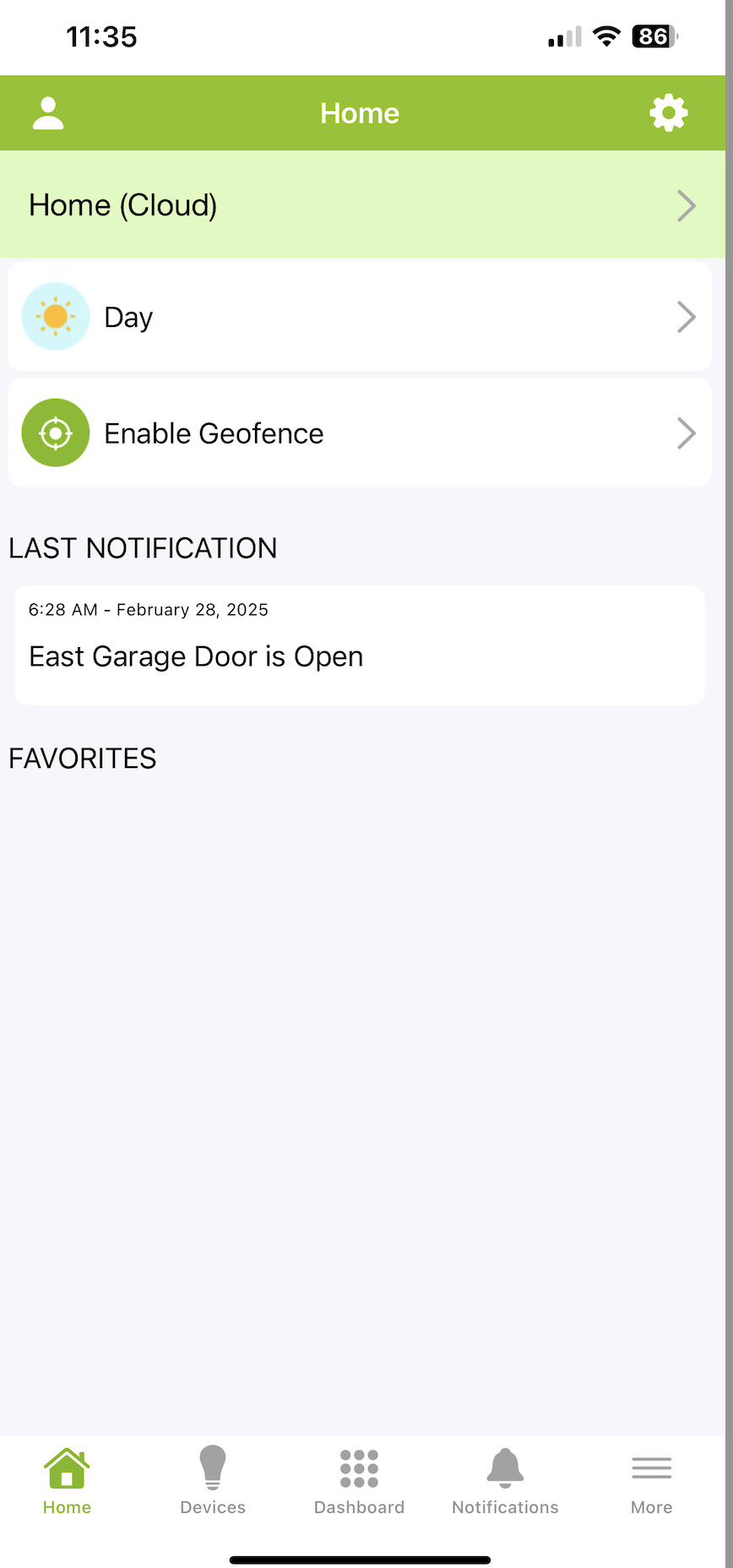
Seems like the hub was discovered by mDNS based on that screenshot?
Yes correct. This was a test from a desktop computer on my home network.
Still same issue with the app though.

To make the test meaningful, you should be testing if the hub is discoverable by the same phone that the app is running on. The desktop may work fine, but a problem on the phone may block access from the app.
1 Like
In an earlier post I speculated as to how the app discovered the IP of the hub, since it cannot be entered into the app.
One guess was that the app used mDNS, but that seems to have been ruled out.
I "think" the app may connect to my.hubitat.com, to determine the IP used by the hub during it's last handshake. I "think" this because every time I open the app it makes an initial Cloud connection for about 1-2 seconds before showing a Local connection.
Your image shows that the app obtained the proper IP from the cloud, and it should then try to connect to that IP, which it apparently can't do.
As far as I can tell, you have not reinstalled the app after resolving your initial misconfiguration of the static IP on the hub, Since that problem has been resolved by switching to DHCP, it might be worth the effort to try a complete uninstall and fresh reinstall of the app.
Yes that first part is correct. The second part, not sure. I think at one time it just looked at the IP of the hub and the IP of the device, and if on the same subnet it assumed local. They have made a lot of changes since that was said so who knows now.
Another thought though, when you first ran the app it should have asked for a bunch of permissions. Did you accidentally deny any? Go to the device settings, scroll down to the apps at bottom, find Hubitat. Make sure all permissions are enabled (especially Local Network).
2 Likes
Interesting. When I go to settings - Apps Hubitat these are the only choices I see.
I don’t see any network settings.

That’s the old app. It is no longer supported, AFAIK.