Hubitat integration for go2rtc — the "ultimate camera streaming application".
Point this app at your go2rtc server and each camera / stream becomes a Hubitat device with a still image and its RTSP URL, ready for dashboards, rules, and the HD+ app.
Features
Auto-discovery of every stream configured on your go2rtc server (via its REST API)
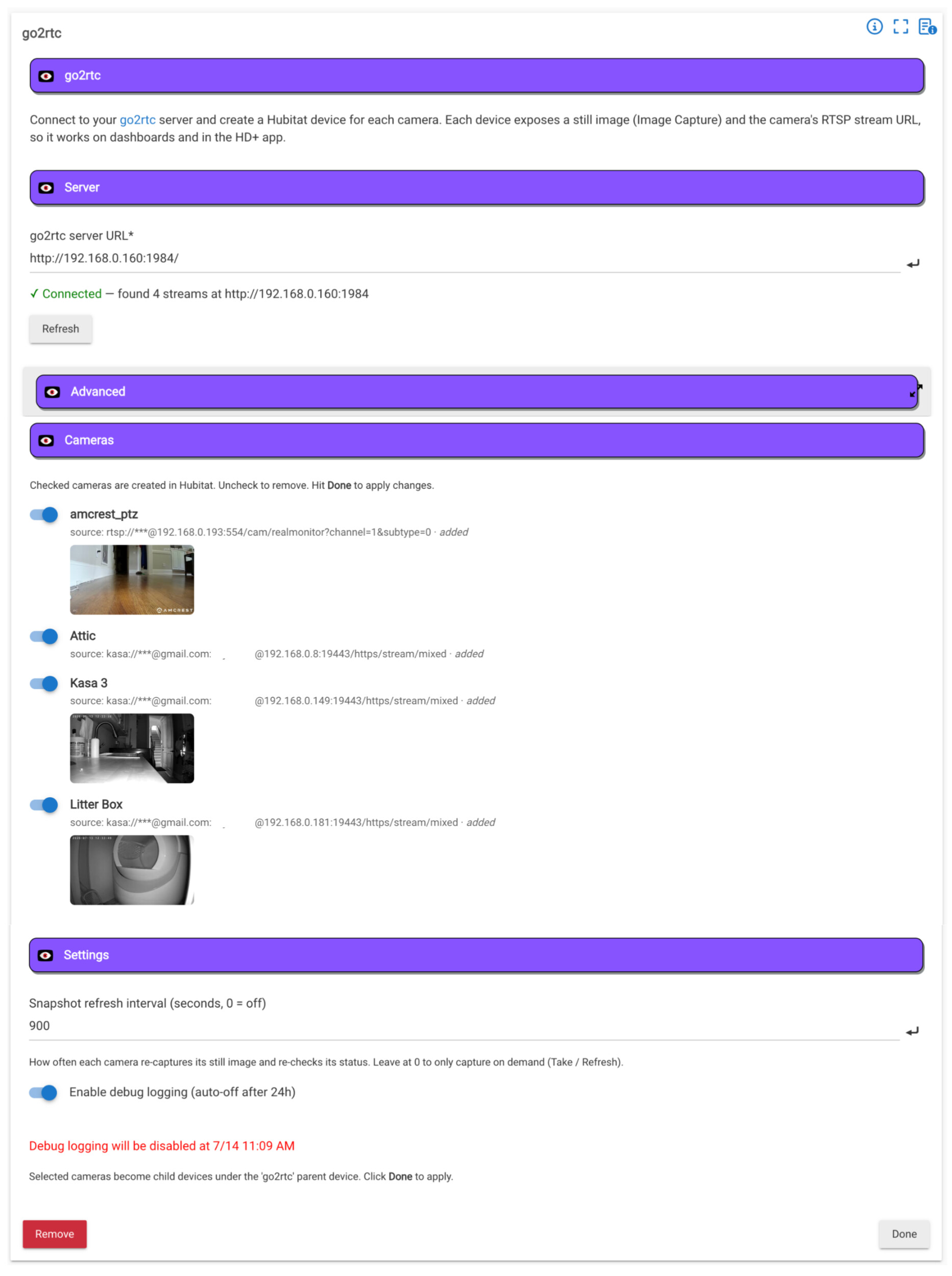
Pick which cameras to create — a toggle per camera, with a live snapshot thumbnail and source info
Still image on each camera device (Image Capture) — pulled on demand or on a schedule
RTSP stream URL published in a video attribute for players that support it
Auto-cleanup — if you rename or remove a camera on go2rtc, the orphaned Hubitat device is flagged and removed when you hit Done
Installation
Install via Hubitat Package Manager (HPM) — search for go2rtc. It installs three pieces:
go2rtc (app)
go2rtc Parent (driver)
go2rtc Camera (driver)
Setup
Hubitat Integrations → Add integration → go2rtc
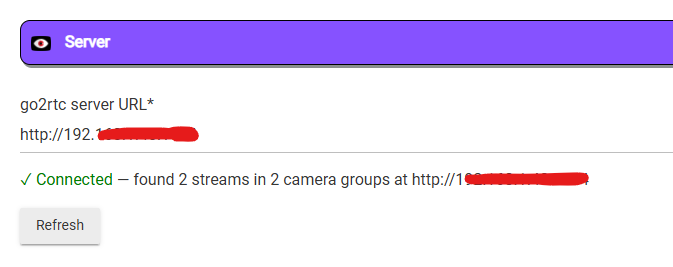
Enter your go2rtc server URL — e.g. http://192.168.0.160:1984/ — and click Refresh.
The app lists every camera on the server. Uncheck any you don't want.
Click Done. A go2rtc parent device is created, with one child device per selected camera.
If your go2rtc server requires authentication, expand Advanced and enter the username / password (also used
to build the RTSP URL). The RTSP port defaults to 8554 and can be changed there too.
Discovery uses go2rtc's REST API: GET {server}/api/streams returns every configured stream, keyed by name.
Each camera device exposes:
image (Image Capture) — points directly at the live still URL {server}/api/frame.jpeg?src=NAME with a
cache-busting &refresh=<timestamp> on the end. Nothing is downloaded to the hub; your dashboard/browser
fetches the frame straight from go2rtc. The refresh value only changes when a refresh is actually triggered
(the Take command, device Refresh, or the app's poll timer), so the image caches in between and reloads
exactly when you want a fresh frame.
video — the camera's RTSP URL, rtsp://[user:pass@]<host>:<rtspPort>/NAME. (Hubitat's built-in
VideoCapture capability has no useful live-stream attribute, so the URL is published here.)
snapshotUrl — the same still-image URL without the cache-buster, handy for an HD+ image tile or direct use.
source / status — the producer source (password masked) and whether the stream is present on the server.
The parent device is a simple status tile: how many cameras exist and how many are online.
Snapshot refresh
The image URL's cache-buster changes only on demand — the Take command, the device Refresh, or when the
device is first created. Set a Snapshot refresh interval in the app to have every camera bump its image URL
(and re-check status) on a timer, so dashboards auto-refresh the frame every X seconds.
Renamed / removed cameras
go2rtc stream names are user-editable. When a camera's stream name no longer exists on the server, its Hubitat
device is listed (disabled) at the bottom of the app under No longer on the server and is deleted when you
hit Done.
Notes
The app fetches over your LAN each time the config page opens; if the server is unreachable the page shows the
error and no cameras. Check the URL (include http:// and the port) and that go2rtc is running.
Snapshot images can be large — set a Snapshot width on a camera device to downscale (go2rtc resizes for you).
I started this app as a simple way to pull in and create Hubitat devices for each of the cameras I added to the go2rtc server which I'm running on a local device.
I'm planning on using it with HD+ dashboard to display an auto refreshing view of some cameras. Since go2rtc supports both still images and live RTSP video the app will have a way to quickly switch between the them.
However, I'll also make this work on other dashboards -- just let me know what needs to change.
side-note -- I'm using ImageCapture capability from the official Hubitat docs link but there's not a good video capability from what I see (VideoCapture only lists a single attribute - JSON - and it doesn't describe the format). If there's a more official way to capture this let me know.
also, I read the go2rtc can support panning/zooming cameras that support that feature. I am hoping to eventually support that as well in the app as well as HD+ -- some kind of arrow overlay that can be used to pan the camera around. If anyone has any experience with that let me know!
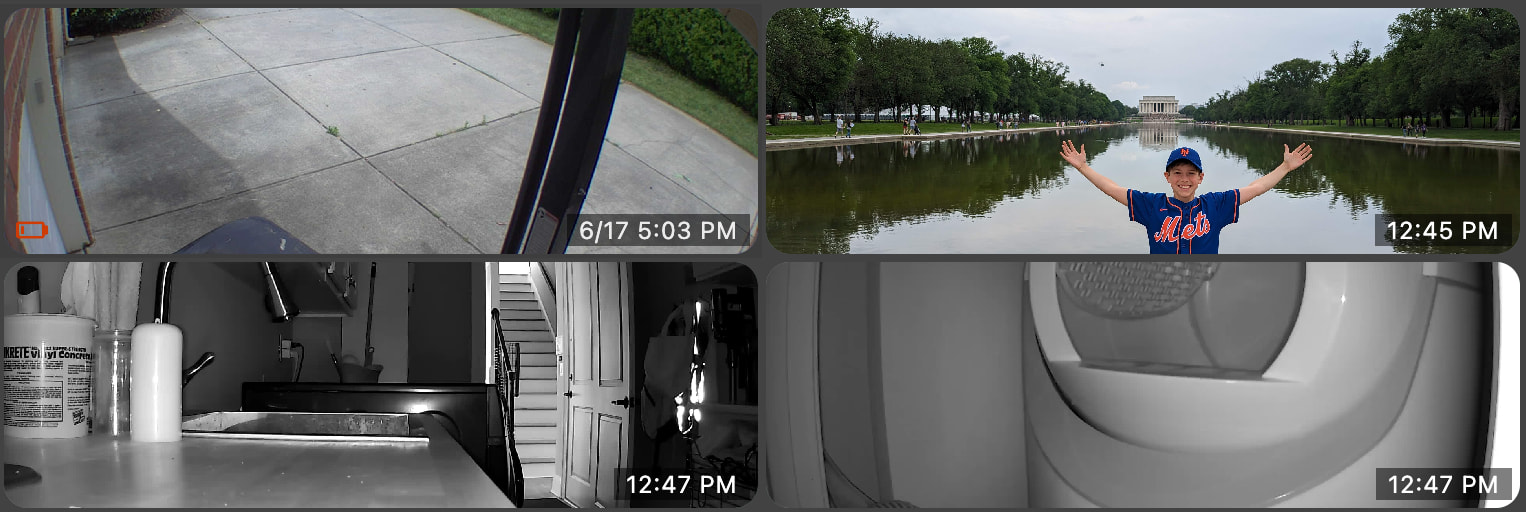
I'm using go2rtc for the following camera brands: Kasa, Reolink and Amcrest
This is great work! I'm thinking about using it for my dashboard. I did have to modify it because I wanted to include multiple streams in each camera device, so I sent you a merge PR request through GitHub.
More cool stuff from you. So what hub(s) have you tested this on? Is it your expectation that this will run on any hub, or what level required (C7 or C8 or C8-Pro)?
I just tested on my C8 but there’s nothing in here (that I’m aware of) which would prevent it from running on any hub. It doesn’t do any video streaming itself - it really just creates child drivers for each camera you have setup in go2rtc - and sets the device attributes: image/video/etc
The dashboard has to do all of the work to stream the video - download the image
@evbenev - I made a couple of small changes - shouldn’t break anything but wanted you to take a look if interested
I was using spaces in my camera names (ie: “Attic Camera”) and the video attribute didn’t URL encode them.
I also added a new attribute, videoWeb. I don’t know if it’s 100% needed or not.. when trying to figure out why my video stream wasn’t working (the space bug) I noticed go2rtc’s default video stream uses port 1984 where all of my video attributes used port 8554. So, videoWeb just points to the default stream that you’d get from the web version (in case there’s some issue with port forwarding)
I got go2rtc running on my Unraid server, pulling in a couple of my UniFi cameras. The app installed and works without issue on my C8 Pro. Testing things out with mDash and everything there works beautifully as well.
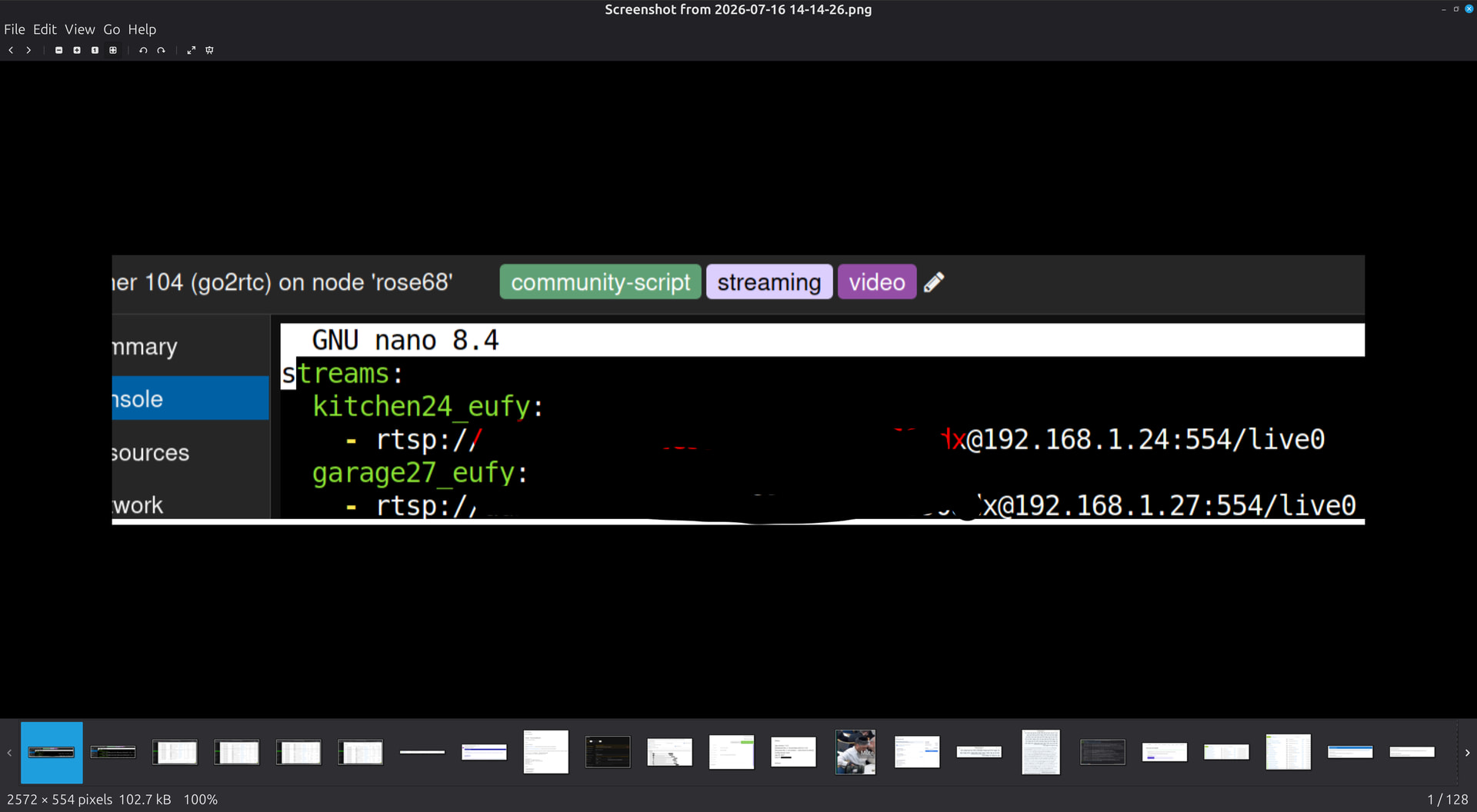
I am not sure that your program picks up multiple cameras that are in my go2rtc server.
It picked up the first camera, no problem. I just added multiple lines to the go2rtc.yaml file (just like the first line), and they are not picked up by the Hubitat program.
 So what hub(s) have you tested this on? Is it your expectation that this will run on any hub, or what level required (C7 or C8 or C8-Pro)?