It works sometimes. I updated the rule, perhaps I am using the wrong driver. All I have it set to do is turn on 2 lights on.


Probably not the right driver ...
Was the driver you are using now selected automatically during the inital pairing?
What device is this?
Yes, that is correct. That’s why I was thinking there might be a better driver.
Would you please provide the information that I need : (click on the link) : How to Identify a Zigbee Device
In addition to doing what @kkossev suggested, I suggest ignoring your rule until you’ve confirmed you’re using the right driver, and the device works as intended by watching it flip between motion/no motion from the device’s settings page.
As things stand now, you don’t know if the rule isn’t working because of the device (driver), or because of the rule.
Haozee - Presence Sensor (506) details
Device name Tuya Multi Sensor 4 In 1
Device label Haozee - Presence Sensor
Device Network Idedit
Zigbee Id - - 0C4314FFFE52AD8B
Type (currently user )
Room
Dashboards
Event history size* per event type (1-2000)
State history size* per attribute (1-2000)
Too many events alert threshold* per hour (100-2000 )
Hub Mesh enabled
HomeKit enabled
Tags
Custom icon
?
Device note
Device Details
| Create Time | 6/26/2026 3:45:37 pm |
|---|---|
| Last Update Time | 6/27/2026 4:31:07 am |
| Last Activity At | 6/27/2026 2:51:00 pm |
| Controller Type | ZGB |
Device Data
Show raw names
| Application | 64 |
|---|---|
| Endpoint Id | 01 |
| Manufacturer | _TZE200_gkfbdvyx |
| Model | TS0601 |
| Tuya Version | 1.2.4 |
That looks like information for a z-wave (i.e. a different) device.
Sorry - too much of a hurry
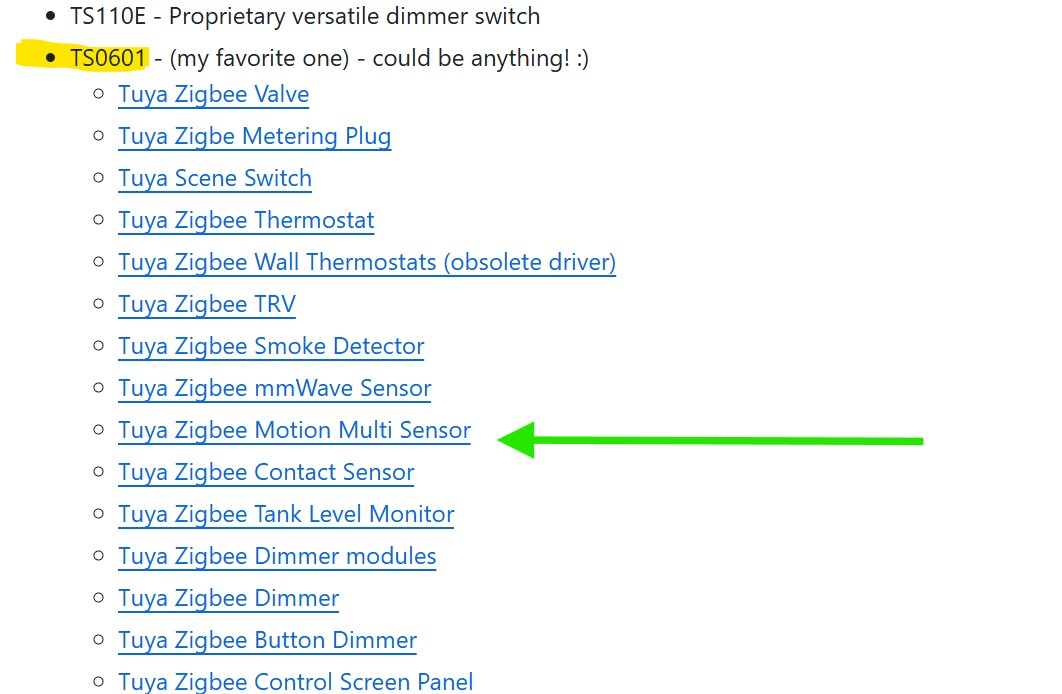
This is a mmWave sensor, so from my drivers you can try the Tuya Zigbee mmWave Sensors
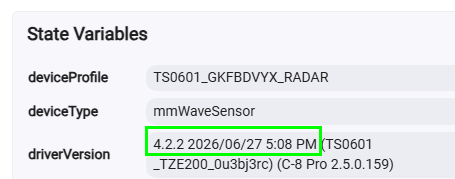
Latest version is 4.2.2 2026-06-27.
The default device profiles JSON file is ver. 4.1.5 (new version)
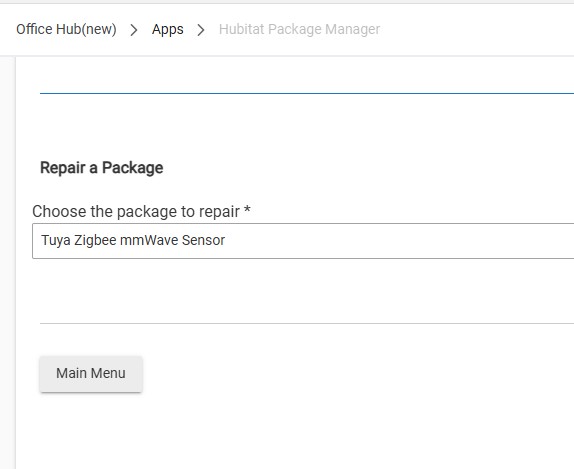
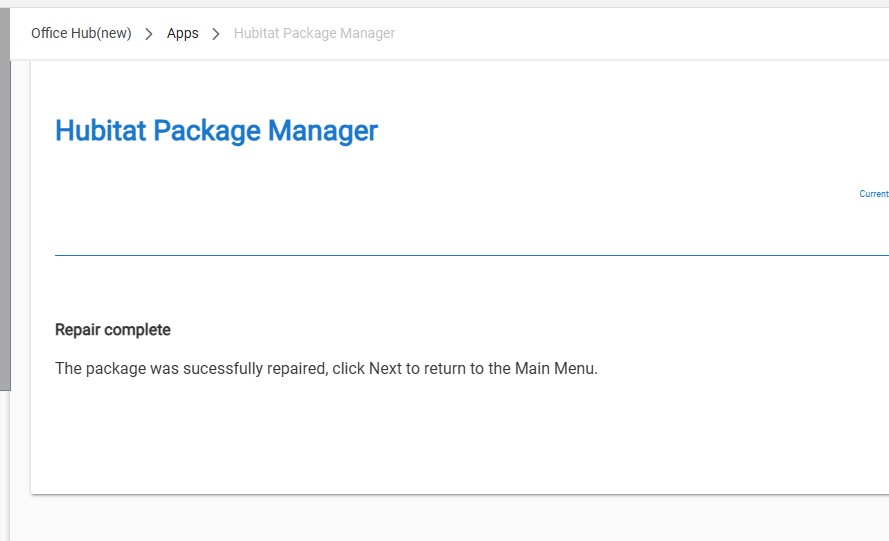
After you install or update the driver manually (either import the new code from the Driver editor, of if using HPM - perform a 'Repair'), click on the "Load Standard Profiles From Git Hub" button.
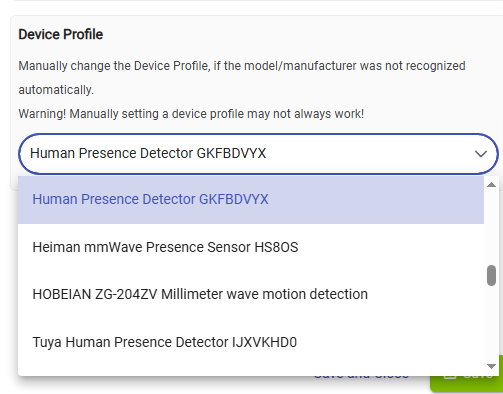
Your device fingerprint should now be present in the driver and the JSON file. The Deice profile group is this :
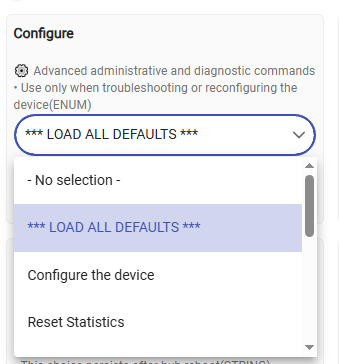
On the Commands tab, select 'LOAD ALL DEFAULTS' from the Configure drop-down menu and click on the Run button.
Please let me know if this works for your device.
Method 2: Using Hubitat Package Manager (HPM)
If the driver is available through Hubitat Package Manager:
-
Open Hubitat Package Manager
- Access HPM from the Hubitat interface.
-
Update the Driver
-
Locate the driver you want to update.
-
Follow the prompts to update it directly from HPM.
-
Important Notes
-
If the driver is currently in use by devices, you can still update it using either method.
-
Ensure that you have the latest version of the Hubitat platform to avoid compatibility issues with drivers.
Is it okay to update the driver this way? I think I only did this one time.
I don’t push automatic updates for this driver via HPM, it is too risky for everyone who is using older versions.
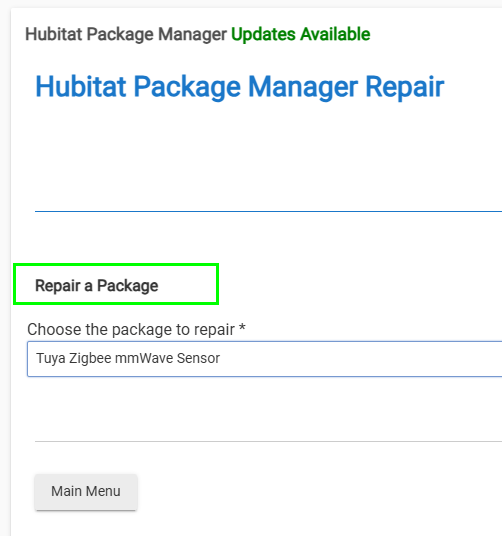
Use the HPM ‘Repair’ function , or update manually.

Current States
Show raw names
| _status_ | clear |
|---|---|
| healthStatus | online |
| motion | unknown |
| powerSource | unknown |
| WARNING | UNKNOWN mmWave model/manufacturer TS0601/_TZE200_gkfbdvyx |
State Variables
| deviceProfile | UNKNOWN |
|---|---|
| deviceType | mmWaveSensor |
| driverVersion | 4.2.1 2025/10/19 8:26 AM (TS0601 _TZE200_gkfbdvyx) (C-8 2.5.0.159) |
| gitHubV4 | {"lastDownloadTimestamp":"2026-06-27 10:22 PM","httpGetLastStatus":200,"lastDownloadDuration":398,"lastDownloadTime":1782590704981,"lastDownloadVersion":"4.1.5","httpGetCallsCtr":1,"lastDownloadSize":121986,"lastDownloadError":null} |
| health | {"checkCtr3":0,"offlineCtr":0} |
| lastRx | {"timeStamp":"2026-06-27 17:56:12.065","checkInTime":1782590701826} |
| lastTx | {"cmdTime":1782590701515} |
| motionStarted | 2026-06-27 16:05:01.453 |
| profilesV4 | {"loadProfilesCtr":2,"lastReadFileError":"OK","lastUsedHeFile":"deviceProfilesV4_mmWave.json","loadProfilesExceptionsCtr":2,"version":"4.1.5","timestamp":"2026-06-27 10:22 PM"} |
| states | {"isRefresh":false,"isDigital":false,"isPing":false} |
| stats | {"cfgCtr":1,"rxCtr":3216,"txCtr":2} |
Capabilities
Battery
Configuration
HealthCheck
IlluminanceMeasurement
MotionSensor
PowerSource
Refresh
Not sure what I am doing wrong.
STEP TWO
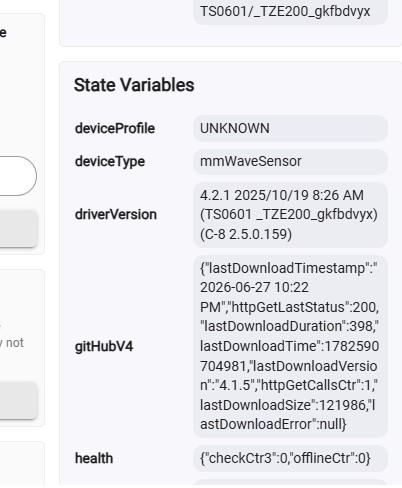
State Variables
| deviceProfile | UNKNOWN |
|---|---|
| deviceType | mmWaveSensor |
| driverVersion | 4.2.1 2025/10/19 8:26 AM (TS0601 _TZE200_gkfbdvyx) (C-8 2.5.0.159) |
| gitHubV4 | {"lastDownloadTimestamp":"2026-06-27 10:22 PM","httpGetLastStatus":200,"lastDownloadDuration":398,"lastDownloadTime":1782590704981,"lastDownloadVersion":"4.1.5","httpGetCallsCtr":1,"lastDownloadSize":121986,"lastDownloadError":null} |
| health | {"checkCtr3":0,"offlineCtr":0} |
I refreshed my browser several times
You are doing everything correct ... Lets check another possible reason - it may happen that you have duplicated drivers code :
Can you check this, please?
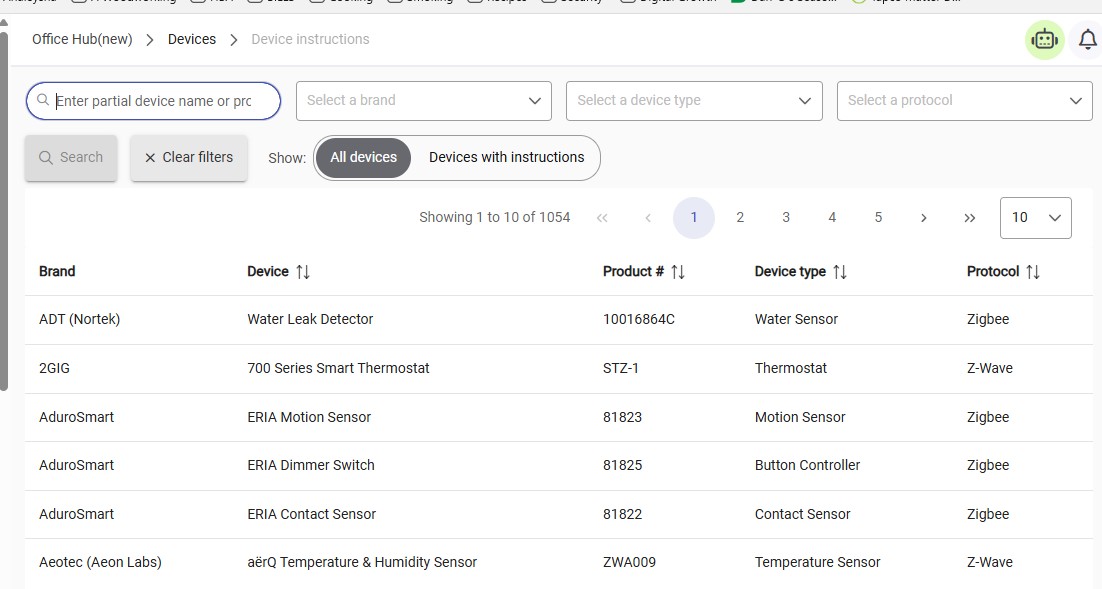
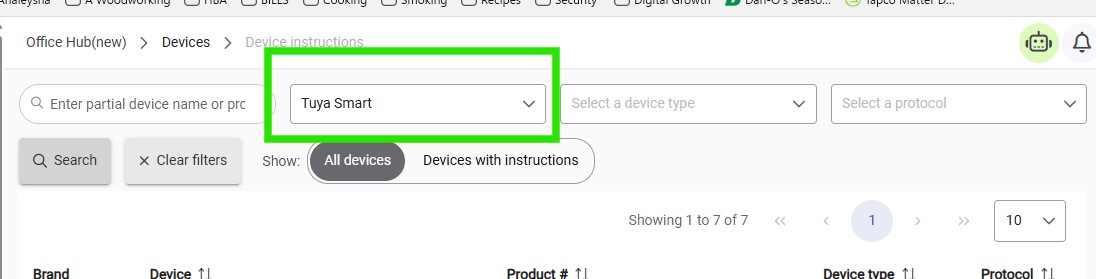
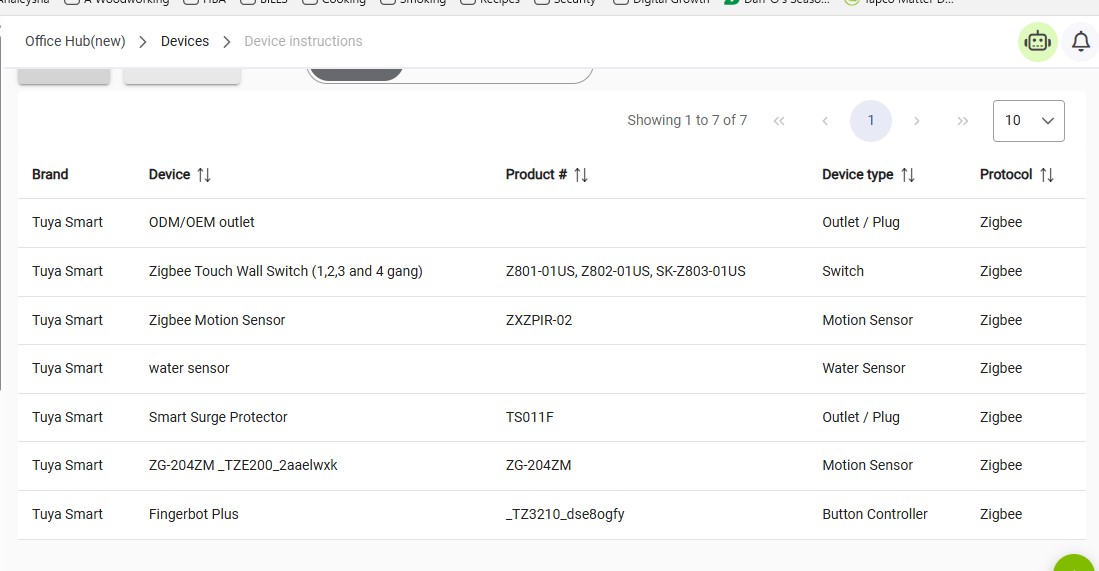
I have never seen these HE pages, probably because 90% of my devices are not in the compatible devices list ... 
You need to go to the 'Drivers code' on the HE menu :
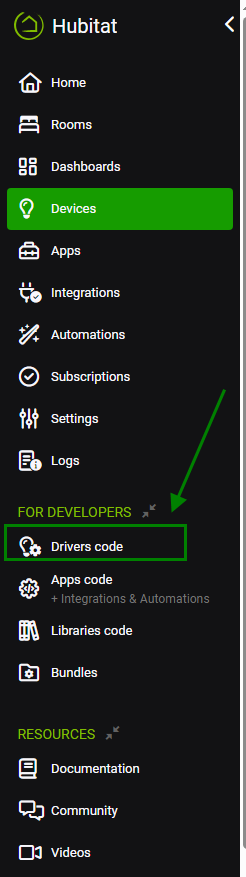
Then, type "mmWave" on the search bar. Wait for the list to populate :

If you see "Tuya Zigbee mmWave Sensor" driver listed twice, then you have duplicated drivers code.
If this is the case, you will see one and the same driver name shown twice in the Device web page "Device Info" tab, 'Type' :
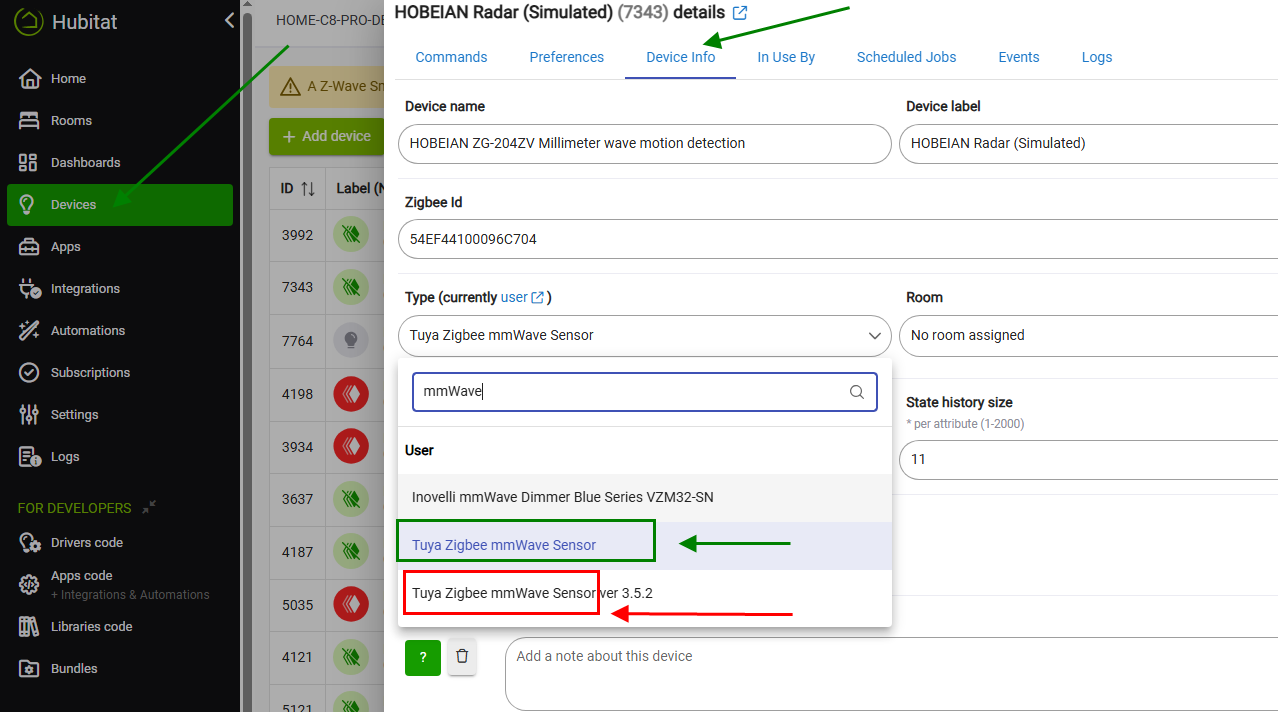
If this is your case - select the other "Type" that has the same name and press the 'Save' button.