Try "run custom action" and see if there is an Initialize command.
My first go didn't show anything and I was doing the Custom Action route. But I can relook since I often miss something.
I need to go do something else (as you probably do), so I'll get back to this later.
I don’t have a Sonos, but it looks like the custom command that you are using has a second, volume, parameter.
From its name, I would think it would save the current volume level, set the volume level to the second parameter, play the URL, then return the volume to the saved level.
You may want to try that.
Again, I don't have a Sonos, but this App in HPM looks promising for controlling many aspects of a Sonos:
Sonos Advanced Controller
1 Like
Somehow this combination of commands has fixed the problem, but I am really having to go to something else now. My initial attempt to isolate the winner action has been unsuccessful as I disable one or more of the obvious ones cause the problem to recur. More later.
Pardon my ignorance but I don't know what the HPM acronym means (Hubitat something) or how to try out your suggestion.
HPM is Hubitat Package Manager application and it allows you to find and install apps and drivers that the community has created and donated.
Search for “install HPM”.
Sorry I already have Hubitat Package Manager installed and have used it. Just don't spend enough time here to recognize the acronym HPM. I'll look into the Sonos Advanced Controller and hope it doesn't break something else.
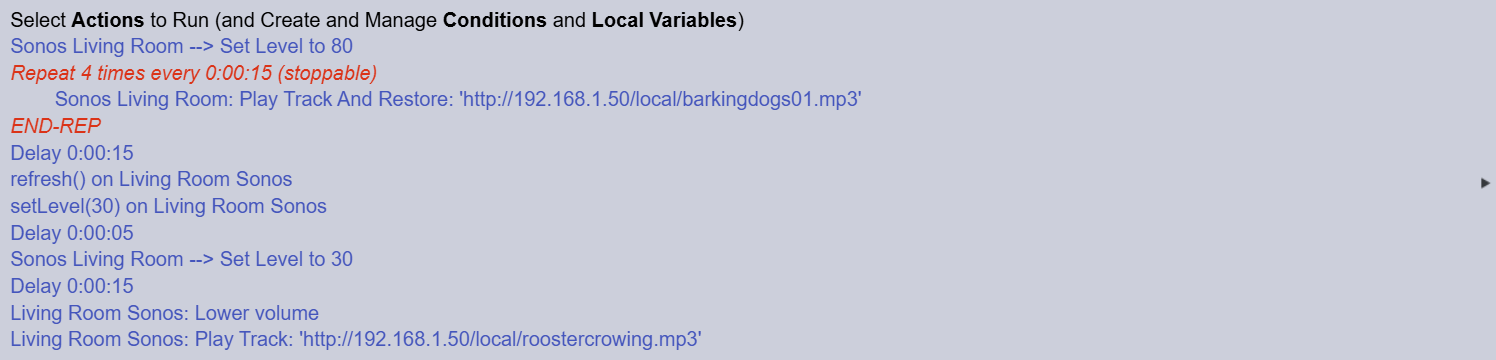
More adventures. Something in my system is causing now the initial volume setting to 80 to be erratic: sometimes it does it, sometimes it doesn't.
I have started at the line right below the END-REP and disabling them one at a time to see what breaks it. Since the initial volume setting is now erratic, it's messing with my testing. Somehow I need to initialize the system at the beginning I guess, and maybe at the end as well. But the only command I have found so far is the Refresh() command.
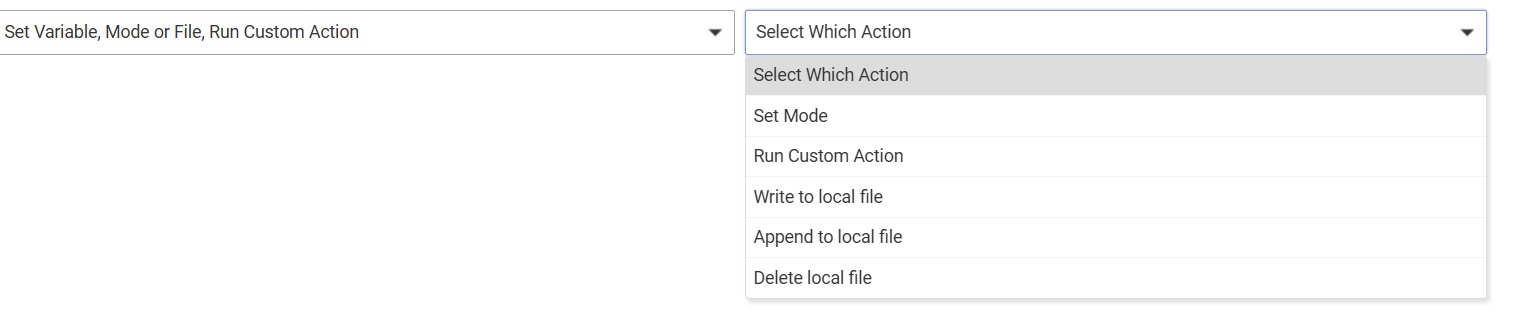
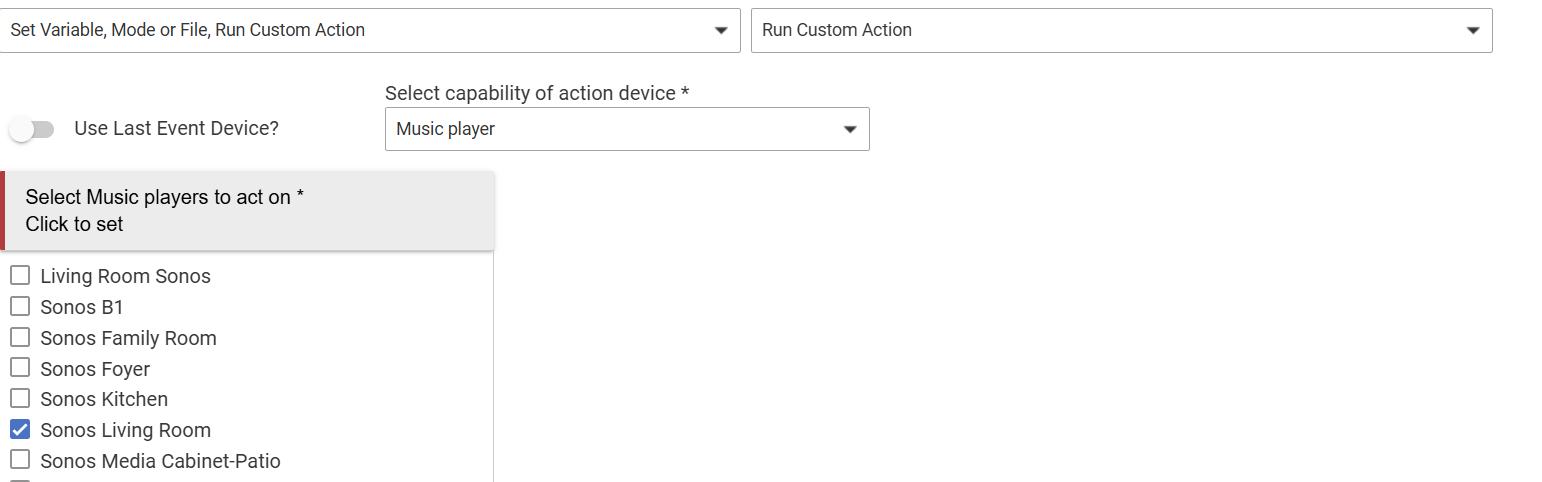
Perhaps posting a screen shot of the options available for the "Select custom command" control when you select "Set Variable, Mode or File, Run Custom Action" would help the community see what's available to you.
At the first level:
At the next level:
At the next level (top of drop-down list)
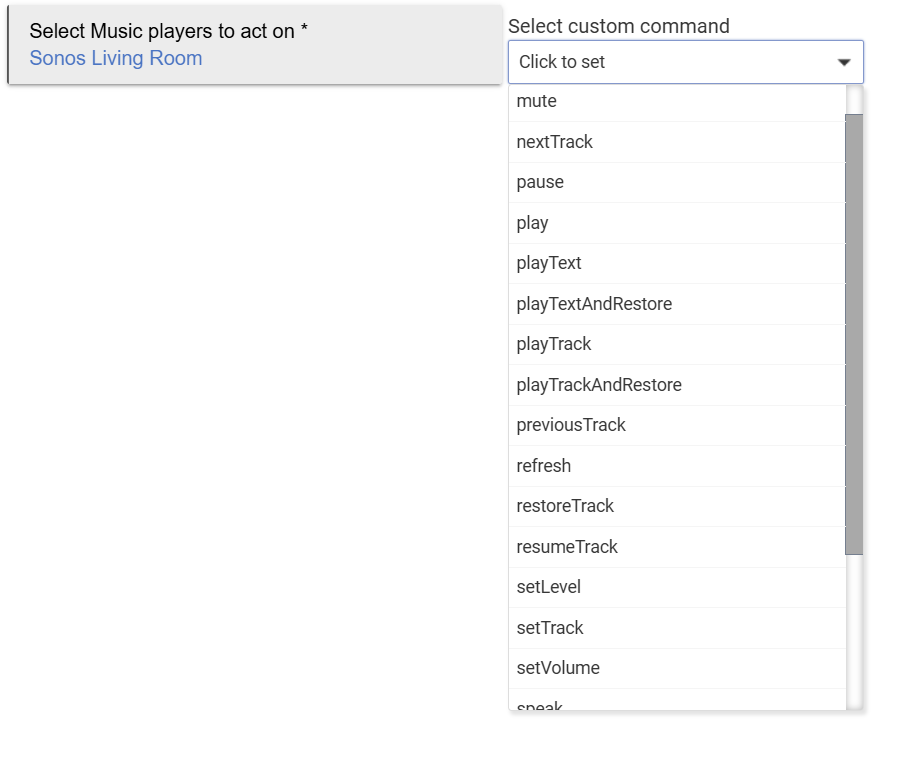
The rest of the drop down list:
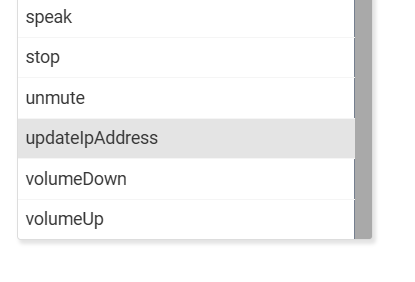
BTW, I think I found the cause of my most recent erratic testing, but I'll find out and report about it tomorrow.
Good to know!
Do you know the difference between “set level” and “set volume“?
No, I do not know the difference between "Set Level" and "Set Volume"? Aside from asking a group expert, how would one find documentation explaining that difference, if any?
One of my recent problems was of my own making. I had the same Music Player twice in my list of music players, but under different names. One was Living Room Sonos and the other was Sonos Living Room. I had recently renamed them all so Sonos was the first word in the name and they would sort together in my device list. OCD, right? But now that I have corrected the spelling in the Rule so that I am using the same name consistently, it doesn't seem to really fix anything truly. And it begs another question: why is that duplicate name in the list within Rules Machine, but not duplicated when I do the discovery in Sonos Integration. I can't figure out how to remove the extraneous Living Room Sonos from the list of music players within Rules Machine.
Rule Machine is just showing you the commands on the device. The way to see what they do, should it not be apparent from the name, is to try them yourself on the "Commands" tab on the device detail page.
But from what I can see, these two commands should do the exact same thing.
Testing commands directly from the device detail page is also generally a good step to try when troubleshooting app behavior, including rules. If you can't make it so what you want, an app isn't going to be able to, either.
Rule Machine is just showing you the list of devices on your hub. You'll need to remove it from your hub to do that, but this isn't specific to Rule Machine. Go to Devices and, again, navigate to the device detail page for this device. There, hit the "Remove" button. Check the "In use by" tab first (or heed the warning when removing) to remove it from any apps first if it's in ise by any. And, of course, make sure it's not the functional device.
Since I wrote my question about how to remove it, I thought: Duh!!!! All I need to do is remove it from my device list, which I thought (duh again) I had already done.
Thanks for the input on the level versus volume question, and yeah that did seem to be the best way to determine the difference: brute force.
This seems to work, but not if I remove the "Lower volume" command, which is strange to me. Now I need to find out if it works consistently.
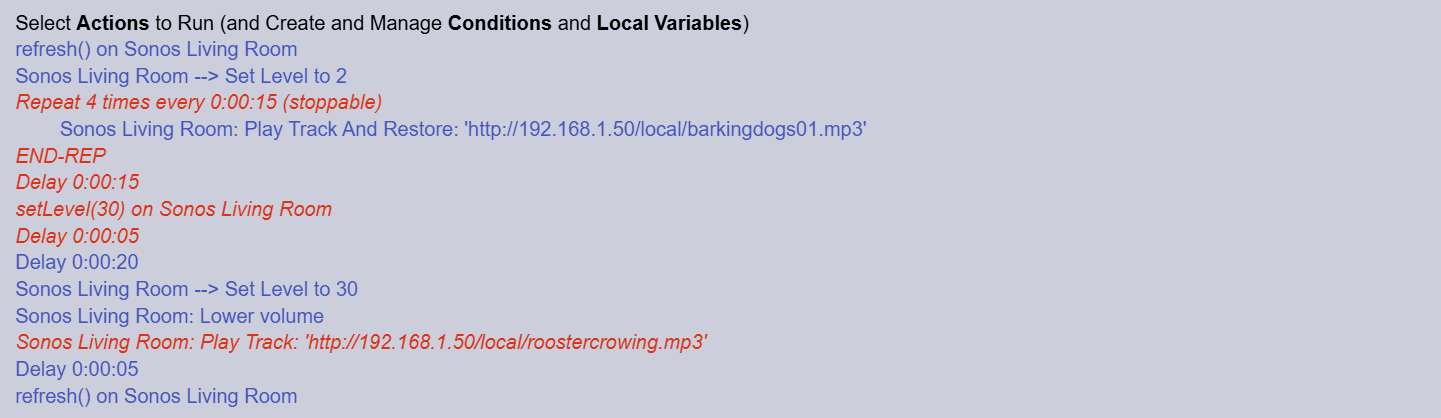
The other strange thing, even when it works, is I got this odd warning message. Maybe it has to do something with the confused tables as to what the device is. It is the correct IP address of the device.