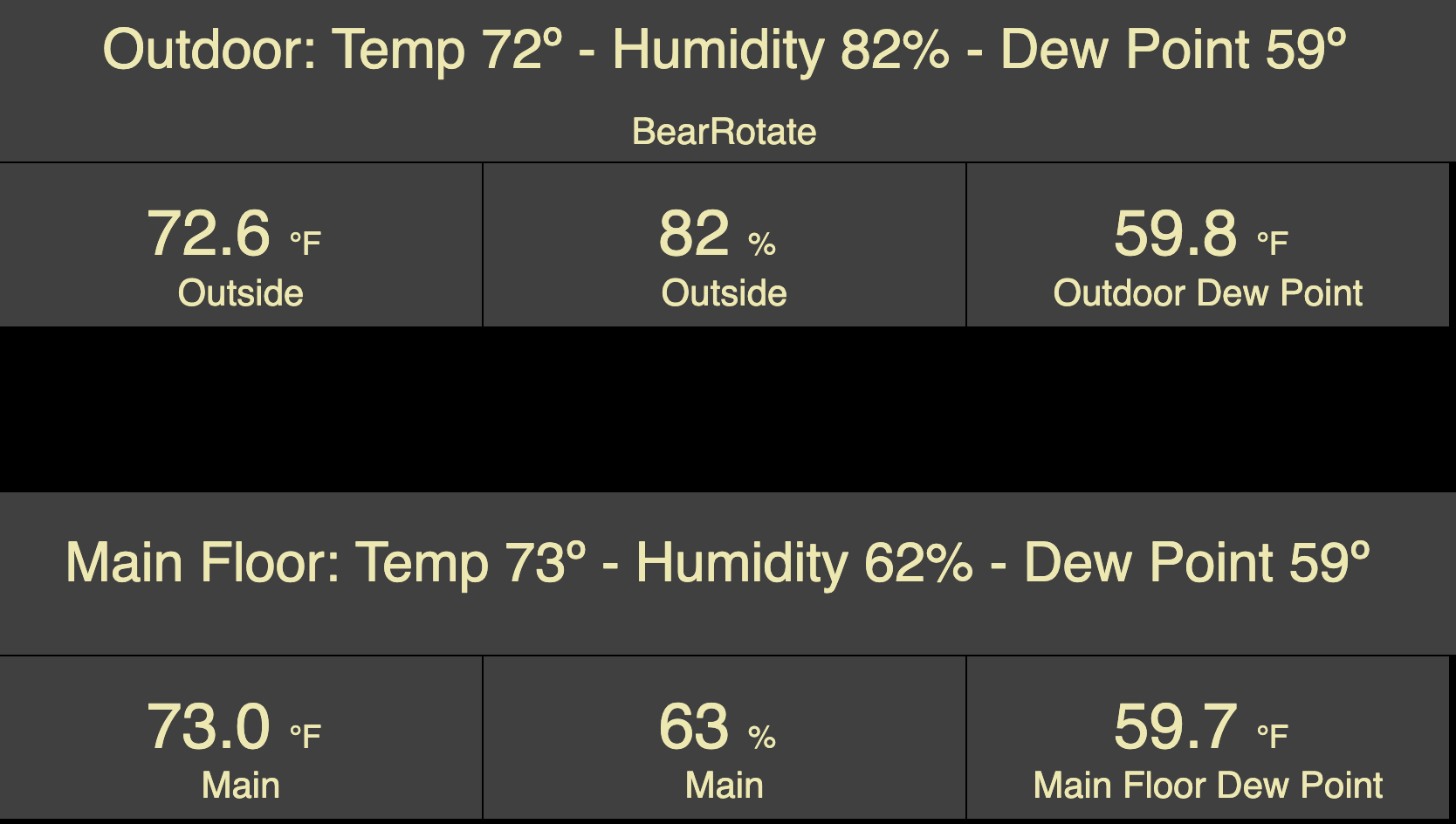
Back in April '22, I was looking for a way of displaying multiple events sequentially on a dashboard tile. Following my post on the forum, @thebearmay came up with his 'Message Rotator Tile Device' driver and I've been using that on my HD+ dashboards ever since. I wondered whether it was possible to do something similar but have the events scroll rather than display sequentially. Using the original driver code and ChatGPT, I've cobbled together 'Scrolling Event Notifier'. Some information:
What is it?
A device driver based heavily on Message Rotator Tile Device by @thebearmay. It can be used to display one or more messages (entered as strings) on a dashboard tile.
Features
- Add, remove, or change single message
- Remove all messages
- Selectable modes - Standard(cycle mode) or Scrolling. Scrolling is the default option
- In scrolling mode a single message is displayed statically, scrolls when multiple messages added
- User can choose any valid character/symbol/emoji to use as a separator between scrolling messages and select the number of spaces padding either side
- Adjustable scroll speed for Scrolling mode, adjustable pause time for cycle mode
- Adjustable font size*
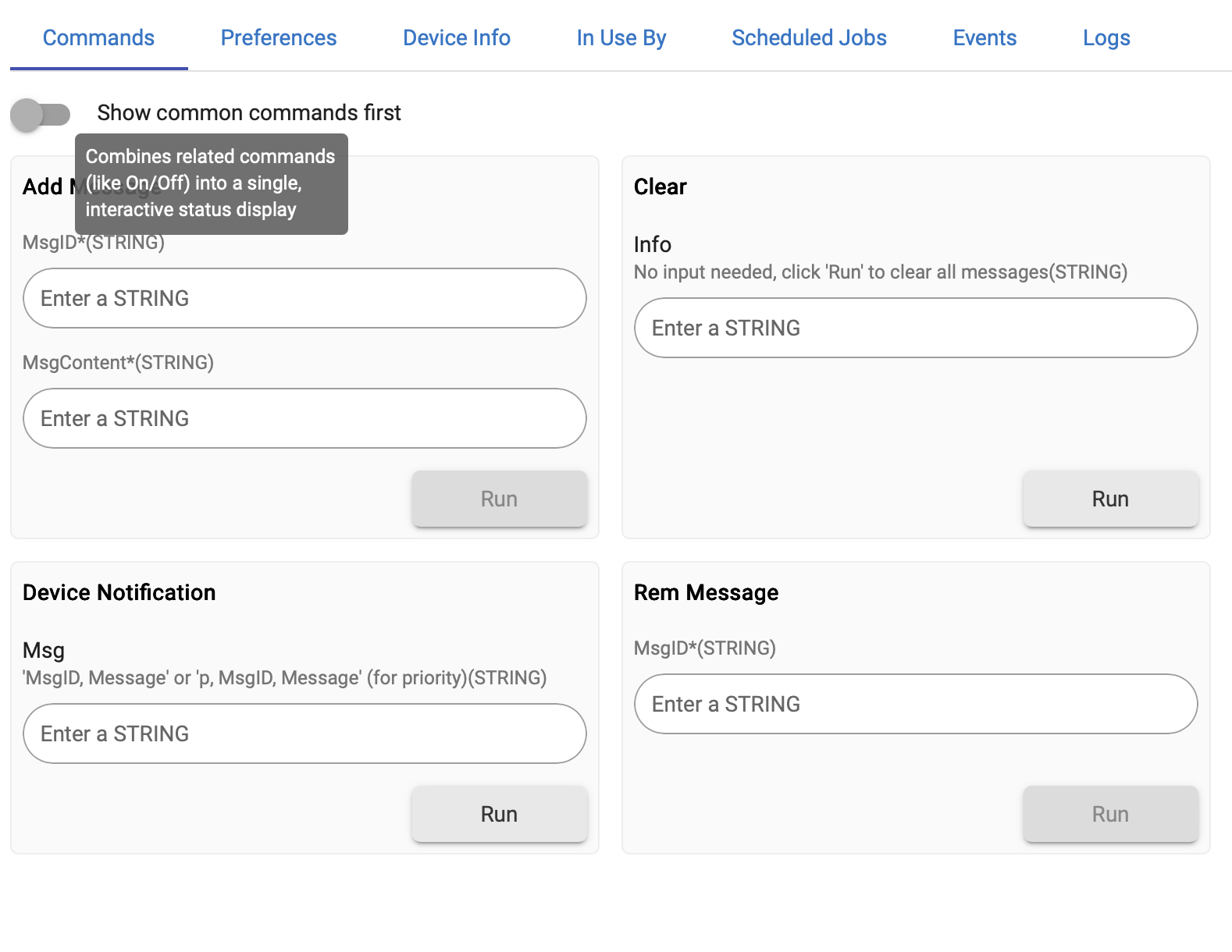
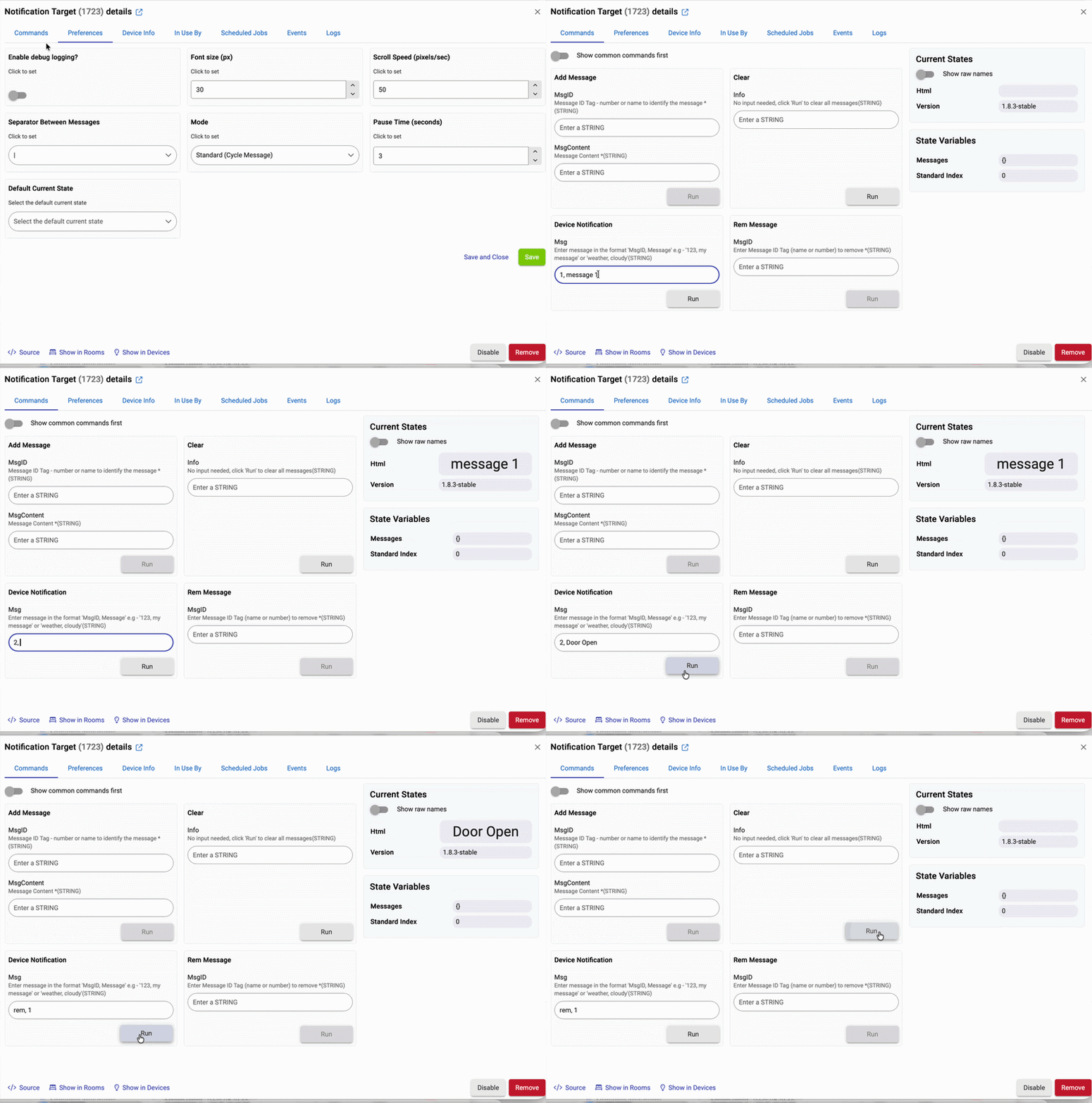
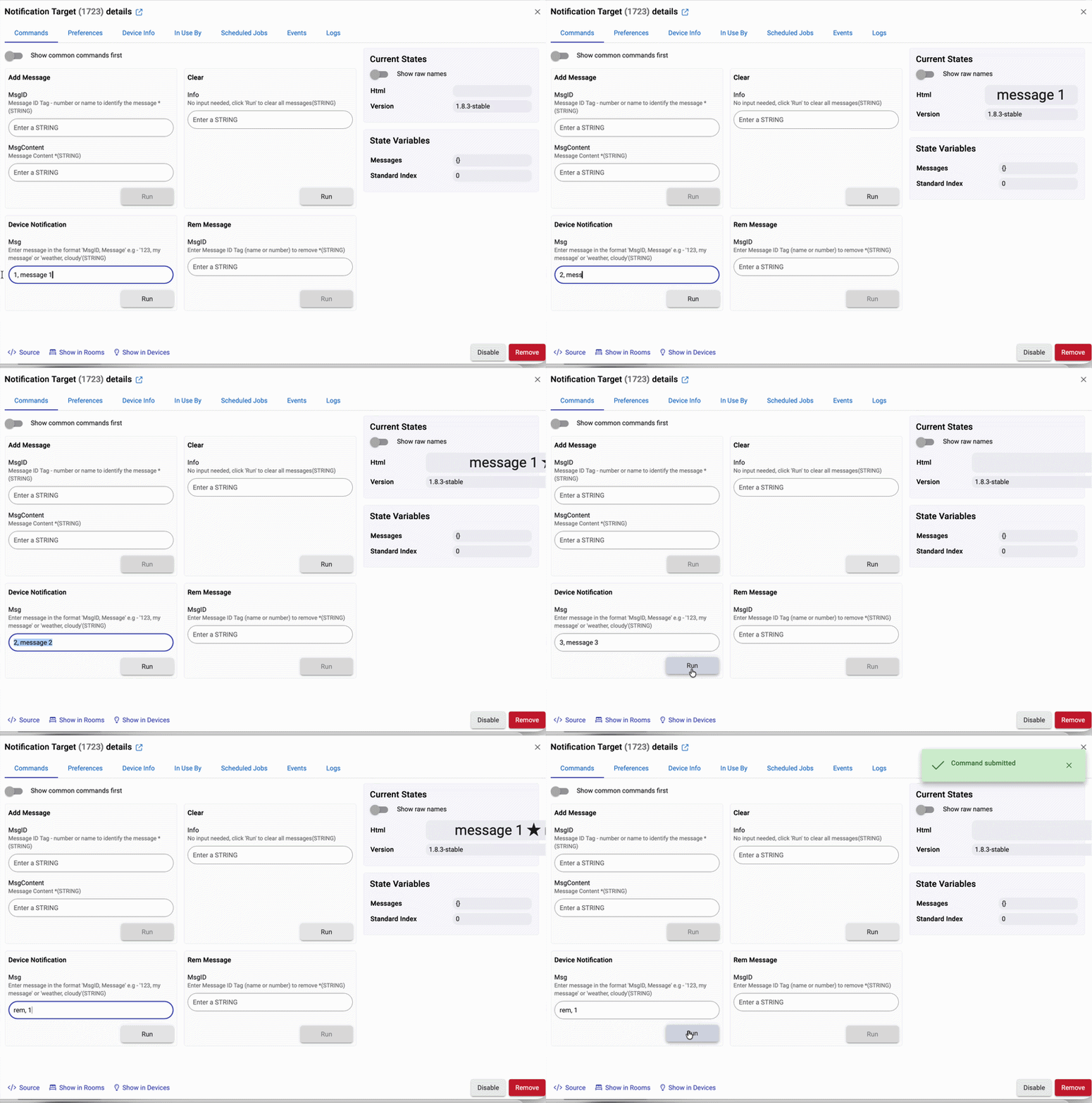
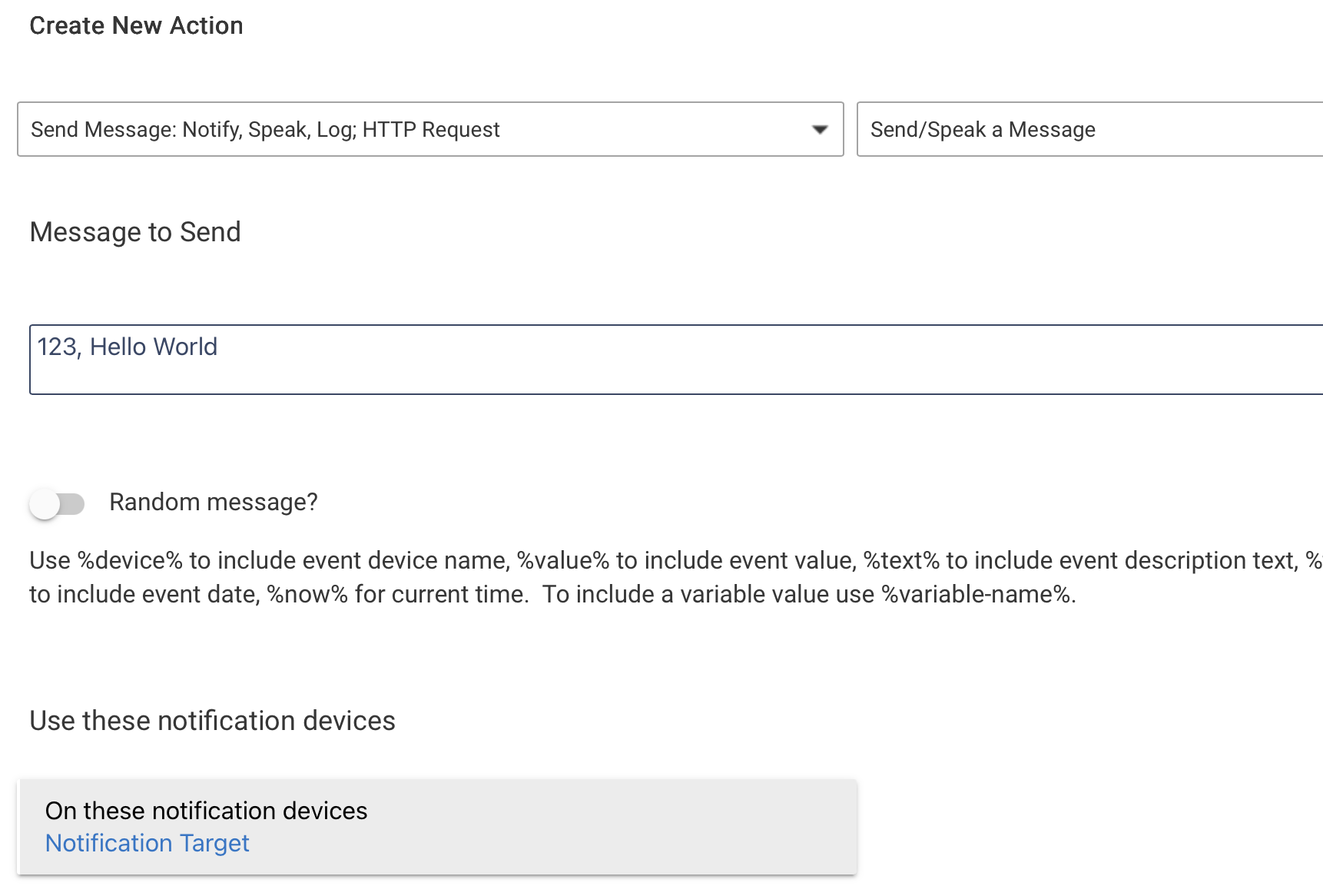
- Notification capability for ease of adding, removing, clearing all messages from Rule Machine (Actuator capability with custom command still available)
How To Add The Driver
- Go to Developers > Drivers Code
- Click 'Add Driver'
- Paste the code from below and Save
Add The Device
- Go to Devices > Add Device > Virtual
- Select 'Scrolling Event Notifier' from the type dropdown
How To Use/Example
To add, remove, change a message or remove all messages as an action in Rule Machine:
- Create a new action and Select Action Type To Add > Set Variable, Mode or File, Run Custom Action > Run Custom Action
- Select capability of action device > Actuator and select your new 'device'
- addMessage > Add a Parameter > Parameter Type - String
- enter a unique number in the string value field and save
- Repeat Add a Parameter > Parameter Type - String
- Now enter your message in the string value field and save
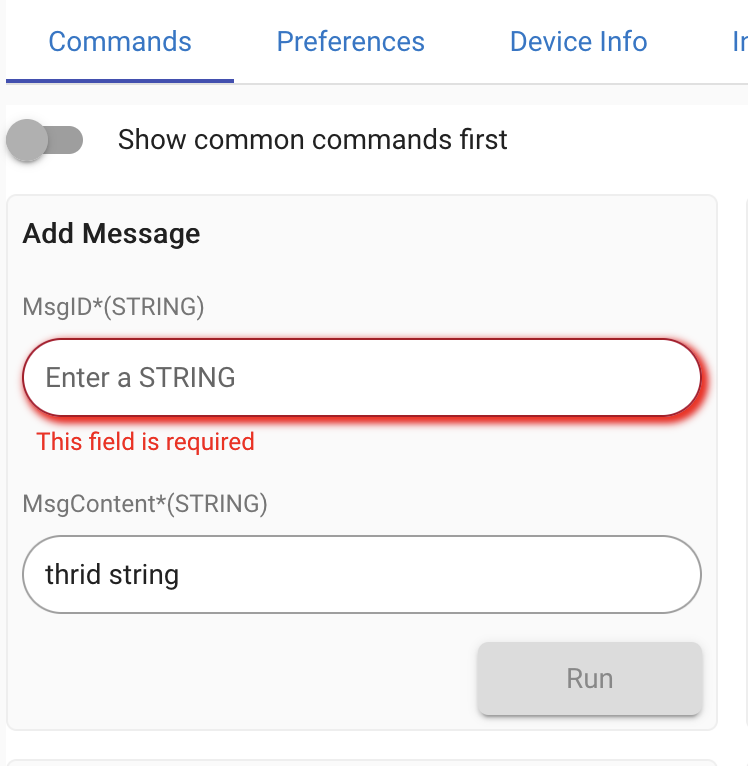
The number added is paired with the message. Removing a message is done the same as above, but by selecting remMessage and entering the corresponding number in the string value field.
In most of my rules the message is added to the tile as an action by the rule and also removed once the condition has cleared . I have a virtual button next to the notifier tile on my dashboards that can be used to send the 'clear' command manually where a rule is not being used to remove messages automatically.
The Code
Version 1.9.8 beta
/*
* Scrolling Event Notifier - v1.9.8-beta
* Based on 1.9.7-stable with Message Count attribute
*/
static String version() { return '1.9.8-beta' }
metadata {
definition (
name: "Scrolling Event Notifier",
namespace: "John Williamson",
author: "John Williamson with ChatGPT",
singleThreaded: true
) {
capability "Actuator"
capability "Notification"
attribute "html", "string"
attribute "version", "string"
attribute "messageCount", "number"
command "deviceNotification", [[
name:"msg",
type:"STRING",
description:"'MsgID, Message' or 'p, MsgID, Message' (for priority)"
]]
command "addMessage", [
[name:"msgID*", type:"STRING"],
[name:"msgContent*", type:"STRING"]
]
command "remMessage", [
[name:"msgID*", type:"STRING"]
]
command "clear", [[
name:"info",
type:"STRING",
description:"No input needed, click 'Run' to clear all messages"
]]
}
}
preferences {
input("debugEnabled", "bool", title: "Enable debug logging?")
input("fontSizePx", "number", title: "Font size (px)", defaultValue:30)
input("speedPxPerSec", "number", title: "Scroll Speed (pixels/sec)", defaultValue:50)
input("separatorChoice", "text", title: "Message Separator",
description: "Enter character, symbol, emoji to separate messages. Leave blank for default ('|')")
input("separatorPadding", "number", title: "Separator Padding",
description: "Number of blank spaces to add either side of the separator",
defaultValue:3)
input("mode", "enum", title: "Mode",
options:["Scroll Message","Standard (Cycle Message)"],
defaultValue:"Scroll Message")
input("pauseTime", "number", title: "Pause Time (seconds)", defaultValue:5)
input("noMessageText", "text", title: "No Message Display",
description: "text to show when no message present, leave blank for empty tile")
input("priorityColorPreset", "enum", title: "Priority Message Colour",
options:["Hex Value","red","orange","yellow","green","blue","indigo","violet",
"purple","pink","brown","gray","black","white","teal","lime",
"cyan","magenta"],
required:true)
input("priorityColorHex", "text", title: "Hex Color",
description: "Enter a hex color (e.g., #FF00FF) if 'Hex Value' is selected",
required:false)
input("priorityStyle", "enum", title: "Priority Message Style",
options:["Standard","Bold","Italic","Underline","Bold & Italic","Bold & Underline",
"Italic & Underline","Bold, Italic, & Underline"],
defaultValue:"Standard")
}
/* ---------------- Core ---------------- */
def installed() {
state.messages = [:]
state.priority = [:]
state.standardIndex = 0
showEmpty()
sendEvent(name:"version", value:version())
sendEvent(name:"messageCount", value:0)
}
def updated() {
unschedule()
if(state.messages == null) state.messages = [:]
if(state.priority == null) state.priority = [:]
sendEvent(name:"version", value:version())
sendEvent(name:"messageCount", value: state.messages.size())
}
/* ---------------- Notification Parser ---------------- */
void deviceNotification(String msg) {
if(state.messages == null) state.messages = [:]
if(state.priority == null) state.priority = [:]
if(!msg) return
msg = msg.trim()
if(msg.equalsIgnoreCase("clear")) {
clear()
return
}
if(msg.contains(",")) {
if(msg.toLowerCase().startsWith("p,")) {
def parts = msg.split(",",3)
if(parts.size()==3){
def id = parts[1]?.trim()
def content = parts[2]?.trim()
state.messages[id]=content
state.priority[id]=true
sendEvent(name:"messageCount", value: state.messages.size())
displayTicker()
return
}
}
if(msg.toLowerCase().startsWith("rem,")) {
def parts = msg.split(",",2)
if(parts.size()==2){
remMessage(parts[1]?.trim())
return
}
}
def parts = msg.split(",",2)
if(parts.size()==2){
def id = parts[0]?.trim()
def content = parts[1]?.trim()
state.messages[id]=content
state.priority[id]=false
sendEvent(name:"messageCount", value: state.messages.size())
displayTicker()
return
}
}
}
/* ---------------- Manual Commands ---------------- */
void addMessage(id, content){
if(state.messages == null) state.messages = [:]
if(state.priority == null) state.priority = [:]
state.messages[id]=content
state.priority[id]=false
sendEvent(name:"messageCount", value: state.messages.size())
displayTicker()
}
void remMessage(id){
if(state.messages == null) state.messages = [:]
if(state.priority == null) state.priority = [:]
state.messages.remove(id)
state.priority.remove(id)
sendEvent(name:"messageCount", value: state.messages.size())
if(state.messages.size()==0) showEmpty()
else displayTicker()
}
void clear(){
state.messages=[:]
state.priority=[:]
sendEvent(name:"messageCount", value:0)
showEmpty()
}
/* ---------------- Display Logic ---------------- */
private void showEmpty(){
def html = noMessageText ?
"<div style='font-size:${fontSizePx}px;text-align:center;'>${noMessageText}</div>" :
"<div> </div>"
sendEvent(name:"html", value:html)
}
private String getPriorityStyle(String key){
if(state.priority[key]){
def color = (priorityColorPreset=="Hex Value" && priorityColorHex) ?
priorityColorHex : priorityColorPreset
def style = ""
switch(priorityStyle){
case "Bold": style="font-weight:bold;"; break
case "Italic": style="font-style:italic;"; break
case "Underline": style="text-decoration:underline;"; break
case "Bold & Italic": style="font-weight:bold;font-style:italic;"; break
case "Bold & Underline": style="font-weight:bold;text-decoration:underline;"; break
case "Italic & Underline": style="font-style:italic;text-decoration:underline;"; break
case "Bold, Italic, & Underline": style="font-weight:bold;font-style:italic;text-decoration:underline;"; break
default: style=""
}
return "color:${color};${style}"
}
return ""
}
void displayTicker(){
if(state.messages.size()==0){
showEmpty()
return
}
def fontSize = fontSizePx ?: 20
def speed = speedPxPerSec ?: 50
def padCount = separatorPadding ?: 3
def visualPad = " " * padCount
def separatorSymbol = separatorChoice?.trim() ?: "|"
def separator = visualPad + separatorSymbol + visualPad
def styled = state.messages.collect{ k,v ->
"<span style='${getPriorityStyle(k)}'>${v}</span>"
}
if(mode=="Standard (Cycle Message)"){
if(state.messages.size()==1){
sendEvent(name:"html",
value:"<div style='font-size:${fontSize}px;text-align:center;'>${styled[0]}</div>")
return
}
state.standardIndex = state.standardIndex ?: 0
cycleStandardMessage()
return
}
if(state.messages.size()==1){
sendEvent(name:"html",
value:"<div style='font-size:${fontSize}px;text-align:center;'>${styled[0]}</div>")
return
}
def combined = styled.join(separator)
int approxWidthPx = state.messages.collect { k,v ->
v.length() * fontSize * 0.6
}.sum()
int logicalSeparatorLength = (separatorSymbol.length() + (padCount * 2))
approxWidthPx += (logicalSeparatorLength * (state.messages.size()-1) * fontSize * 0.6)
int durationSec = Math.max(5,(approxWidthPx/speed).toInteger())
def html =
"<div style='width:100%;overflow:hidden;font-size:${fontSize}px;white-space:nowrap;'>" +
"<div style='display:inline-block;white-space:nowrap;animation:scroll ${durationSec}s linear infinite;'>" +
combined +
"</div>" +
"<style>@keyframes scroll{0%{transform:translateX(100%);}100%{transform:translateX(-100%);}}</style>" +
"</div>"
sendEvent(name:"html", value:html)
}
/* ---------------- Standard Cycling ---------------- */
void cycleStandardMessage(){
if(state.messages.size()<2){
displayTicker()
return
}
def keys = state.messages.keySet().toList()
if(state.standardIndex==null || state.standardIndex >= keys.size()) state.standardIndex = 0
String key = keys[state.standardIndex]
String msg = state.messages[key]
String style = getPriorityStyle(key)
sendEvent(name:"html", value:"<div style='font-size:${fontSizePx}px;text-align:center;${style}'>${msg}</div>")
state.standardIndex++
if(state.standardIndex >= keys.size()) state.standardIndex = 0
runIn(pauseTime ?: 3, "cycleStandardMessage")
}
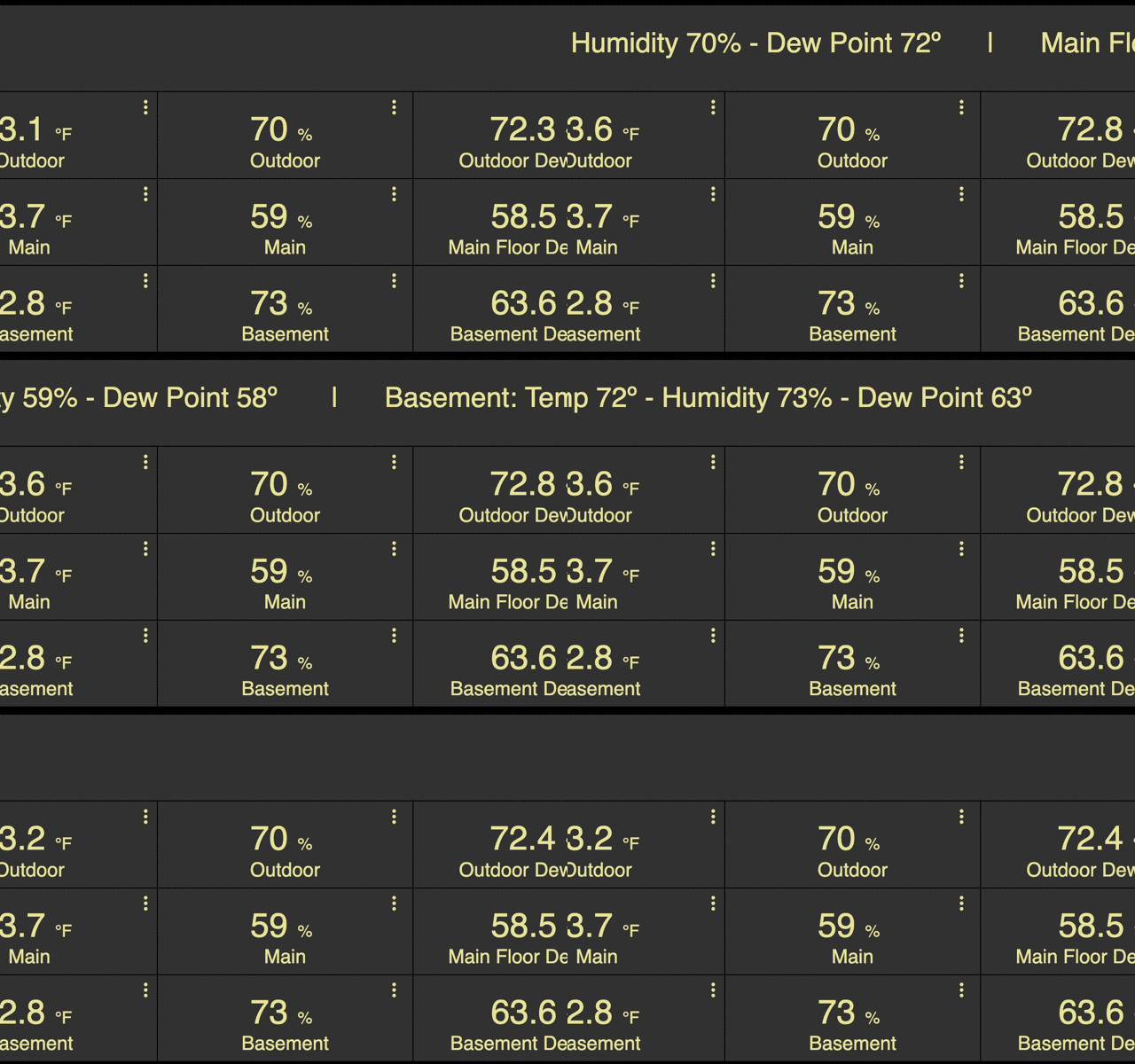
 a.k.a ERROR on my part. Upon review I realized that I was in fact not using your device in the tile. The tile was still using