Yeah, that would be tricky on Android. You might be able to make the title font smaller - fitting more characters in on each tile. You can do that in options -> display options -> device name size
I think the URL you posted here is your developed / direct link. I believe this here is the open one: Overview - Hubitat Dashboard
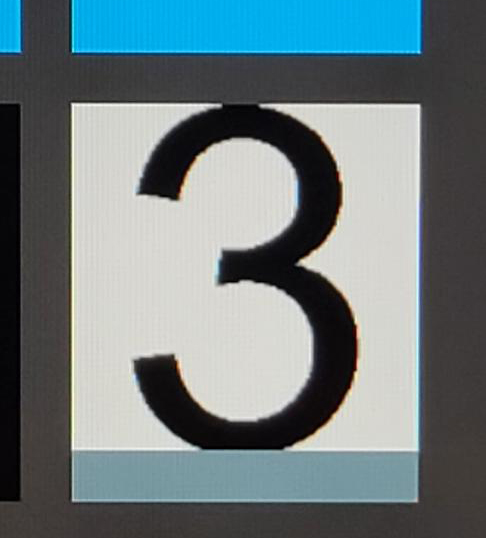
I cannot seem to figure this out. I cannot get my image tile to fill fully as it is displayed in the edit popup. I have tried all of the different settings. It always has the gray bar at the bottom.
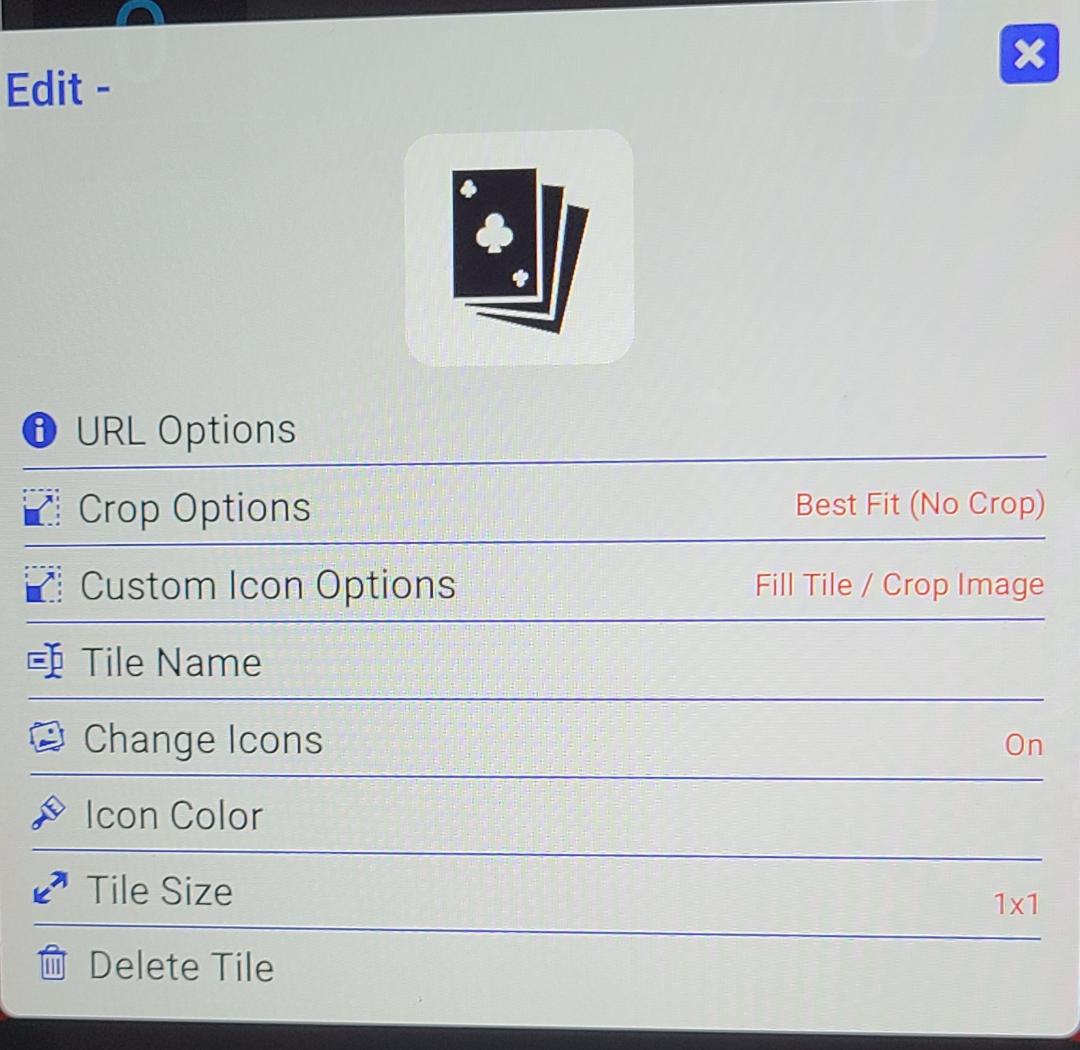
Also, what is the difference between the URL image and the icon image? The images are the same locally on my HE. If I change the icon, it is the same image as the required URL image. Why is the URL forced on an image tile if I can just use the same image when changing the Icon and using a custom hub icon?
Edit : I did get something to work. Instead of entering a valid URL, I just used junk (in my case "Gg"). It accepted that as a valid URL. Then I was able to change the icon to the custom image on my hub. Then I could fill the tile fully.
Edit 2 : Well, I thought I had it. But as soon as I moved my tile into a folder, the gray bar at the bottom returned....sigh
Is there a way to access via web link?
version 1.0.1413 (beta)
- button fixes: custom image scaling, adjust to title size
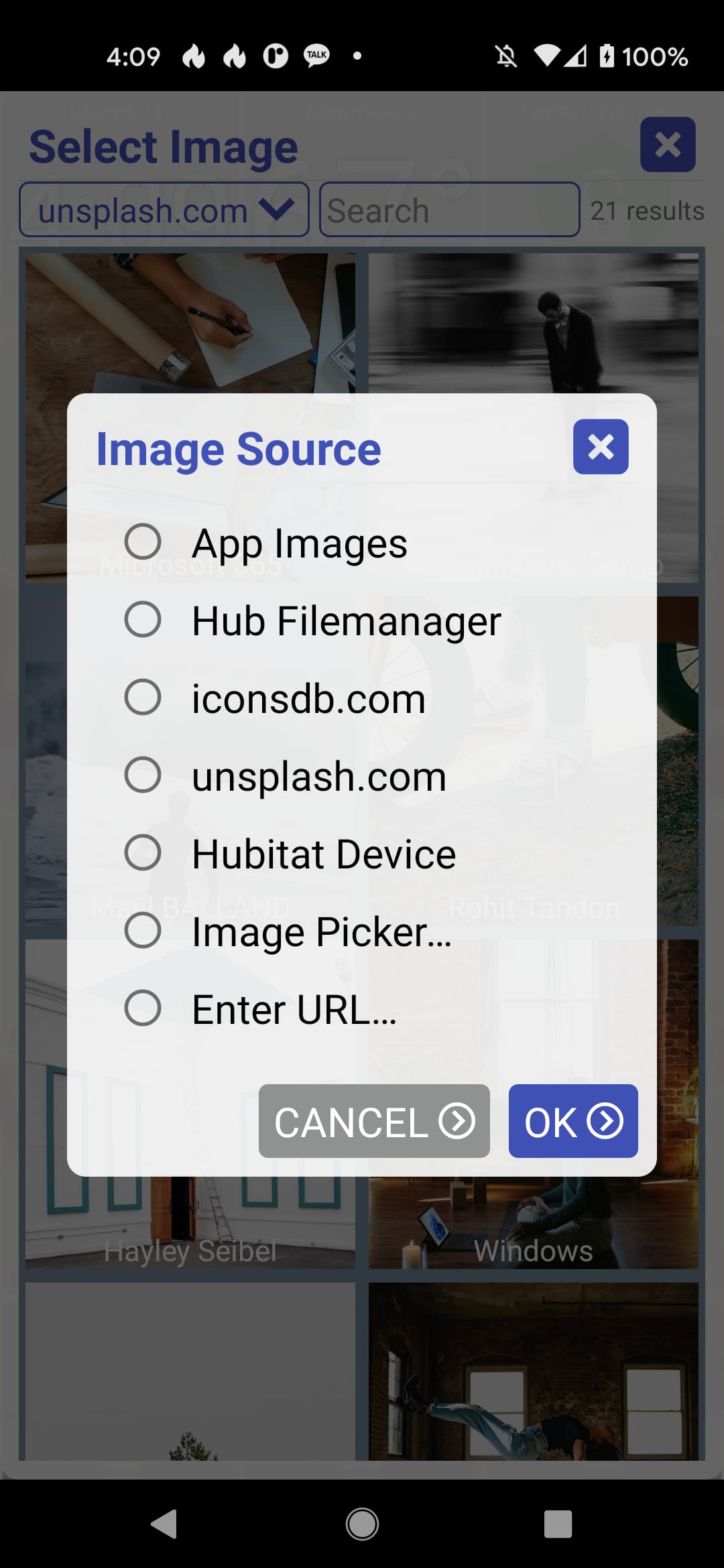
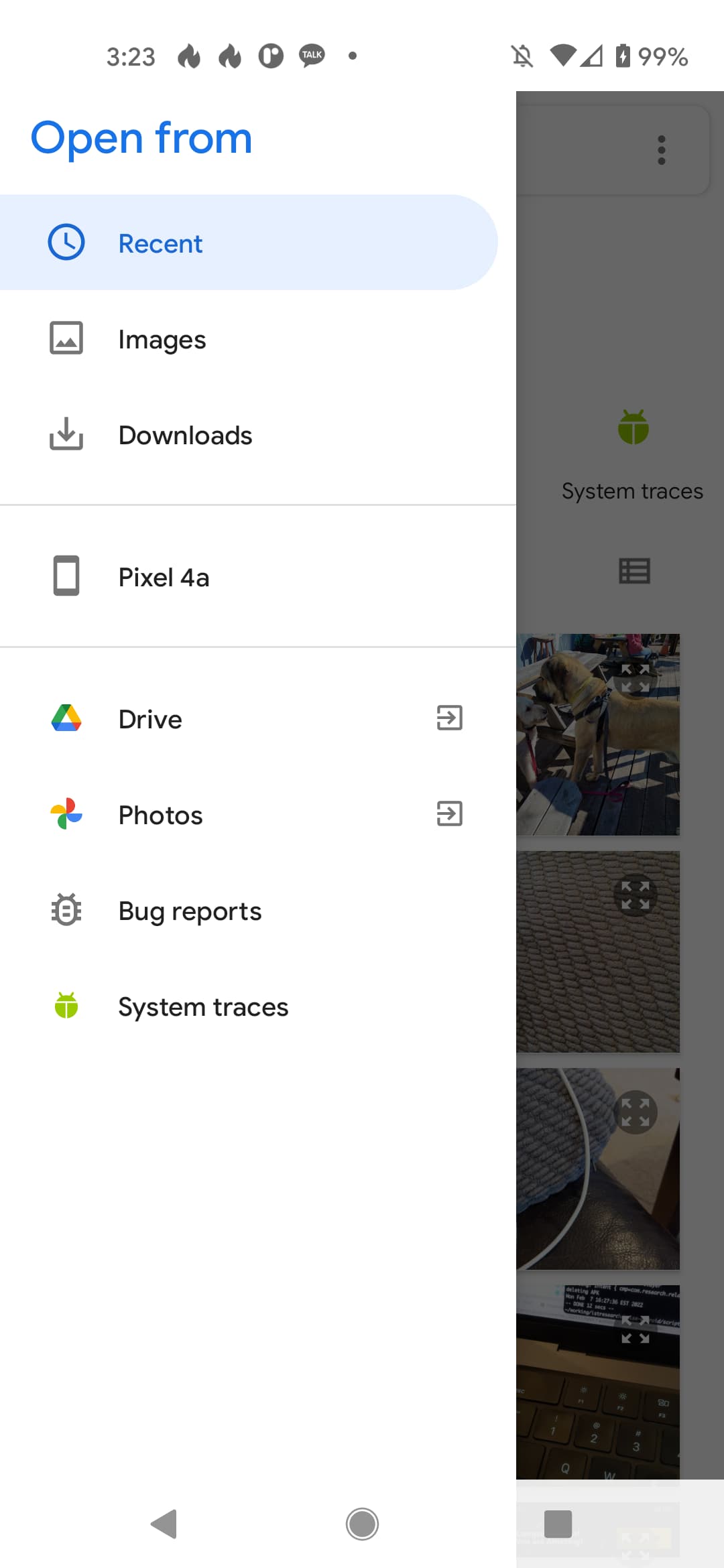
- add ability to select image from device (image picker)
I added a new source of images - "Image Picker" which will let you pick from any images on your device (as a device icon or background, for example)
I also tried to make some fixes to buttons including:
- adjust the button size when the title font size changes
- better image cropping options
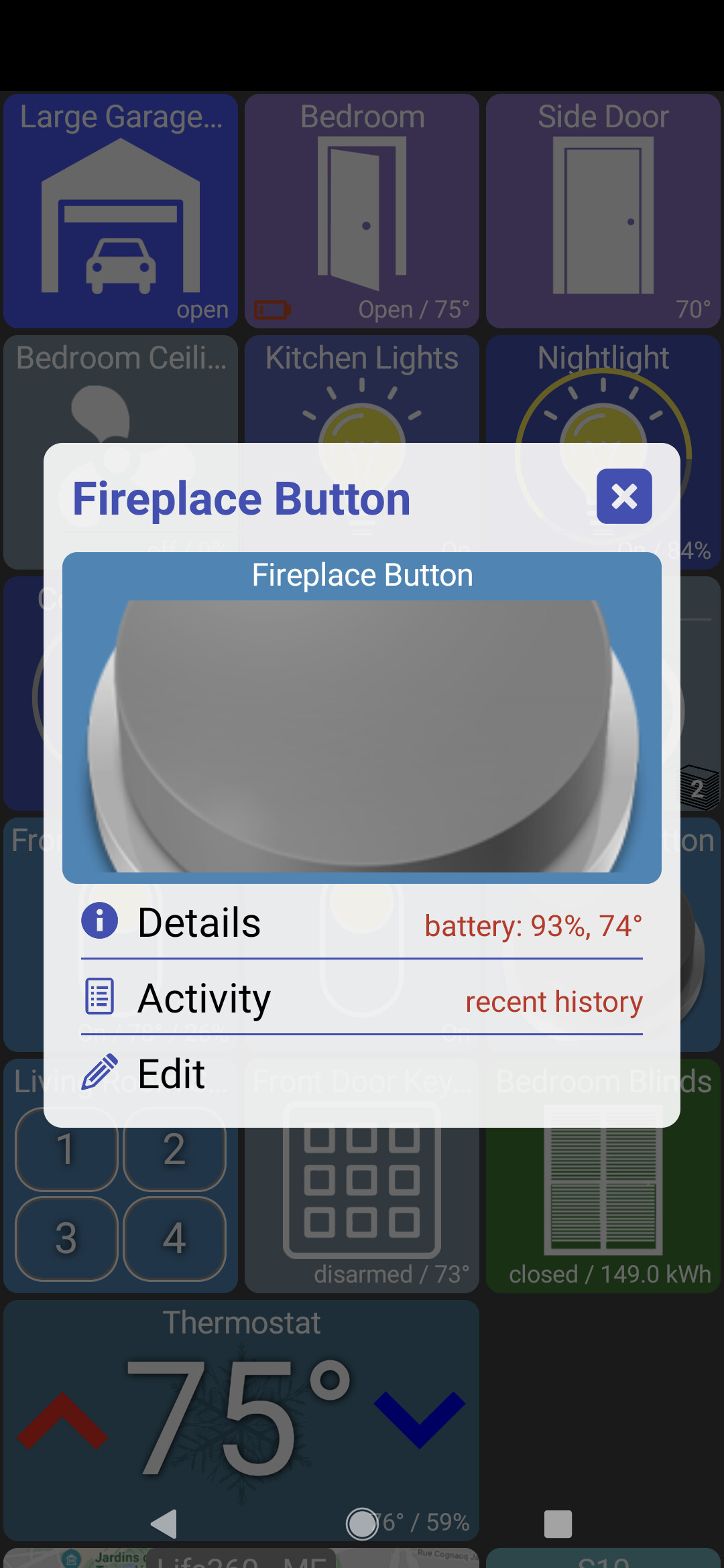
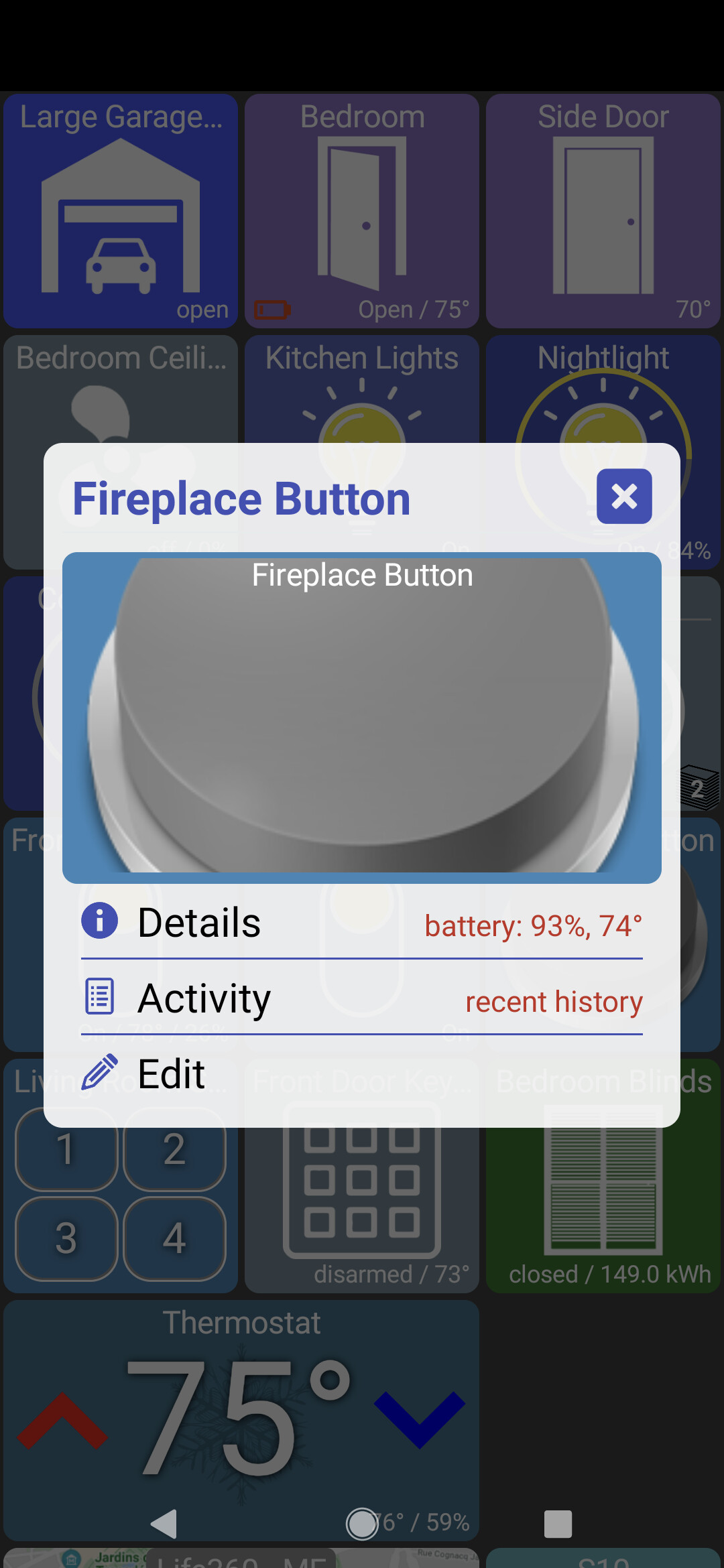
For example, this is a single button with the default button image and crop/scaling options:
[left: default size / no crop]
[right: fill tile / no crop]
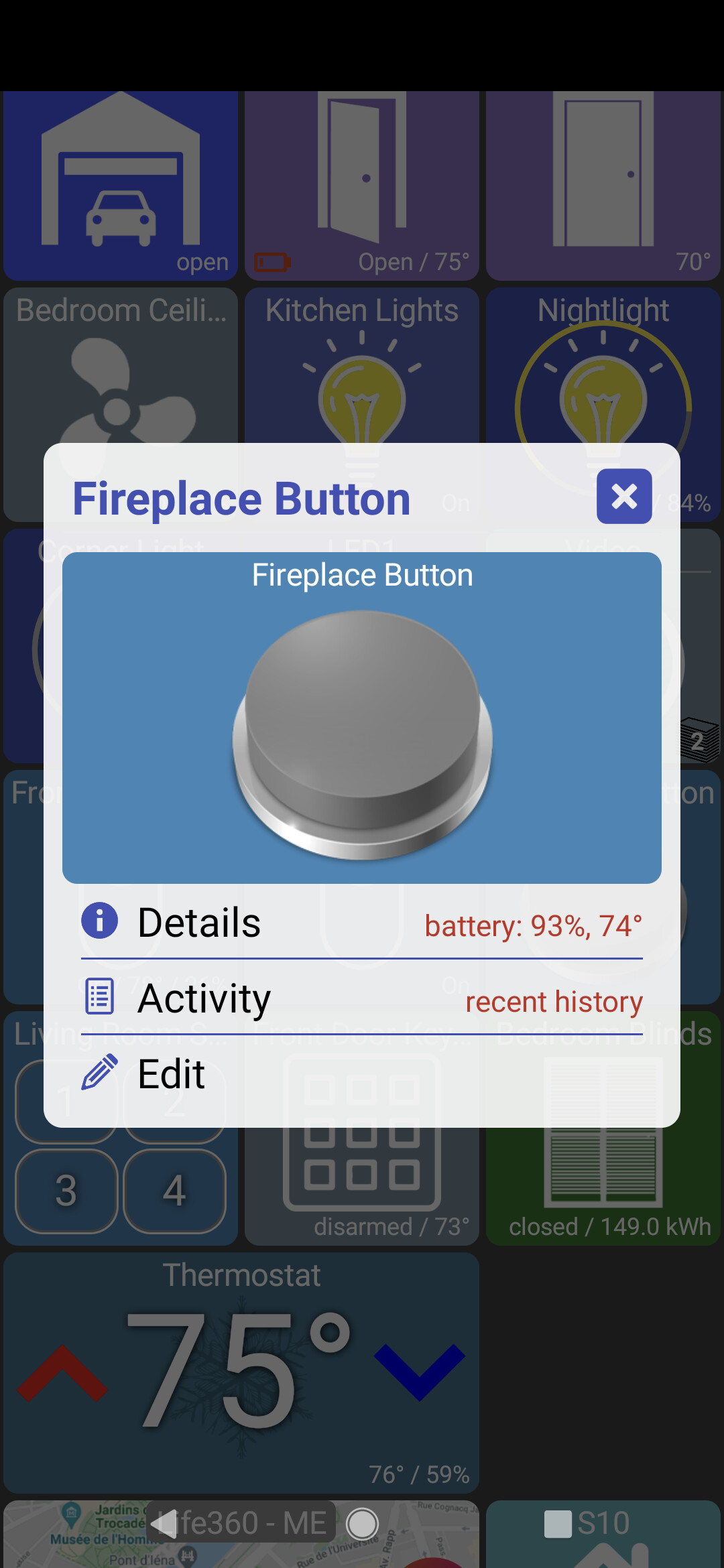
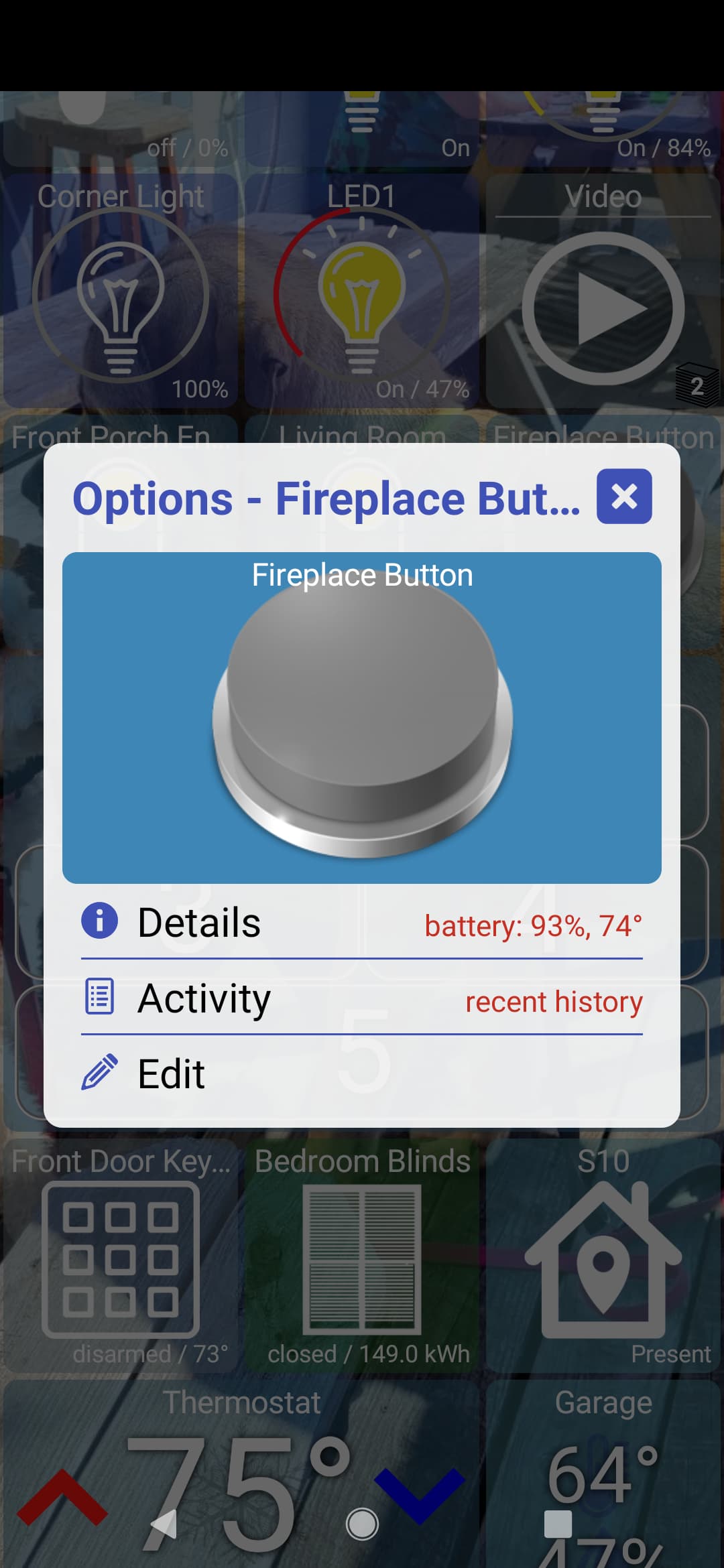
[left: default size / crop]
[right: fill tile / crop]
I have this same exact setup, except for different times, on two Amazon tablets and things have been great. I just added a 3rd tablet and it is not behaving the same. The tablet will blank out at the right time, but it will not turn the screen on the next morning. Unless I press the on button and swipe up to get around the ad on the lock screen.
This morning I thought it was an app version difference in this Dashboard app, but that's not the case. The 2nd and 3rd tablet are running build 1400 while the first is something like 1387.
What I do think is the issue may be the February patch. They are all the latest OS, IIRC 7.5.3.32. But tablet 1 is running a December release, Tablet 2, January, and tablet 3 a February.
What I'm scared for now, since I looked at the OS version, tablets 1 and 2 started downloading an update. If these auto apply and I start having the issue, that confirms it is a FireOS issue. If not, then I'm not sure why it's not waking up on its own. A work around is to leave the screen Always On, but I'd prefer not to do this.
I'm excited to hear that a motion sensor event may be able to wake the screen soon. If this solves my locked ad screen, I'm all for it. Assuming that it would just dim the screen to near 0, near black, and wake up upon motion. Then I could leave all the tablets at Always On and rely on the motion sensors to control the screen.
I'm actually surprised this worked at all for you on the other Amazon tablets. Basically, Amazon's OS doesn't let you remove the 'lock screen' (ie: swipe to unlock).. I'm assuming to display ads. So apps aren't able to fully wake the tablet from the screen off state.
I rooted my Fire tablets and replaced the OS.. I have a link to the site where I found info about this here. That said, it's not something I'd recommend unless you've done that kind of thing before since it's a pretty complicated procedure.. also, I am not 100% certain it will even work on the latest versions but that thread I linked to would be the place to check.
One work-around today is to go into the developer options and check "stay awake". This option, when the device is plugged-in, will keep the screen on but dimmed when it goes idle (instead of fully off).
That, along with setting the screen on/off options in the app will make the screen full brightness during the day and dim it at night.
There's also people that are using at app called Fully Kiosk which has the ability to fully dim a screen but keep it awake. I haven't used it myself (though I'll make a point of doing so later today so I understand it better).
I have a TODO for a future version to implement something like this into the app.. removing the need for another 3rd party app. I'll need to do this anyway if I want to support using a Hubitat device like presence or motion sensor to wake up the app too.
There is an app called Fire Toolbox on XDA. It allows you to change os settings and get rid of the garbage. I did it on a new Fire tablet before I registered it and works well. Just have to make sure Amazon doesn't update. I got Fully Kiosk to work and screen dims after the time I set. Seems to work well. I also like the fact that there is a force landscape option for apps on my shortcut buttons. I have the Ring Always Home app and it will not go into landscape. Works awesome now. I can press the button and pull up camera feed.
Most recent update seems to have broken widgets unfortunately. When I click a button widget, instead of just the buttons, it acts like the edit menu in the app. Also when you click off, it shows a dimmed android homepage that you have to click the home button again to exit out of. Also, after you do that, trying to open the app again just keeps bringing up the same widget popup instead.
EDIT: Seems to only affect button widgets, lights and switches seem fine.
Buenos días. Hay alguna manera de agregar dispositivos por estancia? Por ejemplo: Salon y que dentro de Salón haya sensores de movimiento, luces, persianas etc...?
Ahora mismo solo consigo agrupar iconos de la misma clase.
Muchísimas gracias por tu trabajo.
Tengo un oppo y no funciona la app nativa de Hubitat.
From Google Translate (for those of us unfortunate enough not to be fluid in Spanish):
Good Morning. Is there a way to add devices per room? For example: Living room and inside the living room there are motion sensors, lights, blinds, etc...?
Right now I can only group icons of the same class.
Thank you so much for your work.
I have an oppo and the native Hubitat app doesn't work.
What is the ideal image/icon size for a 1X1 tile? Most of my custom images/icons are getting cropped at the bottom and do not fill the entire tile.
I can confirm that the Amazon Feb patch tightened their hold on the lock screen/broke the Dashboard app from waking up on its own. The Dev option to keep the screen awake works too, although not that dim of a screen in the middle of the night. I'll need to look at Fully Kiosk or see about rooting. I've rooted in the past but it's been about 10 years or so.
Si. But it is a manual process. I did this very thing. You create a folder, then manage the contents and only choose the items you want to display.
For me, I created a folder called Rooms and then inside of that folder each room. I have the device count enabled so I can click on the Rooms folder and quickly see what rooms have lights on. Works great too.
The only potential problem, which isn't really a problem, is when you remove an item from the room, deselect it from the managed devices list. It will be displayed back on the home screen. You can then hide the device on the home screen to have it disappear.
Or have a folder called "Unused"

Thanks you! i will try it.
For the Fully Kiosk users, is the only way to get the dim/turn off the screen via the screen schedule within FK? I installed FK and changed my screen on/off times within the Dashboard App, but the screen never turned off. Being a FireOS user, I think I need to move my Screen On/Off times from the Dashboard App into FK, right? If so, having 3 tablets, I'm looking at about $25 after the Plus license is converted into USD. I'd rather send that $25 to @jpage4500 for incorporating this feature into his app.
EDIT: First off, I know this is off topic from Hubitat Dashboard and I apologize. Second, I cannot find anywhere that states how long the PLUS trial is. Is it just a nag screen? I still would rather put my money towards this app though.
version 1.0.1417 (beta)
- add new screensaver option with timeout (alternative to turning the tablet on and off for devices that don't support that)
I'm hoping someone with a Fire Tablet (and its original OS) can help me test this. I added a new screensaver option to the "Stay Awake" options (nav -> more options -> Stay Awake)
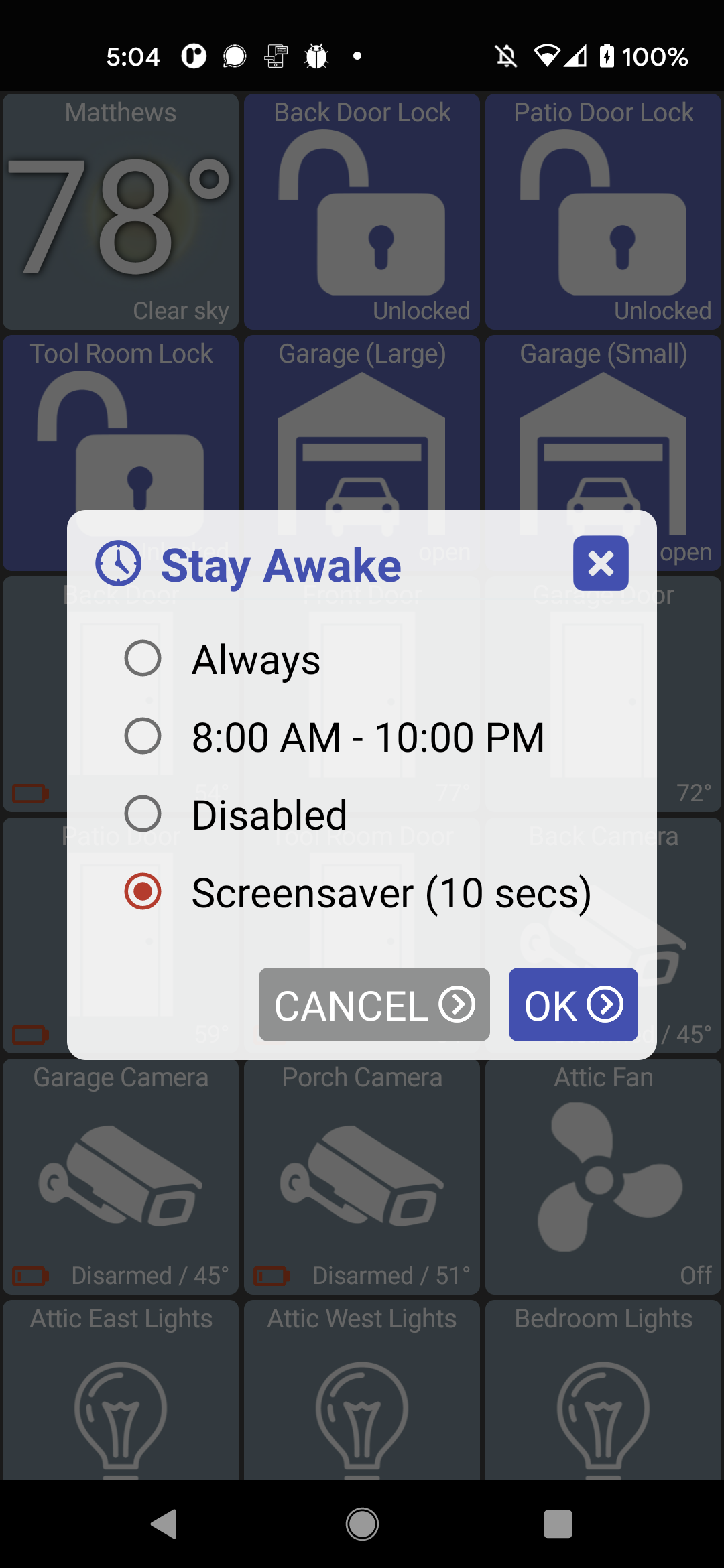
You'll have to enter how many seconds you want the device to be idle before the screensaver kicks in. Then, after that period of time the screen should go black or at least as dim as it possibly can without the screen going off.
It looks completely black to me but the real test would be seeing how it looks at night. I'm thinking this is what Fully Kiosk is doing but I could be wrong.. just want to know if this works.
I'm not trying to replicate any other Fully features.. just a simple screensaver. There's also 1 known/minor bug which navigating the dialogs (ie: options/edit/settings) doesn't restart the timer.. only really noticeable if you set the time to really low like I did in the screenshot.
Anyway, right now this is a separate option.. so you can't have the tablet ON 100% during certain hours and then have it turn 'off' via this screensaver. But, assuming this works I'll also make it an option too.. just wanted to make sure it works before implementing the rest of it.
Lastly, I'll try to figure out how to make a certain device/presence wake the screen as well..
Waiting for Google to show it as an update in the Play store
EDIT:
Hopefully my Fire Tablet isn't a one off now as I have Fully Kiosk installed on there too.
Updated to build 1417.
Set my Tablet device to timeout after 30 seconds
Set Hubitat Dashboard to timeout (screen saver) after 60 seconds
The screen blanked out after 1 minute showing the Hubitat Dashboard Icon with a message that included Screen Saver in it. I wasn't watching and just happened to catch that.
Waited 90 seconds and tapped the screen. The dashboard came back.
While writing this update the screen blanked again.
Waited a minimum of 2 minutes, maybe longer. Tapped the screen once, the dashboard came back.
Took the tablet into the darkest closet I have. You could see the very dim glow of the screen. A very dull grey shade. But in the natural light, it definitely looks blacked out.
I think this is doing what you want? However like I said, I have FK installed now and it is setup to due my on/off of the screen. But I did fully back out and swiped the app away from the recently used. I did not force close it though, and I haven't bought a license as I literally just installed this a few hours ago. I was only seeing the Ad lock screen the next morning after my Time frame had expired.
If you want to build a Alpha APK for me to side load and test using this "screensaver" but based on times vs a timeout (6 AM to 11 PM vs 60 sec), I'm happy to. I can easily uninstall FK too as it looks like this screensaver method will work for me.?.? Or a new Beta build, either works. Assuming the app is behaving how you are expecting it too.
One last test, I let the HD app screensaver kick in and I didn't touch the tablet for another 7 minutes. It took two single taps, but the dashboard came back.
EDIT EDIT: I left the tablet alone for 22 minutes, after the screen saver kicked in. Tapped the screen once and the dashboard came alive.