2026-03-10 - Initial release (v1.0.5) of a dedicated Zigbee driver for the Aqara FP300 Presence Multi-Sensor device. It was built upon the impressive work of @kkossev, and those who have contributed to his "Aqara P1 Motion Sensor" multi-device driver. My motivation for creating this was to have a driver that did not utilize child devices and to optimize/simplify the driver code as much as possible for performance and battery life.
2026-03-12 - Release v1.0.8 with improved user Preferences handling logic and improved preference titles and description.
2026-03-13 - Release v1.0.9 with new Advanced/Experimental Preferences, and minor internal refactoring of 'motion' logic variables.
Changes include:
- Dramatic reduction in code size from ~3000 lines to <1000 lines. (Mostly by removing support for all of the other devices!)
- User Preferences are now data driven based upon which preferences are currently set. This mimics the behavior of the Aqara mobile phone app, as certain settings are only pertinent based on other settings.
- Eliminated many of the non-standard attributes, focusing on the ones that I believe would be most useful in Hubitat automations. I kept the remaining attribute names the same as @kkossev's driver to simplify migration between the two drivers.
- Optimized the Hubitat Standard Capability "Motion Sensor" attribute to make sure that it is properly activated/deactivated based on the Presence Detection Mode - Both mmWave and PIR, mmWave only, PIR only. This provides the fastest response time for Hubitat automations, like Room Lighting.
- Optimized the Temperature, Humidity, and Illuminance Zigbee reporting to only send data when the user has selected those features be enabled. This should help to improve long-term battery life of the sensor.
- No child devices. Temperature and Humidity are now simply part of the main device.
A few IMPORTANT things to be aware of when using the FP300 Sensor
- A brand new FP300 sensor will need to be put into Zigbee mode via the Aqara mobile phone app, before it can be paired via Zigbee to your Hubitat hub. By default, these are configured to use Matter over Thread. One benefit of performing this conversion to Zigbee, is that the device's firmware will be upgraded to the latest version from Aqara.
- Any time you want to change a User Preference, please be sure to first press the physical button on the FP300 to wake it up, and then press SAVE on the Preferences page a few seconds later. Saving all of these settings to the FP300 will take about 30s. Please be patient. You can verify that your new settings were saved properly to the device by refreshing your web browser while viewing the Hubitat FP300 device page, and then looking at the Preferences tab. Any time the settings are written to the device, or a device refresh() is called, the Preferences page is updated with all of the latest settings from the FP300 device.
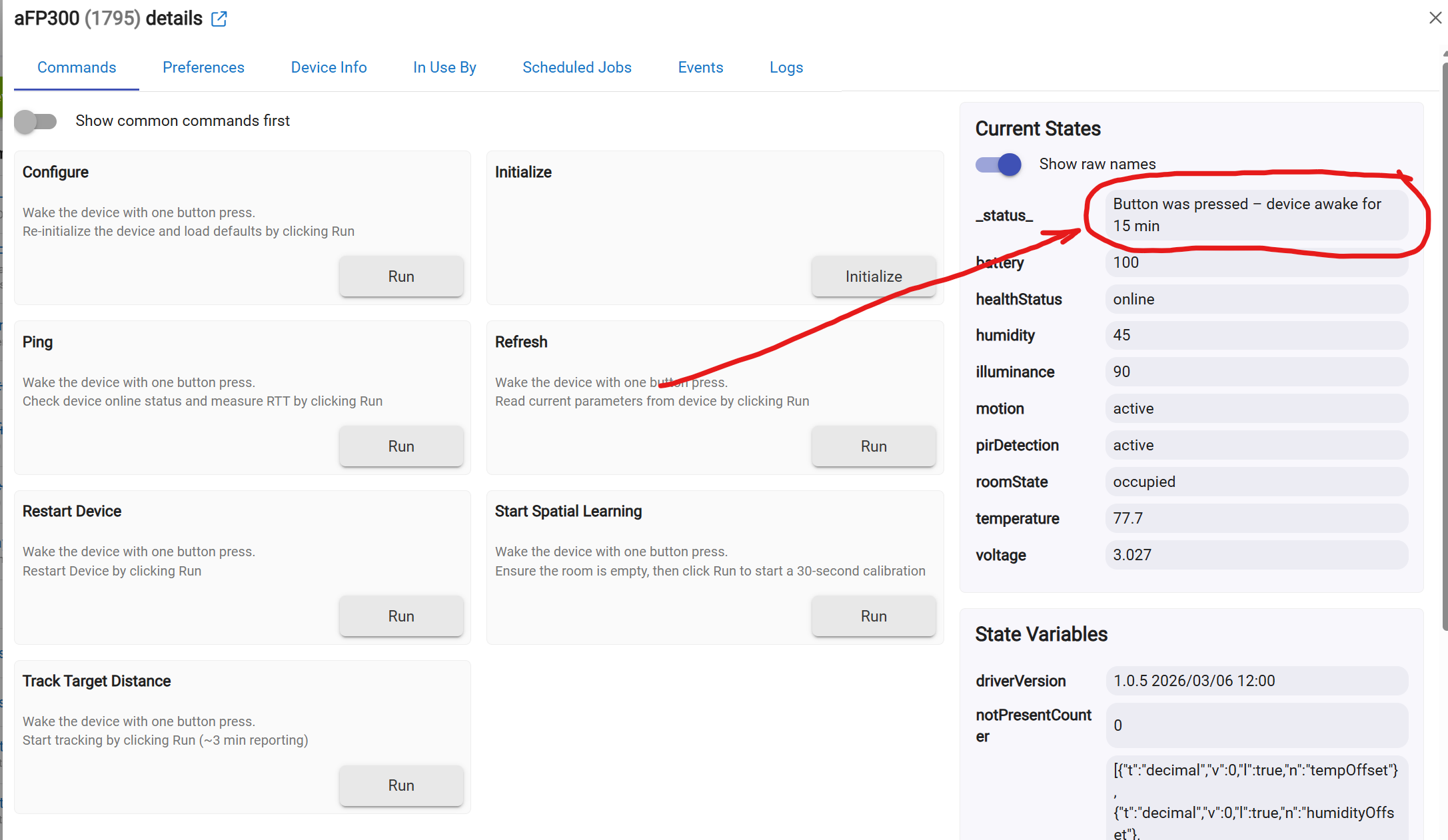
- When issuing any of the Commands to the sensor (e.g. Start Spatial Learning), you will also need to wake it up first by pressing the physical button on the FP300.
More detailed instructions to follow soon.
How to install the driver:
- This driver has been added to the Hubitat Package Manager (HPM). Search for "Aqara FP300 Presence Multi-Sensor".
- Or, you can simply manually add this driver to your HE hub via my GitHub Repo.
The sensor has both a PIR motion sensor AND a mmWave Presence/Occupancy sensor in it. Both of these sensors are exposed via Zigbee to the HE hub. PIR is mapped to the 'pirDetection' custom attribute. mmWave is mapped to the 'roomState' custom attribute. Using a combination of the pair of these sensors, the driver infers the proper state of the Hubitat Standard Capability Motion Sensor 'motion' attribute.
User Preferences
Presence Detection Modes:
PIR Only:
- 'motion' = 'pirDetection'
mmWave Only:
mmWave + PIR:
- 'motion' is active when either pirDetection OR roomState are active/occupied
- 'motion' is inactive when both pirDetection AND roomState are inactive/unoccupied
#####################################################
NOTE WELL: I recommend fully unpairing/removing your existing FP300 sensor, factory resetting it by pressing the button on it 10 times quickly, and then re-pairing it using this driver (you may need to remove any previous custom FP300 drivers to make sure this new one is automatically selected during the pairing process, or at least comment out the fingerprint for the FP300 in your existing drivers.) This will make sure that only the essential Zigbee status reports are sent to your HE hub, thus improving battery life.
#####################################################
A huge Thank You goes to @kkossev for his Aqara P1 Motion Sensor driver which served as a starting point for this driver! I appreciate his support for this effort!
As always, feedback is welcome! I would like to also thank @LearningHubitat for his assistance in testing/debugging this driver.
14 Likes
This is great, a separate driver!
I was using the other driver as it supported the Aqara stand-alone motion sensors as well; just to get health-status basically.
Note: I tried to reset the firmware but if you click too quickly nothing happens.
I'm too use to Sengled bulbs where you really have to fast with the On/Offs. 
2 Likes
I did the same. It is a nice half second or so between presses then you will get through ulsing violet light.
Just remember that 10 presses is also supposed to reset the AI spatial learning so you will need to run it again. I had to.
1 Like
Are there no Prefs that used to be in the Advanced section?
Like Distance?
I pressed the wake button but I can't get Prefs to save.
Pir says both and sensitivity is still medium.

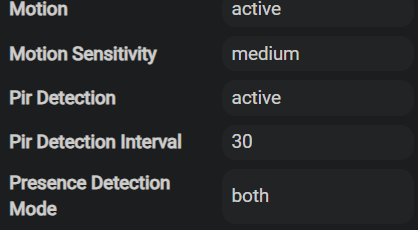
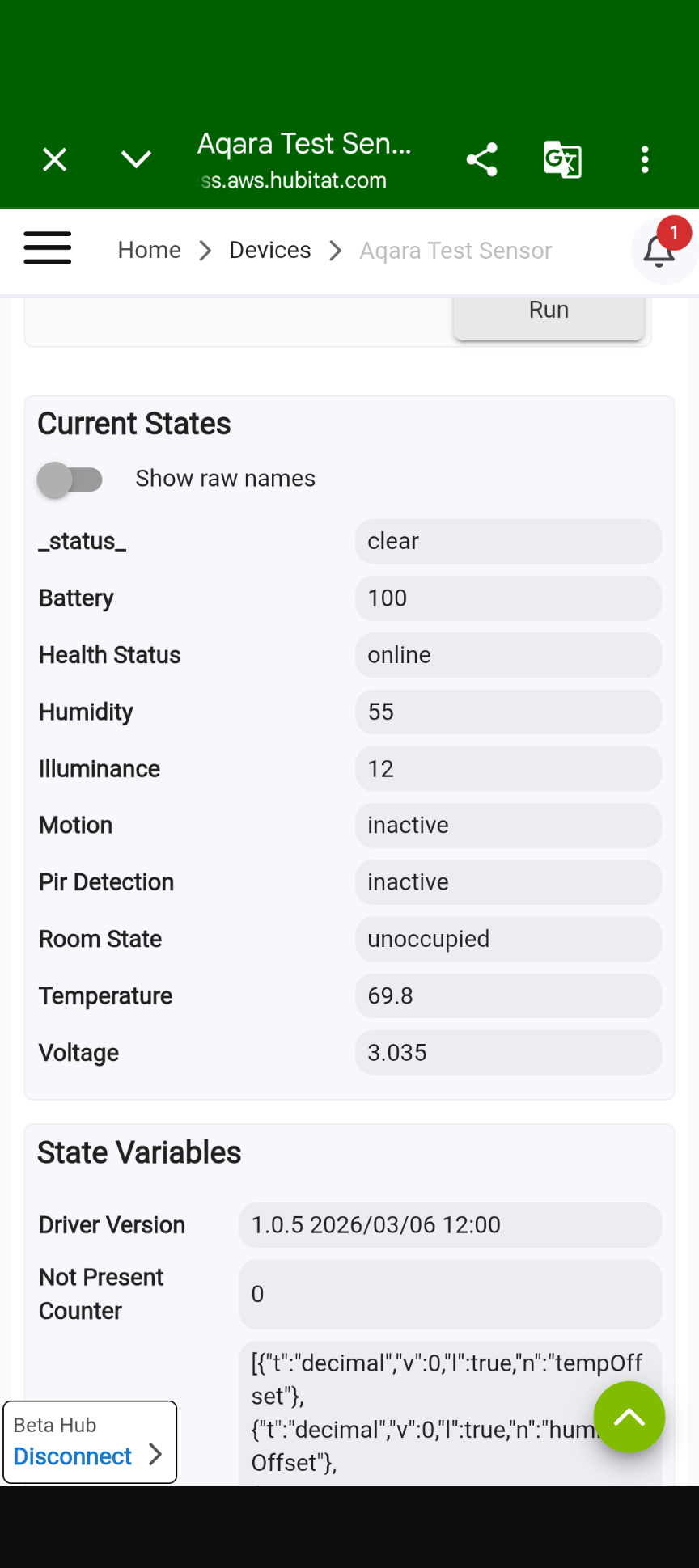
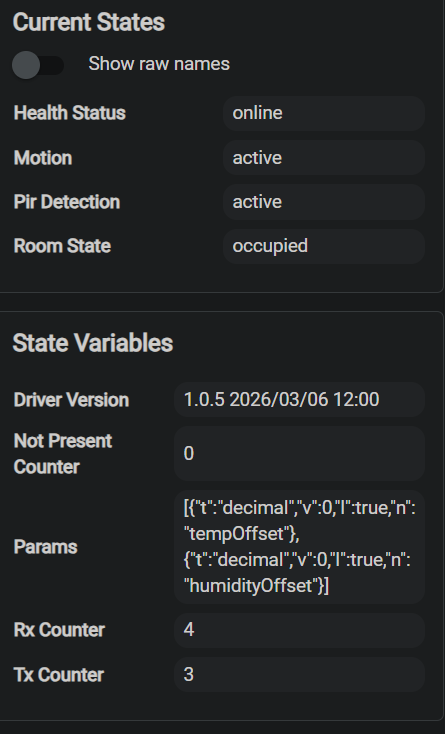
The current states screenshot you posted is different than what I see with the driver. Below is the screenshot from the driver with my device.
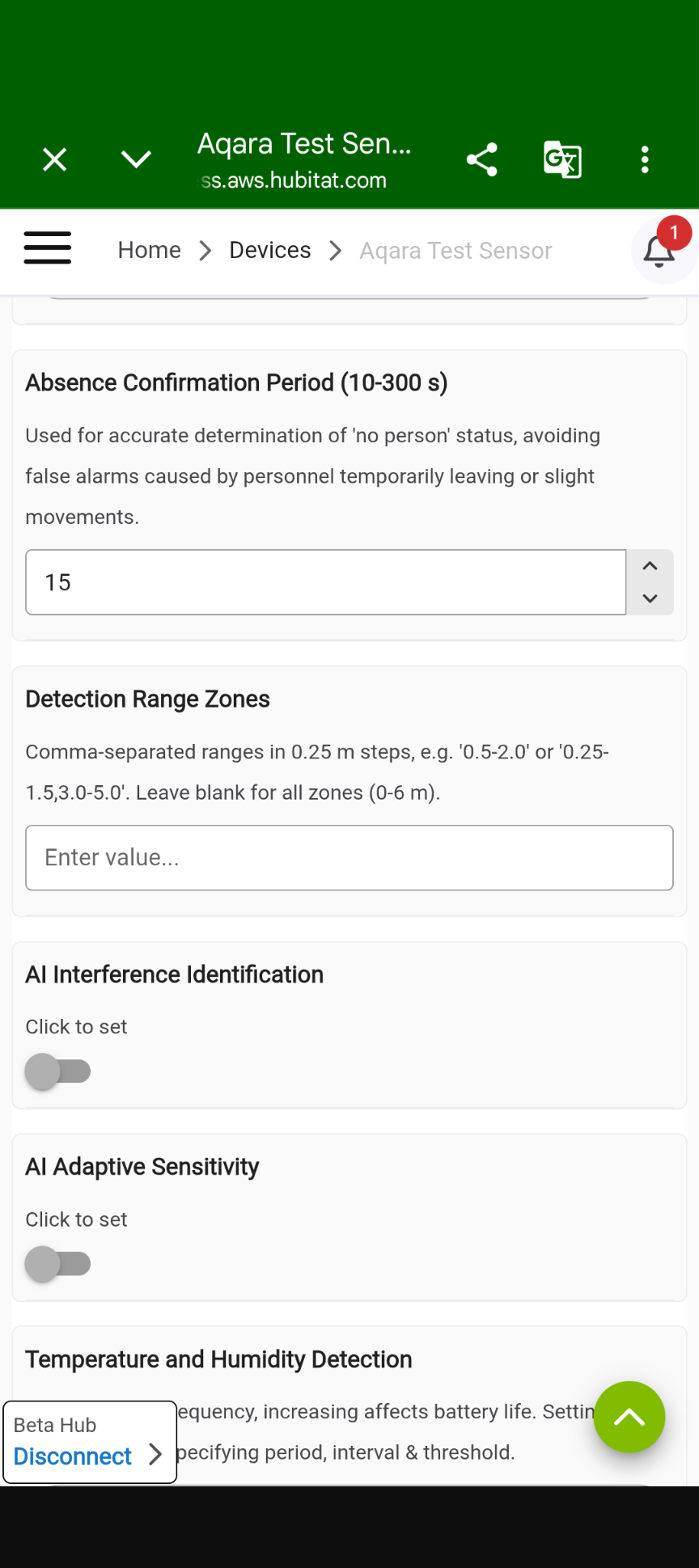
Also, you should a range in the preferences like the below screenshot.
Let me hit this with the Device driver to wipe everything and start again.
2 Likes
It appears that you did not completely unpair/remove the device from your Hubitat hub before using the new driver. The new driver does not expose anywhere near as many custom 'attributes', and thus your old instance of the device will still show those old attributes, but will never update them again.
Those settings can simply be viewed on the Preferences page of the driver.
Many of the user preferences will only appear based on the value of other user preferences.
Which one(s) are you most curious about?
Indeed. I wiped the Current states.
Too much of a rush. My old P1 driver popped in before and I had to change it to yours but it was too late.
Hence the request to get the fingerprint removal confirmed. If it's just line 190 I'll delete it and I won't get the driver beating yours to the config.
1 Like
Here is what my old Aqara P1 driver line 190 looks like... I simply commented it out.
        fingerprint profileId:"0104", endpointId:"01", inClusters:"0000,0400,0003,0001", outClusters:"0003", model:"lumi.sen_ill.agl01", manufacturer:"LUMI",   deviceJoinName:  aqaraModels['GZCGQ11LM'].deviceJoinName                       // tests only : "Aqara T1 light intensity sensor GZCGQ11LM"
        fingerprint profileId:"0104", endpointId:"01", inClusters:"0000,0003,FCC0", outClusters:"0003,0019", model:"lumi.sensor_occupy.agl1", manufacturer:"aqara", controllerType: "ZGB", deviceJoinName: "Aqara FP1E Human Presence Detector RTCZCGQ13LM"        // RTCZCGQ13LM ( FP1E )
//        fingerprint profileId:"0104", endpointId:"01", inClusters:"0012,0400,0405,0402,0001,0003,0000,FCC0", outClusters:"000A,0019", model:"lumi.sensor_occupy.agl8", manufacturer:"Aqara", controllerType: "ZGB", deviceJoinName: "Aqara FP300 Presence Sensor PS-S04D"  // PS-S04D ( FP300 ) Hubitat fingerprint
    }

    preferences {
1 Like
Does the Current State change names if it's not just Pir detection.
Just wondering where I get confirmation of the detection method and the sensitivity?
I'm just gun shy as I seem to have bad luck waking the device and getting the Prefs to take.
D@mn end users. 
When the Sensor responds, it will update the User Prerences page. You may need to refresh it to see if the settings took or not.
Updating the settings is really very simple.
- Adjust the user preferences as you see fit, but do NOT click Save, yet.
- Press the button on the FP300 sensor - wait until it blinks the blue LED a few times.
- You now have ~15 minutes to go back to the Preferences page and click Save.
That's all there is to it. If you have all of the logging enabled, you will probably see the response data coming back from the sensor in the Logs for the device.
1 Like
Yes, I'm looking at the logs to see what I can.
I did notice pressing the wake button did not flash blue right away like my other Aqara devices.
I'll keep a watch for that.
You should see the blue LED flas about 6-7 times after pressing (not holding) the button on the FP300. You will also see the _status_ attribute on the device's main page change to indicate that the button was pressed.
I hope @ogiewon doesn't mind me commenting. If I understand what you are asking, no the current name states will not changed based on PIR and mmwave. The PIR is of course what you see as PIR in the current states. The room state is the mmwave.
I experience about a second or so activation of PIR before the mmwave changes room state to occupied. However, "motion" becomes active as soon as the PIR is triggered. "Motion" will also stay active as long as the mmwave is detecting someone. It is possible and I have seen it that if you sit still enough PIR will go inactive but motion will stay active because the PIR is still picking you up. Then "motion" will not go inactive until both PIR and room state has cleared.
This means for 99% of users "motion" is the only state they will need to use.
If that was not what you were asking I apologize.
1 Like
Not at all! Please feel free to assist! Thank you!
I'll be AFK for a while this evening.
1 Like
I "assume' the mmWave room state is just populated by the Pir status, it doesn't actually mean the mmWave is active.
Does AI Adaptive Sensitivity now take over the low/med/high of the old driver?
No, the room state is the mmwave. It will not change to occupied until the mmwave is active. That is why PIR changes motion to active before the room state shows occupied. Then the PIR can go inactive and motion and room state stay active and occupied.