I know we turned off Parental Controls. All devices say "None". I don't remember that we even went into Security & Firewall. I'm good with software (retired programmer) but not good with hardware. I'm starting to feel very stupid.
Are we sure the problem is with the router rather than the Hubitat hub?
Well since the problem started when router was swapped that seems to be the most likely culprit. Also the hub could ping the gateway (router), and you can get to the web UI from within the LAN. So the hub is connecting to the network, but it is not able to reach anything on the internet, not even by a direct IP ping which does not rely on DNS at all to work.
So yes it seems very likely that the problem lies within the router configuration.
Can you try a different port on the network switch or even better would be to connect directly to the router if you can. Even if you have to move the hub temporarily, it would eliminate the switch as a variable.
One other thought, have you rebooted (or power cycled) ALL networking equipment including any switches / modems, etc...? There have been a few cases where rebooting a switch was the solution to connection issues. Since yours is not a managed one its probably not the issue but worth a try,
I rebooted the router earlier today and that caused the hub to revert to 171 after we changed it to 168 last night. I've rebooted the hub several times, including a pin in the round hole on the bottom of the hub. It's a little too late for my brain to deal with it tonight. Will try it tomorrow morning. As for the switch, it has nothing to reboot. I'll try to plug the hub directly into the router once I can figure out what I can safely unplug temporally.
Is there any possibility that using Override DNS Settings or Switch to Static IP in the Network settings might help? Remember that I also have the hub coming up with 2 IP addresses depending on where I'm looking. I don't know if that's a separate issue from the cloud connection problem.
That's why I said reboot / power cycle. Surly it has a power cord and can be unplugged?
I explained above that the issue is probably BECAUSE of the cloud issue. The places you are seeing the old IP is where it is pulling from the cached IP in the cloud system. Since the hub cannot connect to it, the IP has not updated.
You can try switching to a static IP if you know how to configure it. I do not think it will fix the issue but no harm in trying. If you mess it up and the hub goes offline thats what the hidden network reset button is for.
You can also run from a command line on Windows, arp -a, and look for the MAC of the hub, and also anything on .171 or .168 This can help identify if you have some sort of IP conflict or something else strange going on.
Make sure that the hub is not connecting via wifi AND wired.
I had that thought earlier also, as we have seen that cause similar symptoms before, but then saw its a C5 so I think that is ruled out (no Wifi for that hub).
2 Likes
The hub is only wired. The idea that the IP address problem is a result of caching old data would make sense. I didn't realize that all the IP address information doesn't come from one place. Another reason to try to get everything back to the old IP address.
I will also try unplugging the Netgear switch tomorrow.
Thank you again for all your help.
1 Like
That wont fix the cloud connection, the IP being stale on the cloud is a RESULT of the cloud connection being offline, not the cause of it.
When the hub connects to the Hubitat cloud system it tells it the LAN IP of the hub. That IP I think is then used by the mobile app to check for cloud/local connection and possibly also to make the local connection. The FindMyHub should be using a local scan to find the IP, but I suspect if you are logged in it just grabs the cached IP from the cloud system to give you quick results. The Advanced scans will scan your LAN which you said above will find the correct IP if you use the MAC to search the LAN.
If cloud connection is fixed the cached IP will get updated and probably everything you have an issue with will work again.
1 Like
Just ran arp -a from the command prompt. 168 doesn't appear at all, 171 shows up once.
My apps won't work on my phone and iPad because they are looking for 168. At least they would load again. I'm using my browser right now to access the interface.
Using the MAC to search the LAN in Advanced Discovery gives me the OLD (168) address not 171. I would think that data was not cached but searched for in real time. That may put a hole in your theory.
Try it from a Private/Incognito browser window without logging into the portal.
The old router/equipment is totally offline and unplugged correct? You only have the one ISP provided router and not any other routers or mesh systems? Is it a combo modem/router, or is there a separate ISP provided "modem" that converts the fiber over to ethernet, which should then plug directly into the router?
Oh also, in the ARP command, did you verify the MAC listed for .171 matches your hub MAC?
The physical address for 171 matches the MAC address for the hub
Since I'm not good with hardware I had a Verizon tech come to my house to swap the router and an extender. He used the old ID and password on the new router to minimize the number of WiFi devices I would have to reset. He left the house with the old router and extender. The new router model is CR1000A if that is any help. The coax cable plugs in directly. I've got some set top boxes for the TVs but I don't think that counts.
I opened an incognito page in Chrome. Went to Find Hubs without logging into my account. Plugged in the MAC address and got 168 as the discovered hub😪
Only way that is possible is if some of your equipment is still hanging onto the cached info. You need to eliminate that switch as a possible issue. Power cycle it and also bypass it.
Could also explain why the hub cannot get online, if the switch has wrong info cached and is forwarding things incorrectly.
I plugged the hub directly into my router and rebooted the hub. The IP address is still 171 but Find Hubs is 168.
I can ping 1.1.1.1 from a command prompt on my computer but it still fails if I try it from Network Test.
Did you also power cycle that network switch?
Seems like hub is being blocked from reaching the internet for some reason.
You could try to ping something else just as a double check, 9.9.9.9 (Quad9 DNS) or something.
Now that the hub is directly connected to the router, please be sure to press and hold the Network reset button on the bottom of the hub for at least 10 seconds. The Hub LED will change color and the hub will reboot itself.
Didn't bother with the network switch the hub was plugged into. I decommissioned it and moved everything to another switch. I can ping 9.9.9.9 from a command prompt but it fails in Network Test.
Will do reset now.
The reset has finished. Same result. Pings work from a command prompt on my computer so I would imagine that the router is not the problem. No pings work from the Network test but I can ping the gateway. Is it possible that the problem is with the hub itself?
Honestly the ping from your PC is only telling us that your internet connection works.
I assume if you go to My Hubitat > Registered Hubs, Hub Details, the last Checkin is from before the router got replaced?
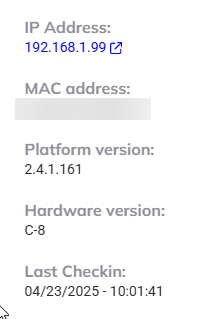
Since the hub can ping the gateway, its network stack is working. This is pointing to some sort of configuration or hardware on your LAN is preventing the hub from reaching the internet. Often times it is just DNS not working, but in that case the IP ping would work. When the IP ping to an external IP does not even work that means the hub is being totally blocked from the external WAN.
For the hub, you could try a reboot and select advanced, rebuild database. Probably wont help but wont hurt anything to try.
If you really think some sort of configuration on the hub could be the issue you could take a local backup and save it on your PC. Then do a soft reset from the diag tool, and DO NOT restore your backup when it reboots. (This only clears the hub database and not the paired devices to the radio). Then you can try the ping tests again. Once done testing you can then restore your backup to get the hub back to how it was before.
You could also take the hub somewhere else and plug it into internet, see if you can get it online from another location at all.
1 Like
That's what it seems to me. I'd suggest getting the friend who attempted to set a static DHCP lease to review the setup.
Seems like you are running a plain flat network, maybe consider reseting the router and start over. Take a backup first. The reset resets the admin password. Re-add the old WiFi passwords. Re-set static DHCP leases. All documented in the following:
2 Likes
The last check-in was 04/18/2025 - 02:19:02. The new router was installed on4/18 about 9AM.
At some point yesterday I did an advanced reboot. Obviously it didn't make any difference. I might try taking the hub to a friend's house and plugging it into that router. It's the same model as mine.
I would like to avoid resetting the router and and re-entering everything if at all possible. I had Verizon send some here to swap the routers because I didn't feel comfortable doing it myself.
The hub itself is working otherwise. My lights go on and off as scheduled and I can access the interface from a browser.