Hopefully someone here could help me, not real smart with this and have searched but not found a fix. I just got fiber optic internet installed after having cable for the last 20 years. I kept my existing TPlink router. All my wifi devices are fine. I have 3 ethernet connected devices. One goes to an Invidia shield and one goes to an unmanaged switch connecting my C7 & C8, they work fine. The other ethernet cable goes to an older desktop PC that is visible on my LAN but it will not get to the internet. I can pull the cable from my router and plug it into the new ONT or my old cable modem and it will connect to the internet but not thru my router. Don't know what changed. Can someone tell me what to look for?
Who is your provider? Usually they just don't install a ONT but also a Fiber gateway which authenticates with their network and also is a router on it's own.
For many AT&T fiber folks they have:
ONT -> Gateway -> LAN and Wifi ports
Newer installs AT&T built the ONT into their gateway:
ONT/Gateway - > LAN and Wifi ports
If you plug say the TPlink into the Gateway ports you end up with double NAT but the devices on that TPlink should work. To get around double NAT the provided gateway from the carrier should be in "Bridge Mode" and then set the rules for the port that the TP link connects to as being the Bridge port or sometimes it's in the firewall settings and the MAC address of the TP link.

I assume you didn't go with their managed wifi package based on what I am seeing it's just a ethernet adapter on the termination box. Your TP link should just connect to that termination using it's WAN connection and you should be all set.
Then your ethernet runs into the LAN ports of the TP link.
Based on your picture the Ethernet port isn't online on the terminal adapter. Is that white ethernet cable the one that goes to your router?
Yes, the white cable is going to my router WAN port. All my LAN ports are working, its just the one desktop PC cannot reach the internet thru a LAN port on my router. All other devices ethernet or wifi connected to my router work fine.
Ethernet is not active. That or the frame was captured while it was flashing and was off. The first thing I would rule out would be rate and duplex mismatch. The second would be using a straight through or cross over ethernet cable. I have not seen that problem in years as ports are autosensing these days. Then check that their terminal is not mac address locked by connecting up your TP link then power cycling their adapter.
It looks like the black box in your photo is a combination fiber interface and router. If you haven't placed this device into "bridge" mode, then all the devices on your LAN will be double NAT'd.
Double NAT should not cause any problems with devices reaching the Internet, but will cause problems if you want to connect to your home network remotely. For example if you have a file or video server, or perhaps a VPN server running on your router.
Assuming these double NAT issues do not apply to you, then we can ignore the double NAT for now.
Since all the other devices on your network can reach the Internet, and this PC is visible on the LAN, (it would be interesting how you determined that), the first thing that comes to mind is that the PC does not have the correct gateway address.
Go into the PC's network properties, and make sure it is set to "obtain an address automatically".
Try to ping 8.8.8.8. If you get a successful reply, then your DNS settings on the PC may be incorrect.
That black box is just ONT interface to Ethernet based on what I read on his ISP's web site. He doesn't have the managed WiFi service which would be a different device. All I can think of is replacing the cable to the PC or swapping ports with one of the working devices with the PC device. Take a known working config and test it on the PC.
That's quite possible. I was basing my assumption on the fact that ISPs in Canada have moved away from separate ONTs and routers, and are recently installing combined devices. I guess the OP could confirm by the number of Ethernet ports on the device, since most consumer ONT models only have a single port.
So if it is a simple ONT, we can disregard my comments about double NAT. Also, I don't think double NAT will cause this problem unless he is running a server on this PC and his complaint is that he no longer has Internet access to the server.
Thank you for helping, finally got .65 in of rain her in SW GA today after about 2 months with none. That made me have to start some pending yard work so I have been raking pine straw and getting ready to cut grass hopefully for the last time until spring. May be Tuesday before I can check these suggestions.
Light works. must have been flashing
Have swapped ports, also pulled the PC cable from my router and plugged directly into ONT and it connects to the internet
have you checked the ip address on the pc to make sure it is not static or if it is . it is on the correct subnet.. that would explain why everything works but not that..
from a command prompt run ipconfig /all show results
what is the subnet on your router in comparison
Could the TP Link router be hanging into a IP lease with a long lease time? It shouldn't but...
Check that the address your pc got is of the same network as the router is using on its WAN port
On your pc can you do a IP config for when you are connected to the TP link and another IP config when directly connected to the ONT?
Open a command window or PowerShell window and type this:
ipconfig /all
You should see a lot of information display scroll back to your ethernet adapter and copy the configuration while on each connection.

Looks ok. The network interfaces showing “disconnected” are for a VPN interface and something relaated to WiFi direct (probably built into windows and you may not even use it).
The WiFi NIC that your laptop is actually using to connect to the LAN/WAN shows what looks like a normal/active connection.
You need to repeat this command on the PC that’s having an issue, though.
You can ignore most of the “media disconnected” entries again but pay close attention to the entry for the Ethernet card the PC is actually using.
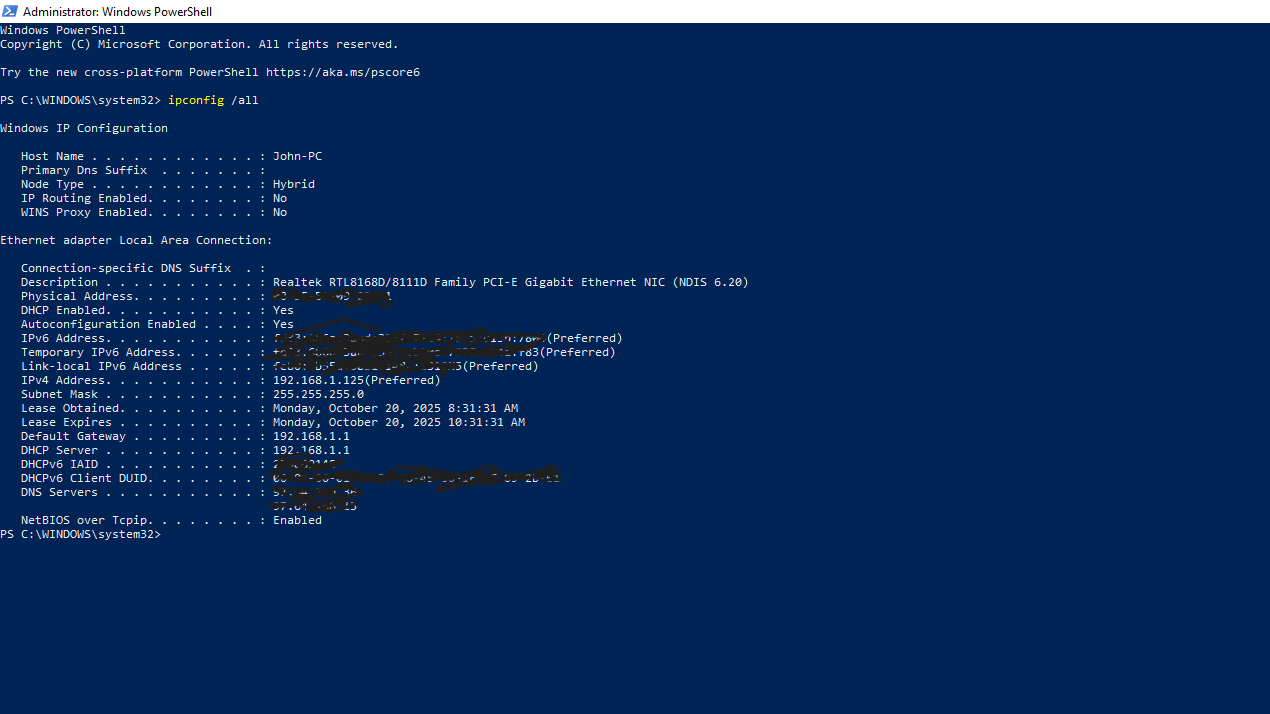


The different subnet mask for your router’s Internet (WAN) connection versus your PC’s LAN connection is completely normal. As you can see, the subnet mask is the same on your PC and the router’s LAN page. So that is correct. Also, your PC’s IP address is in the correct range as assigned by your router’s DHCP server, so that is also good.
From your PC, please trying pinging a web site, like
ping www.intel.com
And try
ping 8.8.8.8
ping 192.168.1.1
What are the DNS server addresses for the PC in your screenshot of the powershell window (the IP addresses are redacted)?
They should match what’s in your router settings, i.e. 1.1.1.1 and 8.8.8.8, which are Cloudflare and Google public DNS servers, respectively.
I can ping all except www.intel.com Can also ping 1.1.1.1
Did not know what numbers are safe to post that is why I blacked out some. The DNS servers are longer like 97.64.*., nothing like 8.8.8.8
That would point to a DNS issue.
Please show us what your Windows network settings look like.
For example, here is what mine looks like in Windows 11.

It is important that both the IP Address and DNS server are set to be obtained automatically. This allows your router to assign the addresses to your PC.
You can also use the newer Windows Settings to run the built-in utility to help fix networking issues.
