After researching on this forum, I've added the following drivers and tried associating the TRV with each in turn:
Tuya wall thermostat
Tuya Zigbee thermostats and TRVs
The TRV is connected and I see logging updates. However in the dashboard there are complaints of missing attributes. The exact parameters change depending on the driver used.
currently using Tuya Wall thermostat, with 'model group' = Moes. The attributes missing are : thermostatOperatingState, supportedThermostatFanModes, supportedThermostatModes. But these are not definable in the device page.
In the logs I see the following entry recurring: 2024-10-23 08:50:43.658 AMerrorgroovy.lang.MissingMethodException: No signature of method: java.lang.String.call() is applicable for argument types: (java.util.HashMap) values: [[cmdTime:1729669443756, pingTime:1729669412054]]
Possible solutions: wait(), chars(), any(), wait(long), take(int), each(groovy.lang.Closure) on line 1471 (method setHeatingSetpoint)
There are several different thermostats sold under 'MOES' white label, so the first thing to do is to identify what device you have. Please read and follow the instructions from this page :
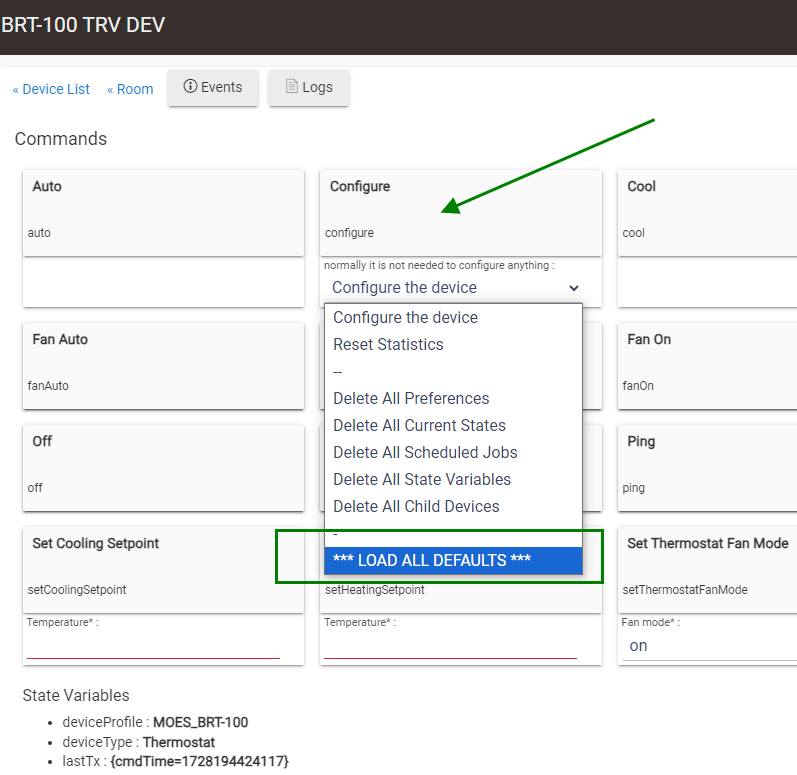
Because you have paired the thermostat before installing the driver, you need to initialize it manually - select "LOAD ALL DEFAULTS" from the dropdown menu and then click on the button above :
This TRV should work with the new driver referenced in my previous post. Please configure it with loading by the default values and let me know if it works or not.
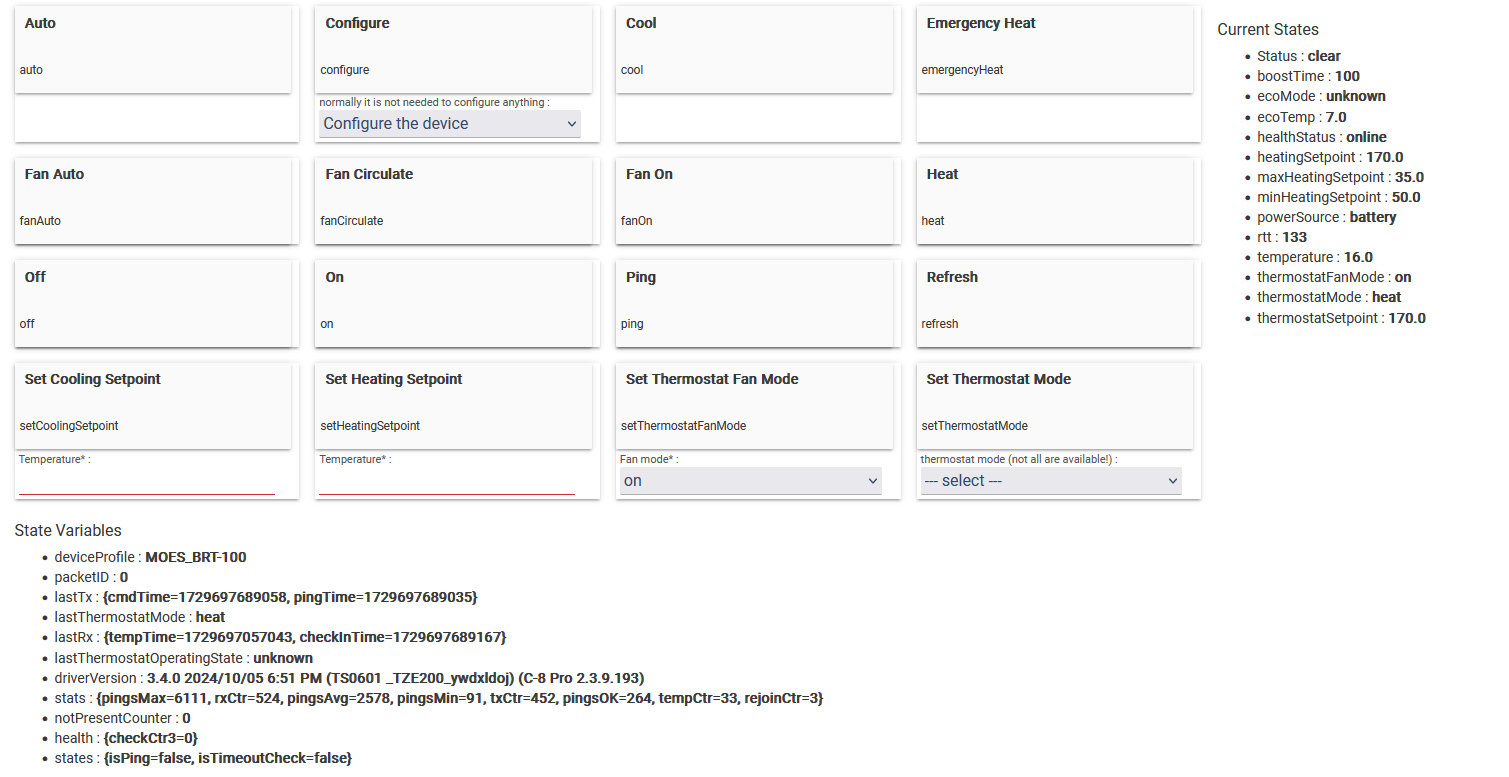
I did as you suggested. I can see the device communicating with the HE, but the dashboard is still complaining of Missing Attributes: thermostatOperatingState, supportedThermostatFanModes, supportedThermostatModes
From the screenshot I see that you still have a wrong deviceProfile MOES_BRT_100
Are you sure from the Configure drop-down menu you did the following :
First click on the dop-down menu (below the button), the drop-down list should become visible as in the picture in my previous post
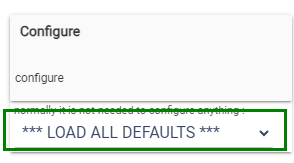
You clicked on the '*** LOAD ALL DEFAULTS ***' menu item. Then, the dropdown menu will collapse and the selected option will become visible, like this :
You clicked on the 'Configure' button above.
From your screenshot above, I see you have the default 'Configure the device' option selected, not the '*** LOAD ALL DEFAULTS***'
Hubitat device page UI is not very user friendly ... and this complicated driver has made it even more complicated.
That did the trick. I no longer get missing attribute errors. In the log file I do see the following line; java.lang.NullPointerException: Cannot get property 'name' on null object on line 4819 (method autoPollThermostat). Might you know what that is pointing to? I guess line 4819 is a point in the driver code?
Yes, 4819 is the line number in the driver code. I see where the problem is (missing 'level' attribute - this TRV does not report the valve opening percentage 0..100, so no level attribute), It is too late here, will fix it in the next days. For now you can simply ignore this error, it does not affect the functionality.