[Early Release] Light Effects Tools

To put it simply I have been getting a fair amount of requests for tools to better manage light effects from Govee. The options have been very limited. I am proud to announce the Early Release access to "Light Effect Tools". Fortunately these tools use the standard capability LightEffects so this is not limited to Govee, but any device that's driver supports that capabilities

First I expect that this may grow into more than one or two tools so it uses a parent Child relationship so we can add more tools going forward. The current released tools are:

  1. Light Effects Show
  2. Light Effects Grouping

The Light Effect Show is intended to allow users to select multiple devices for a automation show with a specified number of groups/Intervals. Once the devices are selected the users can then select from the devices supported automations to be used in a given interval/group. Then based on selections cycle through the intervals/groups in either a set order or random fashion.

This will allow us to create shows of various animations to schedule over a period of time

The Light Effect Group tool is designed to allow us to create custom scene lists across a variety of devices at the same time. This tool has a custom built in Virtual driver that can create a device to execute actions across all of the group's devices at once.

The initial goal of these tools is top help devices work together. None of this can't be done with existing rules if enough time is put in to create them, but hopefully this will make all of that easier.

To install

I have added the tools to HPM. If you want to try out these tools please go to HPM and do a keyword search for Effects. You will see "Light Effect Tools by Mavrrick". Select it and install

If you install without HPM you will need to install from the below links.
Light Effects Tools - Parent App
Light Effects Show - Child App
Light Effects Groups - Child App

A few things to keep in mind

  1. For the device selection to work your device has to support the device capability "LightEffects".
  2. Your devices have to populate the lightEffects Attribute. All Govee Devices do, and in a upcoming Hubitat firmware so will Wiz Lights. If your device supports animation control, but does not populate that attribute please contact the developer of the driver. If the devices does not it will error out. Please confirm before using the tool ensure that the Light Effects attribute is populated
  3. Consider your API Rate limit if you are using the cloud for devices. This could potentially hit allot of devices all at once on a cloud api if you are using such.

8 Likes

Change Log information

v 0.1 Initial Release
v 0.2 Bugfix
v 0.3 Added Light Effects Grouping Tool
v 0.4 Added Light Effects Grouping driver as a controlling device.
v 0.4.1 Added Boolean Hub Variables as trigger option. Will function same as switch.
v 0.4.2 Fix bug introduced with Settings Cleanup routine.
v 0.4.3 Added routine to increment Year of Date once cycle has completed
v 0.4.4 Added routine to cleanup Settings in Light Effects Grouping Tool.
v 0.4.5 Significant improvements to the Light Effects Grouping Driver. These include more appropriate current State management and enabling the Set Net Effect and Set Previous Effect Commands.
v .0.4.6 Bug fix for Child creation process in Light Effects Grouping child app.

2 Likes

Things to do.

1, As the number of devices and the complexity of the groups grows, it can cause the UI to slow down. This is likely due to how the Light effect information is loaded. I have a idea on how to improve that.
2. Implement Hub Variables as a trigger to act the same as on/off from a switch. Completed as of 0.4.1
3. Build routine to cleanup left over settings. Update Completed as of 0.4.4
4. Add way to allow date to role from year to year. Currently date values only good for year scheduled. Completed as of 0.4.3
5. work on next and previous scene commands in Light Effects Group Driver.Completed with 0.4.5
6. Rework scheduler methodology to improve flow and reduce complexity

2 Likes

Light Effects Show

The Light Effects Show Child app is intended to give you a way to enable a automated show of various light effects across several Light devices. This can enable a unique experience with multiple light devices creating beuatiful effects together in harmony

Once you open the Light Effects Tool click on the button for the "Light Effects Show Apps" to create your first app.


This will load you into the initial setup page where you will need fill in a variety of fields and make a few selctioncs. Fill in those fields a desired Start by giving your new Light Effects Show a name. Here I ave one the name "Test Effects"

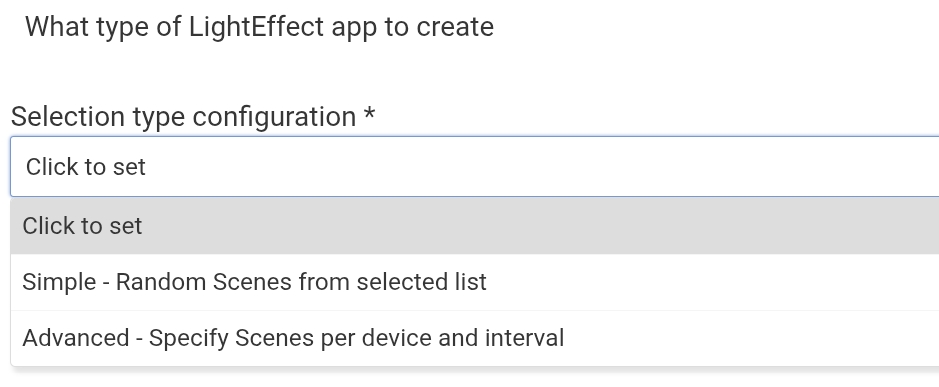
The next field to populate is related to the type of effect you want to use. Select "Simple" if you want to simply specify a list of scenes to use and then let the app random choose a new scene to use. Use Advanced if you are using multiple devices with multiple scenes and want them to have scenes that stay to gether when being processed.

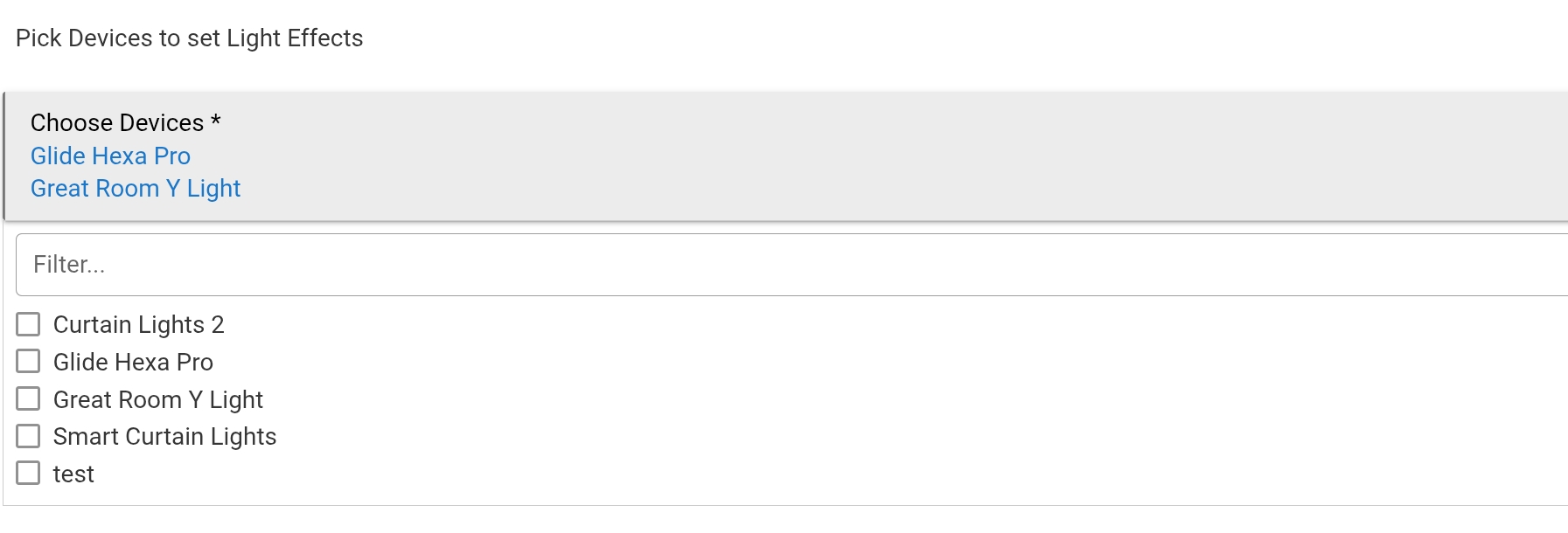
Now click on the option to "Choose Devices" and select all of the devices that will be involved with your light Effects. You can see this below.

Only devices that suppot the lightEffects Capability will appear here.

Once the devices are selected you have options to enter a default brightness. Enter a value that the app will adjust your devices to when the Light Effects Show app starts.

Lastly enter the number of intervals/groups that the app will setup.

Now click on the button "Configure Light Effect intervals" to select the effects for the devices aind interval configuration you selected above.

This will load a new app page as shown below. This page is heavily impacted by if you selected to setup a Simple or Advanced configuration type on the previous page.

Here is what the simple selection displays. you have the option to select a list of scenes for each device and set a interval time between scene rotations. You don't have the option to specify what sceens happen on what interval. It is randomized.

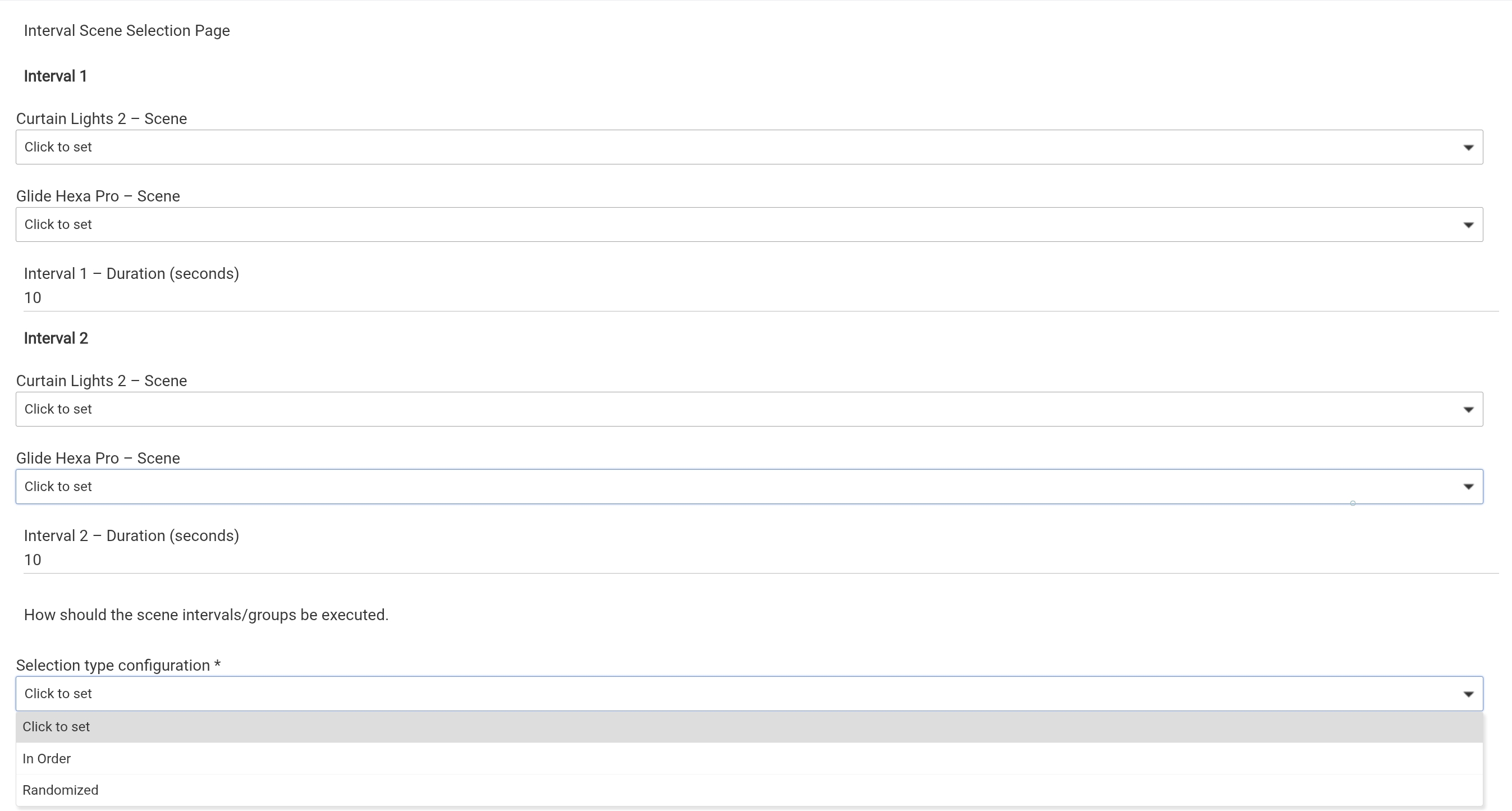
Here is what the Advanced selection displays. With Advanced you can set specific scenes to specific intervals for specific Devices. This essentially is linking them together. At the bottom you have option you can adjust to control the order the interval groupings are executed. They can be done in order, or randomized, but kepping the scenes of a interval together.

Regardless of if you use Simple or Advanced all fields on that page need to be populated.

Fill out the fields and click on next to return to the main setup page. Now scroll down so you can setup your triggers. You can trigger either with a Virtual Switch, a Boolean Hub Variable, or use a Date Time option.


As you would expect the Switch and Hub Variable options are fairly straight forward. When activated you will have a option to link the app to a switch or Hub Varibable. When they either switch to On or True the app is activated. When switch to off or False the scene is dactivated.

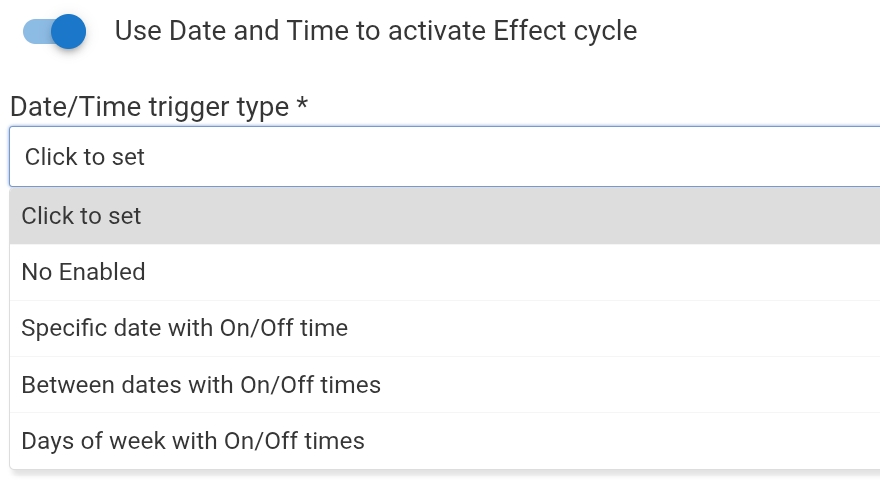
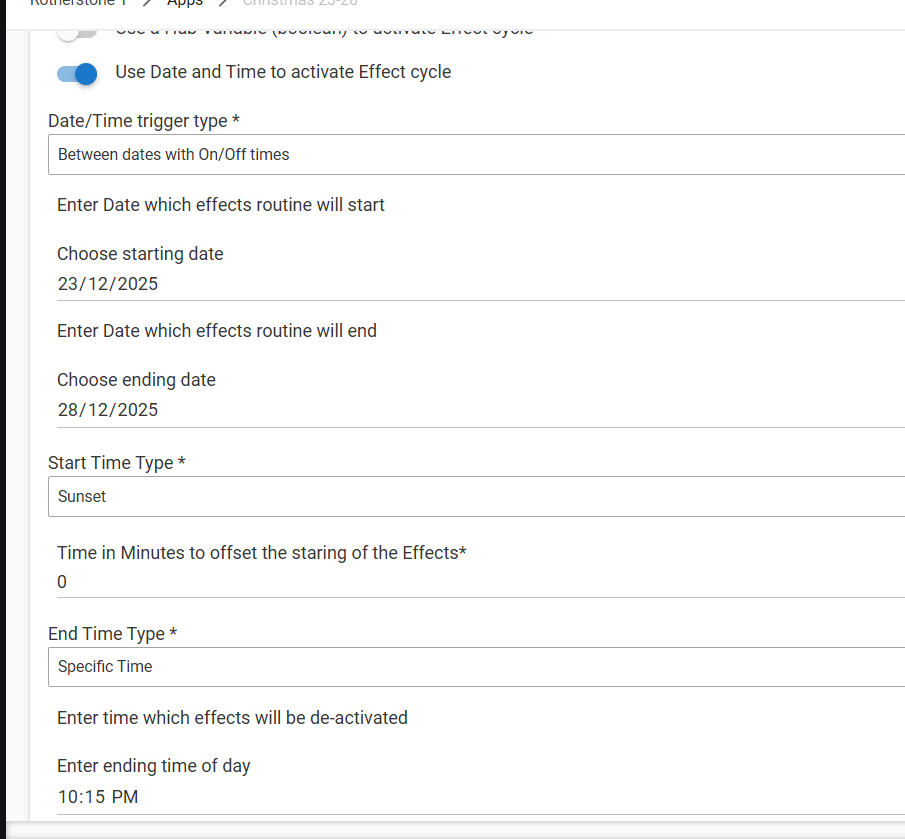
There are various options when you select to use Date and Time as shown in the image below


All of these options are fairly self explanitory related to dates or specific days of the week.. The time options will be either a specific time, sunset, or sunrise with a offset. Make sure you fill in all of the values as needed.

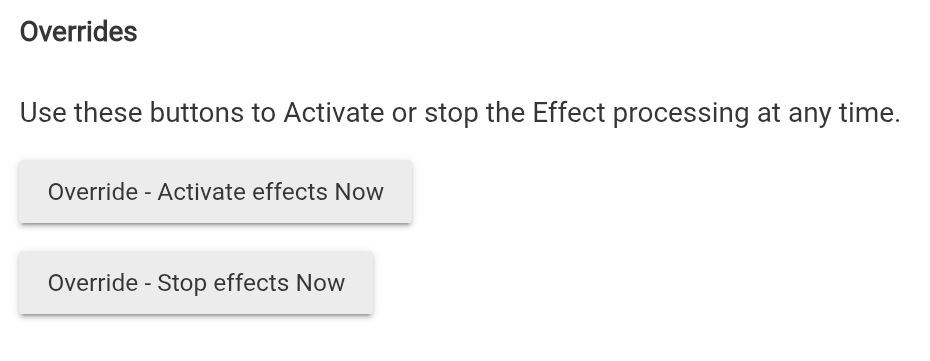
Lastly we have overrides to Activate, or Deactivate a from the app. These overrides are to allow you to either immeidately activate the scene as configured above or turn it off a active show app at any time

Make sure when you are done you click on the "Done" button in the lower right corner to ensure all settings are saved.

Light Effects Group Tool

The Light Effects Group Child app is intended to give you a way to unify many different devices for Light Effects purposes. This is accomplished by giving you the power to create a virtual scene/Light Effect list that specifies various light effects from multiple devies to run together as a single scene/light Effect. Once Standardized this can be very useful.

Once you open the Light Effects Tool click on the button for the "Light Effects grouping Apps" to create your first app.


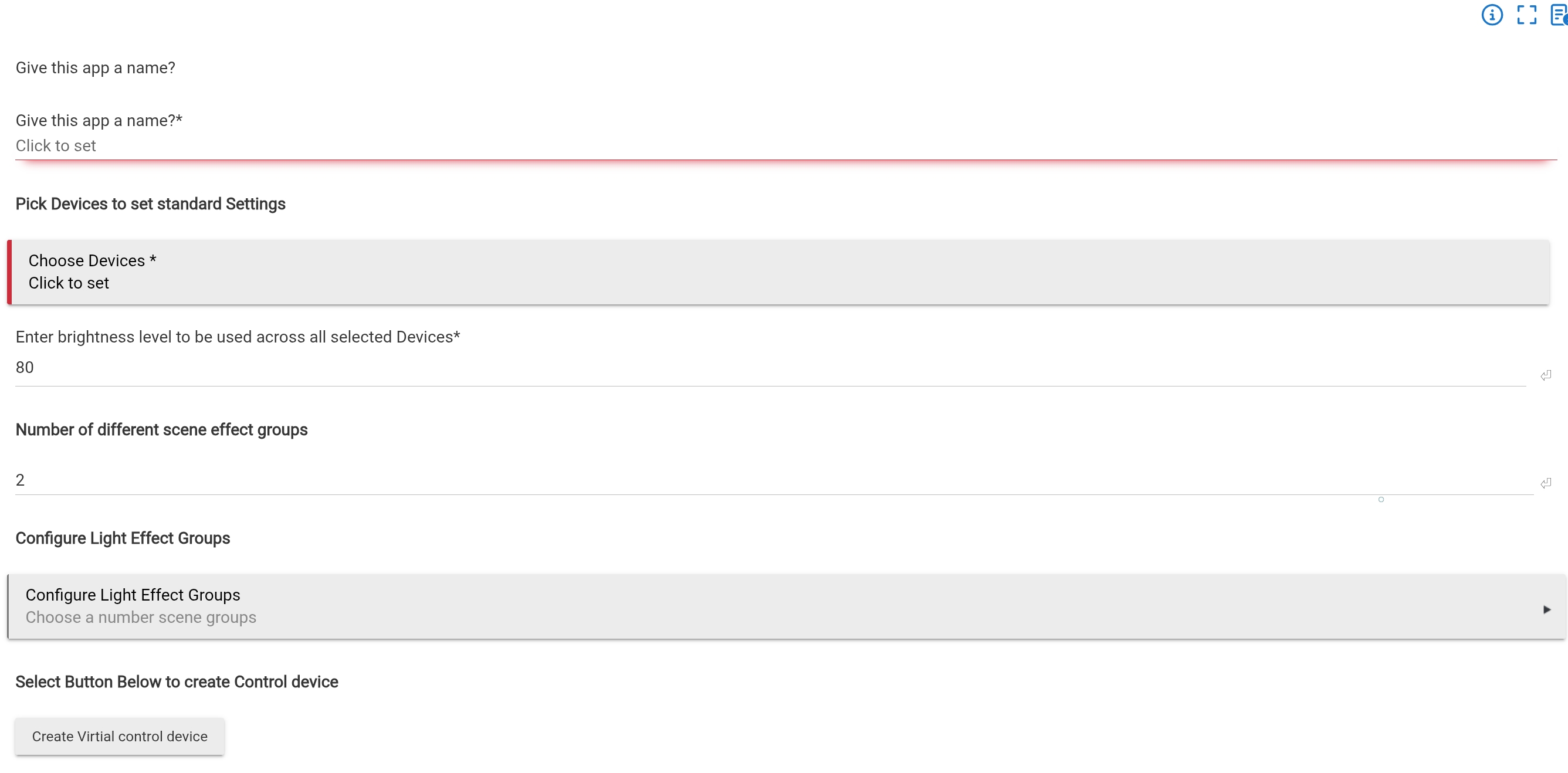
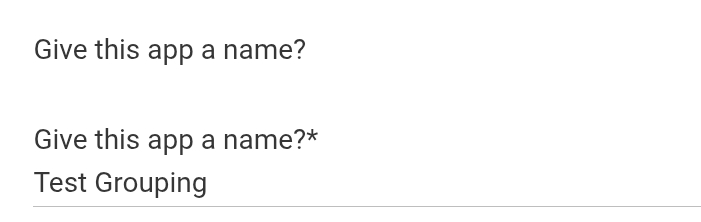
This will load you into the inital setup page with a variety of otpions. First give your new Grouping app a name. Here you you can see i specified it to be "Test Grouping"

Now click on the button to "Chose Deices" for the grouping app. This wil list any devices in your environment that support the Light Effects Capability. You shoud select any devices that you want to have as part of this custom scene list.


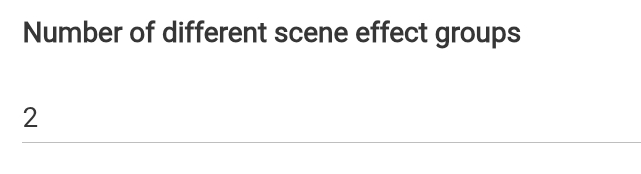
Now set the number of custom Scenes you want to configure. It will default to 2, but you can specify as many as you want. Just keeep in mind the higher the number the configuration will be involved.
capture_temp
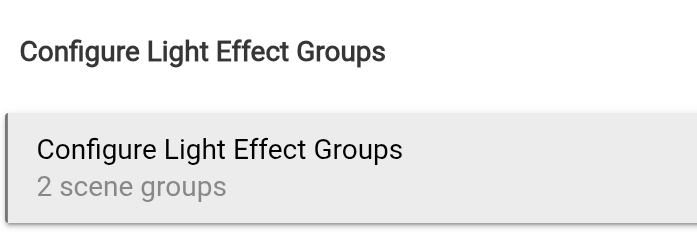
Once that value is set click on the button to "Configure Light Effect Groups"

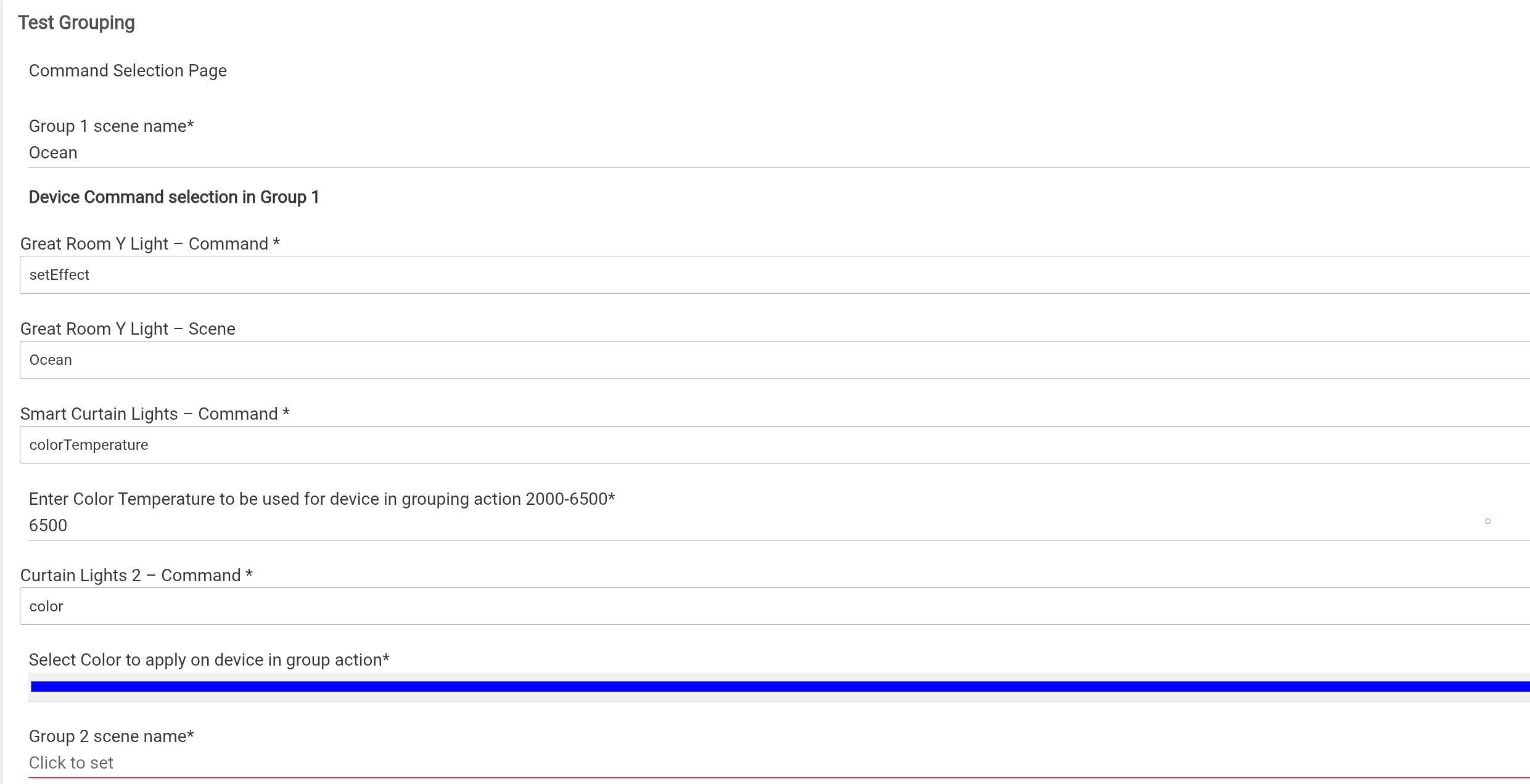
This will load a new page were you will setup each new custom scene and the scenes, color temp, or color that will be called on each device as part of the custom scene. Here is what that page will look like when you first open it up.

You will have a field to populate with a Name for each custom scene, and then a command option for each device. These options will be replicated for the quanity of custom scenes you entered. My current rule was set to 2 so I only have to fill in 2 scenes. Here you can see what happens when you specify the command. Set Effect allow me to select a scene the supported lightEffect for the device. Color Temp give me a field that i can populate a value between 2000 and 6500. Color give me a option to use the color picker to select a color to set the device to. The reason for Color Temp and Color are that you may decide that you don't have a good maching light Effect on a given device and instead chose to have a static color to make it match better.

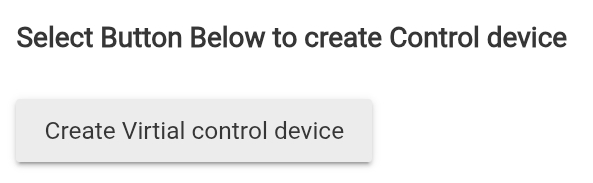
After you have populated all of the interations for custom scenes click on Next in the Lower right corner to return to the main setup page for the app. Now it is time to click on the Create Device button shown below.
capture_temp
That should of created a child and then click on done in the lower right Corner to ensure all settings are saved. Now open up the device tab in the Hubitat UI. You should fid a new device with the name of the Light Effects Grouping app you had just created and using the Light Effect grouping driver as shown below

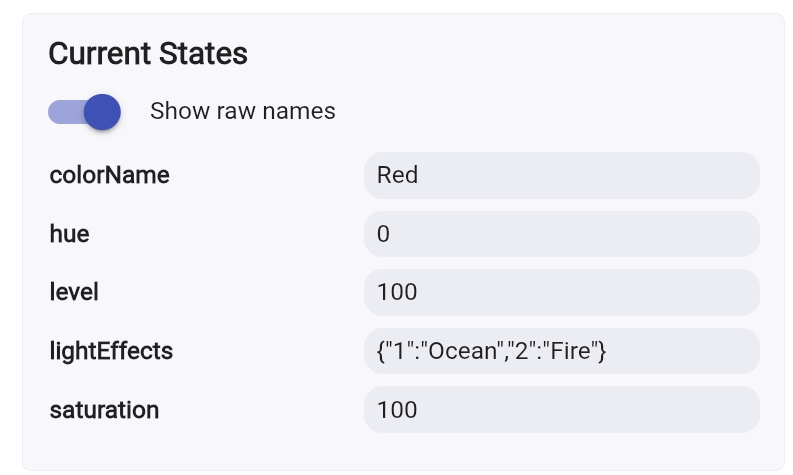
If you open up this device now will see it has a lightEffects Attribute populated witht he scenes you created from the parent app. As shown below

This virtual device will allow you to pass commands to the parent app for all options specified. Now you can turn on/off, set brightness, and set effects for all of the devices that are part of the group. When you set effects with this virtual device, it will apply the scenes you setup in the grouping app.

Thanks for the releases, and thanks for the additional information it looks like you're going to be adding to your post! Christmas is going to be even more fun this year... :wink:

2 Likes

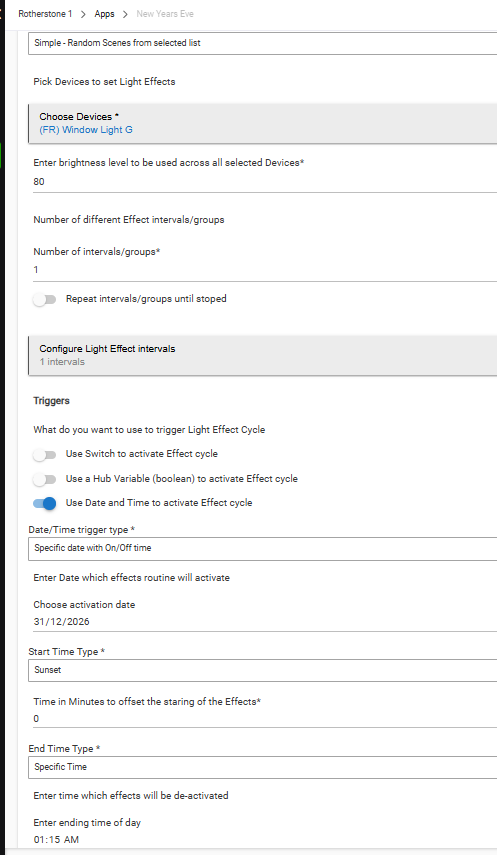
@mavrrick58 Would this be correct for new years eve to do a single effect all night until 1:15 AM?

will this just automatically happen?

Looks right to me.

Yep

1 Like