I have had a fairy simple Hubitat setup for some years and have not had any problems until recently and consequently I am not very knowledgable. My earlier problem was with the Hue app and was cured by reinstalling the app.
I now have a new problem in which my "Simple Automation" light switches stop working every 2 days or so and I then find the hub is not responsive and requires a reboot.
I have tried to follow the "App Troubleshootng" guide but it doesn't seem to match the latest app configuration and I cannot see how to do App Logging.
The current logs do not show any reason for the problem, but most of the individual devices have logging switched off.
I would appreciate any advice on how I might start to find where the problem might be
- Post a screen shot of the rule.
- Identify/Indicate the types of devices used by that rule, and the protocol they use to connect to Hubitat.
- Turn on descriptive text logging for those devices.
- Do the devices respond on their respective device pages?
- Turn on logging for that rule, if Simple Automation permits it (I’m on the road, so I’m not sure).
Can you please share more details about what documentation you were looking at and what differences you found?
Since the problem seems to be recurring every few days, I wonder if perhaps your hub is struggling with slight database corruption?
I’d recommend as an easy approach to better understanding the problem:
- Make a local backup of your hub, and download that backup file somewhere safe on your home computer. If you subscribe to Hubitat’s Hub Protect or Cloud Backup optional subscriptions, please make a Cloud Backup as well.
- Via the Settings menu, please REBOOT the hub, being sure to select the advanced option of Rebuilding the Hub Database. This will ensure that your hub is working with a clean, working copying of the database. This will not cause any loss of data.
The backup(s) taken in step 1 above are a simple insurance policy to make sure you can always get back to the exact point your system was in, should anything go wrong during step 2.
Any chance your hub was unexpectedly rebooted via recent power blips? Or maybe someone unplugged it without properly performing an orderly Hub Shutdown via the settings menu? An unplanned power outage can cause the hub’s internal database to have issues. That is why using a UPS to power the hub is always recommended to avoid these issues.
Many thanks to the 3 contributors and I will reply to them individually, but firstly to report that it happened again overnight with none of the lights and coffee machine switching on this morning and no devices are responding on my main menu on my Mac. All the lights switched off through Alexa normally on retiring last evening.
I am attaching a screenshot of part of the logs which don't reveal anything to me, but that doesn't count for much!
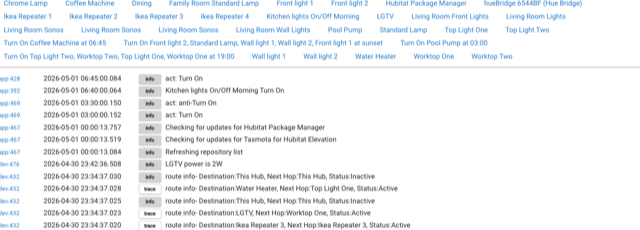
Many thanks for your suggestions.
In fact that is the procedure I have been following.
Initially I was ignoring the advanced options and then, more recently, ticking both of the advanced options. As reported earlier this does not appear to be resolving the problem.
I am not aware of any interruption to supply and no one else has access.
Also, I have other automation and control devices, e.g. heat pump and solar that would have been affected by an interruption.
Thanks for your response.
1 I am not sure which part of the rule you require, but I am attaching a screenshot which I hope might help.
2 The devices in question are mostly lights with some Hue and the others (including coffee machine) being Zigbee.
3 Descriptive text logging is now switched on for all devices (I found one device where is was not switched on)
4 When this fault occurs, none of the devices open up on the main control on my Mac until I reboot.
5 Logging turned on for all devices in question.
See my further comment this morning where the fault again occurred overnight.
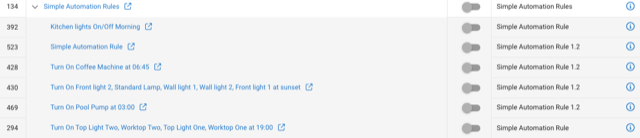
Thank you for your response.
I was trying to follow the procedure here: How to Troubleshoot Apps or Devices | Hubitat Documentation
The content does not seem to present in the same form as on the latest version of the hub software.
Also, this seemed to suggest that logging could be selected for an app rather than a device and I could not see where to do this.
I have logging selected on all the devices that might be activated overnight and now have descriptive logging activated on all.
Please see screenshot of part logs for this morning in an earlier post
Can you be more specific if the below isn't it? (Just trying to make sure anything is updated, not be difficult.  )
)
As mentioned in the doc, the exact option will vary from app to app, but this hasn't changed recently. It looks like you are using Simple Automation Rules, in which case there's an "Enable logging" toggle in the app:
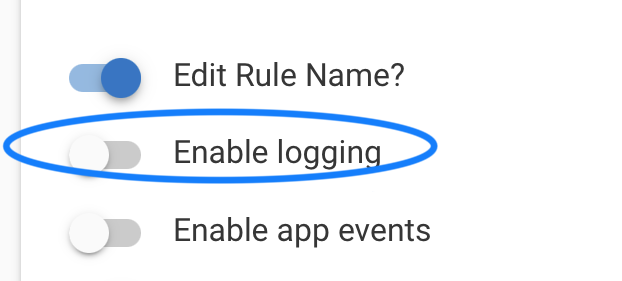
That kind of thing is what it's talking about. Hope that helps for that much! It does look like you've figured this out bases on your screenshot above.
For your actual problem: the logs certainly suggest the app isn't sending an "off" command (although the doc you linked to tells you how to verify this for any particular device), but we'd need to see a screenshot of the actual rule (i.e., its contents, not just its name in the list) to have an idea of what it's actually supposed to do.
Thanks for your contribution.
I am not sure how to answer because I obviously don't have access to the procedure as I recall it. However, my recollection is that previously, all the apps I used were under the side tab of "Applications" or perhaps "Apps" and I could then make changes by opening the chosen app, e.g. Simple Automation Rules.
Now if I click on the side tab of "Apps", I get this:
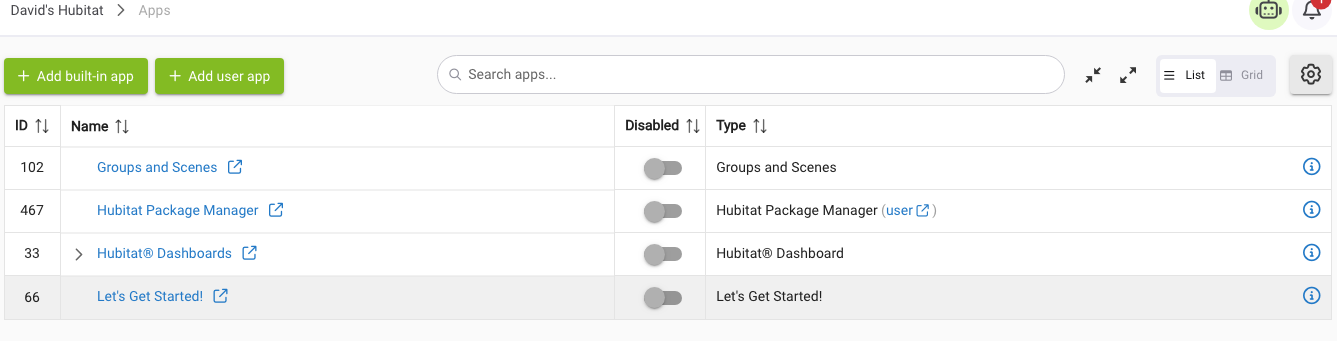
There then appears to be a multi step process to "View Apps and Drivers" but this only takes me to "Hubitat Package Manager "and "Tasmota For Hubitat Elevation"
As an alternative I now see a side tab "Automations" and this does take me to "Rule Machine Legacy" and "Simple Automation Rules", here:
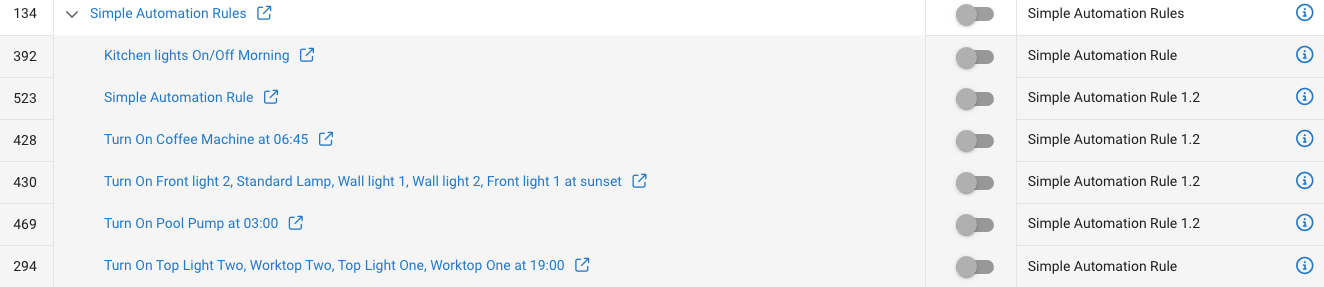
If I now click on "Open app in new tab", I get this:

or if I click on "i" - "Show app info for Simple Automation Rules", I get this:
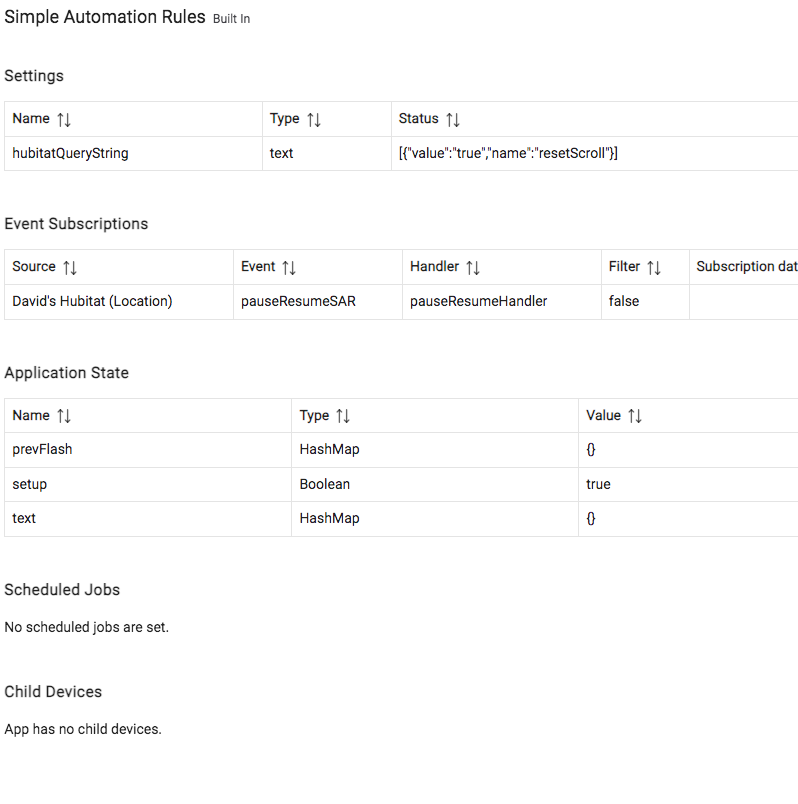
Clearly I am on the wrong track because none of these takes me to a point where I can select "Enable logging" on the app.
Referring to:
I must stress that I have no idea which rule, or even if it is a rule that is causing the hub to stop functioning.
What occurs is that I am unexpectedly made aware that nothing is working either by an Alexa switch command not working or the lights and coffee machine not having switched on in the morning. Nothing stands out on Logs to me, but I can only get things to work again by rebooting the hub.
Sorry it is so long winded, but that was the only way I could explain the procedure I was taking. I fear it doesn't take me any closer to what the real problem is!
Platform 2.5.0 introduced a re-categorization of apps, where they are now split into "Integrations," "Automations," and "Apps" in the sidebar (rather than just "Apps"). The first time you open any of these pages, you received a popup that explained this change, along with a checkbox you needed to select to confirm understanding and dismiss. But sounds like you've figured this out now!
A tip: if you don't remember where a particular "app" lives (e.g., Simple Automation Rules is under "Automations"), you can use the search box at the top of any three of these pages, and it will tell if if there are results from somewhere else.
Yes, you need to open the individual rule, not the Simple Automation Rules parent app, which is only useful for creating new ones. You can see all your rules listed in your screenshot of the Automations page. (You also want the actual rule, not the "i" icon -- the App Status page -- for any of them.)
For this, just click the rule name in the list.
Is it your hub or just this one rule? It sounded like just this one rule. The question, then, is seeing what this rule is actually supposed to do, i.e., a screenshot of it (when it's opened, not just its name in the list or log entries from what it did do). That's the only app you'd need to worry about for now. If this is your only problem, it's unlikely anything else is causing "the hub to stop functioning."
Wow that was quick!
We may have got sidetracked on "Simple Automation Rules" because it was suggested that I should turn on logging on the app so that it would presumably then reveal any problem there.
I still can't see where to do this actually on the app, but all of the individual rules have both Logging and Descriptive logging switched on.
The puzzling thing to me (doesn't take much!) is that after these hub drop outs, nothing stands out as a reason for the failure and certainly nothing attributable to any of my rules.
I have four other "apps' which now show up in "Integrations" i.e. Air Play; Amazon Echo; Hue Bridge and Shelly and presumably the fault could equally be in one of these or in the hub software.
I have just checked and switched on Debug logging in the two with that facility i.e. Hue and Amazon Echo, so we will see if a fault shows up in logs next time the problem occurs attributable to either of these.
If not, I am at a loss as to where else to look.
P.S. Now we have some action, but I don't know if it is significant:
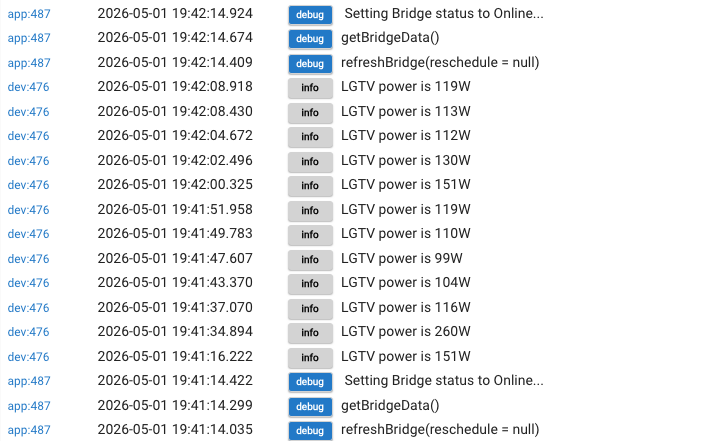
Device 487 is the Hue Bridge so is this the problem?
I am having ever more frequent shutdowns and would really appreciate your help.
For some earlier events the logs did not show anything, but in more recent instances Amazon devices and the Amazon Echo Skill are frequently mentioned.
Below are two screenshots of the beginning and end of a long stream of debug entries.

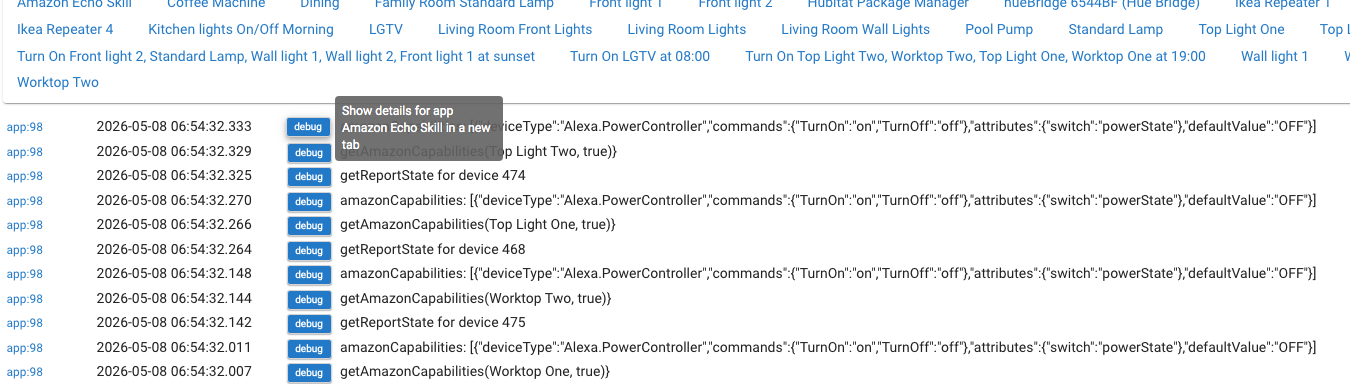
In these circumstances, what action should I be taking?
Is it simply a question of deleting the possibly damaged Amazon Echo Skill and reinstalling it?
From your screenshot above, you just have logging enabled in the integration app. That output is normal in that case. I'm not sure what to say about what sounds like your other problem, but if you can rule anything out by disabling certain apps or devices, that might narrow things down.
No, I have debugging enabled on just about all devices, but it is 98 i.e. the Amazon Echo skill that comes up, over and over again after a shutdown.
Doesn't this point to the Amazon Echo integration being the root of the problem?
No, those are logs from the app and are normal if you have logging turned on for it, which you must. If you don't think you do, hit "Done" in the integration app after making sure, or share a screenshot here (the setting in question is towards the bottom).
which you must have. (the have is kind of important in that sentence )
Yes, that does make it clearer that I'm going for the "logically inferred" sense of the word and not the "have to" sense. 
In any case, I should note that you can leave the logging on, too, if you want; it doesn't change the behavior, just will make it easier for staff to troubleshoot issues with a particular device or feature in the skill if you run into any. I'd normally leave it off except in that case (and also because it seems to just be a distraction here).
I am not at all sure I understand.
I do have logging "on" in the Amazon Echo Integration, see:
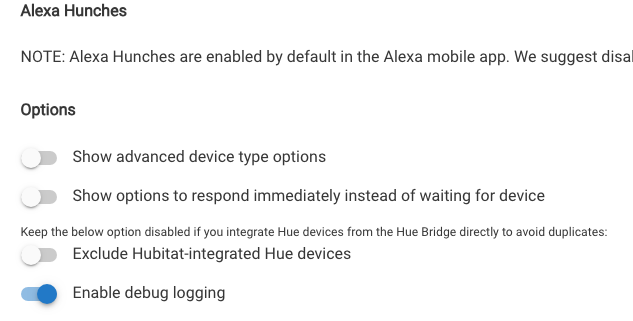
Am I being told that the huge number of debug entries for the Amazon Echo Integration are not relevant and not likely to be the source of my, now daily, shutdowns?
If that is the case, I would be grateful if someone could point me to a procedure for finding out what the problem is.
Yes, it’s entirely possible (or even likely) that it has nothing to do with the underlying cause of your hub’s issues.
“Debug” logging is expected to have a large amount of info in the entries because it’s intended to be used for debugging (troubleshooting ) a specific app or driver.
You can probably turn off the debug logging for the echo skill app, and then you’ll be able to focus more on what’s actually leading to your hub’s issues.
For more help on next steps to take, I suggest reading through this post: