[Beta] Dashboard Layout Studio — Visual Editor for Hubitat Dashboard v1 Layouts

[Beta] Dashboard Layout Studio — Visual Editor for Hubitat Dashboard v1 Layouts

This project is a GUI version of the Dashboard Tile Utility CLI Tool. (https://github.com/imdrewsf/Dashboard-Tile-Utility)

Latest version: 1.1.394 beta 2020702
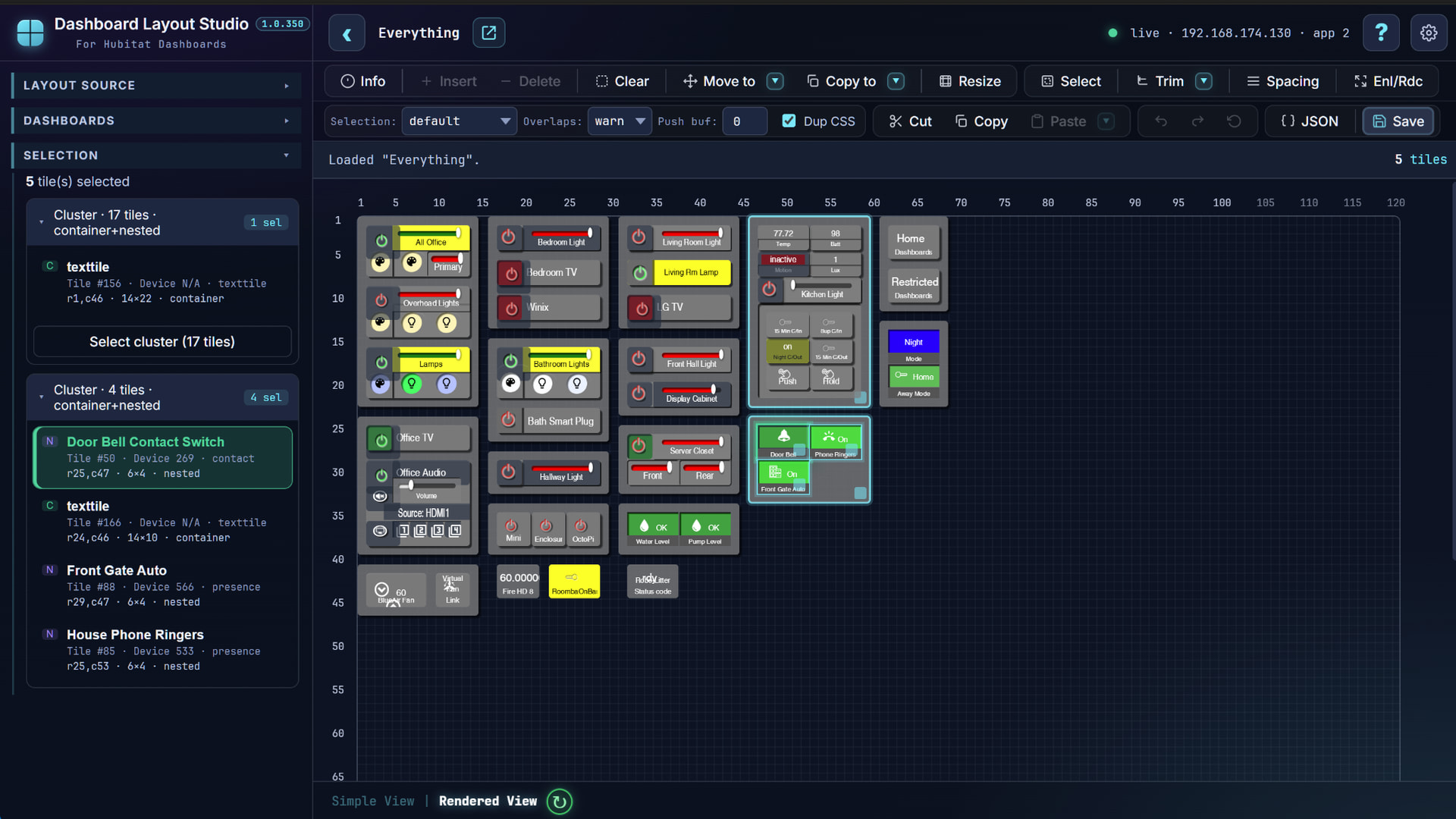
While the CLI has a few exclusive features, this app is much more capable.

The app is a single html file. To use all the capabilities of the app, it needs to be hosted by the hub. (Upload into the file manager and click the link). It can be used when loaded externally with some features disabled. No cloud access is used.


Project Links


Features at a Glance

Visual Layout Editing

  • Select tiles visually on a grid.

  • Select individual tiles, multiple tiles, clusters, rows, columns, or rectangular areas.

  • Move tiles or groups of tiles.

  • Drag selected tiles to new locations.

  • Copy and paste tiles within the same dashboard.

  • Copy tiles between dashboards.

  • Resize selected tiles.

  • Resize tiles by dragging tile corners.

  • Resize all selected tiles while preserving spacing.

  • Resize nested/container tile groups while preserving internal layout.

  • Insert or delete rows and columns.

  • Clear tiles while leaving empty space.

  • Trim unused layout space.

  • Undo and redo layout edits.

  • Undo all changes back to the loaded layout state.


Tile Copying and Dashboard Merging

One of the main reasons I created this was to make it easier to duplicate or reuse dashboard sections without rebuilding everything by hand.

Dashboard Layout Studio can:

  • Duplicate tiles inside a dashboard.

  • Copy tiles from one dashboard to another.

  • Paste copied tiles into a different layout.

  • Assign safe new tile IDs automatically.

  • Avoid conflicts with existing tile IDs.

  • Duplicate tile-scoped custom CSS when tiles are copied.

  • Retarget copied CSS to the new tile IDs.

  • Validate copied tile devices against the destination dashboard.

  • Warn when copied tiles use devices not selected for the destination dashboard.

This is especially useful for dashboards with custom CSS, because duplicating a styled tile manually usually means finding and editing every related #tile-123 CSS rule.


Spacing and Resize Tools

Dashboard Layout Studio includes layout cleanup tools that are difficult or unavailable in the built-in dashboard editor.

  • Set uniform spacing between tiles or tile groups.

  • Increase existing spacing.

  • Decrease existing spacing.

  • Preserve tile clusters and nested groups.

  • Unstack overlapping tiles and spread them out.

  • Enlarge all tiles while preserving layout relationships.

  • Reduce all tiles while preserving layout relationships.

  • Resize selected tiles to an exact size.

  • Push surrounding layout to make room.

  • Pull surrounding layout to close gaps.

  • Preserve spacing between resized tiles.

These tools are useful when a dashboard has grown over time and needs to be realigned, enlarged, spaced out, or reorganized.


Device Management

Dashboard Layout Studio includes tools for reviewing and managing tile device assignments.

  • Show device IDs assigned to each tile.

  • Show hub device names when available.

  • Identify invalid device IDs.

  • Identify valid hub devices that are not selected for the dashboard.

  • Highlight invalid device assignments.

  • Highlight valid-but-unselected device assignments.

  • Reassign tile devices.

  • Add devices to the dashboard’s selected-device list.

  • Remove unused devices from the dashboard’s selected-device list.

  • Unassign invalid tile devices.

  • Warn before saving if tile devices are not selected for the dashboard.

This is useful when copying tiles between dashboards, importing JSON, or cleaning up older dashboards.


CSS Tools

Dashboard Layout Studio includes CSS tools for dashboards that use custom styling.

  • View tile-scoped CSS by tile.

  • Edit custom CSS associated with a selected tile.

  • Duplicate tile-scoped CSS when copying tiles.

  • Remove tile-scoped CSS when tiles are removed.

  • Detect duplicate CSS declarations.

  • Detect conflicting CSS declarations.

  • Find orphaned tile CSS rules.

  • Consolidate repeated selector rules.

  • Optionally preserve removed or changed CSS as comments.

  • Format custom CSS.

  • Compact custom CSS.

CSS Cleanup detects:

Issue Type Description
Conflicts The same selector/property has different values.
Duplicates Repeated declarations resolve to the same value.
Consolidation Repeated selector rules can be combined.
Orphans Tile-scoped rules reference tile IDs no longer present in the layout.

JSON Editor

For users who still want direct JSON access, Dashboard Layout Studio includes a built-in JSON Editor.

  • Edit full dashboard JSON.

  • Edit customCSS separately.

  • Edit customHTML separately.

  • Edit customJS separately.

  • Validate and format JSON.

  • Validate and format custom CSS.

  • Compact custom CSS.

  • Load JSON into the editor.

  • Copy formatted JSON or field content.

  • Download JSON or field content.

  • Review Tile Devices.

  • Review Dashboard Devices.

  • Apply JSON changes back to the working layout.

  • Preserve hub context when replacing a hub-loaded layout through the JSON editor.

The visual editor and JSON editor are designed to work together.


Online and Offline Layout Editing

Feature Online Mode Offline Mode
Load dashboard layouts directly from the hub Yes No
Save layouts directly back to the hub Yes No
Load layouts from files Yes Yes
Load layouts from pasted JSON Yes Yes
Save layouts to files Yes Yes
Copy layout JSON to the clipboard Yes Yes
Edit using placeholder tiles Yes Yes
Edit using rendered dashboard snapshots Yes No
Hub device-name lookup Yes No
Dashboard selected-device checks Yes No
Invalid hub-device detection Yes No
Add missing dashboard-selected devices Yes No
Remove unused dashboard-selected devices Yes No

Online Mode means the layout was loaded directly from the Hubitat hub. It does not use the Hubitat cloud. Hub communication is local network communication with your hub.

Offline Mode means the layout was loaded from a file or pasted JSON. Offline layouts can be edited, saved to files, or copied to the clipboard, but they do not have a hub save target.


Simple View and Rendered View

Dashboard Layout Studio has two editing views.

Simple View uses placeholder tiles and is fast for general layout work.

Rendered View captures snapshots of the actual Hubitat dashboard tiles and uses those snapshots inside the editor. This makes it much easier to work with dashboards that rely on custom CSS, icons, hidden labels, colors, overlapping tiles, or compact spacing.

Rendered View requires Online Mode and a dashboard loaded directly from the hub.


Workspace and Undo

Dashboard Layout Studio works as a separate editing workspace.

Changes are not written to the hub until you explicitly save the updated layout. You can experiment, undo and redo layout changes, or undo all changes back to the loaded state before saving.


Installation Summary

  1. Download the latest dashboard-layout-studio.html file from the release.

  2. Upload it to Hubitat file storage so it is available under /local/.

  3. Open it from the hub in a browser:

http://<hub-ip>/local/dashboard-layout-studio.html

Offline use is also possible by opening the HTML file locally and loading dashboard JSON from a file or clipboard.


9 Likes

This looks interesting. I should have some time in a few weeks to take a look.

This does look impressive… A very feature rich offering. Will be interesting to test it out… Well done.

I just loaded it on the hub and opened it up (via VPN into the house). I am a little overwhelmed at the moment but even more impressed. I am going to have to read the docs but this looks like a dashboard tool that should have shipped with the hub. Great work!

A couple questions:
1- Is this availible on HPM? If not, do you intend to put it on there at some point?
2- If you have already used other CSS tools (in particular Simple CSS editor), would this create any conflicts? (Maybe that is a question for @sburke781 ?)
This does look amazing though.

While I still haven’t tested this out, from the description in the OP… :

Like anything, if you are wanting to test this out, particularly using an existing Dashboard you are using, it would be good to take a copy to test with, or create a new one. If it is a Dashboard where you have used my Simple CSS Editor and you are using the import option, referencing the CSS file that is created, I would suggest copying the contents of the CSS file into the Custom CSS and removing the import line. In saying this I am assuming the layout studio is not reading in any imported CSS files, but if that is possible, then there would be no need to copy and paste the CSS file contents.

@imdrewsf - For your benefit, if you are interested, my Simple CSS Editor is essentially a HTML file as well, but it is rendered as an i-Frame pop-up inside of a dashboard. It reads in the tile list from the Dashboard on-screen and provides various styling options. The style options are stored in a JSON file per dashboard for ease of reading in and out by the editor, and a CSS file per dashboard is also generated, which I suggest people to import within the Custom CSS setting, or they can copy-paste if they prefer.

@tray_e If you are mostly using the layout features of the layout studio then I expect it should be fine, particularly if you are just moving tiles around, resizing them, etc. If you are copying tiles that have been styled within my CSS editor, and in particular continue to use the CSS file import option, you may not get the result you expect or it could get a little complicated to use both tools over time, hence my suggestion to, if only while reviewing the layout studio, to copy and paste the CSS file contents to get the best experience in layout studio.

There’s a lot of assumptions on my part. I would suggest exploring what layout studio can do and we can go from there.

@imdrewsf - If you want any help getting this into HPM I’m happy to help, or reach out to csteele.

It would be great to see this as a pop-up from within a dashboard like my editor is, if only as an option, providing context to the layout studio when opening.

You also seem to have some more visual expertise than I do. It would be nice to see some CSS styling features added over time in layout studio, replacing the need for my CSS editor, but no pressure, don’t want to skip past what is an awesome starting point.

1 Like

Not yet. I haven’t really looked into it to be honest. As it is really just a stand alone file and not really an app or driver, I figured that was something to look at later. When you load the page, it does look at github to see if it is the latest version. If there is a new version, there’s a button to download it though you still need to load it to the hub. For now, updates happen that way.

I haven’t looked at Simple CSS editor in a while but if memory serves, it saves the CSS to an external CSS file to import. DLS only looks at what is actually in customCSS. In customCSS, it only looks for tile-scoped rules and comments. Aside from ensuring that the total contents of customCSS meets the most basic validation (no open braces, etc), it ignores everything else.

In theory, it would be easy to make it @import aware but it opens up a can of worms.

  1. It immediately creates a problem for layouts loaded in “offline” mode, though really you would just end up in the current situation where you’d have only some of the final CSS.
  2. Let’s assume DLS did import the CSS from SCE. It would either need to be able to make changes to the SCE css file or it would have to keep track of which rules came from SCE and which ones were available in customCSS and then limit modifications to exclude imported rules.

So lets say DLS had the full final CSS at its disposal and you use it to copy 5 tiles with CSS from SCE. DLS would copy all of the CSS for those tiles and then place those rules into customCSS. SCE wouldn’t see those new rules since they weren’t in the CSS file it generates.

So long winded rambling later, the DLS won’t break anything SCE does but it also won’t be able to carry over the CSS or tie new tiles back to it either.

That said, it would probably be a good question for me to ask the author of SCE about.

1 Like

The documentation is still a work in progress but if you click the “?” in the UR corner, there are pretty detailed help panels to get you started.

1 Like

Is there any way to expand the dashboard other than the zoom slider? This is what I see with the zoom slider all the way to the right side. I feel that I am missing something simple.

1 Like

Ok so the dashboard isn’t really constrained by the grid area you see. It will allow you to insert as many columns / rows as needed. In the next revision, I can make it just tack on how ever many columns / rows are needed to fill the workspace.

Speaking of the next build: based on the questions and comments, I realize I need to add back in some functions that deal with the grid size. I took it out for the initial release because it kind of started to snowball into a lot of “what if”. However, the next build will allow you to change your dashboard grid size and maintain the current relative size. So lets say your row and col size is 10 and all of your tiles are 4 x 4. Now you decide you want a smaller grid size to gain finer control over size and placement so you change your grid size to 5. At its basic functionality, it would automatically change all of your tiles to 8 x 8 so that they maintained their relative size. It would also change the row/col location of the tiles to ensure they stayed in the same pixel position as well.

The other function I want to put back in is kind of wonky but it worked for me. I need my dashboards to fit within a certain screen size to fit properly on my tablets. The original function I had written automatically tweaked the row/col/grid size to ensure everything fit and it also warned me when I was exceeding the max size, even with a row/col grid of 1.

That’s’ what is coming next. In the mean time, the layout studio grid doesn’t really care what your grid size setting are as it’s really just displaying 1 to 1 row / columns. The grid grows as needed so you can paste / copy / insert to add more.

The problem I was running into is that everything was so tightly packed I found it impossible to select what I wanted. That may be because my dashboards are heavily layered and I had no idea what I was doing. I'm not entirely sure. :grinning_face:

The area I was working on has 3 tiles overlapping each other but the tile I needed was on the top of the stack.

I ended up making the changes I needed to make manually because I couldn't select the tile that I needed to select.

When tiles are layered, simply click on the stack and it will cycle through selecting each layer. Alternatively, click any tile in a cluster, then use the left pane to select the whole cluster, deselect, etc. If you want to send me your layout file, I can take a look and make some adjustments to my code to handle it better.

I think that being able to zoom in more would be a good solution, I also had a hard time on my menus because they are all made for a phone, so at max zoom in I can barely see what is written in each tile.

I reworked the grid display to not assume a square grid size and (duh) factor in the grid gap when rendering the tiles. I never had to think about it with the CLI version because I wasn’t actually showing anything. Ok so I’ve completely reworked the zoom and display so that 1> it maintains the same aspect ratio, 2> shows the grid gap 3> Allows you to snap to “actual” pixel sizes so what you see is actual on screen sizes. Also in this next build is the ability to change the dashboard col / row size and grid gap while maintaining the tiles size and position. So if you have a dashboard with a col/row size of 50, you can change your dashboard row / col to 5 and have everything stay the same size (it will recalculate your tile sizes and position. I’m finishing automatic CSS font size adjustments and it should be ready to go. Probably tomorrow evening I’ll release 1.1. It should solve a lot of the confusion.

1 Like

Thank you for all of this work. I'm in the process of rebuilding my dashboards so that they render on any device. I have grown weary of updating 3 sets. I'm about halfway through the process so now it's a lot of copy and paste, changing the tile numbers to maintain all of the custom CSS from one DB to the other. I'm currently on the road for another week or so. I'll get to a location sometime after the 4th where I will have some time to look at this again. Your app looks to make that process a lot easier to finish this summer.

I was going to send you the json but I only have my mobile available to me and trying to copy and paste into a message is impossible on this phone. If you still need some real world samples (hacked up code that several AI models helped in the generation) I'll get them to you next week.

New version available: 1.1.388

What’s changed: quite a bit.

Based on the feedback and questions, I’ve significantly reworked the display grid and zoom.

Grid Display Enhancements

  • The grid is no longer fixed to square cell units. Grid cells reflect aspect ratio of rows/cols correctly.

  • The grid now accounts for grid gap values.

  • Zoom is now on the bottom toolbar with presets to show tiles in their actual resolution or fit the layout in the edit area.

  • Dashboard col and row dimensions are shown on the grid.

  • The grid now handles dynamic sizing (col or row width set to 0)

  • The grid now handles col, row and gap all set to 0

  • Dashboard grid col and row size and grid gap can be changed.

  • Grids can be resized while preserving the current displayed layout size. (example: changing grid from 10 to 5 would normally cause the dashboard to shrink 50%. Using this feature, tiles would be resized and repositioned to keep the same layout and size.) Results depend on the degree of change and is limited when increasing grid sizes.

  • CSS adjustments: Changing the grid size can cause text in tiles with CSS font styles to become tiny or oversized. When attempting to preserve the layout, CSS can optionally be adjusted to maintain the correct size.

  • Preset grid adjustments: Presets for various tablets and screen sizes allow layouts to be adjusted to fit within the preset bounds.

If you have already downloaded the tool, it will notify you of the new version and allow you to download it. You will still need to upload it to the hub.

3 Likes