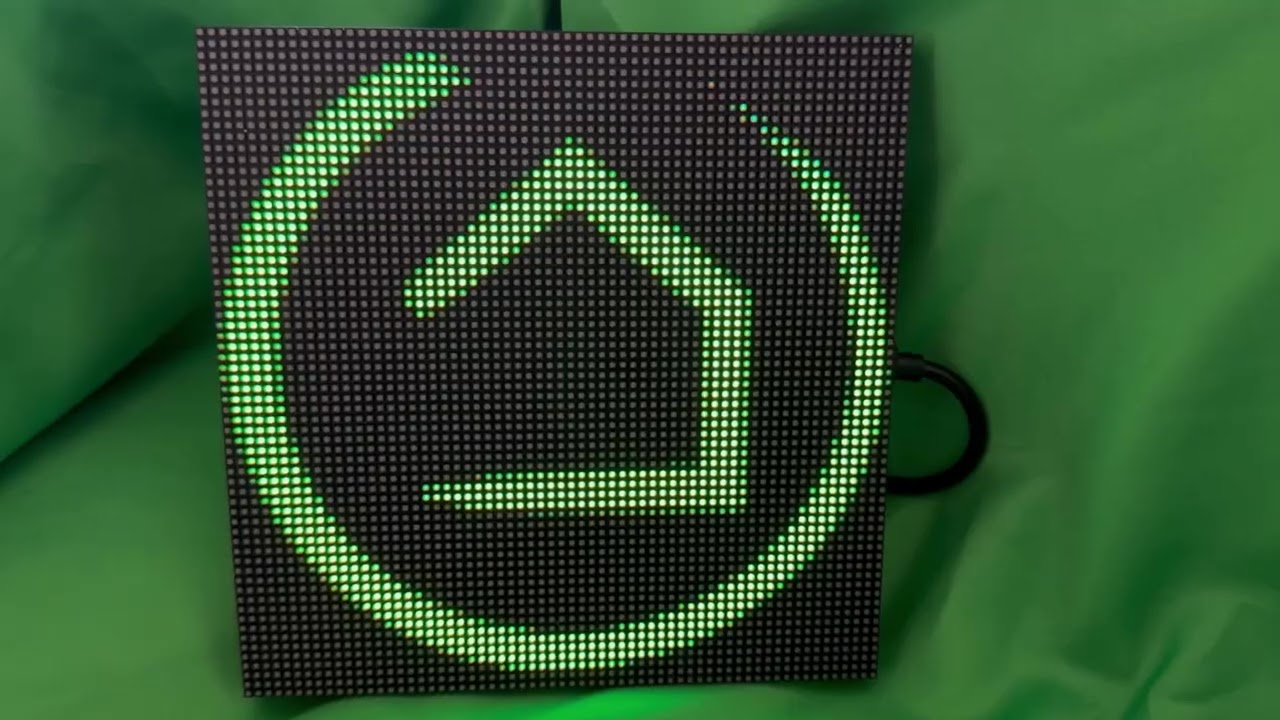
New WLED integration and Preset Designer
Lighting automations are one of my favorite things to work on, and this project grew into something pretty fun. Along with controlling WLED devices from Hubitat, you can now design custom lighting patterns, build animations, and upload images or GIFs to supported LED matrices.
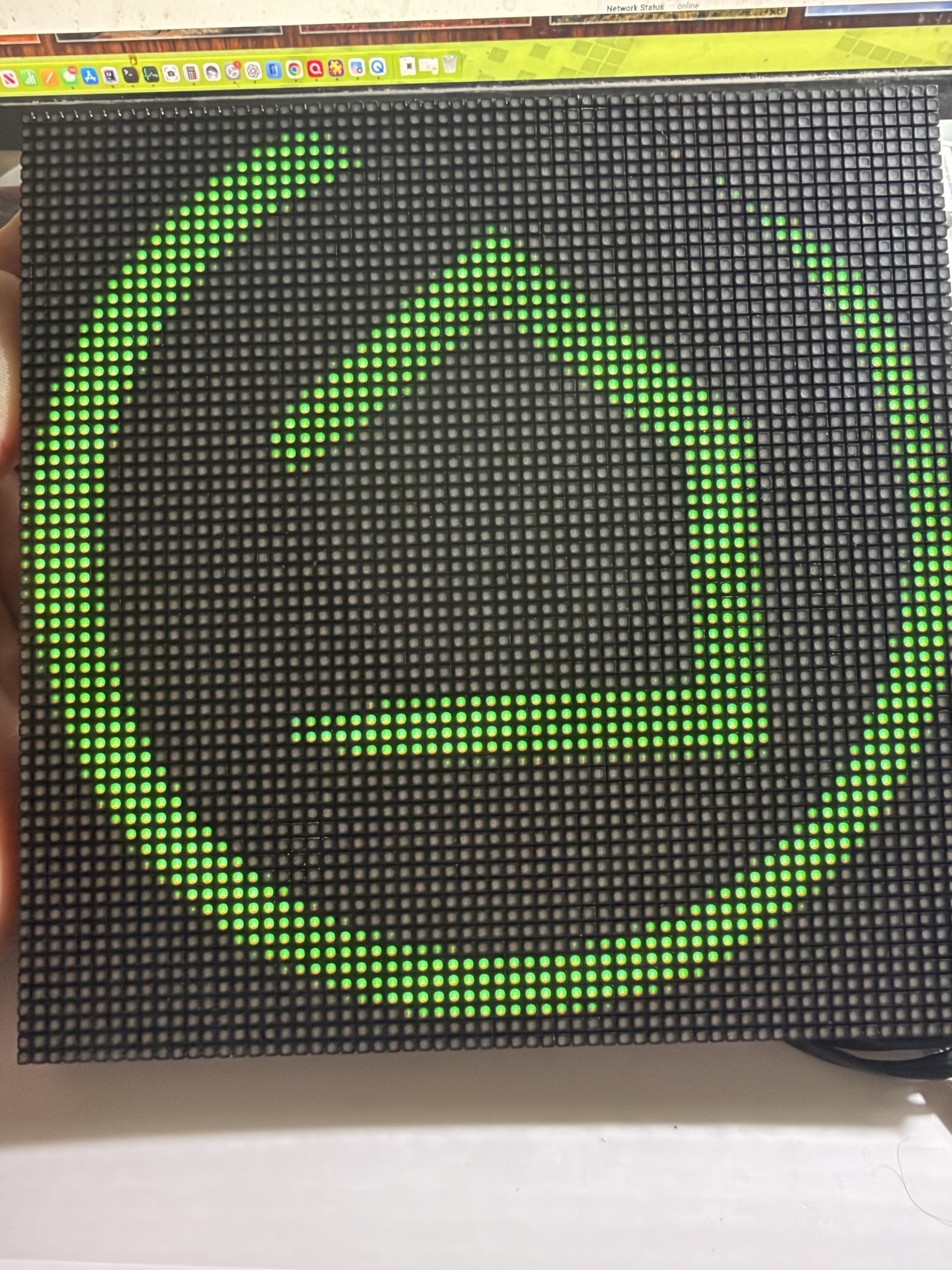
Everything communicates locally, and saved animations play on the WLED controller after you close the designer.
Features
- Controller discovery and device creation: Find WLED controllers on your network and add them through the integration. Manual IP entry is available too.
- Lighting controls: On/off, brightness, RGB color, dedicated white on supported RGBW hardware, effects, palettes, effect speed/intensity, and presets.
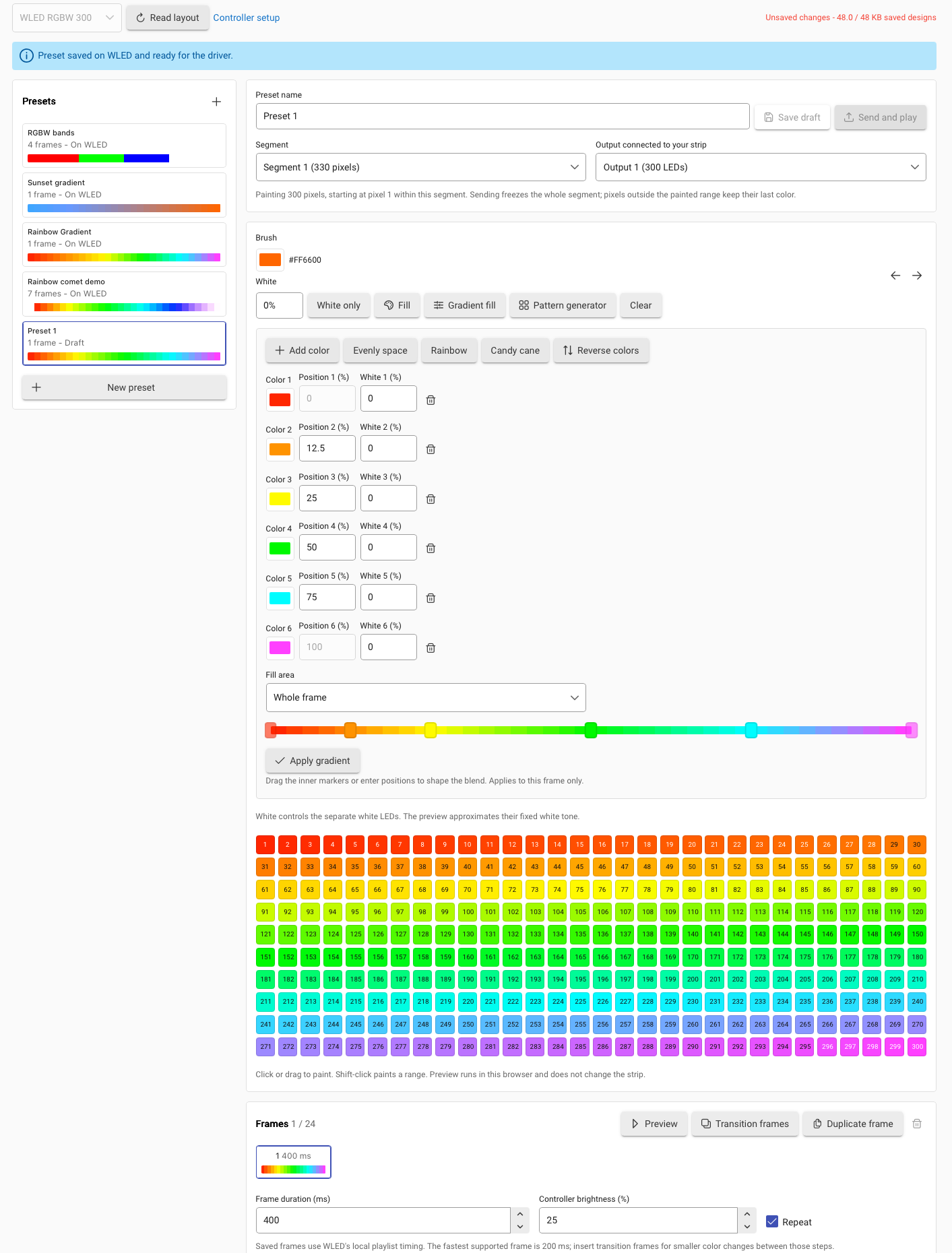
- Visual strip designer: Paint individual pixels or ranges, fill colors, shift patterns, and build animations.
- Multi-stop gradients: Blend multiple colors across a strip or selected range.
- Transition frames: Generate intermediate frames between two existing frames.
- Pattern generator: Create stripes, chases, comets, and twinkles.
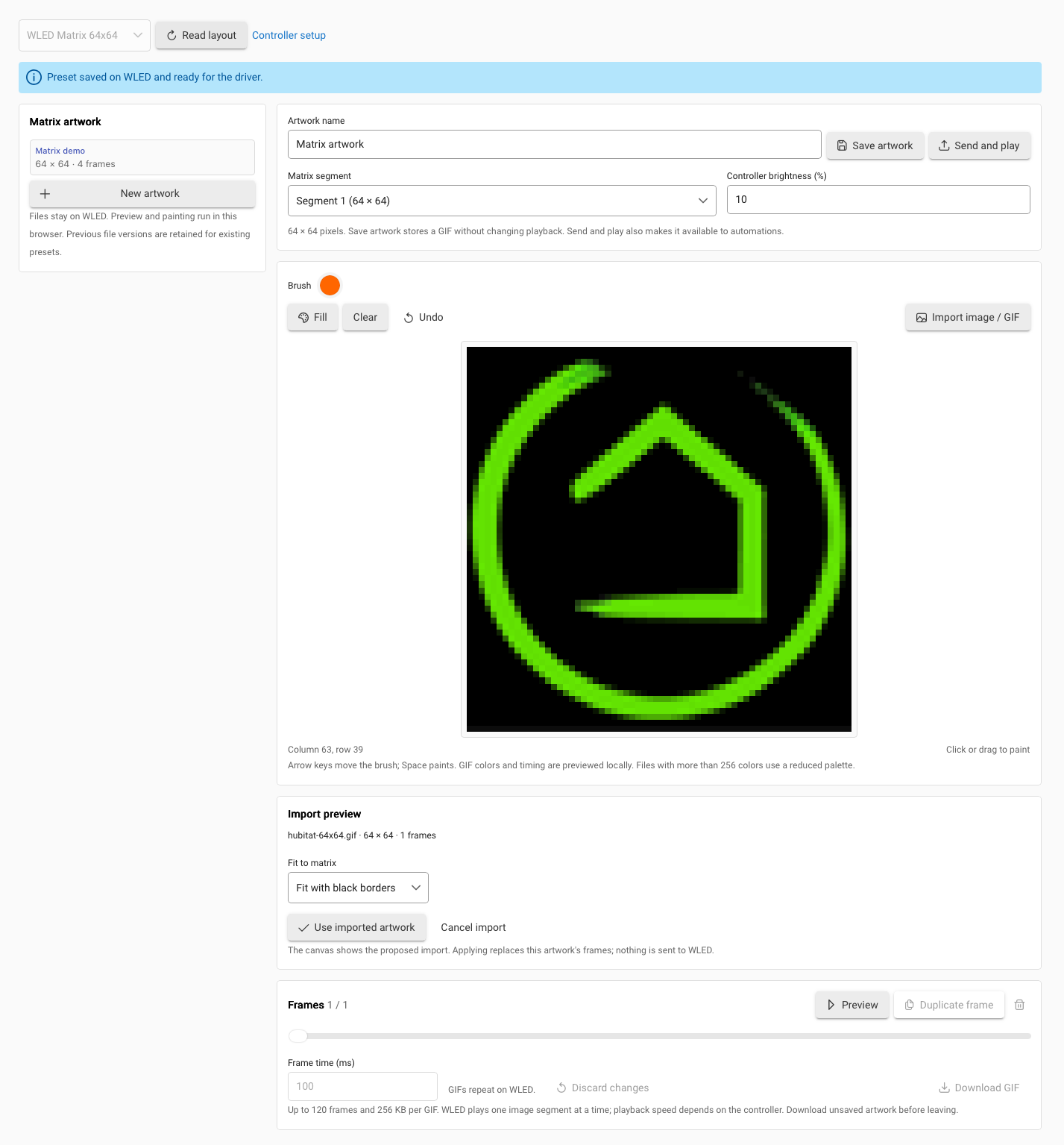
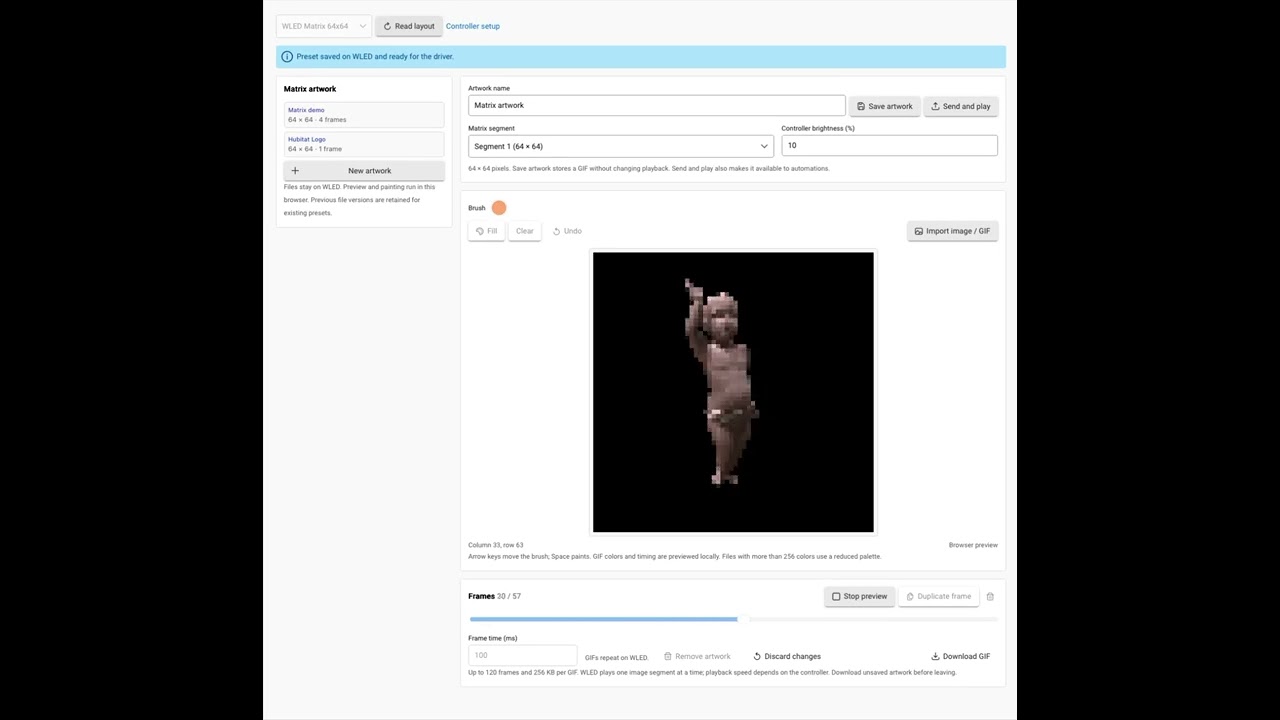
- Matrix canvas: Paint directly onto a supported matrix layout, with frame editing and browser preview.
- Image and GIF import: Import artwork, resize it with borders, crop it to fill, or stretch it to the matrix.
- Automation-ready presets: Play your published designs by name from Hubitat automations.
Getting started
First, configure your LED hardware in WLED: LED type, output length, and matrix layout where applicable. Confirm that it works correctly from WLED’s own interface.
Once you’re running a beta build that includes the integration:
- Open Integrations → Add integration → WLED Designer.
- Choose Discover controllers → Search for controllers.
- Select your controller and choose Add or check selected controller. Use Add manually if discovery doesn’t find it.
- Open Open preset designer, select the controller, and use Read layout.
Designing for a strip
Create a New preset, choose the segment and connected output, then paint or use the gradient and pattern tools. Duplicate frames or insert transitions to create an animation.
Preview runs in your browser without changing the lights. Save draft keeps your work on the hub. Send and play saves the preset on WLED and starts playback.
Designing for a matrix
Select your matrix controller, then paint the canvas or choose Import image / GIF.
Choose how the artwork should fit, review the preview, and click Use imported artwork. You can adjust frame timing, duplicate/delete frames, and preview the animation.
Save artwork stores the file on WLED without changing playback. Send and play also creates the named preset for automations.
Using designs in automations
Use the WLED device’s Play Designed Preset command and enter the published design’s name.
Current limits
- Strip designs support up to 300 painted pixels and 24 frames per preset, subject to a shared 48 KB draft budget. Strip animation steps have a minimum duration of 200 ms.
- Matrix artwork supports up to 64×64 pixels, 120 frames, and 256 KB per converted GIF. Source imports can be up to 2 MB.
- Matrix image/GIF playback requires WLED firmware with the Image effect. HUB75 panels need the firmware build matching their controller.
- WLED’s native GIF playback repeats and supports one active image segment at a time.
Please share your controller model, WLED version, strip or panel type, and anything that works well or needs attention. Screenshots and videos of your creations are very welcome!