I wanted to share a preview of a new app I have been working on called Sonos Sync Pro. It is currently a work in progress, but the goal is to provide a much cleaner, locally hosted dashboard for browsing music servers and managing Sonos zones directly from Hubitat.
I hope to release a public version in the future once I iron out the remaining quirks, but I wanted to share what it does so far and gauge interest.
What is Sonos Sync Pro?
This is a Groovy-based Hubitat app that launches a local HTML5 dashboard. It is designed to bridge the gap between your local DLNA/UPnP media servers (like Twonky or Plex) and your Sonos system, without needing to rely solely on the official Sonos app for simple local playback.
Key Features (Current WIP)
1. The "Ultimate" Dashboard The core of the app is a responsive web dashboard served directly from your Hub. It features:
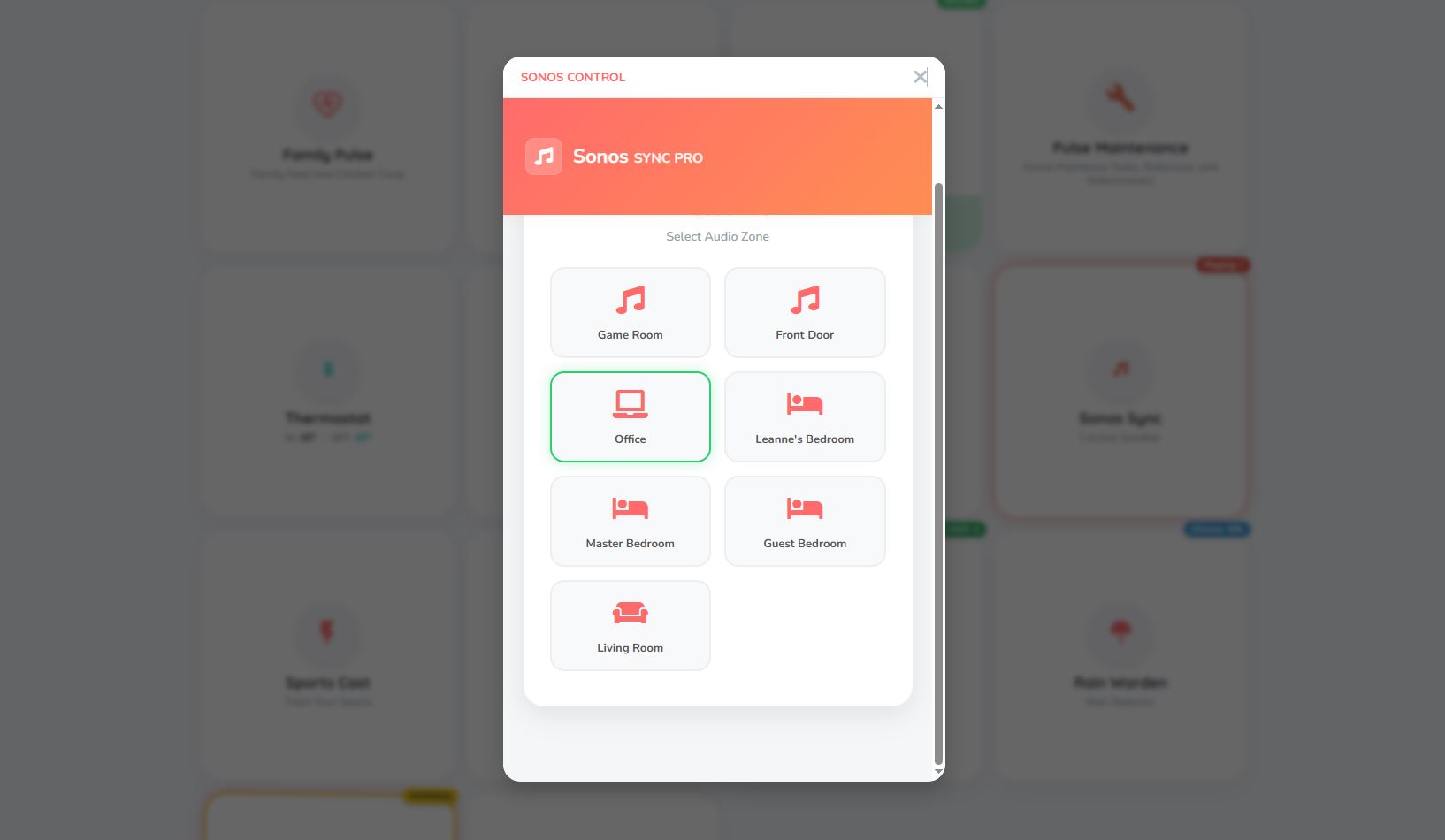
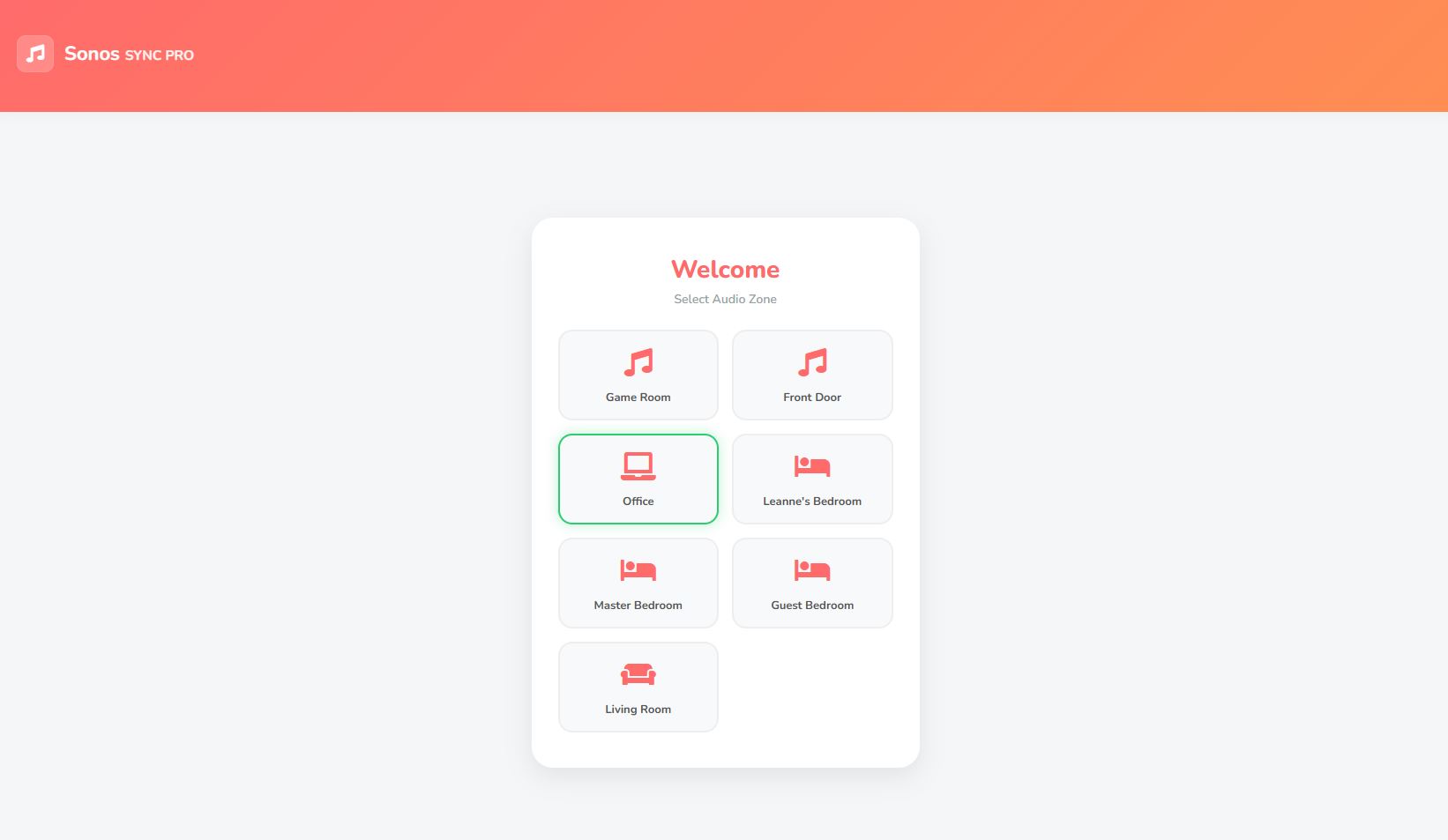
Zone Selection: A landing page that auto-discovers all your Sonos devices.
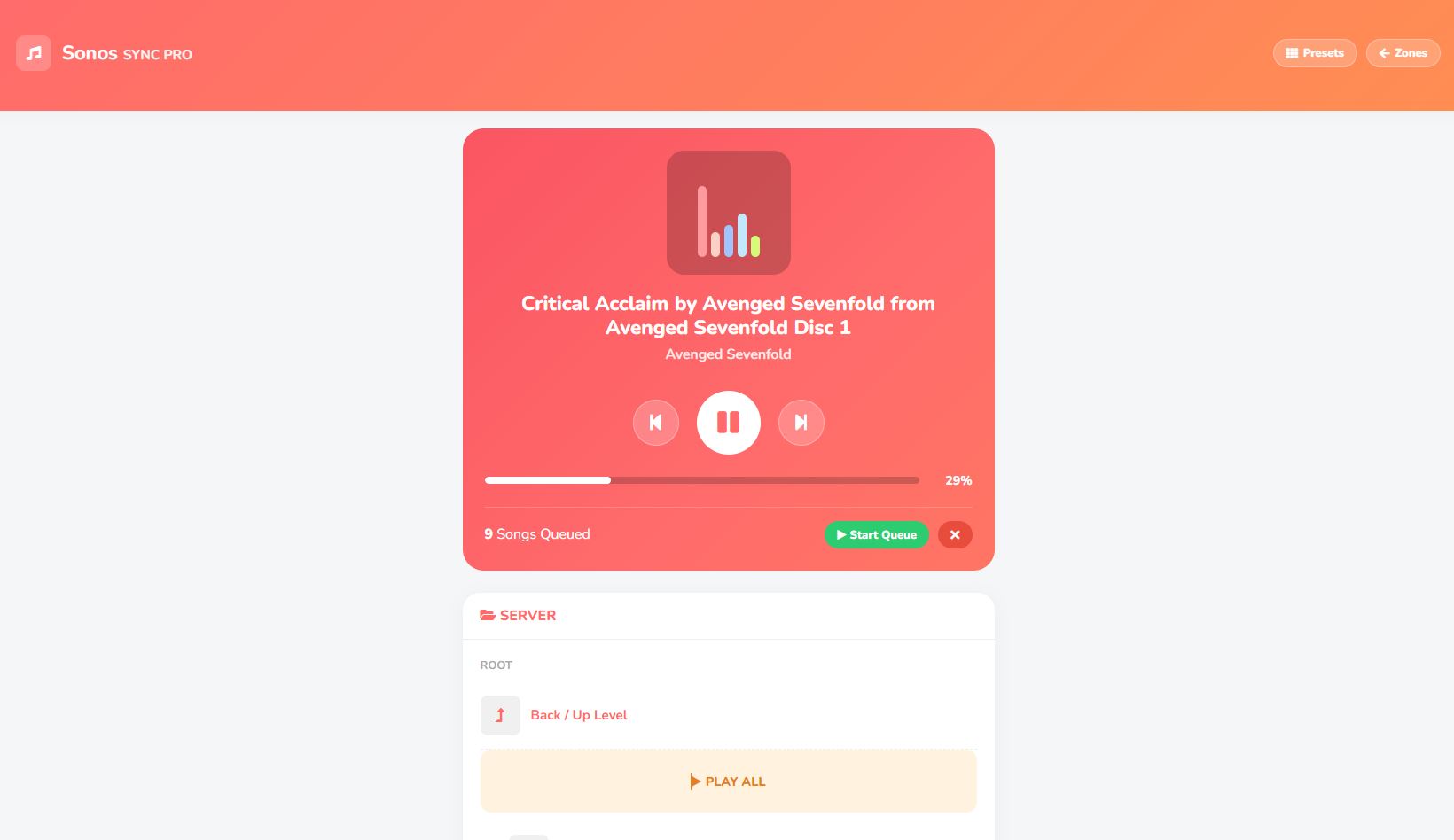
Now Playing UI: Displays track info, artist, and a real-time multi-color audio visualizer animation.
Volume Control: A slider with percentage feedback for precise control.
Queue Management: A custom "Virtual Queue" system that runs locally in your browser. You can checkbox multiple files and "Start Queue," and the app will handle playing them in sequence (even if the native Sonos queue is tricky to manage).
2. DLNA / UPnP Browser
If you have a local media server (like Twonky or a NAS), you can enter its IP and Port in the app settings.
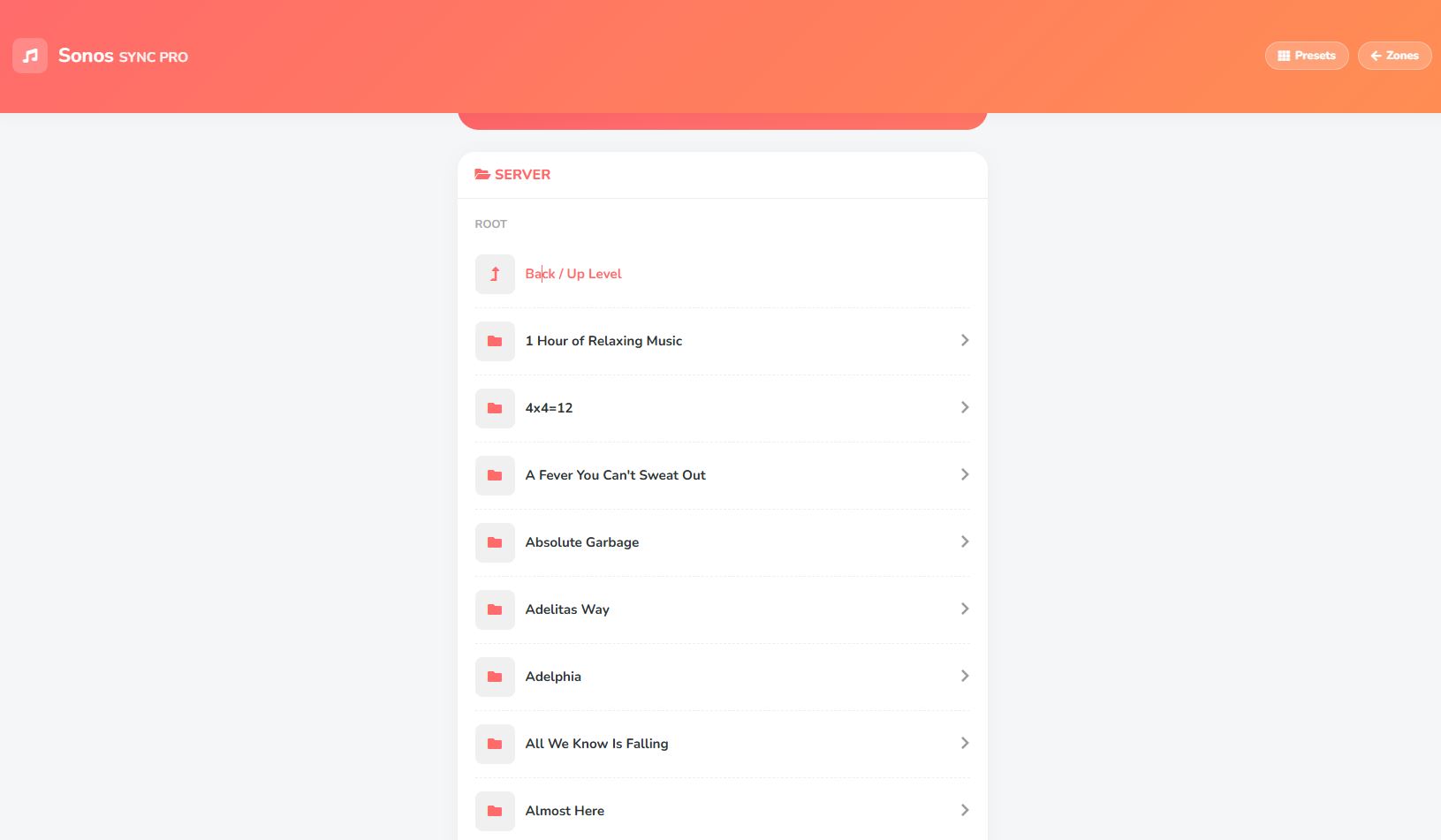
The app allows you to browse folders, artist directories, and albums directly from the dashboard.
You can play individual tracks or "Play All" files in a folder with one click.
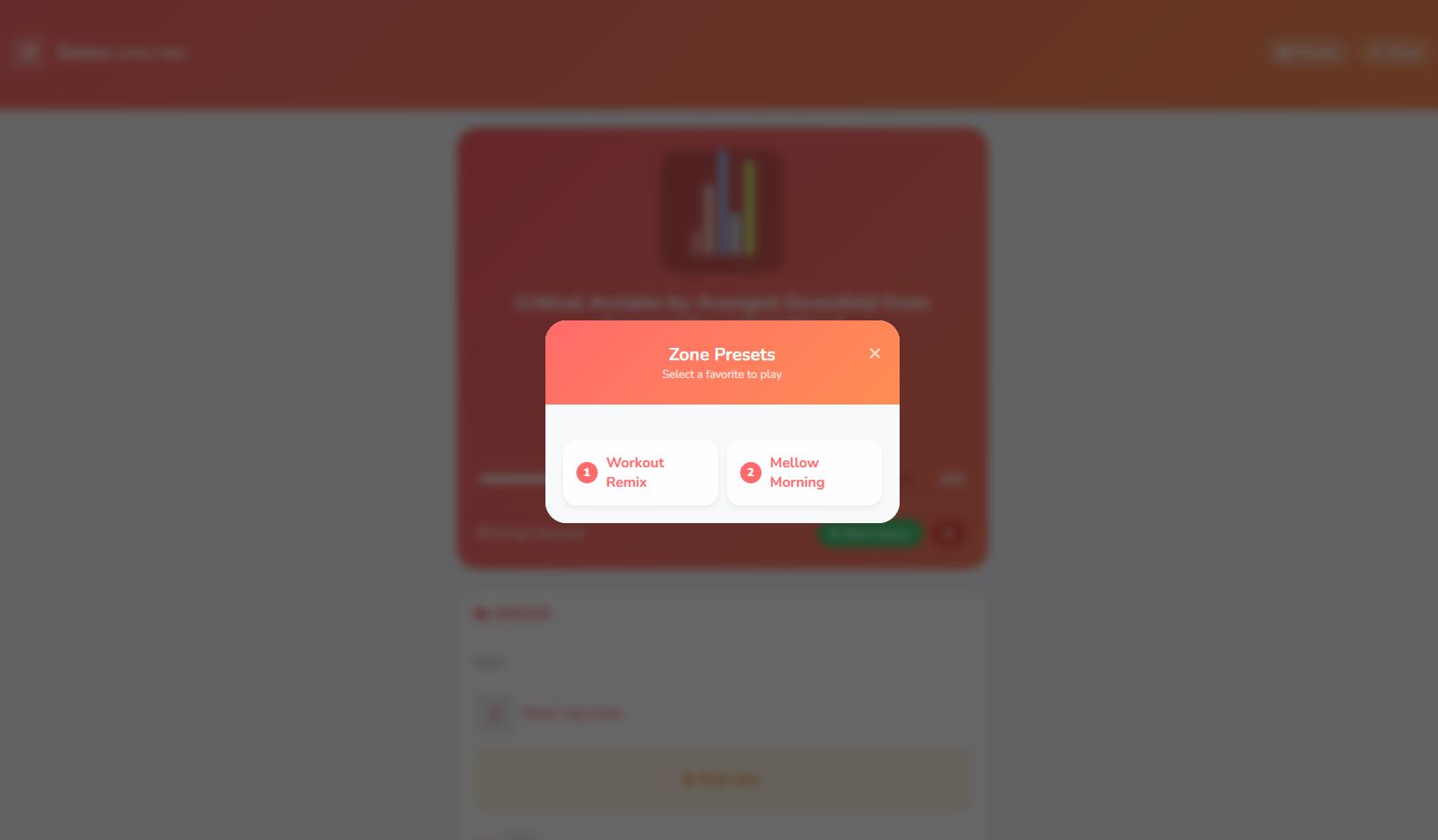
3. Preset System
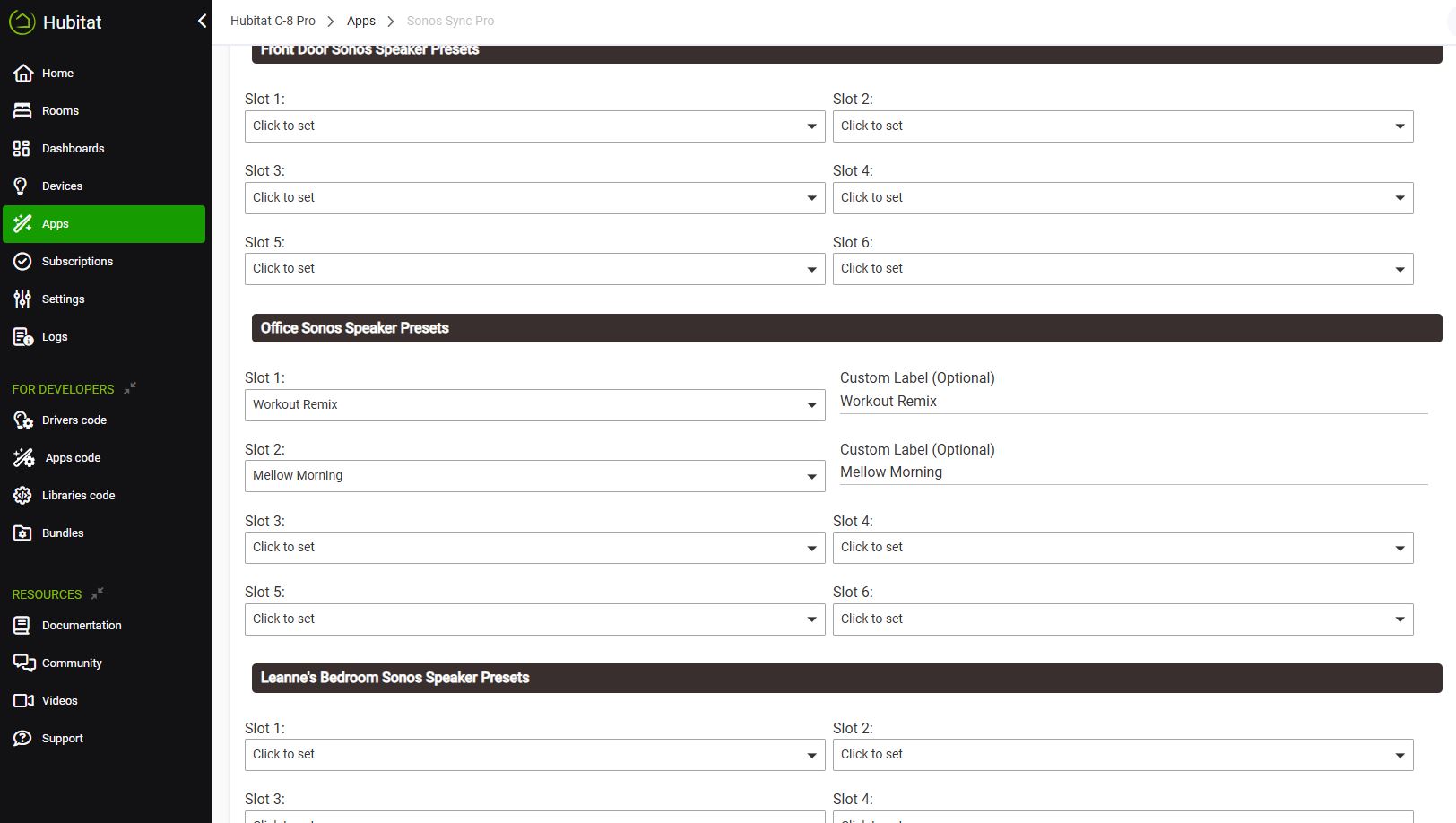
Configure up to 6 Presets per Speaker inside the Hubitat app settings.
Map them to your Sonos Favorites (playlists, radio stations, etc.).
These presets appear in the dashboard for quick access and also create Child Switch Devices in Hubitat. This means you can trigger your specific Sonos favorites from Rule Machine or standard dashboards just by turning on a switch.
4. Visual Polish
I’ve spent a lot of time on the UI—it includes confetti effects when starting playback, smooth transitions between zones, and a clean, modern aesthetic that looks good on mobile or desktop.
Why I built it?
I wanted a way to browse my local music library and trigger specific favorites without constantly context-switching out of the Hubitat ecosystem. I also wanted a "party mode" style interface where I could easily queue up a few tracks from my server without dealing with clunky DLNA browsing interfaces.
Next Steps
I am currently refining the queue logic and polishing the mobile view.
Dude... this is cool. I tried writing an integration between my HousePanel dashboard app and Sonos to get their devices into my ecosystem as native devices, but I ran into the issue that Sonos wants a secure https callback for integration, and I didn't want to implement self-signed certificates for my local web app. How did you deal with this?
The short answer is: I bypassed the Cloud API entirely.
Instead of registering as a cloud integration (which requires those secure webhooks), this app operates 100% locally by leveraging Hubitat's existing device wrapper, direct UPnP (SOAP) commands, and some creative parsing.
Here is exactly how I handled the tricky parts:
1. Leveraging Hubitat’s Built-in Driver Instead of writing a raw socket connection to Sonos, I pull the speakers in as standard Hubitat devices using capability.musicPlayer. This lets me offload the basic transport controls (play , pause , next ) to the Hubitat hub, which already acts as the "bridge" to the hardware.
2. Direct Local SOAP Calls For advanced features like fetching Favorites, I hit the speaker's local IP address on port 1400 using standard HTTP. Sonos speakers run a local UPnP server that accepts unencrypted SOAP payloads.
3. The "Virtual" Queue System Since I couldn't use the native Sonos queue without cloud callbacks, I built a client-side virtual queue directly in the browser:
Storage: The queue is stored in a VIRTUAL_QUEUE array and persisted in localStorage so it survives page reloads.
Monitoring: The browser runs a monitorQueue() function every 1.5 seconds to check the speaker's status.
Triggering: When the script detects the speaker state changing from "playing" to "stopped" or "paused," it automatically fires the playNextInQueue() function to send the next track.
4. Decoding Twonky via RSS For the DLNA media server (Twonky), I avoided complex DLNA SOAP calls by using Twonky's RSS feed feature:
RSS Endpoint: I fetch the directory structure by hitting the endpoint /nmc/rss/server/ on the Twonky server, which returns a cleaner XML structure than standard UPnP.
Parsing: The app parses this XML to find containers (folders) and items (songs).
URL Construction: If the RSS feed doesn't provide a direct link to the file, the app constructs a fallback streaming URL using the specific Twonky ID and DLNA flags (e.g., DLNA-PNMP3-OP01... ) to force the stream.
So, no self-signed certs needed—just good old-fashioned LAN traffic and some XML parsing! Hope that helps with your HousePanel integration.
Building the standalone Sonos app was only half the battle. The real magic happens when you integrate it into the main Family Hub dashboard so it feels like a native part of the system.
We didn't just add a link; we used an Active Tile and an Embedded Modal system to keep the experience seamless. Here is the exact method we used to make it work:
1. The "Active Tile" (Smart Polling) Instead of loading the heavy Sonos interface constantly, the dashboard uses a lightweight polling function, checkSonosActivity(), that hits the Sonos API every 5 seconds.
Visual Feedback: The tile monitors the speaker status. If any music is playing, the tile glows red (rgba(231, 76, 60, 0.6)) and displays a badge with the active speaker count.
Dynamic Text: The subtitle updates in real-time to show "Playing: X Active Speaker(s)" or "System Idle".
2. The "Secret Sauce": IFrame Modal with Resource Killing When you click the tile, we don't navigate away. We use openSonosModal() to launch the Sonos Sync Pro UI inside an iframe overlay. This keeps the user on the Family Hub dashboard while giving them full control.
The Critical Trick: To keep the dashboard fast, we strictly manage resources. When you close the modal, the closeSonosModal() function clears the iframe's src.
Why this matters: If we just hid the iframe, the Sonos app would continue polling the network in the background, slowing down the Family Hub. By clearing the source, we effectively "kill" the app until it's needed again.
3. UX Polish: Locking the Background To prevent the main dashboard from scrolling while you are trying to adjust volume or browse tracks, we toggle a stop-scrolling CSS class on the main body whenever the modal is open.
Here is the core logic that ties it all together:
`JavaScript// OPEN: Loads the app and locks the screen
function openSonosModal() {
let url = base + "/" + sonosAppId + "/ui?access_token=" + sonosToken;
document.getElementById('sonosFrame').src = url; // Load App
document.getElementById('sonosModal').style.display = 'flex';
document.body.classList.add('stop-scrolling'); // Lock Background
}
// CLOSE: Kills the app to save resources
function closeSonosModal() {
document.getElementById('sonosModal').style.display = 'none';
document.getElementById('sonosFrame').src = ""; // Kill Process
document.body.classList.remove('stop-scrolling');
}`
This method gives us the best of both worlds: a lightweight, informative dashboard tile that instantly transforms into a fully-featured music controller when tapped.
This is super helpful. I will try something similar as soon as I finish my other project which is a native Harmony API integration talking to the Maddox api stack.
 Back now to Sonos programming.