Hi guys - I'm in the process of converting my webCore pistons to HE from ST. Going pretty smoothly so far. One thing I am unsure in the HE world is where to write notifications from pistons that are just informational and not meant to be alerts.
With webCore in ST there was an option to use PUSH MESSAGE (or whatever it is called) to write these messages, and then these messages showed up in a central notification area in the ST app.
With HE I do have alerts set up and working, where I am using SEND PUSH NOTIFICATION and the HE app gives me alerts. That is working nicely. However this is not what I mean. What I am looking for is how to write general messages from webCore which do not interrupt/alert me, but that I can easily check later.
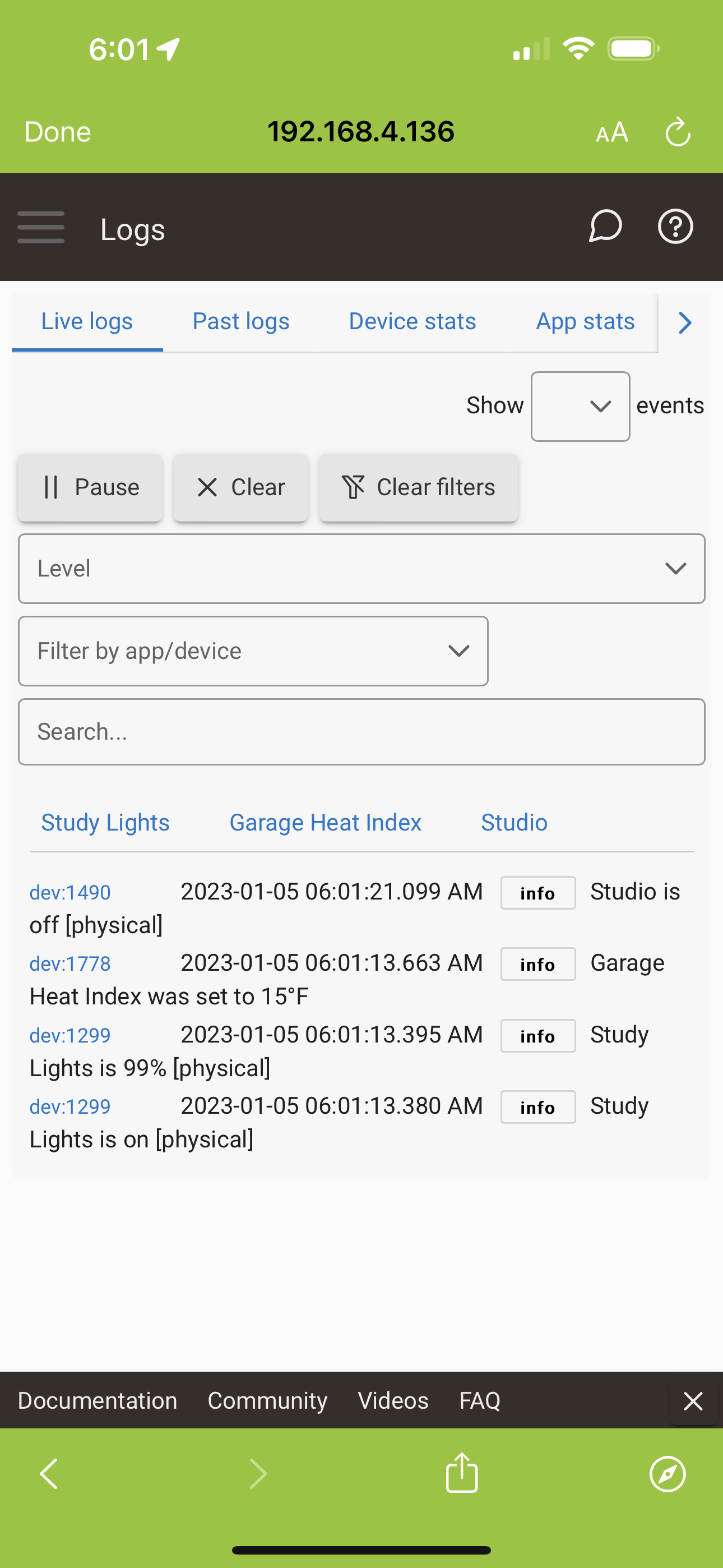
For instance, when my piston turns off a light, I want to write "Turned off hallways lights - no motion for X minutes". I know how to do this with ST, but with HE, I'm not sure what the command is in webCore to write messages to the general log.
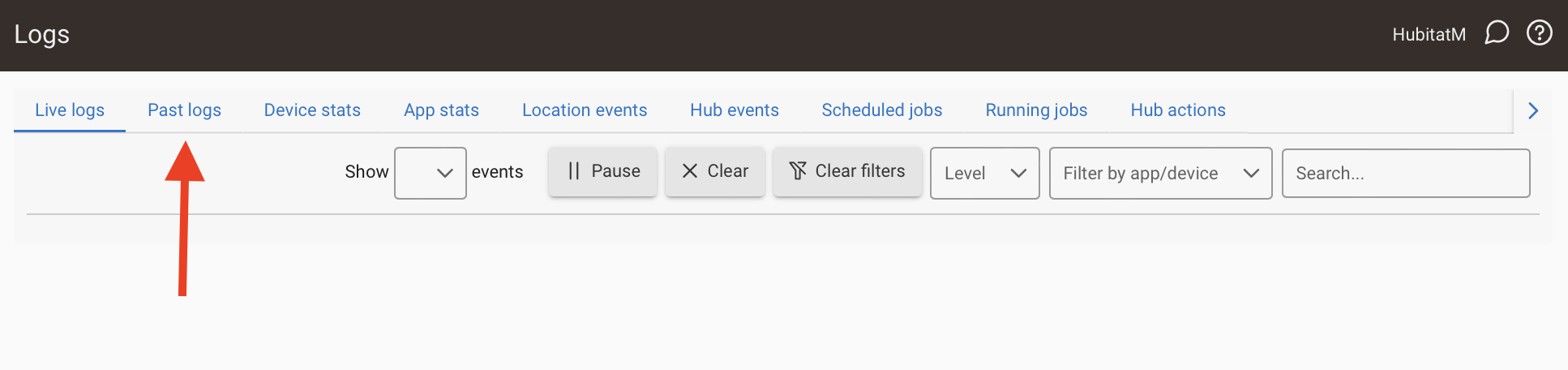
I see where I can go to /logs and see events from that point on. But how can I see the previous logs? Also is there a place in the app (like there was with SmartThings) where you can see the past logged messages? Thanks guys!
Locally, yes, but all you're doing is connecting to the hub via the same web interface as above, so IMHO you might as well just use a web browser. (But the app for this usage is, I suppose, comforting for people coming from "app-only" platforms. )
Remotely, no, unless you subscribe to Remote Admin and use the app to connect via that method. But, again, this could also be done in a regular browser (also an option if you have the ability to VPN into your home network or some other secure means of access).
There are more awkward workarounds you can do if you need easier access, locally or remotely--maybe creating a "dummy"/virtual notification device and using the notify command on that device (instead of these log entries and instead of using your actual notification device--so you don't get them as notifications). Then, you can view that device history via either the "Events" history for that device or with the "three dots" menu on a Dashboard tile for that device (assuming you don't disable that feature); Dashboard provides built-in local or remote access, again with or without the app, though the app can make that easier.
As usual, lots of ways to do it! I'd probably stick to logs myself unless this is a routine need you have and you might need to do it remotely, but that's just me.
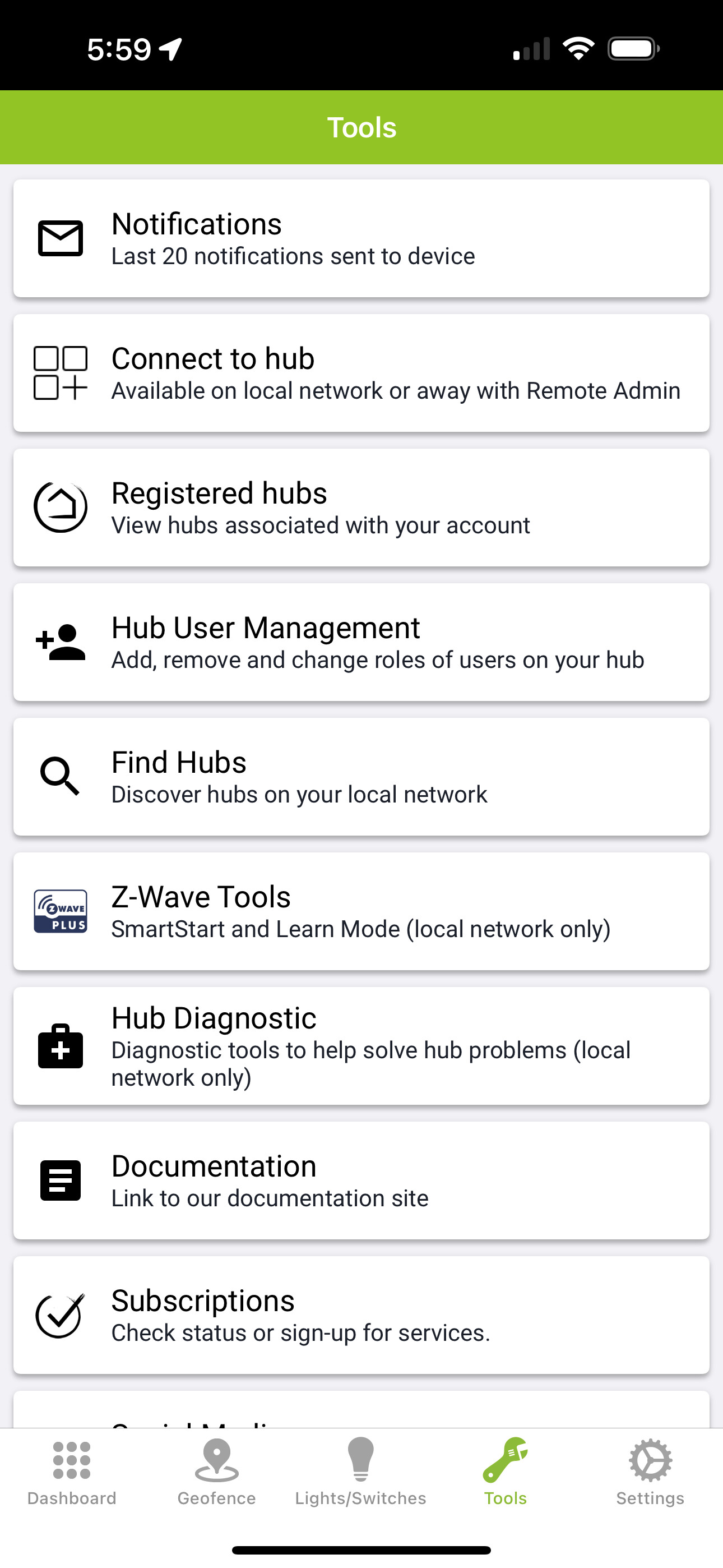
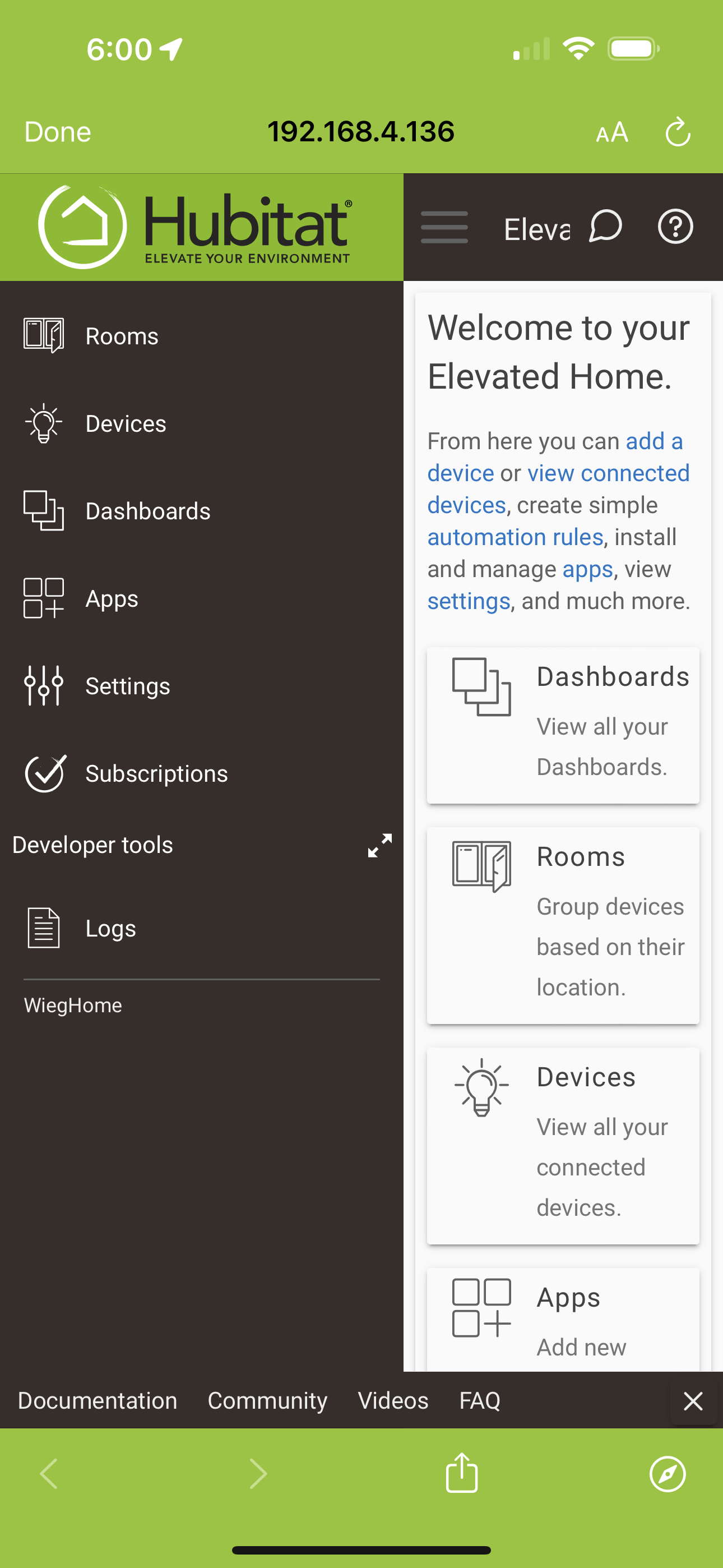
From there you can click on logs and it's like viewing the web version (because you are!) but you can walk around watching the logs. I find that it's a helpful way to view what's happening in real time while tripping sensors to verify that your rules are working the way intended.
It's pretty helpful. As @bertabcd1234 said, this only works when on your home network. Or if you have a VPN setup to reach your home network. Or pay for remote admin.
 Do you know where can these messages be viewed, using the HE app and web interface?