Very cool. Thanks for that!
So far all quiet. Adding next group of devices back in. Leak sensors and drapes.
I am hopefully optimistic. I believe it would have occurred by now. Because a good portion of the devices are out of play I want to wait a bit.
Man I happened to go back a read some of my last responses and I am surprised you could help me at all. I swear some of the text changed after I wrote it LOL. What a mess. I am so sorry.
- Don
2 Likes
Remainder of devices are now in. I will let it bake over night and report the results in the morning.
It is looking really encouraging based on the prior frequency of lights turning on and off.
If it is resolved, I would be very interested in your thoughts on what it was that resolved it  .
.
Based on what we did, I would be leaning toward hunches or a “corrupted Hubitat Amazon Alexa App” but it’s a little too early to call it.
Hope everyone has a great evening. Thanks to all again.
- Don
2 Likes
I awoke around midnight with lights on that shouldn't be on and lights off that should be on.
I thought we had it. I will continue to work on it. I will let everyone know if I every find a resolution. Of course if anyone can think of anything else I certainly would appreciate it.
Thank everyone again for you time & expertise. I always learn so much from you and can't thank you enough. I am always so genuinely appreciative of you time & help.
- Don
I went in to see how to delete a device exactly and I see that they had added Away Lighting BACK. I think possibly only to certain customers from the sounds of it, I wonder if you turned it on by accident. Sometimes Alexa will prompt if you want to use new features and someone may have said yes.
- Go to devices list
- Tap a problem device
- Tap the gear top right corner
- Mine shows right at the top of the device settings screen "Away Lighting, Ready to Set Up"
- If I tap that it goes to a setup wizard because it is not setup.
- Not sure how to disable it if its already setup.
I did find it is tied to "Modes", and I found the Modes settings. From Alexa app home screen:
- Tap the more icon (three lines)
- Tap Settings
- Scroll down to find Modes
- Mine just gives me a setup wizard, if your is enabled already you should have some settings in there, turn it all off.
Alternate option to try to fully delete problem devices and re-add them.
I would test just a couple of the specific ones you had an issue with.
- Go into the Alexa mobile on your phone
- Manually delete the devices(s).
- Go to devices list
- Tap the device
- Tap the gear top right corner
- Tap trash can top right corner
- Go to the Alexa app within Hubitat.
- Uncheck the device(s), click done on App.
- Wait a few seconds.
- Go back into Alexa app in Hubitat, add devices back, click Done
4 Likes
Good morning Jeff!
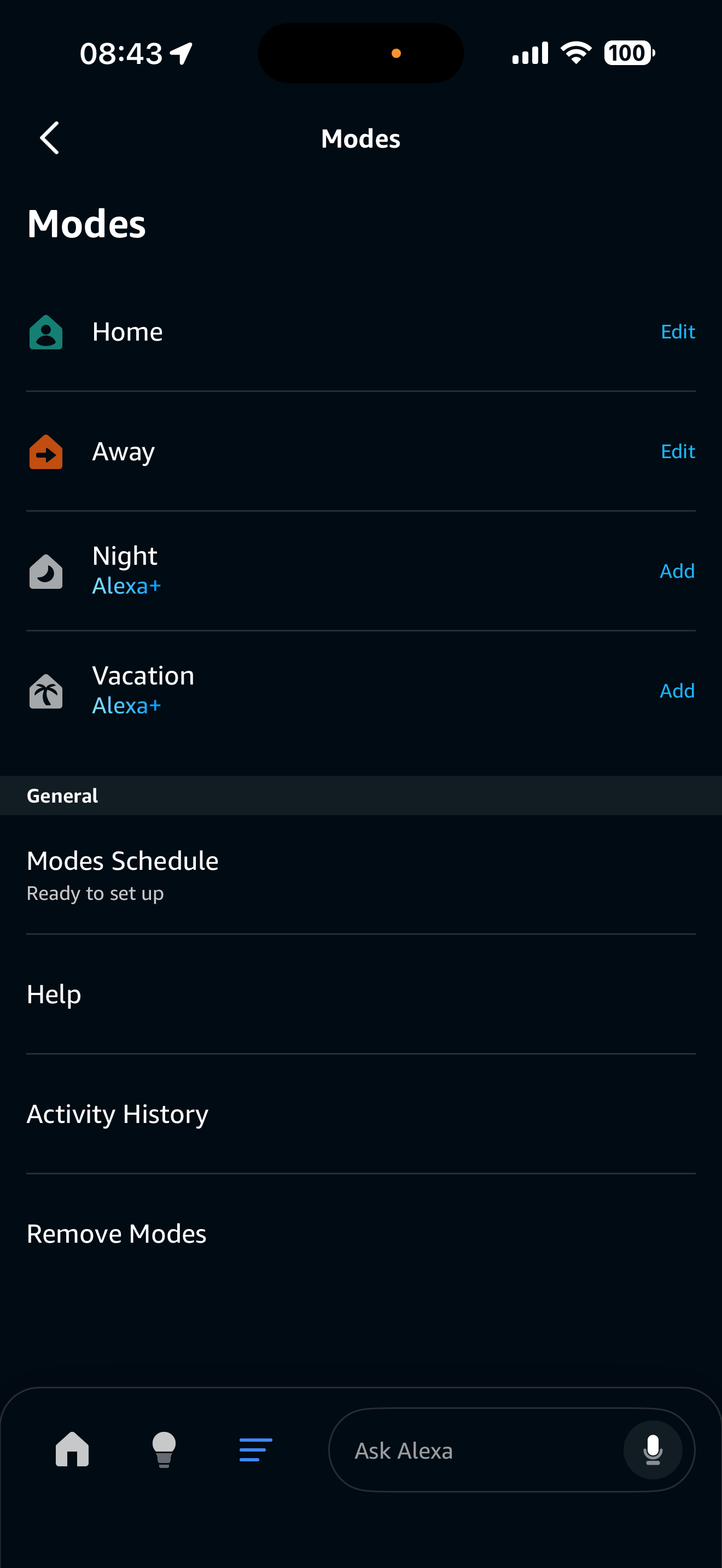
MODES:
It appears modes was turned on. I have turned it off:
This is what the initial screen looked it.
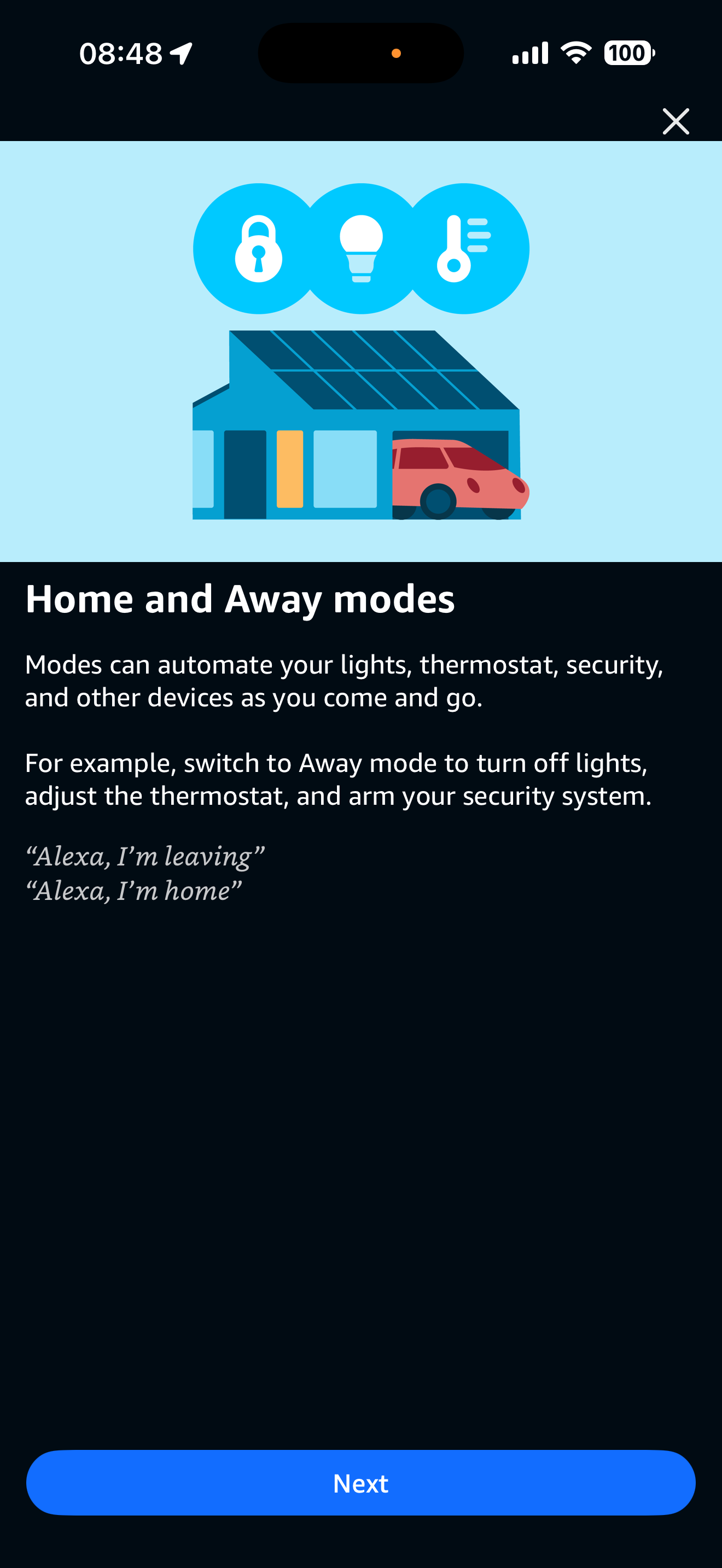
Once turned off:
Away Lighting:
Initial Screen. Showed enabled and finish setup.
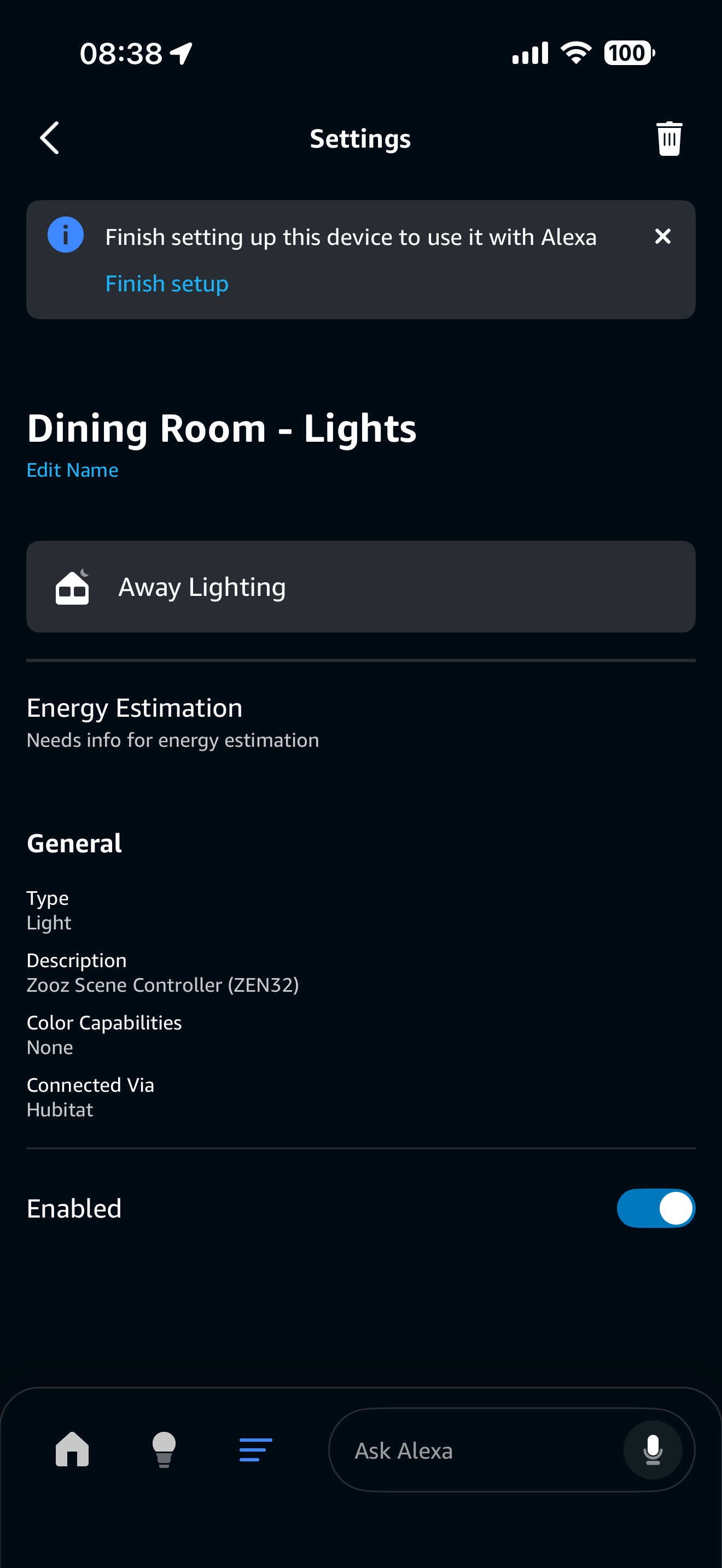
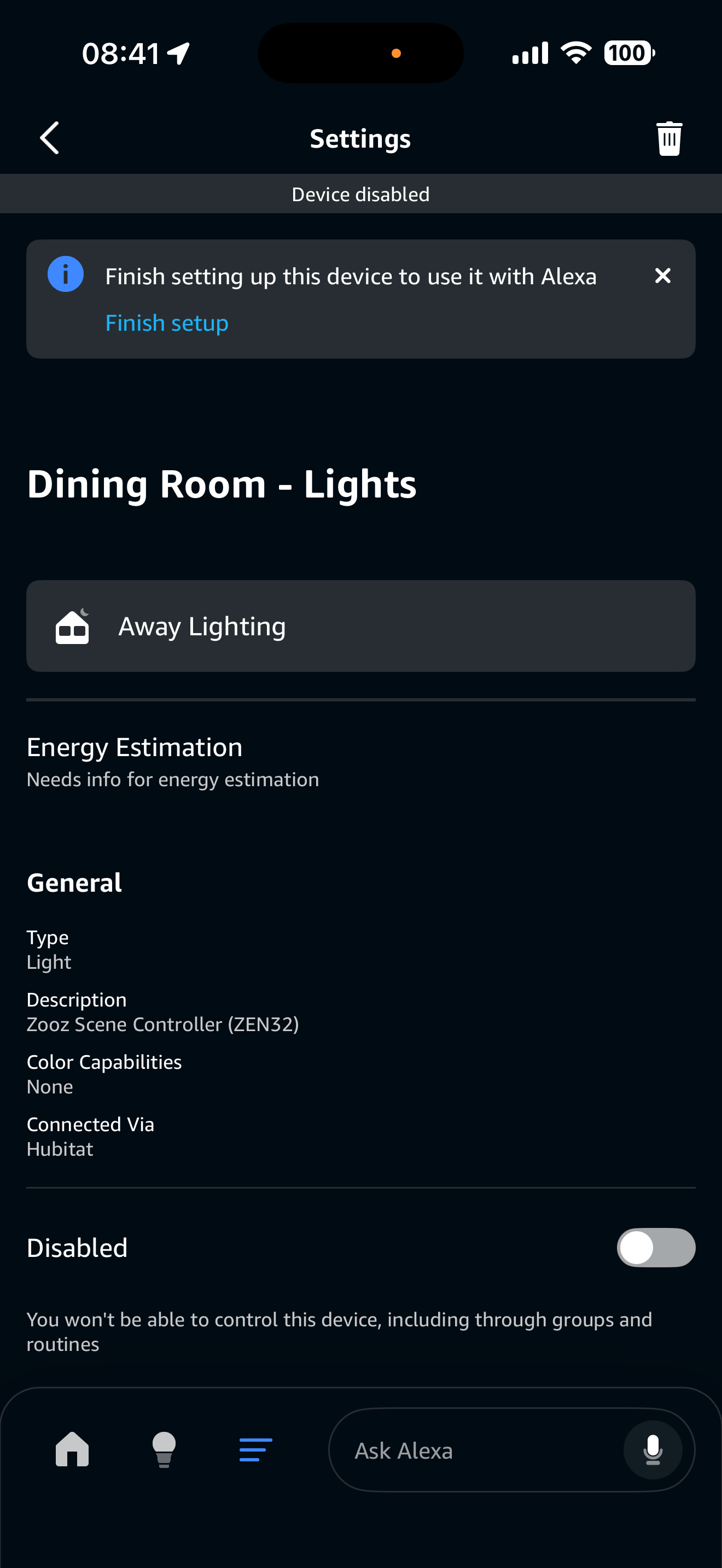
When selecting finish setup the only option was to disable it. Which I selected which basically as noted disabled the device entirely. Hopefully disabling modes (which I have no idea how it got turned on, honestly I am very careful about answering prompts) but I know there is a lot of dynamics that occur including updates).
.
I did swap out one device before (master bedroom lights) from a Zooz ZEN35 to a ZEN32 thinking it was a dimmer set as a non-dimmer issue. That was so early in the process I forgot to mention it. It was one of the 1st thing I did and re-ordered all ZEN32 device.
I have re-enabled the app. Thank you for continued help.
- Don
1 Like


Probably a moot point though, as I am sure we have found the culprit with the modes.
Yes, you removed from the HUBITAT app only and added them back again. I tried it explain it multiple times above, I am not sure if that 100% deletes the device from Alexa or just hides it while keeping the info cached. Hence my instructions on how to delete it from the ALEXA app itself first, which should remove all traces of the device so when you add it back its like a new device.
This will disable the device for voice control also, so if you want to use for voice control you need to turn it back on.
What happens if you tap the "Away Lighting" box on that device? Mine looks a little different and says "Ready to Setup" under it. Yours does not have that under it, suggesting it is setup.
2 Likes
I cannot over emphasize the importance of this step.
1 Like
I do get it.
I have deleted both ways. First from the Alexa app by going into devices and deleting them and then deleting them in the skill.
Then un-selecting all in the Alexa app which will remove them in the skill (most of them) at which point I delete what was not removed and then delete the app.
It is probably my terminology that is confusing things but I have deleted them in both and in each direction.
1 Like
After many unsuccessful attempts I have finally resolved this issue for me. I am posting the final resolution hoping this might work for some others as well.
All changes were made in the Alexa app. Nothing was changed in Hubitat (although some earlier attempts to troubleshoot were made in Hubitat without success). Ultimately it was the two simple changes below in Alexa that resolved my issue.
- Re-enabled Modes in Alexa. Note that in the early stages of troubleshooting I initially removed modes altogether but that did not work. I may go back at some point and remove them again because I really don't want them or want modes on in Alexa. I use modes in Hubitat which works very well for me. For now though it is finally working. I need a reprieve. I am leaving modes on for awhile.
Steps Taken:
2. Turn Alexa Modes Back On:
- From the home screen in the Alexa app select the three bars at the bottom of the app.
- Select Settings.
- Scroll down and select modes.
- Enable modes.
- Set Alexa Mode To Home Using Verbal Command:
Initially I set the mode through the Alexa app. It showed it was set to home but the problem still existed.
I then used the VERBAL command to set Alexa mode to Home. "Alexa set mode to home mode". Verified the mode was in home mode by asking "Alexa are you in home mode or away mode." Response was "I am in home mode".
I should note that after each change I would wait for the devices to randomly activate before I would make the next change. The devices would always randomly activate multiple times in the same day. It has been 3 days so I am positive it is resolved.
The random activation of devices (as Jeff and others noted) was from hunches or home/away mode. What finally resolved this for me would appear Alexa was acting on home/away mode even though initially disabled. It wasn't until the right combination of configuration of home/away (at least for me) that the randomization of devices stopped.
I am glad this one is behind me. I will let the community know if something changes (for the better or worse. Also many thanks to the community who gave me plenty of support and things to consider. I continue to learn so much from this group. Special thanks to Jeff, bertabcd1234, and emberwyn. I re-visited everything you recommended which was key to me resolving this issue.
Hope this may help someone else having the same issue.
- Don
7 Likes