[Release] Unifi Integration Manager

For some time now I have been gradually working on integrating my Unifi environment into my Home Hubitat environment. I am now please to release to everyone my "Unifi Integration Manager" app to help with that purpose.

This app is designed to work with @snell's Driver packs for Unifi Protect, Unifi Network, and Unifi Connect devices. The app will install the main parent devices and initialize it with a configuration of your choosing. The driver packs can still function on there own as well. So this tool just augments your management process if you choose to.

This app will also provide improved support for inbound and outbound Webhook connectivity between Unifi Protect's Alarm manager for advanced functions.

How do you get it

All of the integrations are available through HPM. Simply open up HPM search for Unifi and install all of the components you want to use. The @snell's Unifi driver packs and the Unifi Integration Manager are currently all grouped together as shown below.
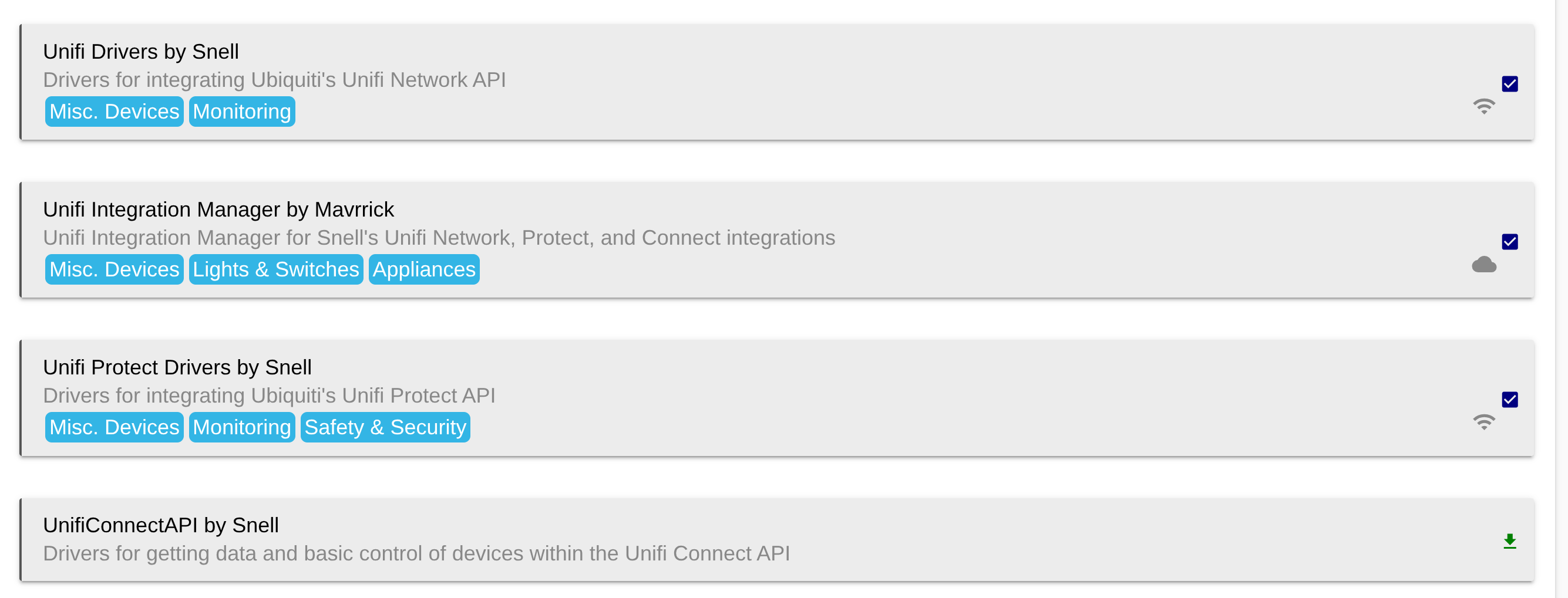

If you don't have all of the Unifi apps in your Unifi environment you don't have to install them.

Once all of the driver packs you need are installed from HPM on your hub, you can install the Unifi Integration Manager app in the Hubitat UI.

Upon starting the install of the application you will be greeted with a page that looks like this.
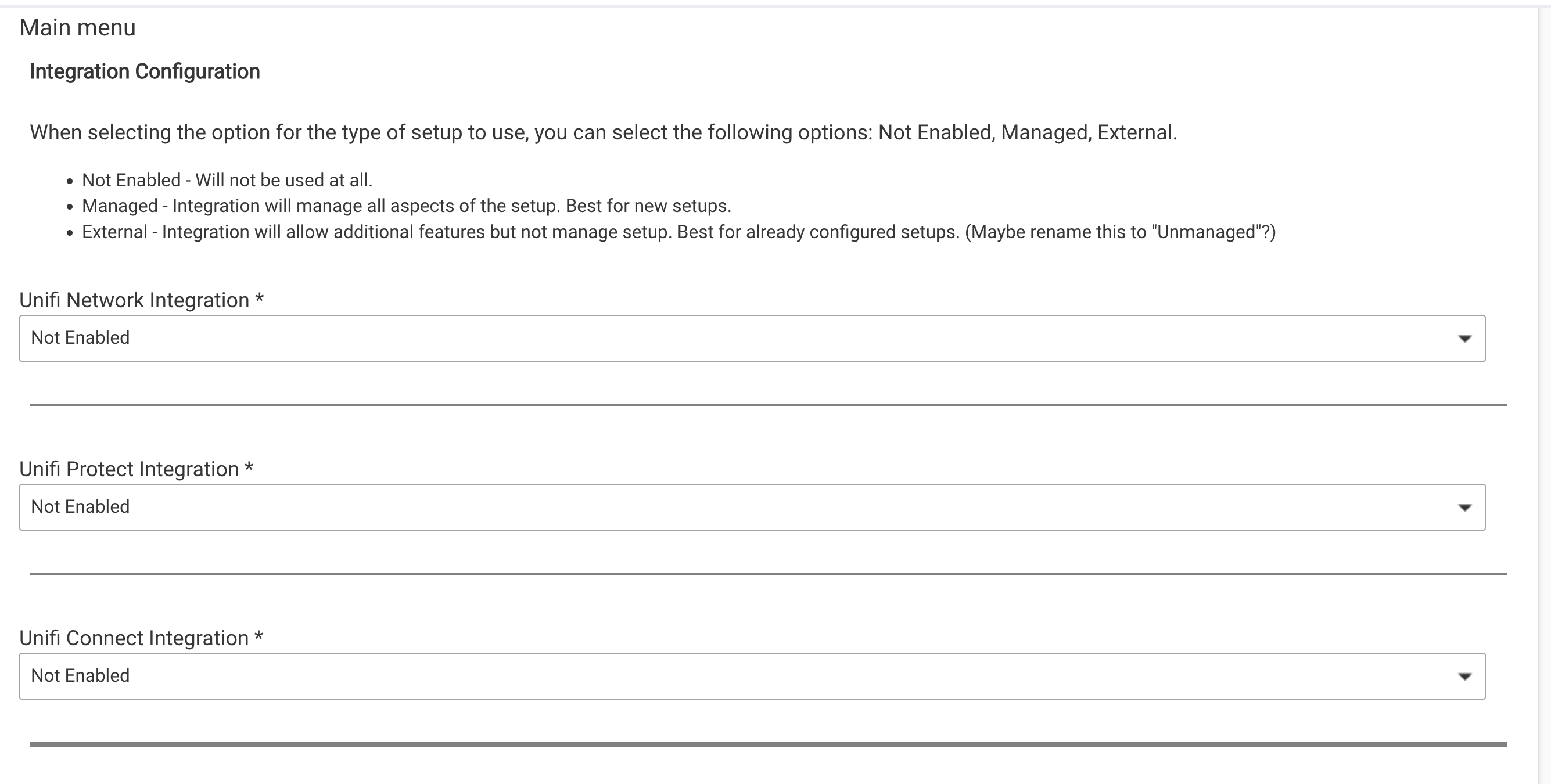

By default all integrations are set to not enabled. Select the integrations you want to activate and change to Managed, or External. As shown in the top of the above screen shot a Managed selection will allow full control from the app, and would be preferred for a new install. Once that selection is made you will be presented with new options that allow you to specify additional setup parms like the type of Unifi controller use, User I'd, Password, Refresh Rate, and if you want child devices for your Unifi gear to be created, ect.

Once all of the configuration for the integration is done you can then setup your inbound and outbound API Webhook configurations. Scroll down a little bit passed the integration configuration options and you should be able to see some information like below.
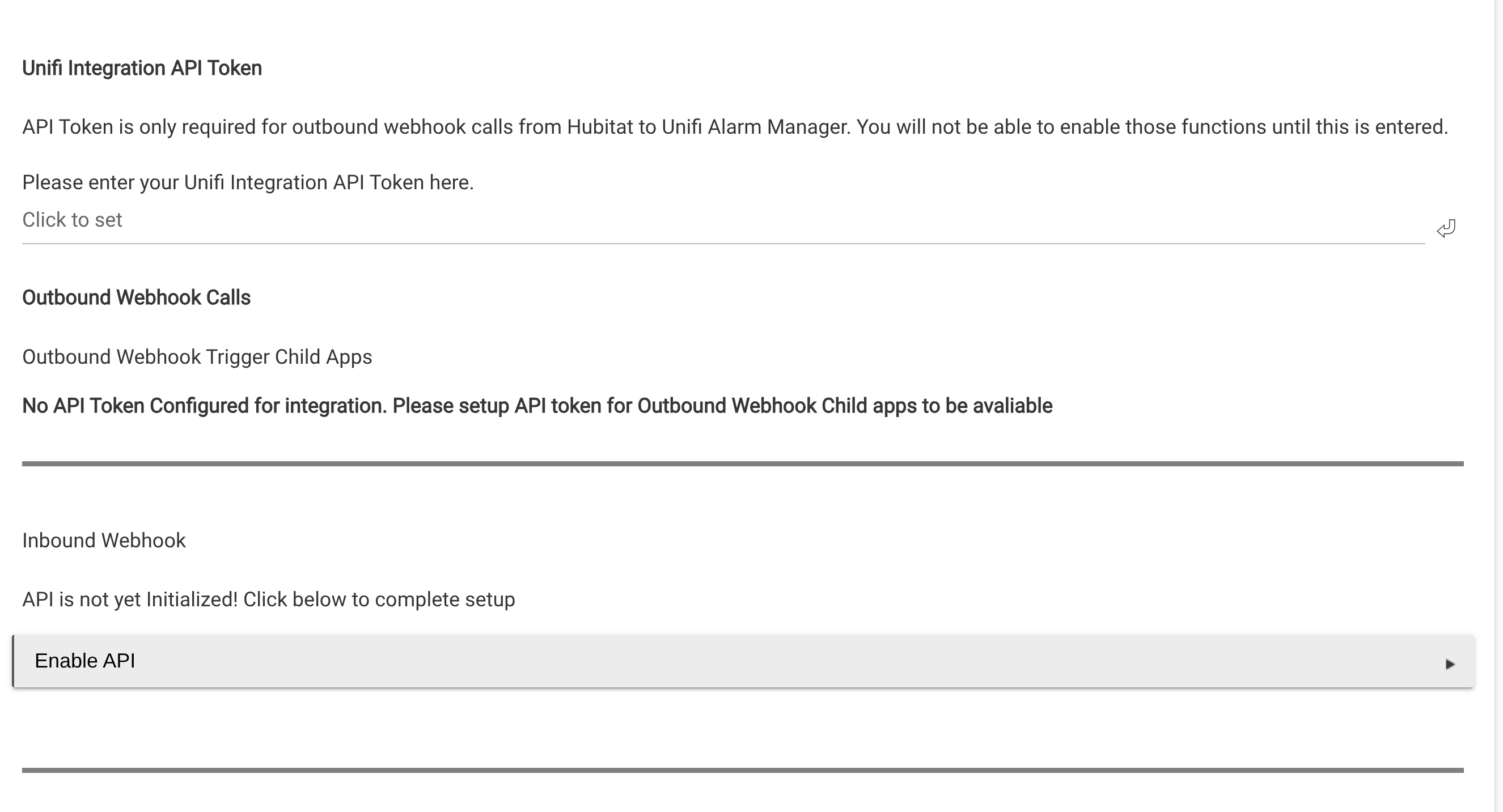
To enable configuration for outbound Webhook calls from Hubitat to Unifi obtain the Token from your Unifi Environment and enter it on the available line for your token. Once entered pres "tab" on your keyboard and you will now have a option to configured Outbound Webhook Child apps.

Below that you also have the ability to click a button and enable Inbound webhooks from Unifi Alarm Manager to Hubitat.

Once done with the settings you want to configured click on Done. At this time the Integration app will create devices based on the integrations you enabled and pass configuration the needed configuration options down to them. This will also formalize your setup of the API's in your environment as well.

What is left to do with this app.

  1. I may be adding additional configuration values to the integration app for each integration. This may lead me to break each Integration onto its own configuration page instead of everything being on one page.
  2. The child app for outbound webhooks to Alarm Manager has limited triggers. Currently it can only trigger on Motion, Contact sensor, and Temp. If there are additional triggers needed please just let me know and I will get them added.

This is intended to be a overlay for management of @snell's integrations and does not change any of the functionality he has in his drivers. The additional functionality provided is around Webhooks

Enjoy everyone and let me know what you think or if you see anything that is needed.

7 Likes

I am having trouble getting this set up. I have an existing instalation of Unifi Protect by @Snell.
When i select the "Choose Device" it just shows a blank line.

I tried removing all the protect devices and the app, and then selecting managed. It created the Protect Device and a Child camers, but no Doorbell device,

Also what is ment by "Please select the controller type Protect *" which just had a dropdown showing various time settings?
Thanks

The way the selection is setup is that it looks for devices using @snell driver. If it isn't using his driver then it won't be avaliable to select. Are you 100% positive that you are using @snell's driver pack.

Also this app would not have anything to do with a doorbell device not showing up.

Please make sure you are using Snell's integrations and not the built in integration.

Do you see any errors in the Logging on the hub?

You are correct, i was using the built in intigration.
I just reinstalled and chose managed

It installed the unifi protect and a camera child device. I guess this is my doorbell camera??

It shows as a third party camera, and i do have several 3rd party cameras set up in Protect.

I did a valid fingerprint read abu nothing showed up in the log
image


I am sure i am just not getting it configured correctly, i will keep working on it

Edit, ok i see now i have to change some parameters in the API. but i'm not sure what to chose as "device DNI" I will go back and reread everything and see if i just missed it
Thanks

That is bad labeling on my part. That is effectively just the refresh rate that I pass to Snell's integration when installing his parent device.

I have posted a small update to the app to fix that verbiage.

1 Like

Ladies and gentlemen, may I present one of the most patient, helpful, nicest, and responsive community developers, Mr. @mavrrick58. Superstar. :star2:

3 Likes

I posted an update to my side of this (my Unifi Protect API drivers) that should clean up the isRtspEnabled error.

Based on the information above, a Doorbell should not be identified as a Camera device. Doorbells have their own separate driver and the Camera driver does not have any attributes to handle Fingerprint ID. If it is a Ubiquiti device, it should not be identified by the system as a 3rd party camera either (which, based on separate messages, it is not). So, I am not sure that this is actually the doorbell you are looking for. :wink:

1 Like

Hi, @mavrrick58. Can you please explain in more detail, how does an Inbound Webhook work? Thank you

It currently works by providing a Webhook url for your to call from Unifi Alarm manager. When called with appropriate parms the parms get passed to the Unfi Protect parent device selected in the configuration. It runs the applyWebHook command and then passes the information to the appropriate child device. If you expand the usage directions shown in the app it explains what are valid parameters and what needs to be passed.

Below you can see the directions section expanded. There are 3 potential variables that you would pass in the call from Alarm manager. They are underlined. The Device_DNI variable you would get from the Hubitat device. The Detection_Type Variable would be from the list of Valid Detection Types shown in the directions of use. and the addtional Parm would be something like a persons name or license plate if the detection type is general about a specific thing. It may not always be needed.

Here you can see the custom Alert in alarm manager and how i set it up for a specific face detection.

Here is the URL that is configured in that Alert that is used to call Hubitat Integtegration manager

http://192.168.xx.xx/apps/api/2295/?access_token=10be7623-xxxx-xxxx-8482-xxxxxxxxxxxx&dni=Doorbell xxxxC6719D4C&type=Face&value=Craig

I would still check to see if the information you are looking for is already available through regular means with Snell's integration. It should be just about as fast and depending on what you are trying to do with webhooks, they can require significant setup as you can't use parms in alarm manager to build the URL's to call Hubitat.

All that said the webhook functionality may need some improvements. When It was originally released Alarm manager for Unifi network wasn't available. Does all that answer your question? or do you have a specific use case you are trying to figure out?

I have no doubt there are various ways this could be expanded as the Unifi Apps have evolved, When the whole webhook idea came about it was about getting richer knowledge for AI data to be returned from Unifi Protect. The use case we (me and Snell) designed specifically for was face recognition and LP. The cameras did good job at identifying a person approached the door but wasn't passing face info. Technically the stuff we added should support all of the potential Alarm Manager triggers we saw at that time.

Basically, I don't need anything complicated. I have two zones set up in the camera, in which I monitor the presence of people, and based on that, I would like to switch on the lights in the individual zones.

The problem is, that I don't know, how or where to set up the Hubitat device that reads alarms from unifi protect.

I think i get what you are saying the problem is. You want each zone to be managed independent of the Motion activation of the camera right? That is why the simple motion detection attribute on the camera isn't sufficient.

Are you able to setup the trigger by zone in Unifi Alarm manager? I don't see that as a option, but everything is available to me.

Yes,

Oh i see it now!!

I just had to go review the code in Snell's integration to validate how his driver handles the additional info. It Looks like you could use the custom webhook and pass the information with the Zone as the %AdditionalParm% value. You would need an alert for each zone. How well this works depends on if the value is forced even when already set.

Then just create your automation to monitor the attribute AIRecognitionValue for changes to be set to that zone. Since it is a string value that may not be the best.

Another option which would likely be better would be to create a virtual Motion devices that represent those zones. Then use Maker API to simply turn motion activation on for them. You would just have Alert manger call the webhook to the maker API Device info instead of my app. Then turn it off after a given amount of time.

Does that all make sense?

Either way the problem is that you don't really get inactivity notification with either methods. So it won't work like a tradititional motion sensor.

Great, it works, I think API Maker and virtual motion sensors are ideal in my case. Thank you very much for the quick help.

1 Like