Light Home Security Monitor v22 – Release Notes
 MAJOR RESET / UPDATE - All new Clean Install Required!
( See Below For New Un-Install and Install - Sorry About That ! )
LSM v22 It delivers unified time tracking, cleaner reporting, and rock-solid device monitoring across locks and contact sensors.
Has daily reports, and forced reports are now fully aligned, full dashboard statistics with reliable counts and durations now with much more information the ever before. Now that its so much easier to install Give us some feedback and suggestions!
AI Video Discussion V22: https://youtu.be/Qj0g_X7xC-8
AI-Assisted Development for Hubitat Home Automation.
Concept, design, and ongoing refinements by WW.
 Features
- Multi-Contact sensors + Multi-Lock monitoring with custom short names
- Secure + Alert color light control with blinking + time windows + (time-restricted)
- Repeatable notifications with grace period + time windows + (time-restricted)
- Daily reports with secure %, alarms, activity counts/durations + (time-restricted)
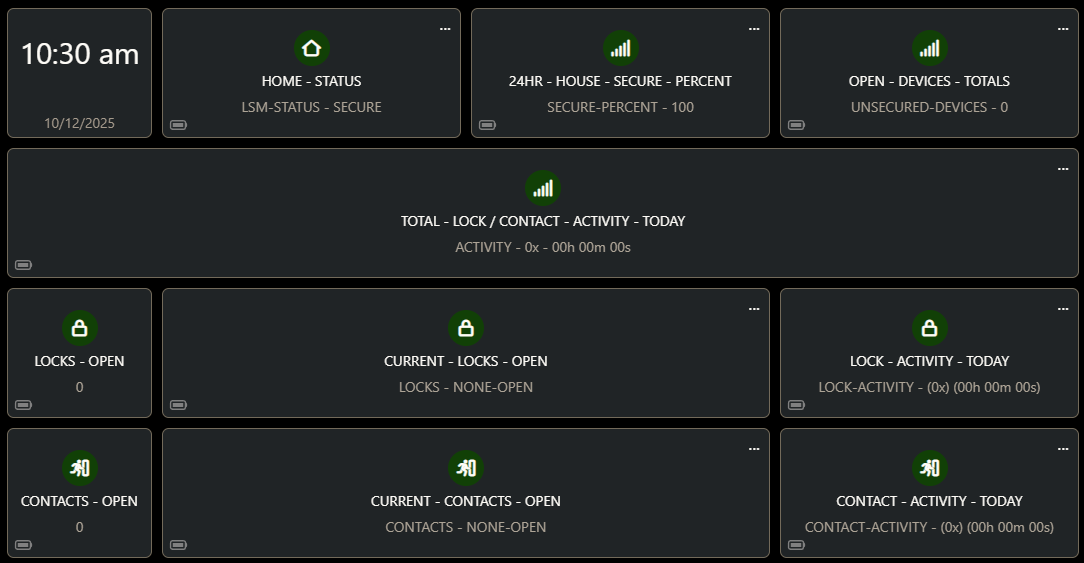
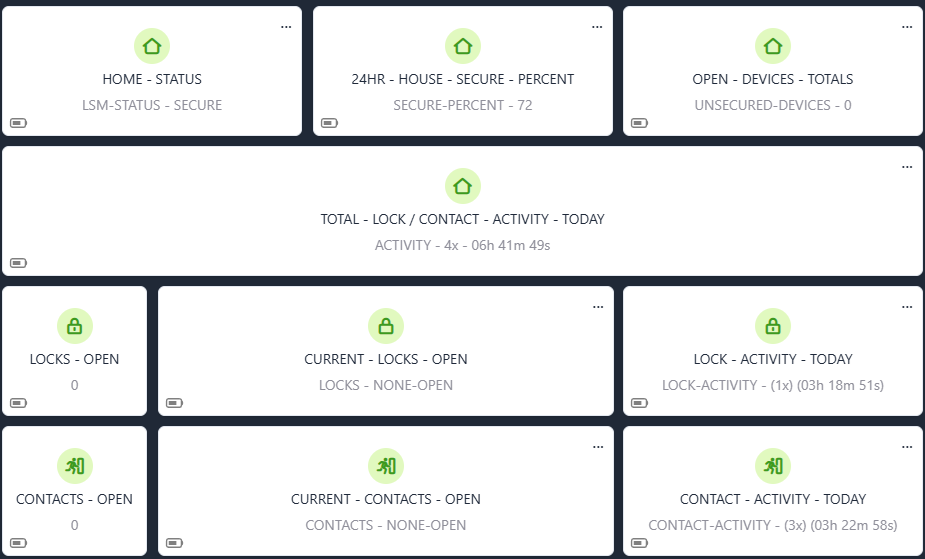
- Dashboard status tile (legacy) + EZ Tile device with 11 attributes
- Instant dashboard status updates (legacy) & EZ Tile dashboards
- Report Button child device to manually trigger phone reports
- Active session - Counts & timers for currently open/unlocked devices
- Debounce logic for both locks and contacts to prevent duplicates
- Much easier installation then ever before ! With Hubitat Package Manager!
- ADDED: Multi-page wizard setup (6 guided steps + summary)
- ADDED: Instance name protection - hidden and locked after initial setup
- ADDED: Blink method toggle (On/Off Toggle vs Flash Command)
- ADDED: Blinking method display in status summary showing active command
- ADDED: Short name with original name reference display in status summary
- ADDED: Enhanced dashboard Status & Activity Summary's
- ADDED: Unified visual styling with horizontal separators across all 7 pages
- ADDED: Bold section headers with consistent formatting throughout
- ADDED: Now Cell Phone-Optimized
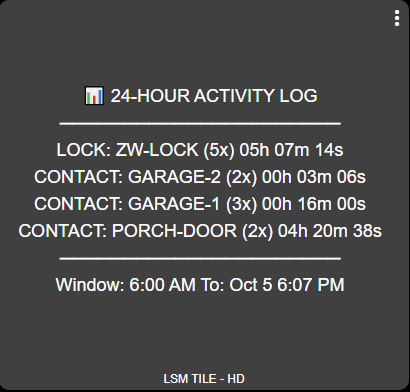
- ADDED: New 24hr Activity Dashboard Status Summary
- ADDED: 22.0.4 - Minor Updates - Code Enhancements
 Step-by-Step: Full Uninstall
Go to Apps → Open Hubitat Package Manager (HPM)
HPM Choose Uninstall → Select Package Light Security Monitor to Uninstall
 Installation: via Hubitat Package Manager (HPM)
- APPS then open Hubitat Package Manager on your hub.
- Select Install → Search by Keywords.
- Search For: Warlock Weary
- Select: Light Security Monitor <- Then Install Package.
- Go to Apps > Click: + Add User App / Select: Light Security Monitor
- Now just configure LSM app with all your locks & contacts & times.
 Updating via Hubitat Package Manager
- Open Hubitat Package Manager.
- Choose Update → Check for Updates.
- If a new version is available, select Light Security Monitor and click Update.
- OR Select Modify → Repair a Package.
- Once updated, your existing dashboards and child devices will remain linked — no need to re-add tiles.
Dashboard Setup (Optional)
During installation, the app automatically creates ( 3 ) Child devices:
- LSM EZ Tile Devices – Many different status displays
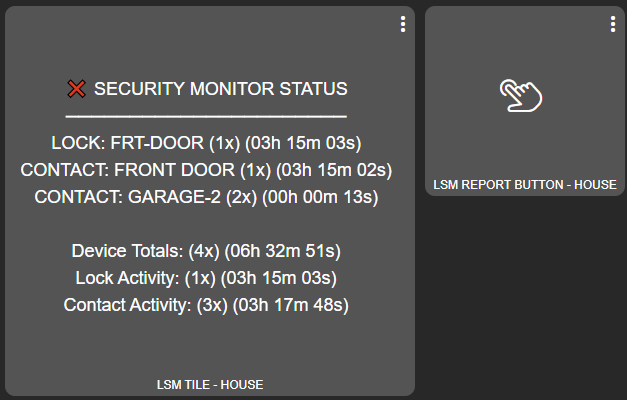
- LSM Tile Devices – Status display for Secure and Unsecure states
- LSM Report Button – Instant status sent to phone for daily reports
Add the Status Tile
- Open your desired Dashboard → click Edit
- Click Edit device list, add LSM Tile Device
- Click Update dashboard (bottom right)
- Open the dashboard → click Add tile
- Select LSM Tile Device → choose Attribute → select
statusTile - Select LSM Tile Device → choose Attribute → select
activitylog - Resize tile as needed to display all information → creates a Daily Report Tile
Add the Report Button
- Open your desired Dashboard → click Edit
- Click Edit device list, add LSM Report Button
- Click Update dashboard (bottom right)
- Open the dashboard → click Add tile
- Select LSM Report Button → choose Attribute → select Push → creates a clickable daily report button
Light Security Monitor – EZ Tile Setup Guide
Step-By-Step Tile Install/Editor
- Add the Device to Dashboard
- Open Dashboard Editor.
- Click: Edit device list.
- Click: Add/Remove.
- Pick: LSM EZ Tile – HOUSE (or whatever you named it in the main app).
- Add it to the right side of the window.
- Click: Update Dashboard (bottom-right).
- Open the Dashboard you added the LSM EZ Tile – HOUSE to.
- You will now have a new tile called LSM EZ TILE – HOUSE.
- Edit the Tile Settings
- Click: Enter Edit Mode (bottom-right).
- Click: the Settings Icon on the new tile.
- Configure Tile Options
- Rename device → TOTAL-ACTIVITY-TODAY
- Tile type → MultiSensor
- Shows → ACTIVITY -
- Background color → leave Default (auto-updates green/gray/red).
- Custom icon → select
 House Icon (or any icon you prefer).
  Check “Create a duplicate of this tile on save.”
- Click: SAVE
This will create a new tile you can immediately change into another new metric.
Repeat as many times as needed to build the full Ez-Dashboard.
| Light Security Monitor – EZ Tile Setup Guide | ||||
|---|---|---|---|---|
| Status & Totals | ||||
| Tile Name | Type | Shows → Attribute | Icon | Example Value |
| HOUSE-STATUS | MultiSensor | LSM-STATUS - | 🏠 | LSM-STATUS - SECURE / UNSECURE |
| TOTAL-ACTIVITY-TODAY | MultiSensor | ACTIVITY - | 🏠 | ACTIVITY - 18x - 11h 14m 32s |
| HOUSE-SECURE-PERCENT | MultiSensor | SECURE-PERCENT - | 🏠 | SECURE-PERCENT - 53% |
| OPEN-DEVICE-TOTALS | MultiSensor | UNSECURED-DEVICES - | 🏠 | UNSECURED-DEVICES - 3 |
| Locks | ||||
| Tile Name | Type | Shows → Attribute | Icon | Example Value |
| LOCKS-OPEN | ContactSensor | lockCount | 🔒 | 1 |
| LOCK-ACTIVITY-TODAY | MultiSensor | LOCK-ACTIVITY - | 🔒 | LOCK-ACTIVITY - (6x) (04h 53m) |
| CURRENT - LOCKS - OPEN | MultiSensor | LOCKS - | 🔒 | LOCKS - DOOR-LOCK, BACK-DOOR |
| Contacts | ||||
| Tile Name | Type | Shows → Attribute | Icon | Example Value |
| CONTACTS-OPEN | ContactSensor | contactCount | 🚪 | 2 |
| CONTACT-ACTIVITY-TODAY | MultiSensor | CONTACT-ACTIVITY - | 🚪 | CONTACT-ACTIVITY - (12x) (06h 21m) |
| CURRENT - CONTACTS - OPEN | MultiSensor | CONTACTS - | 🚪 | CONTACTS - GARAGE-1, GARAGE-2 |