[RELEASE] HEDevicesToolKit - Multi-Hub device inventory, diagnostics and reporting tool (PowerShell)

Download link at the bottom of the post.

HEDevicesToolKit is a PowerShell-based multi-hub inventory and diagnostic tool. It scans multiple Hubitat hubs, builds a unified device database, maps Hub Mesh source/remote relationships, identifies device issues, and generates screen, HTML, and CSV reports.

I have over 800 devices spread across 6 HE hubs with Hub Mesh in the mix sharing devices across all hubs in all sorts of combinations. I have for a long time been frustrated with the lack of visibility of all devices across all hubs in a single pane of glass. Especially not knowing on what hubs remote Hub Mesh devices were linked to and what apps were using them. So, I bit the bullet and created HEDevicesToolKit to address what I believe is missing natively in HE.

Firstly, please note that this is a PowerShell script, so it is not an HE app or driver. When I first started developing it, I had hopes of porting the final product to a Groovy app, but with the final product in my hands, I don't think that will ever happen.

What can HEDevicesToolKit do?
HEDevicesToolKit will gather device data from all specified hubs using HE web endpoints and store the data in a JSON file. That way, HEDevicesToolKit can work from the JSON file in an "offline" fashion without taxing the hubs with constant web requests. The drawback is that the data is only a snapshot in time and will need to be refreshed regularly depending on how stable the environment is and what you want to use HEDevicesToolKit for.

With the device scan completed you can do things like:

  • List all devices across all hubs with either a parent/child relationship layout or a Hub Mesh source/remote device layout.
  • List all hubs that were included in the scan
  • Search for devices
  • Check for a number of device issues such as:
    • Low battery charge
    • Inactive devices
    • Offline devices
    • Not-in-use devices
    • Hub Mesh - Orphaned remote devices
    • Hub Mesh - Parent/child status mismatch
    • Hub Mesh - Hub Mesh disabled on source device
    • Hub Mesh - No remote devices

All functionality, except for managing the configuration settings, can be done either interactively via a text menu system, or non-interactively. So there is nothing stopping you to schedule a rescan of your environment every night or every 2 hours or whatever, and running a device issues scan. (All scheduling of HEDevicesToolKit will have to be performed using external tools, such as Windows Task Scheduler.)
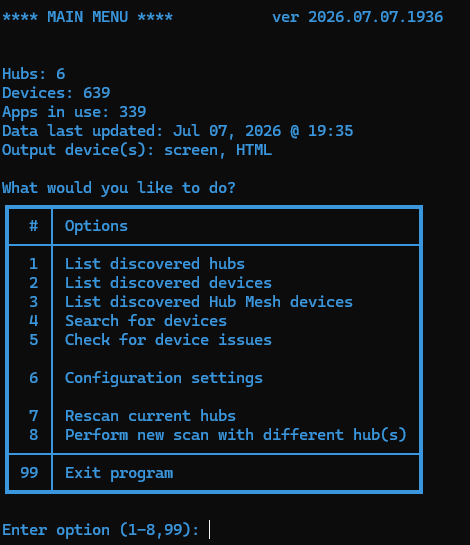
(Text colour is entirely configurable)

All output can be sent to screen and/or HTML file and/or CSV file. So finally there is a way of creating CSV lists of all devices across all hubs!

A web call URL can be specified for each device issue category (or just use one for all categories). When an issue is detected, a web call will be sent to the URL. The URL could be going to a Maker API surfaced device to turn on a switch or push a button when an issue is detected.

A search for a device using the Hub Mesh source/remote device relationship layout looks like this as HTML:
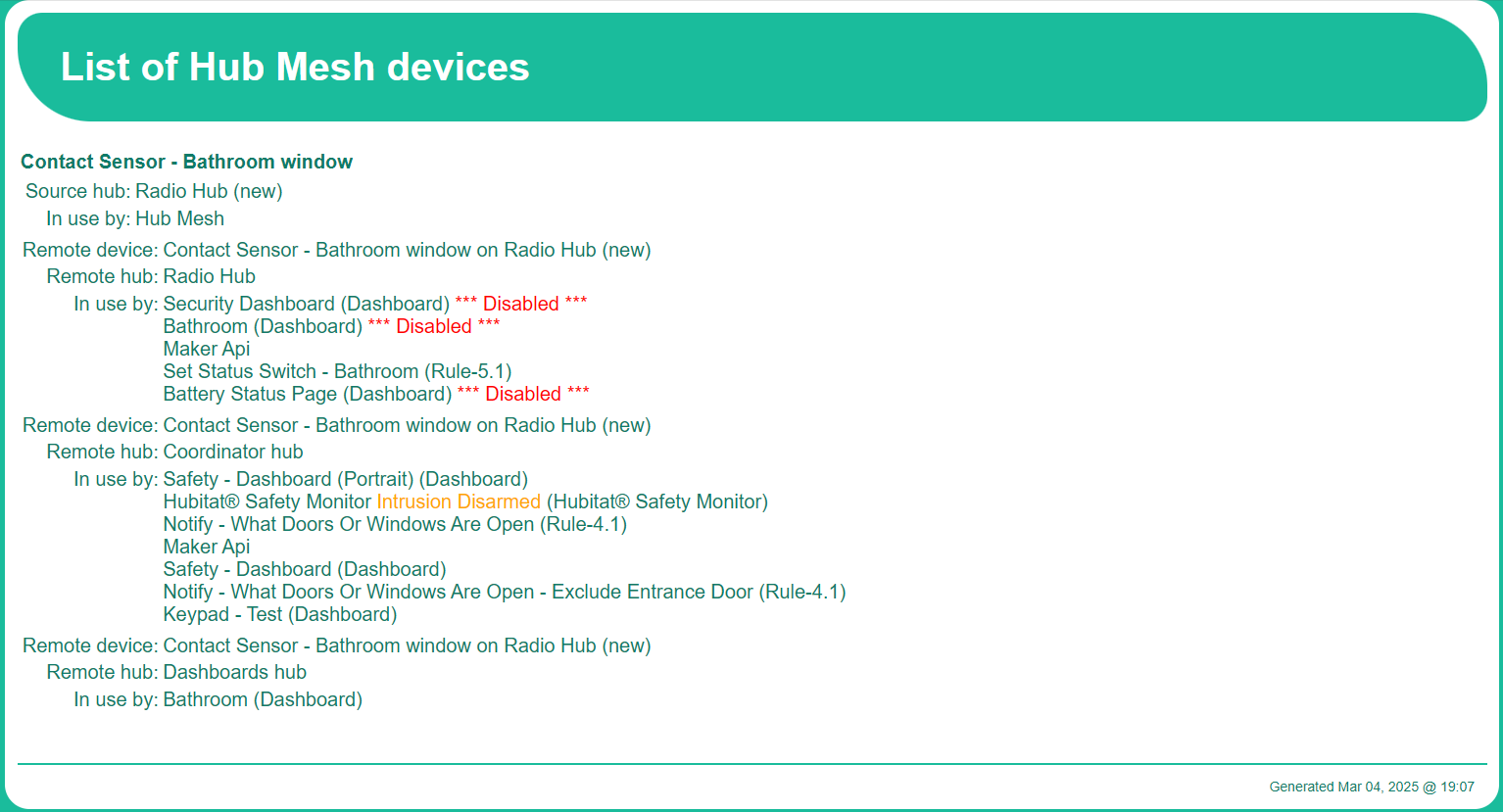

Note that every line that is for an app or a device on that page is a hyperlink to the HE app or device page.

The full device list looks just like the search result above, just with all devices on it.

What you need to run HEDevicesToolKit are:
Windows 10 or newer (though I believe PowerShell is cross platform, so it might work on other platforms)
PowerShell 5.1 or newer
HE platform version 2.3.9 or newer

Give it a go and let me know how you find it!

Release Notes
2025.03.08.2219
Fixed bug with invalid SSL certificates not being ignored when using PowerShell 6 or above.
PowerShell version 6 introduced the parameter -SkipCertificateCheck for invoke-webrequest.
Added check for PowerShell version and if version is 6 or greater, use the new parameter.

2026.06.27.1824
At some stage between Hubitat firmware versions 2.4.x and 2.5.0, the port number was
included in the URL returned in the 'remoteDeviceUrl' property. Modified the code to remove
the port number if it was found.
Added device issue check for devices that are not in use.
Added a 'Rescan' option to the main menu.
Grouped devices by hubs and then sorted them by name in the device issues output for easier
overview.

2026.06.28.1334
Optimised the web calls to the HE hubs to reduce the time it takes to scan for devices. Web calls are now done in parallel which significantly reduces the time it takes (requires PowerShell version 7 or greater. The script will process calls in sequential order on lower PowerShell versions).

2026.07.07.1936
Fixed a bug that snuck in during the last release and affected apps discovery during a re-scan in the program.

2026.07.11.1445
Changed the logic for determining if a device is in use. Child devices are not displayed in the output, but their in use status is now considered when determining whether or not the parent is in use. If any of the children are in use, the parent will be marked as in use as well, even if the parent isn't directly in use by anything.
Added new device issue check for hub mesh parent/child status mismatch.
Found and corrected a spelling mistake of a variable which affected certain indentation scenarios in the output to screen and HTML.
Modified the Invoke-WebRequest calls to use basic parsing.

Continue to be amazed by the creativity and talent of our Dev community!

As someone who knows spark plugs and oxygen sensors, this stuff amazes me.

awesome work. I'm a newb when it comes to powershell. It's telling me I can't run the file because it's not digitally signed. powershell 7 is installed on Win11 pro

Summary

.\HEDevicesToolKit.ps1: File C:\Users\ASRock\Downloads\HUBITAT\HEDevicesToolKit.ps1 cannot be loaded. The file C:\Users\ASRock\Downloads\HUBITAT\HEDevicesToolKit.ps1 is not digitally signed. You cannot run this script on the current system. For more information about running scripts and setting execution policy, see about_Execution_Policies at about_Execution_Policies - PowerShell | Microsoft Learn.

I have not tried it in PowerShell 7, but it should work :crossed_fingers:

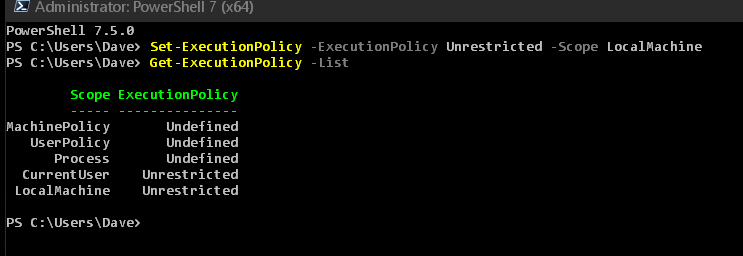
And that is a very good default setting have, so I'll show you how to launch the file using a lower security setting, but without changing your default settings.

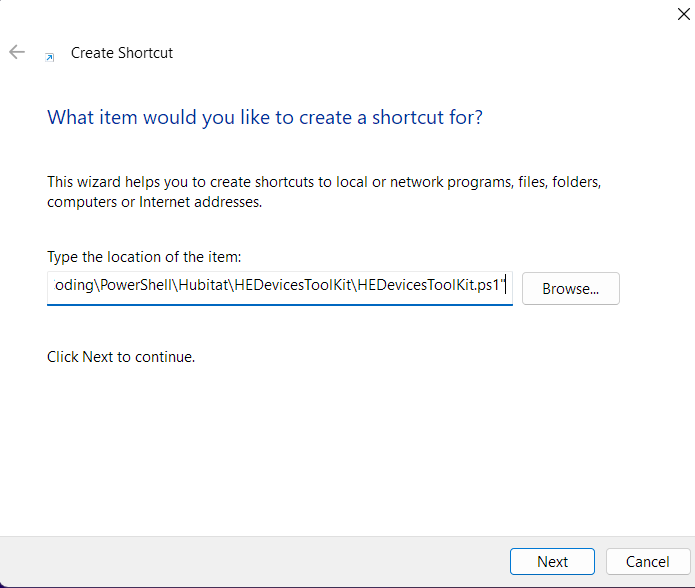
Create a new shortcut (right click on your desktop for instance, then New -> Shortcut) and in the location field put:
For PowerShell ver 6 and above:
pwsh.exe -ExecutionPolicy Bypass -File "C:\<FILEPATH GOES HERE>\HEDevicesToolKit.ps1"

For PowerShell ver 5:
powershell.exe -ExecutionPolicy Bypass -File "C:\<FILEPATH GOES HERE>\HEDevicesToolKit.ps1"

Don't remove the quotes. The shortcut is basically a shortcut to the PowerShell executable, with a parameter to change the execution policy for this instance of PowerShell to "Bypass", which is the lowest security setting and with the second parameter being the location of the PowerShell script to launch

Name the shortcut and click OK. For good measure, once the shortcut is created, right click it and go to properties and change "Start in" to be the folder of the script rather than PowerShell's folder location.

Then just run the shortcut to launch HEDevicesToolKit

Edit: Realised that Microsoft changed the name of the PowerShell executable in version 6. Updated the shortcut location accordingly.

Windows is trying to protect you from running a powershell script that, for all it knows, contains malicious code because it doesn’t recognize who created it.

In addition to the steps @mattias outlined, there’s more than one solution detailed in that link contained in the error message you received.

I allow local powershell scripts to run on my windows PC through the group policy editor, for example.

Thank you so much. This is great and saved me hours. Thanks for all your help and for creating this tool.

Nicely done!

Quick question.
I have set my policies but I still get an error.
It's been a while since I messed with GPO's.
strong text

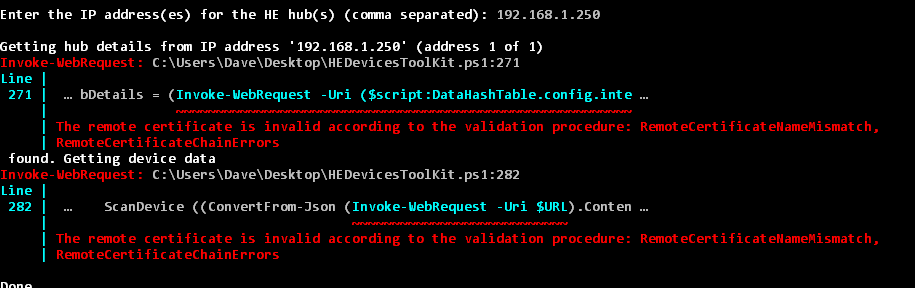
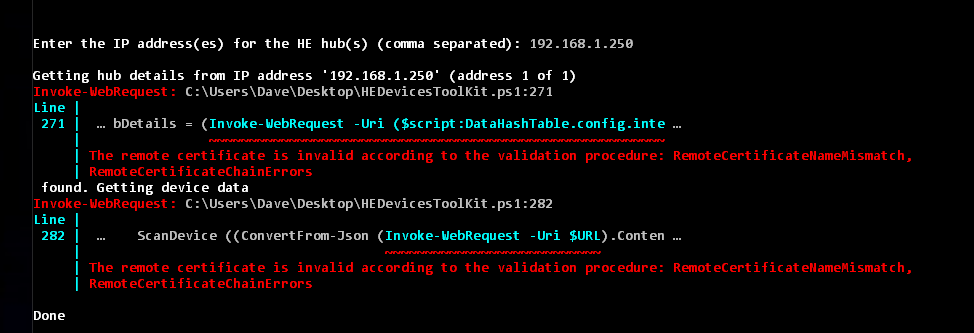
Yep, you have set the execution policy to accept the running of the script correctly. It is failing because the invoke-webrequest command is rejecting the certificate on the hub. To help me troubleshoot this further, can you tell me if you have added your own SSL certificate to the hub or is the cert you’re using the one that came with the hub?

I've added a check for PowerShell version in the tool now and if PowerShell is of version 6 or above, it will use the -SkipCertificateCheck parameter with invoke-webrequest. I have installed PowerShell 7.5 on another computer now and tested it on there, and I'm able to connect to my hubs now at least. @dnickel download the new version from Github and let me know how you get on :slightly_smiling_face:

No cert on the hub from me so stock HE and no security.
I'll test new version, thanks

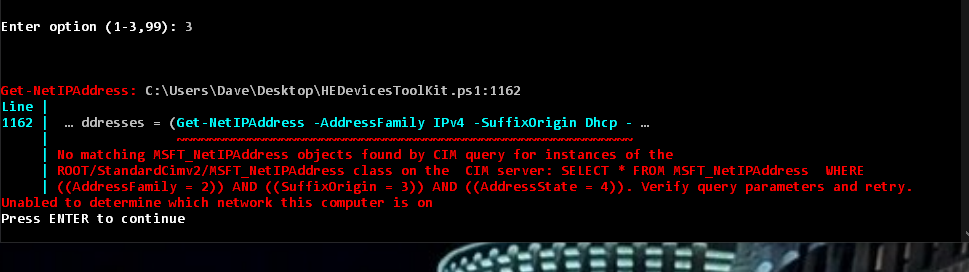
So the scan fails and the IP.
You have changed the code with flags so it's nothing I have to pass as a parm invoking
HEDevicesToolKit.ps1?

From GitHub
$Version = "2025.03.04.1826"
FInger trouble, everytime I copy $Version = "2025.03.08.2219"
I get .1826 in the paste.


I deleted and downloaded the version from GitHub instead of editing it in PowerShell and trying to overwrite the code.

Works!

New version 2026.06.27.1824 released. It resolves an issue that has crept in through an HE update over the past year. Also made a couple of other changes.

2026.06.27.1824
At some stage between Hubitat firmware versions 2.4.x and 2.5.0, the port number was
included in the URL returned in the 'remoteDeviceUrl' property. Modified the code to remove
the port number if it was found.
Added device issue check for devices that are not in use.
Added a 'Rescan' option to the main menu.
Grouped devices by hubs and then sorted them by name in the device issues output for easier
overview.

New version 2026.06.28.1334 released. While I was on a roll, I optimised the way the script would query HE for device data, taking advantage of PowerShell 7’s ability to run parallel tasks. The script will now send up to 6 web calls at a time to each hub and all hubs are now also processed in parallel.

I have 724 devices spread between 6 HE hubs (consisting of all models from C4 all the way to the C8 Pro). Before this optimisation, it took the script 78 seconds to scan through all hubs and devices. It now takes 12 seconds.

Version 2026.07.11.1445 released. It features a new device issue to search for: mismatched hub mesh status between a parent and its children. Other than that, just a couple of bug fixes and performance tuning. Full release notes at the top.