add Battery Monitor tile which shows list of all devices and their battery levels
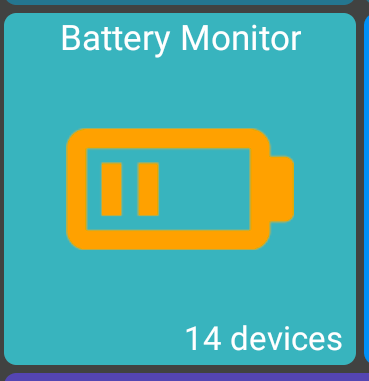
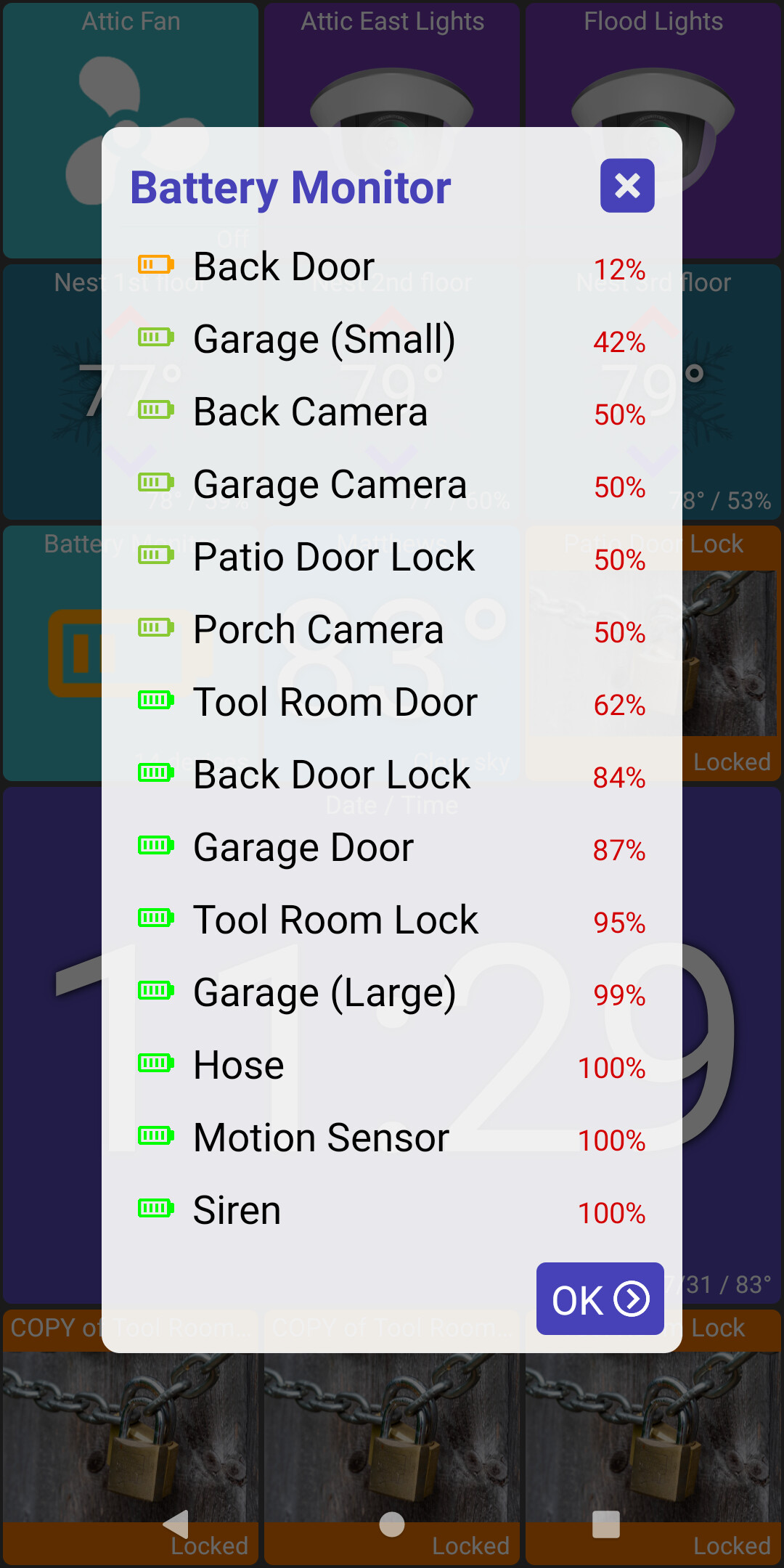
I added a new tile - Battery Monitor (edit -> add device -> battery monitor) which will show a list of all devices that have the 'battery' attribute - listed in order or low to high.
Right now the tile itself just shows the lowest battery level in the list along with how many devices have the 'battery' attribute. I tried to think of some more creative ways to display this without getting too complex -- but I'm open to suggestions too.
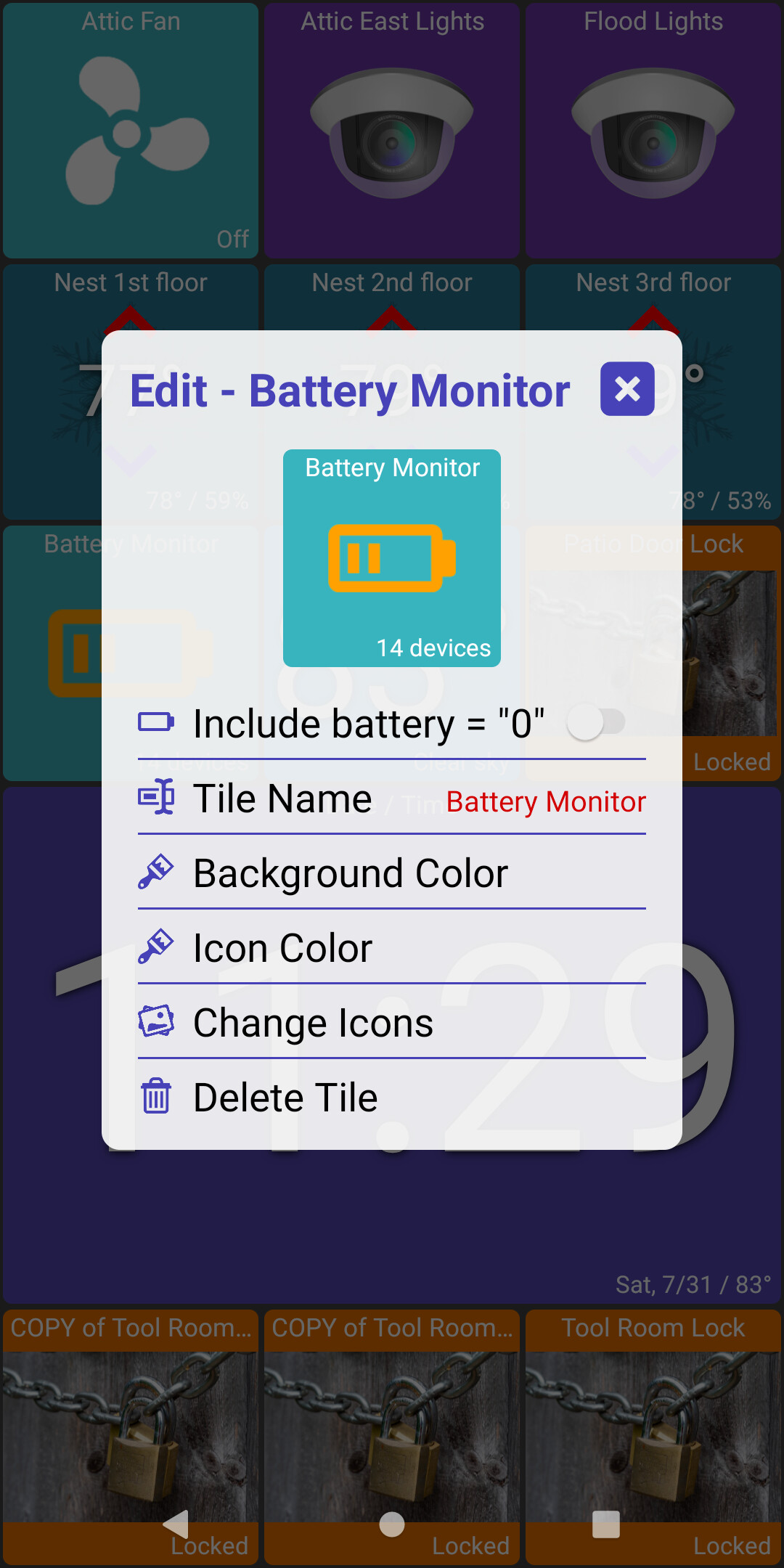
There's also an option to hide battery = "0" attributes - just in case some Hubitat device drivers didn't accurately set this attribute.
The new battery tile is very useful! One UI issue I'm seeing is that if the device name is too long, it covers the % number. It would be good if the name text cutoff before it ran into the % on the right. Not super critical though since the icons on the left are still helpful even without seeing the % number.
I was going to fix this quick but noticed if I did the opposite would happen (see the "Screen On" setting below). I can't decide which field is more important to see in full
Ah yeah, I see what you mean. It's not a critical issue since you show that little battery icon on the left of each entry. Given how unreliable exact battery percentages are on these devices, the icon is probably good enough, especially if fixing the issue causes other issues elsewhere. Thanks for your support!
"Tile icons for switches don't change ", Wasn't a folder issue.
As it turns out if the word Light is in the name it gets a light bulb, by default, that does turn on and off but changing it to a slider didn't show the yellow at the top when on. It did show "on". All of my devices so far are Kasa HS 103 so I kept changing that one to look like the others but wouldn't show the lighted slider. I took the work light out of the description, then did a "Reset Preferences" for all, and that did it. Out of my 12 switches, it was the only one that had the word "Light" in the name.
Would it be possible to implement an optional scroll slider to avoid accidentally triggering tiles? Even though I set to prompt on all tiles I still end up changing dimming levels by accident when scrolling.
I just recently got my new Nest thermostat working in Hubitat. The only thing that doesn't work is the up/down arrow change in this dashboard app. I searched this thread and saw some discussion, but didn't find any answers (maybe I missed it). Here is what does work:
Change temp directly on the Nest itself, dashboard shows the change pretty much immediately.
Change the temp from the Hubitat device, dashboard shows the change pretty much immediately.
Change the temp from Google Home, dashboard shows the change pretty much immediately.
Change the the temp in the dashboard applet (up/down) and the temp DOES change on the nest, but the arrow spins on the dashboard applet, and then I get a "command failed" toast pop-up, even though it DID change the temp on the Nest.
Minor problem for sure, but strange that every other way you can change the temp with the nest, dashboard refreshes and immediately shows the change, except when you change the temp using the dashboard app.
This is also happening with the speaker icon. When I go to mute one of the speakers playing in the house, it takes quite a while to reflect the change on the dashboard app.
I noticed this myself recently. I'm guessing my Google API key reached its limit of map requests. I do have an option in the app to enter your own API key which is free. Let me do a little digging to be sure and I can post how to get your own key too.
Yeah, that makes sense. I also hate accidentally dimming lights when trying to scroll. I want to keep clicking the main icon to toggle the light on/off but I'll see if I can find another way to handle dimming.. maybe something like how the color changing/temp works - by clicking on the top-right corner of the tile
I'm annoyed with myself, I really explained that wrong in that first sentence. Like I said later in my post, the up and down arrows do change the temperature on the nest but the dashboard app errors out even though it did actually change the temperature.
No worries, i also saw the same behavior on my Nest.. the command worked but the app didn't notice the update right away and thought the command failed. I'll figure it out
Thanks! I created a Google API key, and entered it into the field in Map Options, but no change. Also after I've add the key, when I click on the "Google Maps API Key (override)" I don't see the key data. It seems like the app isn't storing or using the key I entered.
p.s. All that being said, I'm not sure if I need just the key or also to enable the API. If so, not sure which service I need to enable... so far, I've enabled: Maps Embed API, Maps JS API, Maps SDK for Android and Places API. - I've received zero requests from any of these in the cloud from Hubitat Dashboard.
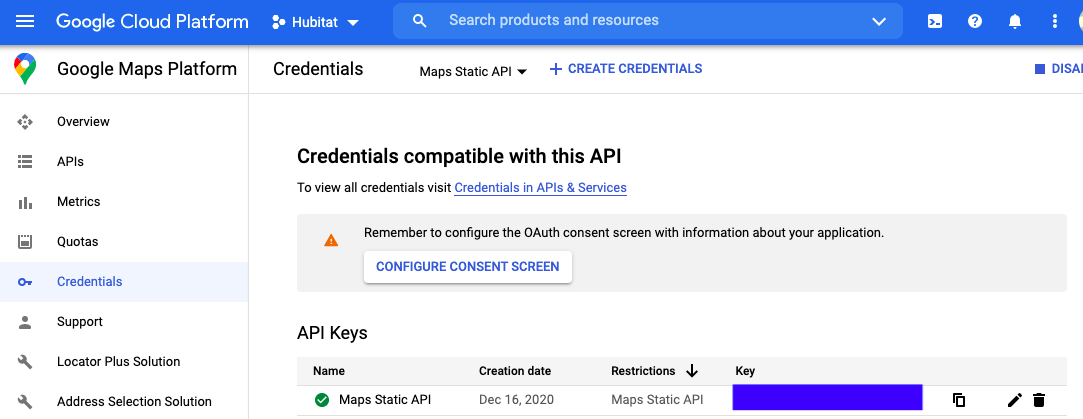
It's the Google Maps Static API Key - guide here. I noticed that my account was deactivated so it should start working again. The free tier allows ~3k requests a day so it'll stop again if that limit is reached. I'll check why manually entering it doesn't seem to work though and fix that. The screenshot below is where/what screen I'm getting the key from
@jpage4500 - Ok- I added the Maps Static API and I do see that there are both requests and (the same amount of) errors being logged now for that API in the Google Cloud Platform Dashboard under the Metrics area. I can't find a place to show what the errors actually are though. Also still no maps on the tiles. I only updated my tile with my API, I left my wife's alone; neither are displaying map data.