If you are using an iPhone, you can setup a Focus, like Sleep, which will start and end when you define, and reduce iphone interruptions from selected apps and/or people.
You can also configure Pushover-Specific Notification & Critical Alert Settings
To reduce or silence alerts from the Pushover app during your Sleep Focus, configure your iPhone's Focus and notification settings so that Pushover is blocked or muted.
Step 1: Configure Sleep Focus App Permissions
Open the Settings app on your iPhone.
Tap Focus, then select Sleep.
Under the Allow Notifications section, tap Apps.
Make sure the setting is switched to Silence Notifications From (rather than "Allow Notifications From"), and verify that Pushover is added to the silenced list.
Note: If you previously selected "Allow Notifications From" with an empty list, it may not block everything as expected—make sure Pushover is explicitly excluded or your allow-list has no unwanted apps.
Pushover supports special high-priority or critical notifications that can sometimes bypass standard iOS sound rules:
Go to Settings > Notifications > Pushover.
Check if Time-Sensitive Notifications or special alert sounds are enabled for Pushover. If you want Sleep Focus to completely block them, toggle off permission or disable sounds for nighttime hours.
Alternatively, open the Pushover app itself, go to its internal Sound or Quiet Hours settings, and configure quiet hours to match your sleep schedule independently of iOS.
Step 3: Turn on Sleep Focus Automatically or via Control Center
Schedule: In Settings > Focus > Sleep, tap your sleep schedule (managed via the Health app) to ensure Sleep Focus turns on and off automatically at your bedtime and wake-up times.
Manual Control: Swipe down from the top-right corner of your screen to open Control Center, tap Focus, and select Sleep.
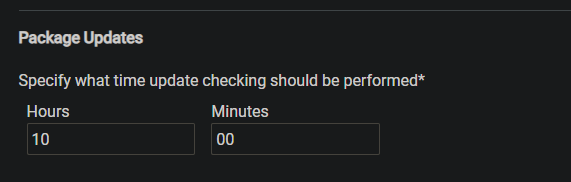
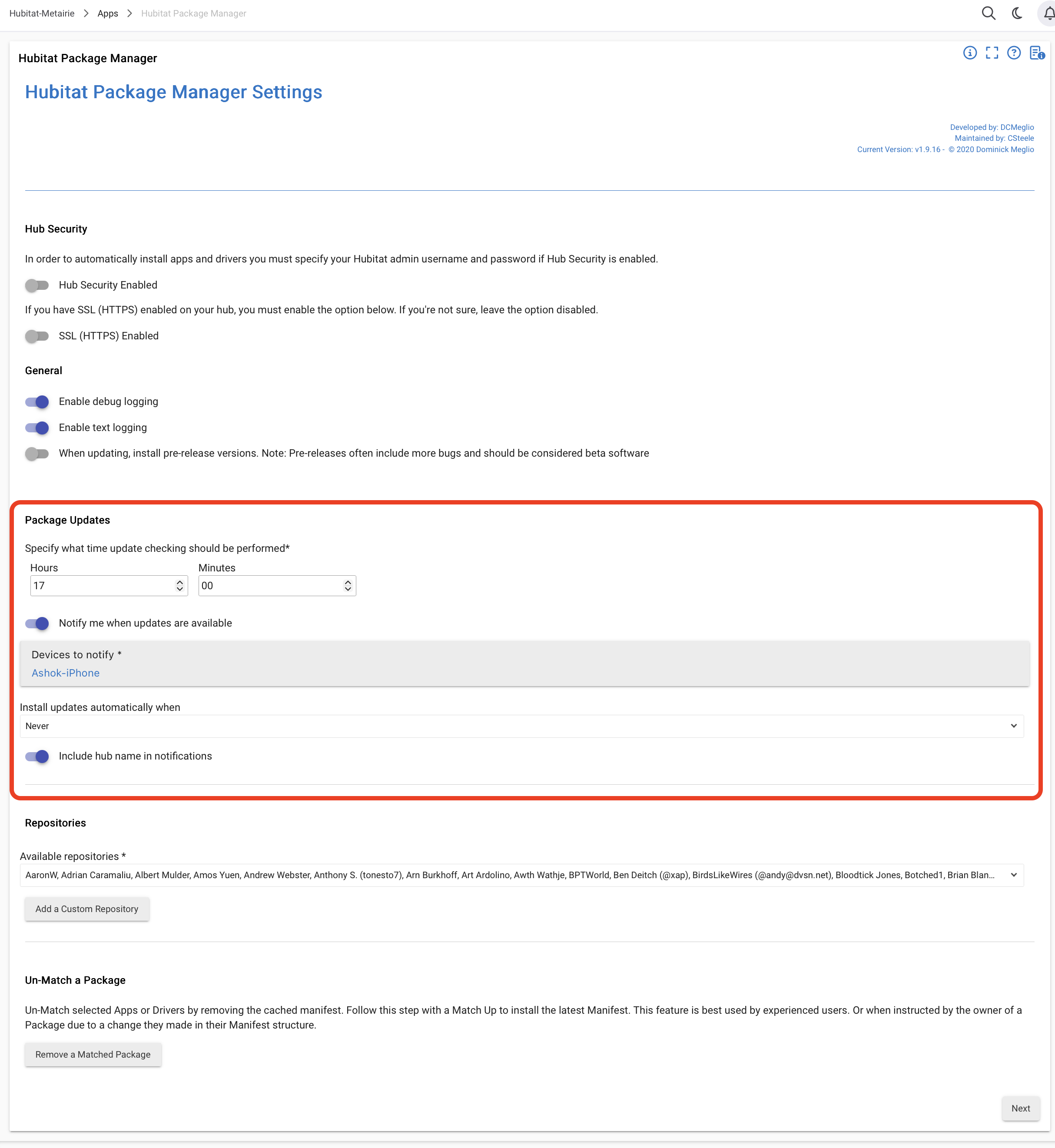
Hi Kurt, I am using Focus but I do want alerts from Hubitat that would indicate that there was a contact sensor opened while the system is armed. I have an exception in Focus that allows Pushover & Hubitat during quite hours.