[RELEASE] v0.5 of Xiaomi Aqara Smart Dual Button Light Switch Device Driver
(Only for the wireless 2 button model WXKG02LM)
This device driver was crafted by @gn0st1c (on Github - not sure of his username on here!)
For convenience please copy the driver code from this direct link.
The Aqara Smart Dual Button Light Switch model WXKG02LM is a battery-powered, wall-surface two-button ZigBee device. The hardware supports unique messages for pressing the left button, right button, and both buttons at the same time, but does not have momentary ("hold") or multi-click support.
Here's what it looks like: 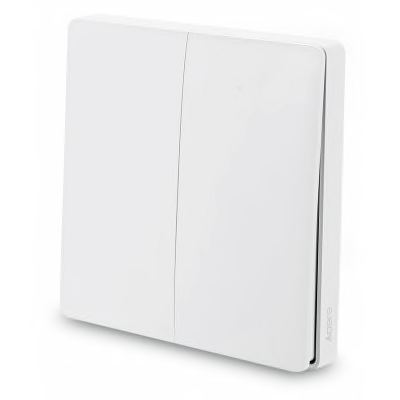
And here's what happens with each kind button press:
| Type of press | Button Event(s) |
|---|---|
| Left button press | button 1 |
| Right button press | button 2 |
| Both pressed | button 3 |
| Multi-click | Not supported* |
| Hold | Not supported (same behavior as single press) |
*Note: a 6-press multi-click appears to generate a status message resulting in the battery voltage being updated
Other Features:
- The date/time of the most recent button is sent as a
lastPressed(human readable) andlastPressedDate(java format) which should help with WebCoRE use - Battery replacement date tracking, stored in
batteryLastReplacedstate - Commands / Preferences include:
• A Reset Battery Replaced Date command to track battery life
• Date / 24-hour clock settings for display oflastCheckin
• Min/Max voltage values used to calculate the battery percentage
• Display log message toggle setting
Notes / Limitations:
- I have had great difficulty pairing this device, and the pairing initialization process has only completed twice out of dozens of attempts. However, there are a couple of ways I have found it can be added "manually". Please see the special pairing instructions below.
- This device driver is not final, and some features or preferences may be added / removed
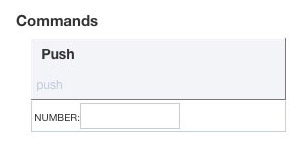
- When viewing the device details page in the Hubitat web interface, there is a push command which is not used in this driver, so clicking it has no effect. Here's what it looks like:
Special Pairing Instructions:
- In your web browser, open up two tabs, one displaying your Hubitat's Device list, and the other with the ZigBee Logging page (in Settings --> Zigbee Information --> Zigbee Logging)
- Start "Discover Devices" in the tab with your Hubitat's Device list.
- Hold down either button of the Xiaomi Smart Light Switch, until the LED flashes.
- The LED will flash, then a pause, and either flash consecutively 3 times, or flash once. Unlike all other Xiaomi devices, a single flash seems to indicate a successful connection. Either way, the best way to know is by then short-pressing either button. If the LED flashes just once as you press a button, then it's connected, but if it flashes twice, then go back to step 3 (hold a button until LED flashes).
- In the Device page, when the Hubitat recognizes the switch, it will display its Zigbee ID. Make sure to copy or write down this ID.
- In the ZigBee Logging page, look for log entries that start with a 4-digit hexadecimal number. It will also list that hexadecimal number above the log entries as well. The way to be sure you've got the right number is that log entries should be added if you press a button. Copy or write down this number also.
- Back in the Device page, if the switch hasn't finished initializing, there are two things to try:
- Click the Add Virtual Device button, but don't enter in any information. Just click the << Device List link near the top. If you're lucky, the hub secretly added the switch to your device list. In my case it was recognized as a Xiaomi Temperature Humidity Sensor. If you do see a new device, then view its Device Details by clicking on its name in the left column. Then you can change the device Type to "Xiaomi Aqara Dual Button Light Switch" using the pop-up list in the lower right corner of the page. Click the save button on the lower right, and then the switch can be used.
- If the hub didn't secretly add the switch to your device list, you can add it manually. Go back to the Device List page, and click the Add Virtual Device button. Enter a name for the switch, the Zigbee ID you wrote down, and type the hexadecimal number into the Device Network Id field. Finally select the device Type: "Xiaomi Aqara Dual Button Light Switch", and click the save button to add the switch to your devices list.
- Whew! You did it! I can post screenshots if people hae trouble with this.