Ubiquiti causes confusion by calling their DHCP reservations 'Fixed IP Address'. UniFi devices including switches can be set to use static addresses (that require all the usual settings including DNS) or DHCP. Static addresses are set up on the UniFi Devices page. DHCP (Fixed IP Address) is set the same manner as any other device on the Client Devices page.
3 Likes
Thanks for your reply...I was (of course) still confused about the difference between the two, probably because I have only run the controller/network app self-hosted on one of my Pi's up till now.
Did find this additional which helped...they do seem to be saying that I don't need to download/keep any of the Network Application backups since I'm using a Unifi console now - is that right?
Network Application Backups (.unf)
UniFi Network backups contain UniFi Network settings and device configurations. These are only needed by users with a Gen1 Cloud Key, or those self-hosting the UniFi Network Server on a Windows/macOS/Linux machine. All users with a dedicated UniFi Console are encouraged to use the comprehensive System Config Backup.
They make it sound like the "real" backup that I should depend on/use now that I have a Cloud Gateway is the Console backup. If I read below right the System Config Backup is similar to our HE Cloud Backups, includes the Unifi OS version, application version, and device configurations.
UniFi - Backups and Migration
Dedicated UniFi Consoles (Dream Machines, Cloud Keys, Network Video Recorders, etc) offer System Config Backups, which include all OS, Application, and Device configurations. Backups can be created and restored in the Console section of the UniFi OS Settings.
This is the .unifi backup.
Automated Cloud Backups
If Remote Management is enabled, a cloud backup of your UniFi Console will be automatically generated each week and prior to each major update. Manual backups and restorations are managed in the Console's UniFi OS Settings.
Only the Console Owner has permissions to manage these backups, because they are saved directly to their UI Account. Visit account.ui.com/backups to view all backups associated with your account.
1 Like
That is my understanding.
I simply set the backups in each location to Auto and let it do its thing.
Everything gets saved to the cloud.
You can choose to download copies of various backups, but I have yet to find a need yet.
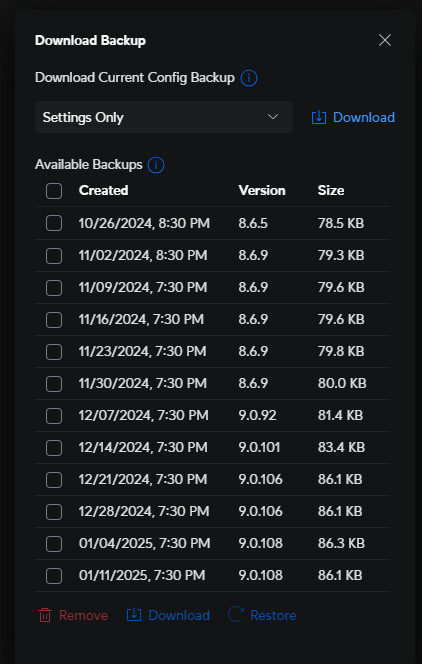
Configuration backup:
System backup:
If I were updating to a UDM SE or Max, I'd download the latest config backup and restore that to the new console to get that going.
If I ever have an issue with my network setup, I'd download the network application backup and restore that.
Hope that helps and makes sense.
1 Like
Perfectly! Thanks for the follow-up.
Now off to other topic areas to figure out why I lost all of my Matter devices w/the update to the Cloud Gateway and Unifi switches. It's always something... 
1 Like
All my AP's are hardwired, so should be fine.
As for properly configured... probably not. 
But Wi-Fi is stable again! 
Oops...discovered something about the Flex Mini switches & VLANs that I wasn't aware of...
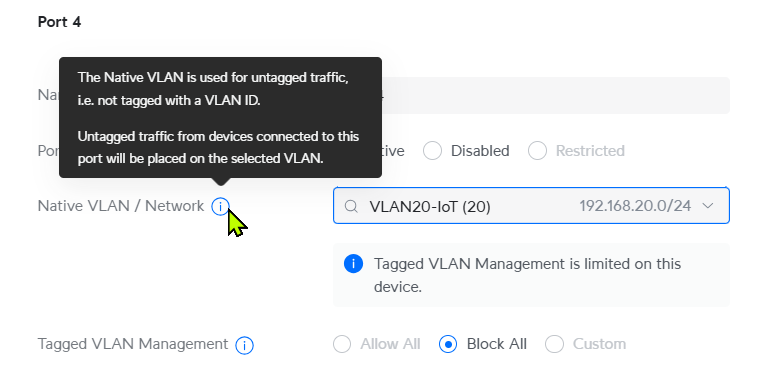
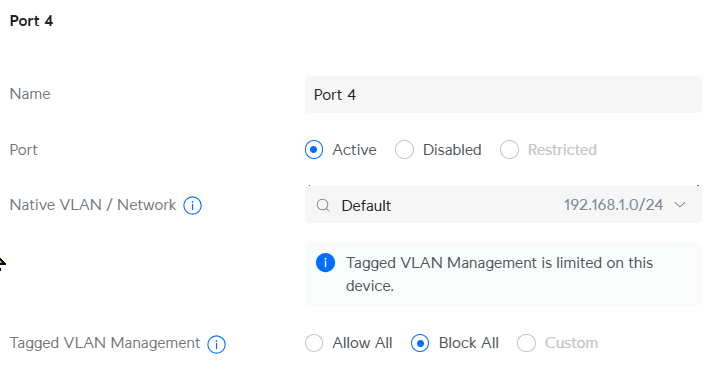
You can only have a port set to pass all vlans or only 1 vlan. You can not set a profile to have native vlan set to x while tagged set to y. Its all vlans or only 1 vlan.
Just noting this here so others are aware.
After selecting a VLAN only "Block All" permitted:
If left at Default network, Allow All and Block All are available, no Custom option:
Quick question...going to change the IP address range for the Default network on my Cloud Ultra...
Default will go from 192.168.1.x to 192.168.10.x (and related DHCP ranges, etc., will change.) Below is current:

This will allow me to recover my "normal" IP reservations across my devices and "un-break" shortcuts and connections that broke when my previous setup (192.168.10.x-based) was replaced by the 192.168.1.x Default network.
I've never changed the IP of an existing Default network w/lots of devices on it...should I expect any amount of short-term mayhem/disconnects when I make the change? Will the gateway/APs simply shove everyone over or is there a sort of managed migration? I don't have any existing firewall rules or traffic management in place, so all the switches are wide open, not restricting traffic in any way, which may make things simpler.
I think allot of it will take care of itself as the devices push the new configs and restart and trigger reconnnects. You may have a few devices that need a restart though to renew there ip address.
1 Like

1 Like
Two thoughts, first I think that's a pretty good approximation of my wife's expectation for any project I'm involved with around the house.
Second, it's been a while, guess what I'm going to watch tonight!
I do this stuff for a living, so my best practice when changing network IP ranges is to either reboot or reconfigure devices to obtain an address in the new range. If you have a device powered by a POE port on a switch, you can simply power cycle that port so the device reboots and gets a new IP address. Other devices may require a physical power cycle while others like desktops/servers will require a reboot.
I did restart what I could get at easily...some was stuff like Nest Protects that I would have had to flip a breaker and make my wife unhappy, so I ended up temporarily setting a 1 hour lease and the magic happened, everything has moved to the new IP ranges.
Was setting up Wireguard last night (nice built-in option to scan QR to push config file to phone) and had a weird moment when I had Wireguard working on my phone and then stopped working. Then this AM tried it again and it was working.  I've had WG on my phone for years w/my ER, and never had any issues there, so will have to keep an eye on this for now.
1 Like
I struggled with this previously and my APs had DHCP (fixed) addresses. I've now changed them (after reading this today) to static on the UniFi devices page (setting the DNS and gateway as my UDRs address).
While UniFi make it easy to add a DHCP reservation for a device by selecting that 'fixed IP address' in the client page, it would be nice if there was a table somewhere where you could see all reservations. It's not that intuitive when trying to set a reservation on a device for a specific address, when the address has previously been used on an another device that has since been removed. IIRC you have to go into Client Devices and filter to show 'offline' to find the redundant device and remove the reservation.
So two votes for that now (you and me)...I feel a groundswell!
1 Like
It’s there. On client devices list click the display options icon in upper right corner of the list above the column headers. Then choose:
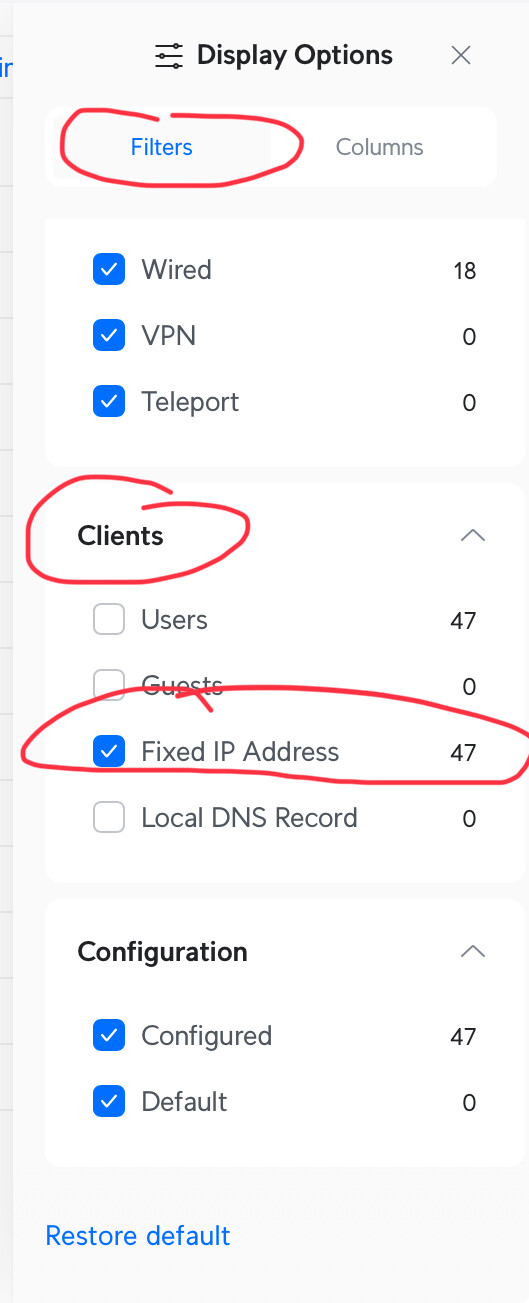
This will just show you the clients with fixed IPs
3 Likes
Funny, I was coming here to post about that!
It's not a list you can edit and add to in place, but it does help a lot to able to see them all in one list.
1 Like
Your new setup sounds very nice.
Today I replaced my ATT Orb (5g home internet) that is being discontinued in NY State because of a new tax law. I got a cheap ($60) Tp-Link modem at Walmart and the Spectrum introductory 500mbps service for 50/month...80 after a year.
Anyway, I thought I'd give the new router a different SSID since the old one had "ATT" in it. Little did I realize that I'd have to visit every WiFi device and change the credentials. The toughest nut to crack is going to be the 13 Roku cameras-they have to be individually reset, and the three doorbell cameras have to be removed from their baseplates, in winter, with snow, to get to the reset switch. Plus, I think I slathered the one out by the gate with silicone caulk. Plus, I boogered up a micro USB connection on one of the cameras; now I have 12. Argh.
All this is to say I should've picked a nice generic SSID when I first got the Orb, or whatever preceded it, and not have it be manufacturer-specific as I did. Keeping the SSID and password when switching over to the new router would have made life so much easier.
Or, I could move to another state.
2 Likes
Oh man same thing happened for me when I fat fingered my original SSID and realized it about 3 months later during a software update. Had to do about 20 devices at my mom's house. And the worse ones are the ones that need to use a phone app to configure the WiFi connection.
1 Like
Just a heads up that if you are multi AP deployment of Unifi and have Amazon Echo devices and use Spotify connect to play music you may run into an issue where devices don't "Wake Up" and groups stay "greyed out" in the Spotify app there are some tricks you can try. Ignore the noise posts on the Amazon help page that all Echo's need to be on the same AP in a mesh environment.
First off make sure MDNS is operational on your router really important. This will allow the App at least see all the devices on the network though MDNS. The next thing in on your WiFi configuration page for the network you connected the Amazon Echo's to make sure you check this option:
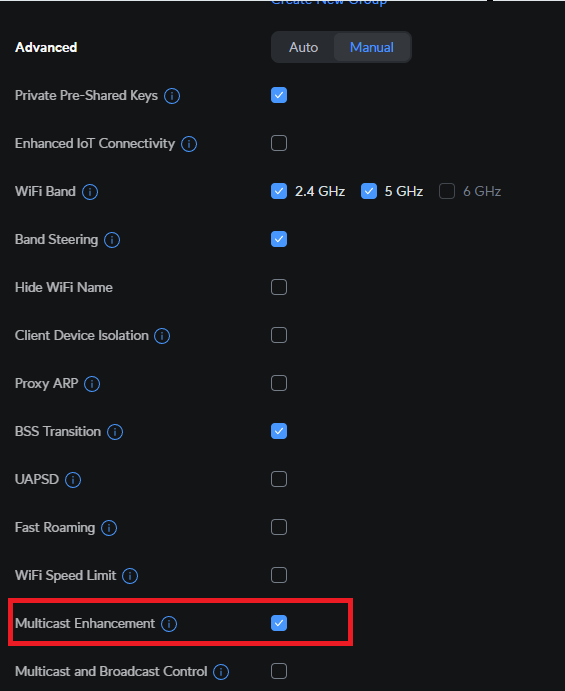
What I understand after reading though the help and other posts that multicast is used to send the wakeup command, and a single multicast can be missed by wireless devices. This option converts multicasts to unicasts. It may take a bit more wireless bandwidth but more likely the echo will see the wake up and report status to Spotify connect services.
Since making this change 6 months ago I have yet to have that greyed out state on any of my Echo devices and my groups are working fine.
1 Like
Actually i think those suggestions are really important for other device types as well. When i was testing my IOT network setup i needed to enable those features for several devices. I am fairly certain this will impact Google devices that use the chromecast protocols as well.
1 Like