I am getting incorrect Temp Values using the leaksmart sensor driver referenced above as well. I tracked down the issue to the byte ordering of the temp value returned from the sensor.
changing line 340 from
def value = getTemperature(descMap.value)
to
def value = getTemperature(swapEndianHex(descMap.value))
While my leakSmart sensors are reporting correct temp and battery regularly, they're not reporting dry/wet. I also added the driver code posted above but that didn't help with this problem.
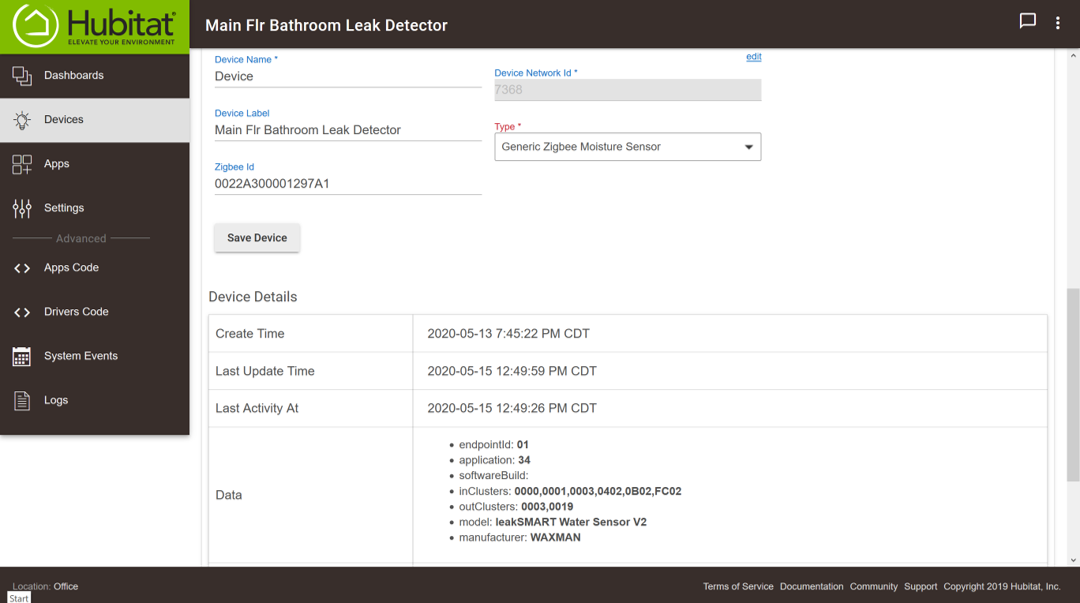
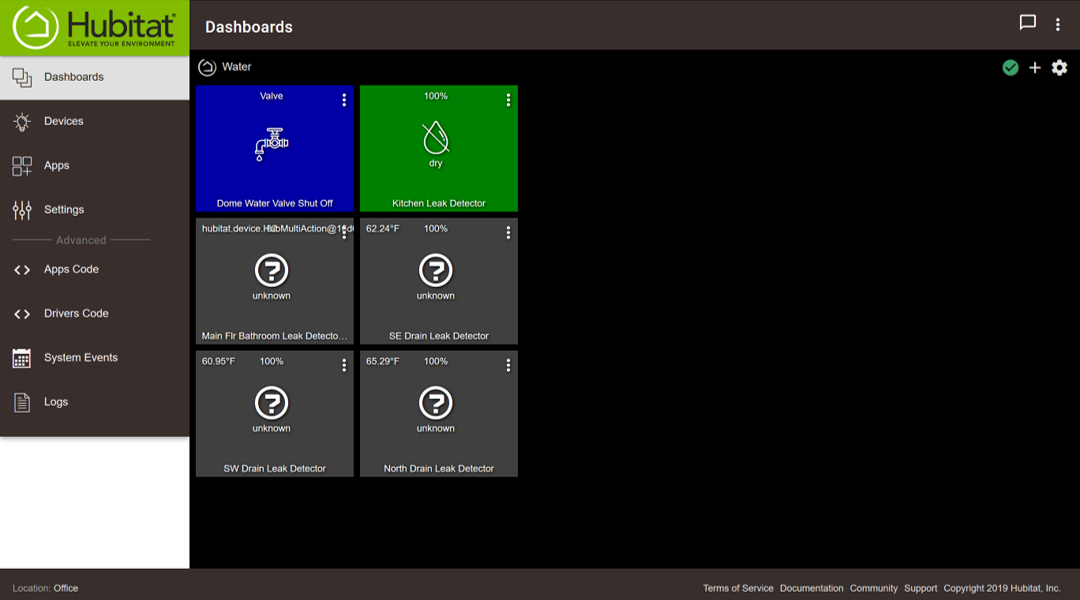
Ok figured that out...took a bit because I didn't realize there were more drivers at the bottom of the list under "User". However I'm still not seeing an expected status in the devices menu nor in the dashboard.
Are there some other settings I'm missing?
FYI I have 3 LeakSMART and 1 Dome Leak sensors but have only been working on getting the Main Flr Leak Detector (leaksmart) sensor to work (middle row, left in dashboard).
Figured it out...in order to add a LeakSMART water sensor into Hubitat you need to do the following: ...these instructions include correcting inaccurate temperature readings and adding the sensor to your Dashboard.
Copy the code from the link below:
2. Go to Hubitat "Drivers Code" from main menu
3. Click on "New Driver" button at top right
4. Paste the code from github link above...give it a moment until you see the blue "New Driver" title at top left turn to "leakSMART Sensor" ...DO NOT SAVE YET!
5. IMPORTANT! You need to change one line of the original code you just pasted-in...trust me you'll want to do this otherwise at some point, maybe not right away, or maybe right away, the temp indicator will get screwed up...so replace code line 340 from "def value = getTemperature(descMap.value)" to "def value = getTemperature(swapEndianHex(descMap.value))" ...exclude the quotes
6. Go to Hubitat "Devices" menu
7. Click "Discover Devices" button at top right
8. Open up back of the LeakSMART water sensor and bring it within 5ft of the Hubitat Hub
9. In the Hubitat Device menu click on the "Zigby" button
10. On the LeakSMART sensor click the button in the open compartment next to the batteries 3 times
11. The Hubitat Discover Devices window should show that it is discovered within about 15 seconds or so
12. Name the new device and click "Save"
13. Click back on the Device menu option to open the list of all of your devices and look for the newly added LeakSMART device as you named it
14. Click on the new LeakSMART device to open its settings
15. Scroll down to the "Device Information" section and click on the "Type" dropdown and scroll down to the very bottom of the list under a second second section named "User" and select "leakSMART Sensor"
16. This is important! Click "Save Device" which will not only save your selection but also change some of the "Preferences" options above
17. Under the "Preferences" section turn-on "Compatibility Mode" ...should go from grayed-out to blue
18. Click "Save Preferences"
19. Click "Save Device"
20. That is it...you should now see at the top right of that same window that the "Battery", "Temperature" and "Water" should all show the current correct info
21. You can now add a Dashboard item for this sensor and will show you the current status...go to "Dashboard" and click the "+" sign at the top right
22. Under "Pick a Device" on the left side select the name you gave the LeakSMART sensor
23. Under "Pick a Template" on the right, select "Water" and then click "Add Tile" at the bottom right and now your Dashboard item will show up reporting the current status of that sensor
24. ENJOY:)
Thank you, @adam7 ! That did the trick to fix the temperature!
The Generic Zigbee Moisture Sensor driver seemed to work fine on temperature, but it only reported 100% on battery. Now we can use the custom driver and have it working correctly for both temp and battery.
Does anyone know where to add units for temperature and battery into the leaksmart custom driver? With this driver, the dashboard tiles show up unitless. There also aren't units present in the Device Event history. It appears the units are hardcoded into the description text, which I think is row 447.
I tried updating a couple areas, but it didn't appear to work.
Thank you for the reply. I'm stuck on step 4 waiting for the "new driver" to change to "leakSmart sensor". been waiting for 5 minutes now and still no change.




 Thank you!!!!