I ran whatsmyip from my laptop (offsite) with WG activated, and I got my home IP listed! I turned off WG and then got my local IP (offsite) listed.
That’s a good first step. What about the second part…..
On my desktop (with WG activated) I entered the PLAN IP for my DVR into my browser – and it opened the sign-in page on the DVR!! I am surprised and not sure how it did that! That did NOT work for the hub PLAN IP, however; it wouldn’t connect.
I have also tried entering the LAN IP (not PLAN IP) with the proper port-number attached. Didn’t work either.
My next task is to address the other suggestions/questions everyone has had. Haven’t given up! More later…
If you can connect to the DVR, over your VPN, from a remote location, then you should be able to connect over the VPN from any location, even if that location is at home. Using the VPN tunnel puts you on the PLAN network. When the WG client is turned off on the desktop, then your connection should fail (because then you are on the LAN network).
What is surprising is that you could not connect to your hub that way. The only thing that comes to mind is that you are using the wrong IP address.
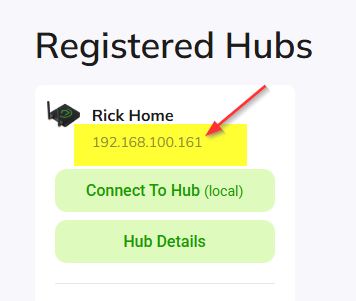
Go to my.hubitat.com. After logging in, click on registered hubs, and make note of what your LAN IP is (see screenshot).
In addition, click on Hub Details, and check if the "Last Checkin" time is recent. This step confirms that your hub has the ability to communicate, and the IP address shown should be accurate.
To help me picture your network better, could you also provide the network addresses of both your LAN & PLAN. For example you have already said your LAN network is 192.168.1.0. What is your PLAN network address?
Wireguard has ‘allowed IPs’ in the peer configuration that determine which IPs are routed through the tunnel. If you have your allowed IPs set too narrowly, it might be allowing the DVR IP through but not the hub IP.
Ricktronic, Thank you, thank you! My LAN IP for the Hubitat was incorrect, and the correct one, when entered into the browser (WG activated) opened right up! (The “Discovered Hubs” list, however, did not have “Hub Details” listed, so I can’t check “Last Checkin” time. I only know my system worked fine a couple weeks ago.)
I am baffled at how the IP got changed from what I was using. I believe the RPI (server/router) controls that, and I haven’t touched that in years. But I’ll take the “clinical” approach and simply do what works!
And thanks again to everyone for their help and patience! I have at least learned a lot!
Be aware that your IP address may change again, depending on your settings.
If your hub is configured to use a STATIC IP address, it will never change again in the future.
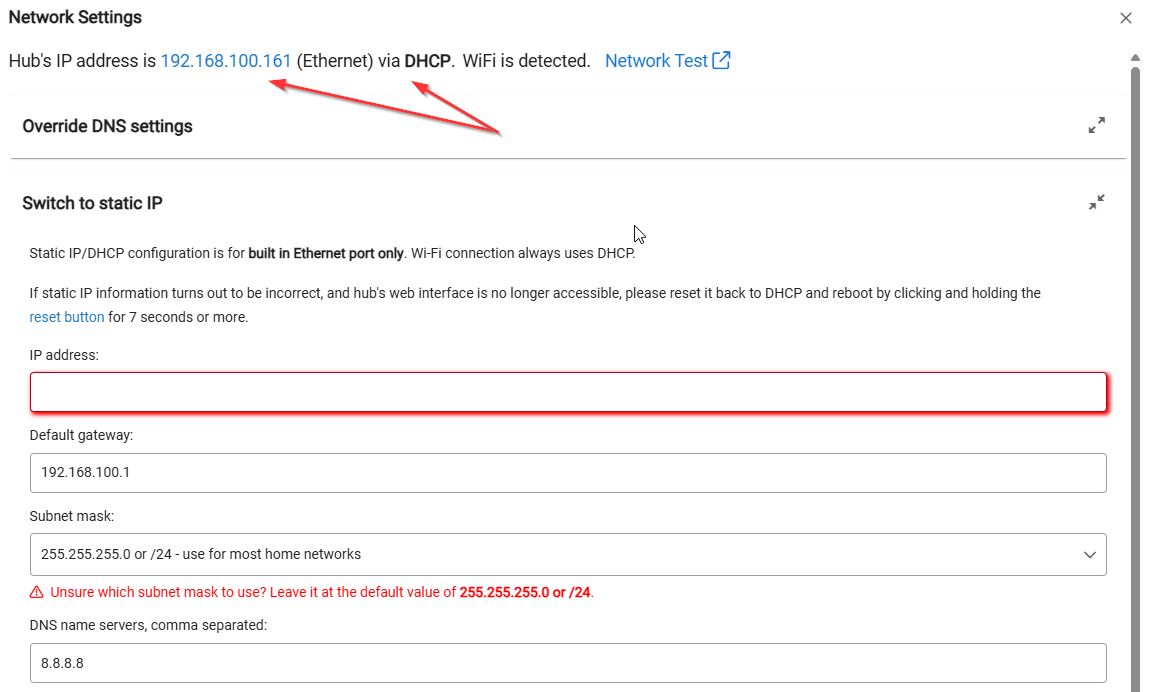
If your hub is configured to use a DHCP IP address, the address is assigned by the DNS server on your PLAN. IN this case that would be the RPI. This address may change anytime the hub is rebooted, or even randomly from time to time.
Most people prefer to use what might be described as a hybrid of the STATIC and DHCP methods. In this case the hub is configured to use a DHCP address, but the DNS-Server is programmed to "reserve" and always assign the same IP to the hub.
In this screen capture from my hub, you can see that it is configured to obtain an address by DHCP, and my router has been configured to always assign 192.168.100.161
I believe that after logging into https://my.hubitat.com/, you clicked on "Find Hubs" rather than "Registered Hubs".
After clicking on "Registered Hubs", you should see a submenu "Hub Details"
Ricktronic, Re static IP, etc., I guess I’ll have to break down and dig into the RPi! (I’m not an expert in that OS.) I’ll look and see what I did and make changes along the lines you suggest. Thanks again!